Four projects ship a VNC server that runs on Windows: TightVNC, UltraVNC, RealVNC Server and TigerVNC. TurboVNC does not, and its Windows installer is a viewer.
The choice that decides everything after that is not which product you pick. It is whether the server runs as a Windows service or as an ordinary program inside your session. A service keeps the machine reachable with nobody logged in, and it can draw the login screen and the UAC prompt. A program in your session can do neither, which is what people have hit when they report the screen going black halfway through an install.
Which packages actually run a VNC server on Windows
Four of the five projects people reach for ship a server that runs on Windows. The fifth does not, and that catches people out because it has a Windows installer.
| Package | Windows server | What you get |
|---|---|---|
| TightVNC 4.0.2 | Yes, service or application mode | Free for personal and commercial use with no expiry, SRP-6a login that takes long passwords, and session encryption only in the paid Pro tier. Installing it replaces TightVNC 2. |
| UltraVNC 1.8.3.1 | Yes, service or application mode | Every setting in one ultravnc.ini, service control from the command line, Windows-account logins, file transfer and chat. |
| RealVNC Server | Yes, Service Mode by default | Service Mode remotes the console, so you see the logged-in desktop or the login screen. User Mode follows one user and stops at logout. Subscription. |
| TigerVNC 1.16.2 | Yes, winvnc4.exe in its own installer |
Worth it if TigerVNC is already your Unix standard. The project documents its Unix programs only. |
| TurboVNC 3.3.1 | No | Windows is supported for the viewer only. Its server is Linux and Un*x. |
Starting from nothing on a machine you manage, take TightVNC 4: the MSI registers the service for you, and its login is not capped at eight characters. Take UltraVNC when you want every setting in one file and the service driven from the command line. That is the install in the steps that follow, because each step there leaves something you can check.
Service mode or application mode decides what you can see
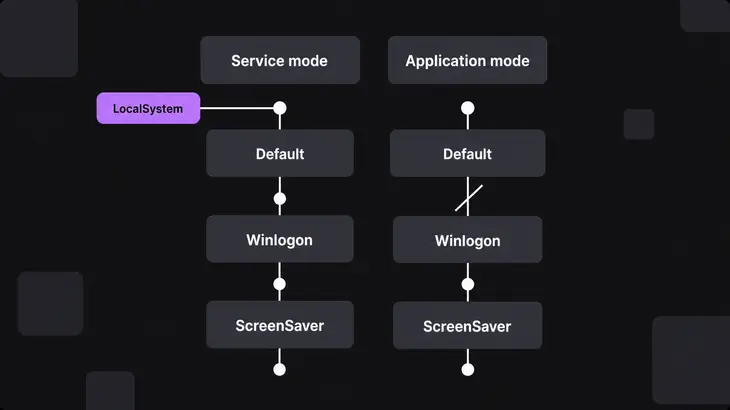
This is the choice that matters on Windows, and it is not about convenience.
An interactive Windows session has three desktops, not one: Default, ScreenSaver and Winlogon. You spend your time on Default. The system switches the session to Winlogon when someone presses Ctrl+Alt+Del and whenever a User Account Control prompt is open. That desktop's security descriptor admits a very restricted set of accounts, LocalSystem among them, and an ordinary program does not carry those SIDs, so it can neither draw that desktop nor switch away while it is active.
This is the most common complaint about VNC on Windows. A server running in your session as an application goes black the instant a UAC consent prompt appears, stays black while it is up, and paints again when it closes. The viewer is fine, the network is fine, and there is nothing to fix on either. A server registered as a service runs as LocalSystem, follows the switch, and shows you the prompt so you can answer it.
Every vendor draws the same line in its own words. RealVNC's User Mode stops as soon as the current user logs out and cannot remote the login screen, while Service Mode remotes the console either way. TightVNC's application mode quits at logout and cannot send Ctrl+Alt+Del; its service mode keeps the machine reachable with nobody logged in and carries global settings instead of per-user ones.
So register the service, unless the box is a shared desktop you only ever want to reach while its user is sitting at it. One thing that still surprises people: when RDP sessions are active on the host, the console shows a lock screen, so a service-mode viewer sees that lock screen rather than the RDP user's desktop.
Install UltraVNC and register it as a service
Run the installer and leave the service registration box unticked on the first pass. Prove it works as an application first; the tray icon registers the service afterwards.
Set your own password in Admin Properties before anything else, and set it deliberately rather than inheriting whatever the install left behind. The server refuses connections while the password field is empty, because AuthRequired defaults to 1. Eight characters is the whole budget: VNC authentication has the client encrypt a challenge the server sends, and the password is truncated to eight characters before it becomes the key. Nothing crosses the wire in the clear, and nothing past the eighth character counts.
Once a viewer on the same machine can reach it, register the service. From an elevated PowerShell, and note the folder, which is not the one the documentation examples use:
cd "C:Program Files\uvnc bvbaUltraVNC"
.winvnc.exe -install
.winvnc.exe -startservice
-install needs the elevation; without it the registration fails rather than falling back. The rest of the switches are -stopservice, -uninstall to unregister the service, and -kill, which closes winvnc whether it is running as a service or as an application.
Check that the registration took. The installer calls the service uvnc_service:
Get-Service uvnc_serviceA Running status means the server is LocalSystem now rather than you, which is the whole reason for registering it. Next, check what it bound to, before you touch the firewall:
Get-NetTCPConnection -State Listen -LocalPort 5900 | Select-Object LocalAddress, LocalPort, OwningProcessDisplay 0 is the default and the port is always the display number plus 5900, so a stock install sits on 5900, with the Java viewer port on 5800. Read the LocalAddress column rather than the fact that a row came back at all. A loopback address there means the listener is local-only, which on UltraVNC is the Loopback Only setting, and no second machine will reach it however the firewall is set.
Check the Windows Firewall rule, then connect
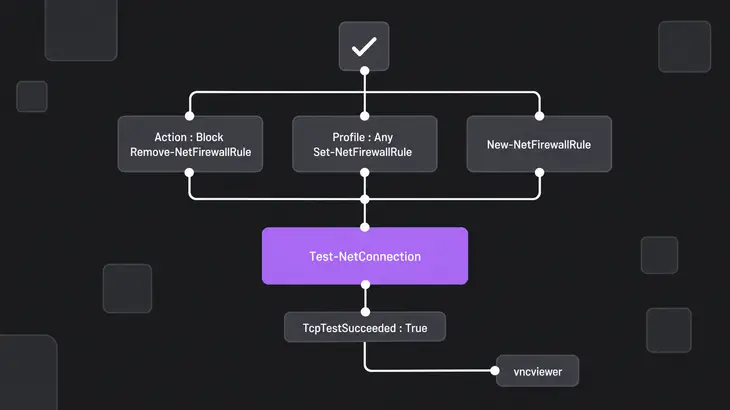
Windows drops any inbound connection that no rule names, because the default for inbound is block. On a fresh install the question is rarely whether a rule exists. It is how wide the one you already have is.
UltraVNC's installer adds two inbound allow rules, UltraVNC Server TCP and UltraVNC Server UDP, and they name the program rather than a port: winvnc.exe is allowed in on any port, on every profile, from any address. TightVNC's MSI packages add their own exception by default. So look at what you have before you add anything:
Get-NetFirewallApplicationFilter -Program "C:Program Files\uvnc bvbaUltraVNCwinvnc.exe" | Get-NetFirewallRuleTwo columns matter in that output. Action : Block on any row has to go first, because an explicit block beats any allow rule, and a cancelled or dismissed Windows prompt is how those get written in the first place:
Remove-NetFirewallRule -DisplayName "<blocking-rule-name>"Profile : Any on the allow rows is the one to tighten. Pin them to the networks you meant:
Set-NetFirewallRule -DisplayName "UltraVNC Server TCP" -RemoteAddress LocalSubnet -Profile PrivateIf nothing came back at all, which is what you get after copying the binaries into a folder instead of running the installer, write a port rule instead of a program rule:
New-NetFirewallRule -DisplayName "VNC server 5900" -Direction Inbound -Action Allow -Protocol TCP -LocalPort 5900 -RemoteAddress LocalSubnet -Profile PrivateTest from the machine you will actually connect from. A test on the server host crosses none of the path that matters:
Test-NetConnection -ComputerName <server-host> -Port 5900TcpTestSucceeded : True is the line to read, and it is the only one that counts here; a host that drops ICMP reports the ping as failed with the TCP path perfectly open. With that answered, start the viewer. UltraVNC puts it beside the server rather than on PATH, so give it a name you can type, because you will want it again for the tunnel:
Set-Alias -Name vncviewer -Value "C:Program Files\uvnc bvbaUltraVNC
ncviewer.exe"
vncviewer <server-host>The alias lives in that PowerShell session only; put the Set-Alias line in your profile if you want it to stick.
Tunnel it over SSH, and the setting that breaks the tunnel
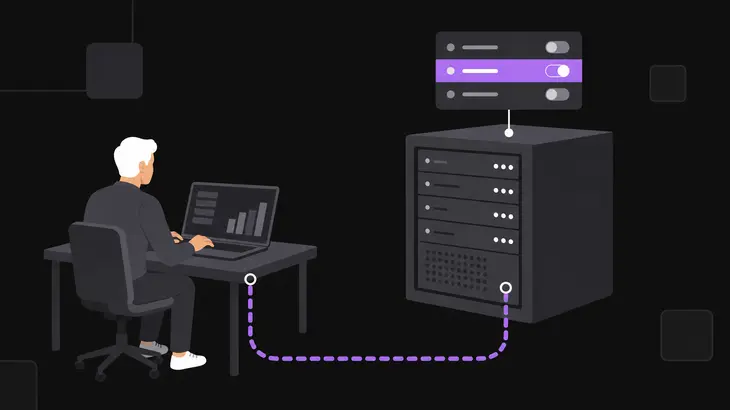
Everything so far puts a desktop on the wire in the clear. RFB offers no protection against observation of or tampering with the data stream, and the password check in front of it is the eight-character one. Which security types a given server offers and accepts is a separate question. The practical answer on Windows is to stop exposing 5900 and carry the session inside SSH.
Windows has an OpenSSH server, and it is not installed. Check:
Get-WindowsCapability -Online | Where-Object Name -like 'OpenSSH*'State : NotPresent on the OpenSSH.Server~~~~0.0.1.0 row is the normal answer on Windows 10, Windows 11 and Windows Server 2019 or 2022. Windows Server 2025 ships it installed but not enabled, so there you skip the install and go straight to starting it. From an elevated prompt on the server host:
Add-WindowsCapability -Online -Name OpenSSH.Server~~~~0.0.1.0
Start-Service sshd
Set-Service -Name sshd -StartupType Automatic
Setup creates and enables the OpenSSH-Server-In-TCP rule for port 22, so SSH opens its own path and you do not write a second rule for it.
One more thing before the tunnel, and it is the step most guides leave out. UltraVNC's AllowLoopback ships as 0, which disables connections from localhost, and a forwarded SSH connection arrives on exactly that address. A stock UltraVNC therefore turns the tunnel away while the direct connection you were just testing keeps working, which makes it look like SSH is at fault. Set it in ultravnc.ini:
AllowLoopback=1That file sits under Program Files, so the editor needs elevation to save it. Stop and start the service with the switches above so the new value is read. LoopbackOnly is a different setting and not a substitute: it restricts the listener to the local adapter. Once the tunnel works you can add it on top to take the server off the LAN entirely.
Open the forward from the viewer machine, in its own window, because ssh -N holds the terminal until you close it:
ssh -N -L 5901:localhost:5900 <user>@<server-host>Then from a second window, point the viewer at the local end. Two colons, because a single colon takes a display number rather than a port:
vncviewer localhost::5901With that working, close the direct path. Port 22 is the only one that still needs to be open:
Disable-NetFirewallRule -DisplayName "UltraVNC Server TCP"
Disable-NetFirewallRule -DisplayName "UltraVNC Server UDP"
If you run TightVNC, TigerVNC or RealVNC instead
Only the parts that change.
TightVNC 4.0.2 ships as an MSI, so the wizard or msiexec /i tightvnc-4.0.2-x64.msi /quiet /norestart both work, and its packages register the service and add the firewall exception by default. Its SRP-6a login takes long passwords and international characters, which retires the eight-character limit for connections between TightVNC 4 at both ends. Encryption of the session itself is the paid Pro tier. Installing it replaces TightVNC 2 rather than sitting beside it, and TightVNC 2 stays GPL with maintenance and security updates if that matters to you. Take 4.0.2 rather than the first 4.0 release: it fixed a black screen and loss of remote control when a UAC prompt appeared with the Connect to RDP session option enabled.
TigerVNC 1.16.2 has a Windows server, which is easy to miss because the GitHub release page carries no files and the Windows server has its own installer next to the viewer, named for winvnc. The binary registers and controls itself with -register, -start, -stop, -status and -unregister, and the service it creates is named TigerVNC. There is no Windows man page, so -help is the reference.
RealVNC Server starts in Service Mode, which is the console behaviour you want on a server. Switching to User Mode to reach somebody's RDP desktop needs a subscription with offline licensing, and that instance ends when the user logs out.
Register the service. Most of what gets reported as a VNC fault on Windows is an application-mode server doing exactly what one does: going dark at the UAC prompt, dropping at logout, never drawing the login screen.
After that, the decision worth making once is whether 5900 needs to be open to the subnet at all. If it does not, open 22, close 5900, and make sure the server will accept a connection from its own loopback address before you need it to.
FAQs
Does Windows come with a VNC server?
No. Windows ships Remote Desktop, which speaks RDP rather than RFB, and Home editions cannot host it at all, though they can connect out. Every VNC server named here is a separate install. TightVNC 4 runs on Windows 7 SP1 and later and Windows Server 2008 R2 SP1 and later, with no edition in the list, and that gap is the usual reason a VNC server turns up on a Windows box in the first place.
Can two people connect to the same Windows VNC server at once?
In UltraVNC that is a setting rather than a given. Multi Viewer connections chooses between keeping existing connections so several viewers watch at once, disconnecting all existing ones so the last viewer in wins, and refusing the new connection so the first one wins. Check which way it is set before a call where a second person is meant to be watching.
Which free VNC server should I pick for Windows 11?
TightVNC 4 for a new install: the base version is free for personal and commercial use with no expiry, and its login is not capped at eight characters. TightVNC 2 stays GPL and keeps getting maintenance and security updates, which is the answer when you need source you can build and audit. UltraVNC is free as well, and it is the one to take when you want every setting in a file you can template and push to a fleet.
Discuss this in the community
Questions about this, or a setup it does not cover? Ask in Using VNC Technology.