Your Pi already has a VNC server. Raspberry Pi OS ships WayVNC, so on the default desktop there's nothing to install on the Pi: flip the VNC switch, point a TigerVNC viewer at the Pi on port 5900, and log in with your normal Pi account.
Check which desktop session the Pi runs before you flip anything, because the same switch sets up a different server for each. Current images run Wayland with labwc by default, and an X11-only server such as x11vnc can't share that desktop. A Pi switched back to X11 gets RealVNC Server from the same switch, and TigerVNC Server only comes into it when you want a second desktop next to the one on the Pi's screen.
How the Pi's VNC server fits together
The server runs on the Pi and the viewer runs on whatever you're sitting at. WayVNC doesn't start a desktop of its own. It shares the one on the Pi's screen, so you see what the HDMI output shows, and what you click happens there too.
On Raspberry Pi OS it runs as a system service, wayvnc.service, under its own vnc account. A companion unit, wayvnc-control, hooks it onto whichever Wayland session is up and, if that session ends, waits for the next one. The Pi's wayvnc package also sets the defaults you'll meet later: it reads /etc/wayvnc/config, listens on WayVNC's default port, 5900, and checks logins against the Pi's own accounts through PAM. On first start it generates a self-signed TLS certificate and an RSA key in /etc/wayvnc/. That certificate is why your viewer asks you a question the first time you connect.
Pick the server by the desktop you want
What decides the server is the desktop you want to see, not the OS on your laptop.
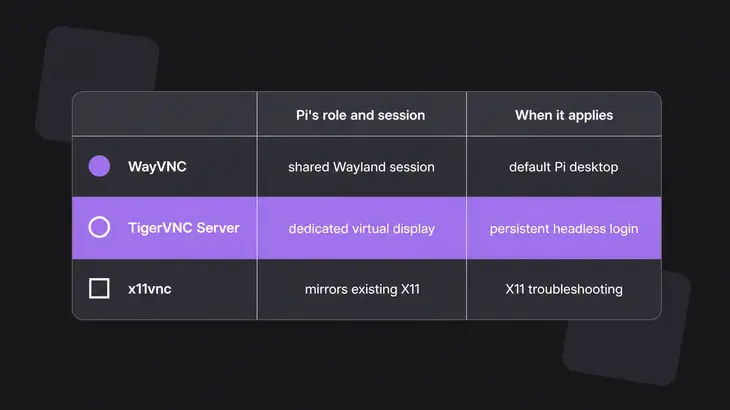
| Server | What the viewer shows | Use it when |
|---|---|---|
| WayVNC | The Pi’s own Wayland desktop | You want the screen the Pi is showing. This is the default and the one to use. |
| RealVNC Server | The Pi’s own X11 desktop | The Pi runs the X11 session; the VNC switch installs it for you. |
| TigerVNC Server | A separate X desktop on display :1 |
You want a desktop that isn’t the one on the HDMI output. |
Find out which session you're on:
pgrep -a 'labwc|wayfire'A line with labwc in it means Wayland, and so does wayfire on a Bookworm Pi that never moved to labwc. Either way the VNC switch will turn on WayVNC. No output means X11, or no desktop running at all, and that's exactly the test raspi-config makes when it picks a server; the Bookworm raspi-config counts a running wayfire as Wayland too. Stay on Wayland unless something forces you off it: X11 on Raspberry Pi OS is no longer actively developed.
Make sure there's a desktop to share
No desktop, no VNC. Lite doesn't have one, so VNC won't work on Lite. If you flashed a desktop image headless, first boot only offers SSH or Raspberry Pi Connect: enable SSH in Imager, get in with ssh <user>@<pi-hostname>.local, and switch VNC on from that shell.
Already running Lite? Converting it to the desktop takes the window system plus its extras, and the extras are what bring the remote desktop pieces, WayVNC included:
sudo apt install rpd-wayland-core rpd-wayland-extras
sudo reboot
WayVNC comes in as a recommended package of rpd-wayland-extras, not a hard dependency. If your apt skips recommends, you won't have it, and the next step fails without saying why.
Switch WayVNC on and check it's listening
On the Pi's desktop it's Preferences > Control Centre > Interfaces, then toggle VNC on. Over SSH, use raspi-config's non-interactive mode, where 0 enables and 1 disables:
sudo raspi-config nonint do_vnc 0That's the scripted form of sudo raspi-config > Interface Options > VNC > Yes. The menu ends with a "The VNC Server is enabled" box. The scripted form gives you no such confirmation, so check the result rather than trust it, because it goes wrong in two ways. Run it with the desktop down and there's no compositor process, so raspi-config takes the X11 branch and installs RealVNC Server instead. Run it on a Wayland Pi without the wayvnc package and it returns exit status 1 without a word.
So check it:
systemctl status wayvnc
sudo ss -tlnp | grep 5900
The status header reads wayvnc.service - VNC Server, and under it you want active (running). ss should give you a LISTEN line for 5900 on the wildcard address, *:5900 or [::]:5900. If the unit keeps restarting, journalctl -u wayvnc tells you why. Don't take active as proof there's a desktop behind it: the service reports ready as soon as the server is up, and it only has a picture to send once a desktop session is running.
Connect from your machine
You need the Pi on the same network or VPN, its hostname or IP, and a Pi username and password. hostname -I on the Pi prints its address. From another machine on the LAN the Pi also answers as <pi-hostname>.local over mDNS, and on a fresh image that's raspberrypi.local.
Use the TigerVNC viewer. It deals with WayVNC's TLS certificate and login prompt, and it's the client the Pi's own VNC instructions use. Grab the Windows or macOS build, or on a Debian or Ubuntu client install the package:
sudo apt install tigervnc-viewer
vncviewer <pi-hostname>.local
A bare hostname means display 0, so port 5900, which is where WayVNC listens. The first connect throws certificate prompts, and you answer Yes. "Unknown certificate issuer" comes up because the certificate is self-signed. "Certificate hostname mismatch" comes up when you connect by IP, because the certificate only names the Pi's hostname, <pi-hostname>.local and localhost. Connect by the .local name and you won't see that one. The viewer keeps your answer in its x509_known_hosts file and stops asking, until you reflash the Pi: the fresh install generates a new certificate, and you get "Unexpected server certificate" instead.
Once you're in, tick Show dot when no cursor under Options > Input so you don't lose the pointer.
RealVNC Viewer connects too. WayVNC 0.7.0 and later offer RSA-AES, which RealVNC Viewer speaks, and the Pi's package generates the RSA key on first start. Point it at <pi-hostname>.local and log in with the same Pi account.
To stop sharing the desktop, sudo raspi-config nonint do_vnc 1 stops and disables wayvnc.service.
Decide who can reach port 5900
Upstream WayVNC listens on localhost only by default. The Pi's package overrides that with address=::, so out of the box it answers on every interface, behind TLS or RSA-AES and a PAM login. On a LAN you trust, leave it. If you filter with UFW, install it first, since it isn't on the image. It installs disabled, so a rule does nothing until ufw enable, and over SSH you allow SSH before you enable it or the firewall drops the session you're typing in. Then open 5900 to your LAN only:
sudo apt install ufw
sudo ufw allow ssh
sudo ufw allow from <lan-subnet> to any port 5900 proto tcp
sudo ufw enable
sudo ufw status
status should read Status: active and list both rules.
When SSH is the only way you can reach the Pi, tunnel to the loopback listener:
ssh -L 5900:127.0.0.1:5900 <user>@<pi-host>
vncviewer localhost::5900
The local port in the -L forward and the one in the viewer's host::port have to match. The certificate covers localhost, so there's no hostname prompt through the tunnel. To make the tunnel the only way in, change the line in /etc/wayvnc/config to address=127.0.0.1, then restart and look again:
sudo systemctl restart wayvnc
sudo ss -tlnp | grep 5900
Now ss shows 127.0.0.1:5900, and a direct connect to the Pi's LAN address gets refused.
If the Pi runs X11 instead
When pgrep -a 'labwc|wayfire' prints nothing because the Pi was switched to X11, these are the parts that change:
- Server: the VNC switch installs
realvnc-vnc-serverand enablesvncserver-x11-servicedinstead of WayVNC. Check it withsystemctl status vncserver-x11-serviced. RealVNC Server doesn't support Wayland, which is why the switch only picks it on X11. - Viewer: use RealVNC Viewer, which the Raspberry Pi archive also packages as
realvnc-vnc-viewer. - From outside your network: signed in to a RealVNC account, RealVNC Server also takes cloud connections, so you don't need a port forward or a known IP.
- No monitor attached: set the desktop size in
sudo raspi-configunder Display Options > VNC Resolution. That writes anxrandr --fbautostart entry that only kicks in when no display is connected, and the menu item only exists on X11. - Going back: Advanced Options > A7 Wayland > W2 Labwc in raspi-config puts the Pi back on the default Wayland session. On Bookworm the menu lists Wayfire as W2, and labwc, when it's installed, as W3 Labwc.
A second desktop with TigerVNC Server

TigerVNC Server earns its place when you want a desktop of your own while someone else uses the Pi's screen, or a second account with its own desktop. It starts its own X server on display :1 (port 5901) and runs an X session inside it. It won't start for a user who's already logged into a graphical session, so run it for an account that isn't signed in on the Pi's desktop.
Install it on the Pi, then run the rest as the session user:
sudo apt install tigervnc-standalone-server tigervnc-tools
tigervncpasswd
ls /usr/share/xsessions
tigervncserver :1 -- rpd-x
tigervncserver -list
tigervncpasswd asks for the password twice, then offers you a view-only one as well. On the Trixie image's TigerVNC 1.15 it takes six to eight characters and refuses a longer one with Password should not be greater than 8 characters, because classic VNC authentication only uses eight. Bookworm's 1.12 takes a longer one and quietly keeps the first eight. ls should list rpd-x.desktop, the Pi's X11 desktop session (older images call it LXDE-pi-x). Leave off -- rpd-x and the wrapper starts whatever x-session-manager points at. A good start prints New Xtigervnc server ... on port 5901 for display :1., and -list shows display 1 on RFB port 5901 with its process ID.
With the default VncAuth security type, tigervncserver listens on localhost only, so you come in over SSH:
ssh -L 5901:localhost:5901 <user>@<pi-host>
vncviewer localhost::5901
tigervncserver -kill :1 stops it and answers Killing Xtigervnc process ID <pid>... success!.
To start it at boot instead, map the display in /etc/tigervnc/vncserver.users with a line :1=<user>, put session=rpd-x in that user's ~/.config/tigervnc/config, and enable the unit. Debian's package names it tigervncserver@, not upstream's vncserver@:
sudo systemctl enable --now tigervncserver@:1
systemctl status tigervncserver@:1
Those per-user paths belong to the current Trixie-based image and its TigerVNC 1.15. A Pi still on Bookworm (grep VERSION_CODENAME /etc/os-release prints bookworm) has TigerVNC 1.12, which keeps the same files in ~/.vnc/: ~/.vnc/config, ~/.vnc/passwd and the session logs. The unit name and /etc/tigervnc/vncserver.users don't change.
When it won't connect
- Connection refused, or a timeout, on port 5900: WayVNC isn't running, or it's bound to loopback.
systemctl status wayvncandsudo ss -tlnp | grep 5900tell you which. Inactive: runsudo raspi-config nonint do_vnc 0. Showing127.0.0.1:5900: use the SSH tunnel, or putaddress=::back in/etc/wayvnc/config. do_vnc 0exits with status 1 and nothing listens: thewayvncpackage is missing. Runsudo apt install wayvnc, then the switch again.- RealVNC Server turned up on a Wayland Pi: you flipped the switch before the desktop was up. Once
pgrep -a 'labwc|wayfire'shows the compositor, runsudo raspi-config nonint do_vnc 0again; it disablesvncserver-x11-servicedon the way to starting WayVNC. - No VNC option, or nothing to show: the Pi runs Lite or no desktop is up. Install the desktop packages above, reboot, then check
pgrep -a 'labwc|wayfire'. - "Certificate hostname mismatch": you connected by IP. Connect to
<pi-hostname>.local, or accept the prompt. - "Unexpected server certificate": the Pi has a new certificate, normally because you reflashed it. Accept it if you know why it changed.
tigervncserver :1gives an empty or broken desktop: no session was set, or the account is already logged into the Pi's desktop. Pass-- rpd-x, or use an account that isn't signed in, and read the newest.logfile in~/.config/tigervnc/.
If this Pi might ever sit on a network you don't control, a travel router or a shared office LAN, make the SSH tunnel the only way in before it goes: address=127.0.0.1 in /etc/wayvnc/config and a restart, and port 5900 stops answering anyone but the Pi itself.
FAQs
Where does WayVNC keep its config on Raspberry Pi OS?
In /etc/wayvnc/: config, plus the generated tls_cert.pem, tls_key.pem and rsa_key.pem. Restart with sudo systemctl restart wayvnc after you edit config. The certificate carries the hostname the Pi had when it was generated, so after a rename, delete the three .pem files and restart; the service generates fresh ones when any of them is missing.
Can I run TigerVNC Server as root on the Pi?
Don't. Running it as root is unsafe and parts of it may not work. Start it as the session user, or map that user to a display in /etc/tigervnc/vncserver.users and let the tigervncserver@ unit start it.
Can macOS Screen Sharing connect to the Pi's WayVNC?
Not with the stock config. Screen Sharing wants legacy DES authentication, and WayVNC can't offer DES while PAM is on, which it is on the Pi. Use the TigerVNC viewer for macOS instead.