If the viewer connects and you get a black screen, the network is fine. The server answered and the viewer is showing what it was sent; nothing is drawing on that screen. On a TigerVNC virtual session, the desktop session never came up, started the wrong desktop, or ran into a desktop the same user already has open on the console. On x11vnc, you're attached to the wrong X display, often the login screen's display, after you logged in on another one. Start with the session log, not the config.
Two servers, two places it breaks
First make sure the black screen is in the viewer. If it's the server's own monitor that goes dark after a VNC session drops, and reconnecting brings it back, you're looking at the console display, not a session that won't draw. A viewer that can't connect at all is a listener or firewall problem.
A viewer that opens and shows black has already finished the handshake and received the server's framebuffer size and pixel format, so leave the firewall alone. What's left is what the server draws into that framebuffer, and that depends on which server you run.
TigerVNC's Xvnc has no monitor behind it. vncsession starts Xvnc and a desktop session inside it through xinit, and when that first client exits, xinit kills the X server. So a desktop that crashes takes the server with it, and your viewer drops. Black on Xvnc means a session that's running but not drawing, or drawing the wrong thing. x11vnc works the other way round: it shares a real X display that already exists, so black there means it's copying the wrong display, or one with nothing on it.
If the black view is in a browser tab, do the standalone viewer test in "Rule out the viewer" before you touch the server. A server-side change can't fix a client fault.
Match what you see to the cause
| Symptom | Likely cause | Check | Fix |
|---|---|---|---|
| Black or grey with only a mouse cursor, TigerVNC virtual session | The same user is logged in to a graphical session on the console | loginctl list-sessions |
Log that user out locally, or map the VNC display to another user |
Black desktop, log shows Could not load configured desktop session |
session= names a file that isn’t in /usr/share/xsessions, so TigerVNC fell back to the first one it found |
ls /usr/share/xsessions/ |
Set session= to an installed session and restart the service |
| Login screen showed, then black after you logged in, x11vnc | x11vnc is still on the greeter’s display; your session runs on another one | x11vnc -listdpy |
Restart x11vnc with -display set to your session’s display |
Blank screen or Cannot currently show the desktop, RealVNC Server |
The console runs Wayland, which RealVNC Server doesn’t support | loginctl show-session <session-id> --property=Type |
Switch GDM to Xorg with WaylandEnable=false and reboot, on a release that still ships GNOME on Xorg |
| Browser console black, standalone viewer fine | The browser client | vnc.html?logging=debug and the browser console |
Fix the noVNC side, not the server |
| Desktop draws, but some app windows are black rectangles | The app needs the Composite extension, and depth is not 24 | The depth= line in your config |
Go back to the default depth 24 |
On a virtual session, start with the first two rows.
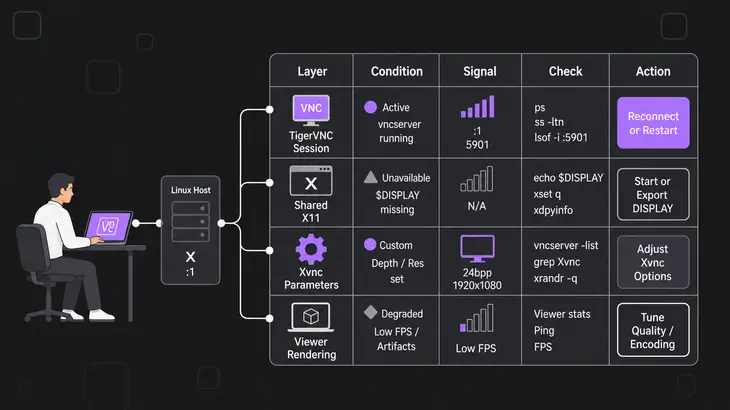
Find out which server you're on
Run this on the server to see what holds the VNC port. With -p, each line names the process using the socket:
sudo ss -tlnp | grep ':59'Xvnc on 5901 (Xtigervnc on Debian and Ubuntu) is a TigerVNC virtual session on display :1, so carry on here. x11vnc on 5900 is a shared real display; go straight to the x11vnc fix.
For Xvnc, the session log tells you what happened. Read it as the session user, not root. This is the upstream log path from 1.14 on, as Fedora ships it; older releases write to ~/.vnc/, and Debian and Ubuntu name the file differently (see their section):
tail -n 40 ~/.local/state/tigervnc/$(hostname):1.logA good start shows Using desktop session xfce and then Starting desktop session xfce, with your session's name in place of xfce. Two other lines tell you exactly what broke. Could not load configured desktop session means your session= value has no matching file, so the script took the first session it found. Could not find a desktop session to run means there's no desktop installed at all.
If the log looks clean, look at what systemd logged for the unit. Reading the system journal takes root or membership in systemd-journal, adm or wheel. vncserver@:1 is the Fedora unit; on Debian and Ubuntu it's tigervncserver@:1:
sudo journalctl -u vncserver@:1 -n 30vncserver exited with status= followed by a number means the startup script died before the desktop came up.
Point TigerVNC at a desktop that exists
This walk-through uses upstream TigerVNC's vncserver@.service, which Fedora ships and Arch starts the same way, on display :1 (port 5901) with Xfce. Debian and Ubuntu rename the unit and move the files; their changes follow this walk-through.
- See which sessions you have. Drop the
.desktopand you have the session name:gnome.desktopmeanssession=gnome, soxfce.desktopmeanssession=xfce. An empty directory means no desktop is installed, so install one before you go further.
ls /usr/share/xsessions/- Stop the service and give the session user's
~/.config/tigervnc/configexactly one session line. The session is picked when the server starts, so editing it under a running server changes nothing.
sudo systemctl stop vncserver@:1session=xfce- Make sure no system file overrides yours.
vncserver-config-mandatoryreplaces the defaults and beats the per-user file, so asession=line in there wins whatever you wrote:
grep -i '^session' /etc/tigervnc/vncserver-config-defaults /etc/tigervnc/vncserver-config-mandatory- Start it on the server and check it took:
sudo systemctl start vncserver@:1
tail -n 5 ~/.local/state/tigervnc/$(hostname):1.log
sudo ss -tln | grep 5901
Then reconnect from your workstation:
vncviewer <server-host>:1The log should end with Starting desktop session xfce, and ss should show a listener on 5901. If your config has localhost in it, connect through your SSH tunnel instead of directly.
Still black, with only a cursor
Check whether the same user is logged in at the console. TigerVNC won't start a server for a user who's already in a graphical session, and what you get instead is an empty black window with a mouse cursor. From SSH, find that user's session ID in the list, then ask for its type:
loginctl list-sessions
loginctl show-session <session-id> --property=Type
Type=x11 or Type=wayland is a graphical login. Log that user out at the console, or give :1 to someone else in /etc/tigervnc/vncserver.users with a line such as :1=<user>. If the console desktop is the one you wanted all along, stop fighting it and share it with x11vnc.
Debian and Ubuntu: what changes
Debian's packaging puts its own wrapper in front of TigerVNC, so names and paths move. Ubuntu 24.04 ships 1.13.1, and the walk-through holds there apart from these:
- Unit: the package installs
tigervncserver@.service, so you runsudo systemctl restart tigervncserver@:1, andsslists the process asXtigervnc. The mapping file is still/etc/tigervnc/vncserver.users. - Session line: it goes in
~/.vnc/tigervnc.conf, in Perl syntax:$session="xfce";. Without that file,~/.vnc/configwith a plainsession=xfceworks too. - Leftover xstartup: a
~/.vnc/xstartupis still used if it's there, so one from an old tutorial decides what starts. Move it aside withmv ~/.vnc/xstartup ~/.vnc/xstartup.oldand restart. - Log:
~/.vnc/$(hostname -f):1.log. The Debian wrapper names it after the full host name fromhostname -f, so plain$(hostname)misses it on a machine with a domain set. - Desktop: the
xfce4package pulls inxfce4-session, which ships/usr/share/xsessions/xfce.desktop. - Viewer: the binary is
xtigervncviewer. - Debian 13: ships 1.15.0 and keeps the same files under
~/.config/tigervnc/, withconfig.plin place oftigervnc.conf.
sudo apt install xfce4
sudo systemctl restart tigervncserver@:1
tail -n 5 ~/.vnc/$(hostname -f):1.log
Attach x11vnc to the display you're actually on
x11vnc uses display :0 unless you pass -display. Under GDM the login screen and your logged-in session are separate displays, so an x11vnc started on the greeter goes black the moment you log in. On the server, list the displays you can reach:
x11vnc -listdpyIt prints the X displays on that machine you have rights to, then exits. Pick the one your session runs on.
From your workstation, start x11vnc over SSH, bound to localhost:
ssh -t -L 5900:localhost:5900 <user>@<server-host> 'x11vnc -localhost -display :1 -auth guess'x11vnc stays in the foreground of that SSH session unless you pass -bg, so leave it running and connect through the tunnel from a second terminal:
vncviewer localhost:0-auth guess has x11vnc find the display's X authority file on its own. Once it's listening it prints PORT=5900, and the viewer's :0 is that port minus 5900.
By default x11vnc exits the moment the viewer disconnects, so add -forever if you want it to keep listening. If the view goes black whenever the console's screensaver or monitor power-down kicks in, add -nodpms, which keeps the monitor out of low-power states while a viewer is connected.
GNOME on Wayland
A Wayland login has no X display for x11vnc to attach to, so x11vnc fails to start rather than showing your desktop. loginctl show-session <session-id> --property=Type prints Type=wayland when that's what you're on. On Ubuntu 24.04, switch GDM to Xorg: uncomment WaylandEnable=false in /etc/gdm3/custom.conf and reboot. Debian 13 builds GDM to read that setting from /etc/gdm3/daemon.conf instead. Fedora 43 has no GNOME Xorg session left to switch to, so there x11vnc has nothing to share.
A machine without a monitor doesn't need the shared display at all. Run a TigerVNC virtual session there instead; Xvnc draws into its own virtual screen.
Rule out the viewer
Swapping the viewer is the quickest test you have, and it tells you whether the server is the problem at all.
-
Point a standalone viewer at the same server and display the browser shows. If it draws the desktop, the server is fine and the fault is on the browser side.
-
For noVNC, load
vnc.html?logging=debug, open the browser console (Ctrl+Shift+J in Chrome, F12 in Firefox) and reproduce the black screen. noVNC writes its logs to the JavaScript console, so the error you need is there. -
If the standalone viewer is black too, take encoding selection out of the picture and force Raw.
-AutoSelect=0stops the viewer picking an encoding and pixel format from the measured speed:
vncviewer -AutoSelect=0 -PreferredEncoding Raw <server-host>:1A picture with Raw points at encoding selection on that client. No change means it's the server after all: drop both options and go back to the server checks.
Check the depth on a virtual desktop
Depth only matters on an Xvnc virtual desktop, not on a display x11vnc shares. Xvnc's default depth is 24, with 16 and 32 as the other values, and anything else can make applications misbehave or stop the server from starting at all. See what your config sets:
grep -iE '^(depth|geometry)' /etc/tigervnc/vncserver-config-defaults /etc/tigervnc/vncserver-config-mandatory ~/.config/tigervnc/config 2>/dev/nullNo output means you're on the defaults: depth 24 and Xvnc's own 1024×768. The Debian and Ubuntu wrapper is the exception and starts a session at 1920×1200 when its config sets no geometry. If the desktop draws but some windows come up as black rectangles, the app wants the Composite extension, which runs at depth 24. Delete a nonstandard depth= line, restart the service and check the log for a clean start.
Collect logs before you hand it on
When the session, display and viewer checks all come back clean and it's still black, capture logs from both ends and note which client showed it.
Linux server: the session log from the first checks. For more detail, add Log=*:stderr:100 to ~/.config/tigervnc/config and restart the service.
Linux viewer: the verbose log goes to stderr, so redirect stream 2:
vncviewer -Log '*:stderr:100' <server-host>:1 2> tigervnc-viewer.logWhile logging is on, the viewer draws a semi-transparent throughput graph in the lower right corner. That's the debug overlay, not a new problem.
Windows: create C:\temp first, then add -Log *:file:100 to the viewer's command line to get C:\temp\vncviewer.log, or to the user-mode server for C:\temp\WinVNC4.log. A server running as a service takes the Log value under HKEY_LOCAL_MACHINE\Software\TigerVNC\WinVNC4 instead, and *:EventLog:100 there sends it to Event Viewer.
macOS: this starts the viewer logging to /tmp/vncviewer.log:
open -a TigerVNC --args -Log '*:file:100'Whoever picks it up will want the server and viewer with versions, the OS, the session type from loginctl, whether it was a browser or a standalone viewer, and the log lines around the session start.
With a picture on screen, settle which kind of session you actually want. If the job is the machine's own console, share it with x11vnc and skip the session plumbing. If it's a headless box or a second desktop, stay on Xvnc and keep an explicit session= line, so it never falls back to the first session it finds.
FAQs
Can I run the VNC session as root to get around the console login?
It should mostly work, but TigerVNC's own advice is not to: running the server as root isn't safe, and some things may not work properly. Give :1 to a different user in /etc/tigervnc/vncserver.users instead.
I want the desktop that's on the monitor, not a new one. Which server do I use?
Not Xvnc: it always starts its own virtual display. Share the existing X display with x11vnc, or with TigerVNC's own x0vncserver, which shares an existing X server instead of creating one and ships on Ubuntu as x0tigervncserver in tigervnc-scraping-server.