Connection refused, error 10061 in a Windows viewer, means your viewer got through to the host and nothing there took the call on the port it dialed. That narrows things down fast: name resolution and routing are fine, and the problem sits on the server.
So go to the server and look at what's listening. The viewer dials 5900 plus the display number, which makes display :1 port 5901. Nothing on 5901 means the server isn't running. Something on 5902 instead means your viewer address is wrong. A listener on 127.0.0.1:5901 means the server only takes callers from its own machine, and every remote viewer gets refused.
How the viewer finds the server, and where it gets turned away
Three things have to line up: the port your viewer dials, a listener on that port, and a path between the two machines.
The display number picks the port. The server listens on 5900 plus the display number, and the TigerVNC viewer reads a single-colon value under 100 as a display and adds 5900, while a double colon takes the port as written. So <server-host>:1 and <server-host>::5901 dial the same port.
The listener is the server's half. It takes callers either from anywhere or only from its own machine, and you choose which in the server's settings, not the viewer's.
Between the two sits the network, firewalls included. If you'd rather not put the listener on the network at all, tunnel through SSH: your viewer talks to a local port, SSH carries the traffic across, and the VNC port never leaves localhost.
What the refusal looks like in your viewer
The message changes with the viewer, but every version tells you the same thing: the host answered.
The TigerVNC viewer pops up Failed to connect to "<server-host>:1" followed by Unable to connect to socket: Connection refused (111). Windows viewers report the Winsock code, often as Connection refused (10061). RealVNC Viewer shows The connection was refused by the host computer, which means the server isn't running, or isn't listening on the port you dialed. On a Linux host, start the service with sudo systemctl start vncserver-x11-serviced.service and try again.
If SSH and SFTP to the same box work while the viewer gets 111 or 10061, you've already ruled out the network. The machine is reachable, and only the VNC port is turning you away.
The usual causes, and how each one shows up
Every cause produces the same viewer message, so the listener on the server is what tells them apart:
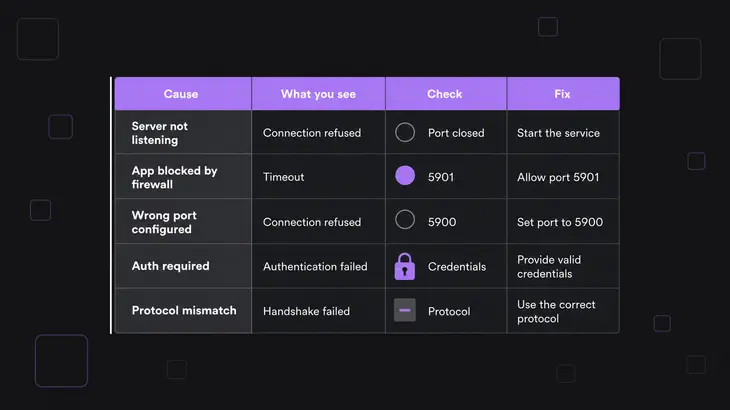
| Cause | What you see | Check | Fix |
|---|---|---|---|
| Server not running | Refusal; nothing listed on 5901 | ss -tlnp or tigervncserver -list on the server |
Start the server unit |
| Wrong display number or port in the viewer address | Refusal; a listener runs on another port, such as 5902 | Port equals 5900 plus the display | Dial <server-host>:2 or <server-host>::5902 |
Server started with a custom -rfbport |
Refusal; listener on that port | ss -tlnp |
Dial <server-host>::<port> |
| RealVNC Server stopped, or moved off 5900 | The connection was refused by the host computer |
sudo systemctl status vncserver-x11-serviced, and its RfbPort value |
Start the service, or dial the RfbPort port |
| Listener restricted to the local computer | Remote viewers refused; 127.0.0.1:5901 in ss; a viewer on the server connects |
ss -tlnp and the session log |
Set $localhost = "no";, or use an SSH tunnel |
Find the cause in four checks
Start with what's cheap. The address costs nothing to read, the port test runs from your own machine, and only the last two checks need a shell on the server. Server commands are for TigerVNC as Debian trixie packages it; RHEL, Windows and Mac come later.
-
Read the address you typed. A viewer pointed at
<server-host>:2while the session runs on:1dials 5902, where nothing is listening. If the display is off, fix it and you're done. -
Test the port from your machine with the viewer out of the way.
nc -vzprintssucceeded!when something accepts andConnection refusedwhen nothing does. That's OpenBSD netcat, Debian's default; on Fedorancis nmap's ncat, which printsConnected toinstead:nc -vz <server-host> 5901If
ncgets through and the viewer is still refused, the viewer is dialing a different port than the one you just tested. Go back to step 1. -
On the server, list the listening TCP sockets and the process behind each:
sudo ss -tlnp | grep ':59'The Local Address column tells you which cause you have. No line for 5901: the server is stopped, so start it (next section). A line on another port: fix the viewer address.
0.0.0.0:5901or*:5901: the server listens on every interface, so look at the firewall next. The process column showsXtigervncfor a TigerVNC session.127.0.0.1:5901or[::1]:5901is where a fresh Debian session lands, and it's the one that catches people out. Thetigervncserverwrapper, which the service runs too, listens only on localhost unless the security types include a TLS or X509 type and no *None type, and its default security type is plain VncAuth. If a viewer on the server itself connects but every other machine is refused, this is your case. -
As the session owner, ask the wrapper what it has running:
tigervncserver -listYou get a
TigerVNC server sessions:table withX DISPLAY #andRFB PORT #columns. An empty table means nothing is running for that user, so start the unit. A session on a different display means the server is fine and the viewer address needs fixing.
Bring a stopped server back
Debian trixie ships the unit as tigervncserver@.service and the password tool as tigervncpasswd. The display number goes in the unit name, so the number you pick is the number your viewer dials. Use display :1, port 5901.
-
Give display
:1to a user with this line in/etc/tigervnc/vncserver.users::1=<user> -
As that user, set the session's VNC password. It lands in
~/.config/tigervnc/passwd:tigervncpasswd -
Enable and start the unit in one go:
sudo systemctl enable --now tigervncserver@:1.service -
Check it's up and holding the port:
systemctl status tigervncserver@:1.service
sudo ss -tlnp | grep ':5901'
You want
Active: active (running)in the status output and a 5901 line fromss. On a fresh install that line reads127.0.0.1:5901, the localhost-only default from check 3, so remote viewers stay refused until you tunnel in or open it up.
If the unit doesn't stay up, its journal has the exit code. The log commands are at the end.
Get past a localhost-only listener
On a LAN you don't trust, leave the listener where it is and tunnel to it: the service isn't meant to face an untrusted network directly. ssh -L forwards a port on your machine through SSH to a host and port as the server sees them, so localhost:5901 on the far end is exactly the listener you found. Opening the listener up is the other route, for a LAN you trust.
-
Forward local port 5901 to port 5901 on the server. The leading
localhostkeeps the forwarded port on your machine only:ssh -L localhost:5901:localhost:5901 <user>@<server-host> -
Leave that open and, in a second terminal, point the viewer at display 1 on your own loopback:
xtigervncviewer localhost:1Or let the viewer build the tunnel itself.
-viaruns the samessh -Lfor you:xtigervncviewer -via <user>@<server-host> localhost:1 -
To take direct connections instead, add this line to
~/.config/tigervnc/config.plfor the session user, or to the system-wide/etc/tigervnc/vncserver-config-defaults, then restart the unit:$localhost = "no";sudo systemctl restart tigervncserver@:1.serviceFor a session you start by hand,
tigervncserver :1 -localhost nodoes the same. With localhost off and no$SecurityTypesline, the wrapper offersVncAuth,TLSVnc, and the viewer picks one type from that list, so any viewer can still take plain VncAuth and leave the session unencrypted. To require TLS, set$SecurityTypesto TLS or X509 types only. To bind to one address only, pass the Xtigervnc option-interface <ip-address>; without it the server listens on every interface.
After the restart, ss -tlnp shows 0.0.0.0:5901 or [::]:5901 where it used to say 127.0.0.1:5901, and the session log's listening line switches from local to all interfaces. If it still shows 127.0.0.1, look for a $localhost line in /etc/tigervnc/vncserver-config-mandatory, which is read last and beats yours. A remote viewer that still can't get in now has the firewall to deal with.
Timed out, or no route to host? Look at the firewall
A firewall that drops your packets, or rejects them with an ICMP error, doesn't produce Connection refused, and which error you get depends on which it does. One that drops them leaves the viewer waiting until it gives up, which Windows viewers report as error 10060, a timeout. If the host runs firewalld, as RHEL does, it rejects anything no rule matches by default and sends an error back, so a Linux viewer fails at once with Unable to connect to socket: No route to host (113). That reads like a routing fault, but it's how the Linux kernel reports a filtered port.
-
Allow the
vnc-serverservice:sudo firewall-cmd --permanent --add-service=vnc-server -
Reload so the permanent rule becomes the running one, then check that
vnc-servernow shows among the zone's services:sudo firewall-cmd --reload sudo firewall-cmd --list-all
The vnc-server service only opens ports 5900 through 5903, which covers displays :0 to :3. Display 4 and up need their own port rule, and the same reload afterwards:
sudo firewall-cmd --permanent --add-port=5904/tcpWhen the timeout or No route to host turns into Connection refused, your packets are getting through the firewall and the listener is the problem again.
What changes on RHEL, Windows and a Mac
RHEL
RHEL 8 uses the same /etc/tigervnc/vncserver.users mapping, but the password tool is vncpasswd and the unit is vncserver@:
sudo systemctl enable --now vncserver@:1Upstream ships the localhost line commented out in /etc/tigervnc/vncserver-config-defaults, so a RHEL session listens on every interface until you uncomment it. So on RHEL, suspect the firewall before the bind address.
Windows
From a Windows client, Test-NetConnection does the job of nc -vz and answers TcpTestSucceeded : True or False:
Test-NetConnection <server-host> -Port 5901On a Windows server, open an elevated prompt and list the listening ports with the executable that owns each:
netstat -abnoEach row reads Proto, Local Address, Foreign Address, State and PID, and -b prints the owning executable's name in square brackets under it, so you can see which VNC server holds the port. Look for the VNC port, 5900 by default, in the Local Address column. No row means the server isn't running, a row on another port means the viewer dials the wrong one, and 127.0.0.1 in front of the port means a localhost-only listener. The PID in the last column matches the Processes tab in Task Manager.
A Mac
With Screen Sharing off, nothing on the Mac takes VNC callers. Choose Apple menu > System Settings, click General, then Sharing, and turn on Screen Sharing.
For a non-Apple viewer, click the Info button next to Screen Sharing, turn on "VNC viewers may control screen with password" and set a VNC password. Dial the Mac as <mac-host>::5900, and run nc -vz <mac-host> 5900 from the client before you blame the viewer.
Logs to grab before you escalate
The service-managed session runs tigervncserver -fg, and the wrapper writes the session log to ~/.config/tigervnc/<host>:1.log in the session owner's home. The line that settles the bind question is the server's own listening message, which reads local for a localhost-only session and all for every interface:
grep 'Listening for VNC connections' ~/.config/tigervnc/*:1.logThe unit's start and exit messages are in the journal. A session that died at start leaves a tigervncserver exited with status= line there with the exit code:
sudo journalctl -u tigervncserver@:1.service -bFor a session you start by hand, tigervncserver passes options it doesn't know through to Xtigervnc, so you can raise the log level from its default of 30:
tigervncserver :1 -Log '*:stderr:100'Hand these over with the ticket:
- the viewer's exact message, copied from its window on the client;
- the
nc -vzorTest-NetConnectionresult from the client; - the
ss -tlnpornetstat -abnoline from the server; - the session log and the unit's journal.
If the listener sits on a non-local address on the port you dial and the firewall allows that port, but you're still refused, that's the point to escalate.
If your listener turned out to be on 127.0.0.1, make one call before you change anything: is the network between you and the server one you trust? If not, leave the listener alone and tunnel in with ssh -L. Only on a LAN you trust is $localhost = "no"; the right fix.
FAQs
Which configuration files does a service-managed TigerVNC session read on Debian trixie?
Three, in this order: /etc/tigervnc/vncserver-config-defaults, the session user's $HOME/.config/tigervnc/config.pl, then /etc/tigervnc/vncserver-config-mandatory. A service-managed tigervncsession reads them in that order, so the mandatory file wins, and a $localhost line there overrides whatever the user set. To see which of the three exist on your host:
ls -l /etc/tigervnc/vncserver-config-defaults $HOME/.config/tigervnc/config.pl /etc/tigervnc/vncserver-config-mandatoryEach file that exists prints with its permissions and size, and each missing one prints No such file or directory.
Does a wrong VNC password show up as connection refused?
No. A refusal comes before any VNC traffic, and a password check needs the connection to be up already. With a wrong password you get as far as the password prompt, and the TigerVNC viewer then reports Failed to authenticate with the server with the server's reason, Authentication failed, underneath. That message means the port, the listener and the firewall all work; set the password again with tigervncpasswd as the session user.