RFB (Remote Framebuffer) is what a VNC viewer and server actually speak to each other on port 5900. The server sends you its screen as rectangles of pixels, your viewer sends keystrokes and pointer moves back, and most of the rest is detail about how those rectangles get packed. The roles, the message order and the rectangle format are fixed by the protocol. The security types, the listening port and the encodings are whatever your implementation is set up to use.
Keep one thing in mind from the start: plain RFB gives you no protection against observation or tampering, only an optional password check that's cryptographically weak. Whether your session is safe comes down to the security type your server offers or the tunnel you run it through, and the listener's port and address decide who can reach it at all.
Viewer, server and framebuffer: how the parts fit
Your viewer is the client: the end with the display, keyboard and pointer. The server is where the pixels come from, the windowing system and the applications drawing into it. RFB is the protocol VNC uses between the two, and because the server is usually a long-lived process that holds the framebuffer state, you can close the viewer, come back later and find the desktop as you left it.
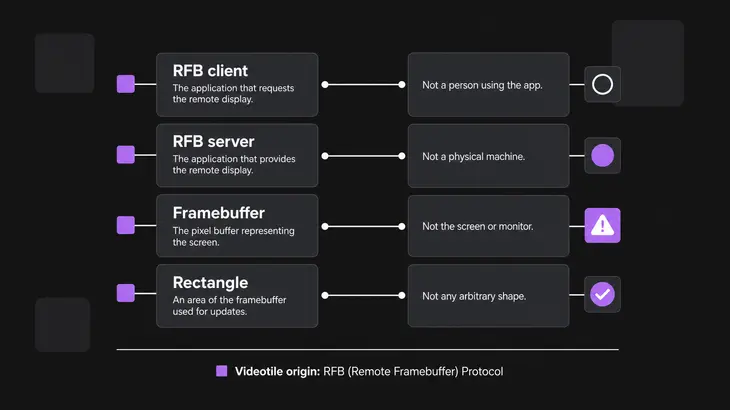
That framebuffer lives either in memory or on a real screen, and TigerVNC ships a server for each. Xvnc runs an X server whose screen exists only in memory: applications draw on it and only VNC viewers ever see it. x0vncserver shares an X display that already exists, usually the one on the physical monitor, and spots changed regions with XDamage or by polling.
On the wire it all comes down to one operation: put a rectangle of pixel data at a given x,y position. An update is a batch of those rectangles. The server assumes your viewer keeps its own copy of the framebuffer, so it normally sends only the areas that changed.
The server listens on TCP port 5900. With several servers on one host, server N typically takes 5900+N, the same scheme X uses with 6000+N, so display :1 is port 5901. When you ask a viewer for display 1, it's connecting to 5901.
A session from the first byte to the first frame
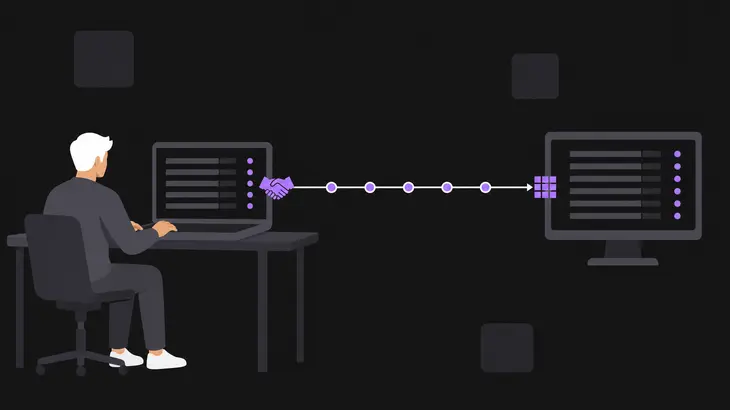
Every session goes through three phases: a handshake that settles the protocol version and the security type, an initialization exchange (ClientInit, then ServerInit), then normal traffic. The first two run in a fixed order, and the server talks first. After that the protocol is asynchronous: your viewer sends input and update requests whenever it needs to, and the server answers update requests with rectangles.
The handshake: version, security type, init
No pixels move until these three exchanges are done.
- Version. The server sends a ProtocolVersion message with the highest version it supports, and the client replies with the one to use. Only 3.3, 3.7 and 3.8 were ever published, and any other number gets treated as 3.3. A 3.8 server opens with the 12 bytes
RFB 003.008\n, which is exactly what you get back when you pointncat the port. - Security type. On 3.7 and 3.8 the server lists the security types it offers, the client picks one, and that type holds for the whole connection. Picking a type is only negotiation; the protection is whatever that type actually does. If the type includes a password check, it runs now. On 3.8 the server then always answers with a SecurityResult, even for None: 0 for OK, 1 for failed, and on a failure a reason string before it closes the connection. A 3.7 server sends no result for None, and on a failed password it sends the result and closes without a reason string.
- Initialization. The client sends ClientInit, one shared flag: non-zero leaves other viewers connected, zero asks for the desktop to itself. TigerVNC's
-AlwaysSharedoverrides that and treats every connection as shared. The server answers with ServerInit: framebuffer width and height, its pixel format and the desktop name, and a viewer that wants pixels in another format sends SetPixelFormat.
Old viewers bite at step 2. A 3.3 client gets no list at all, because the server picks the type on its own, and a failed password gets the result and a closed connection with no reason string, as on 3.7. A TigerVNC server only takes a 3.3 client when None or VncAuth is enabled.
Asking for pixels: encodings, update requests and rectangles
Once ServerInit is in, the viewer tells the server how it wants pixels packed and which part of the screen it wants, and the server answers with rectangles.
- Encodings. The client sends SetEncodings with the encodings it supports, most preferred first. Some entries are pseudo-encodings: they pack no pixels and only tell the server the client understands an extension. The server is free to ignore the order, and it can always fall back to Raw.
- Update request. The client sends FramebufferUpdateRequest for the area it cares about. A non-incremental request, which is what a viewer sends after losing its copy, gets the whole area back as soon as possible. An incremental request asks only for what changed, and the server answers it only when something in that area changes, so on an idle desktop it can wait indefinitely.
- Update. The server sends a FramebufferUpdate holding one or more rectangles. Each rectangle header carries x, y, width, height and the encoding the server actually used for that rectangle, followed by the pixel data.
In the baseline protocol, updates are driven by the client's requests, and the server never pushes one unasked. That works in your favour on a slow link or a slow viewer: you just get fewer updates and skip the in-between screen states. TigerVNC's viewer drops that model when the server supports the continuous updates extension, as Xvnc does. After the first update the viewer prints Enabling continuous updates, and from then on the server sends changes without waiting for a request.
Raw, the baseline, sends width×height pixel values in left-to-right scanline order, and the rest of the encoding types the protocol defines are CopyRect, RRE, TRLE, Hextile and ZRLE. In 2011, when the RFC was written, servers mostly used ZRLE, TRLE and CopyRect. What you see negotiated today follows the viewer's list: With automatic selection on, TigerVNC's viewer requests Tight and Xvnc answers in the encoding the viewer lists first. The viewer's Connection info window shows Requested encoding: Tight. Each choice trades network bandwidth against how fast the client can draw and how much work the server does.
Read the connection from top to bottom. Normal-operation messages illustrate directions, not a fixed timeline. Updates repeat; input and clipboard messages can interleave.
Connection and initialization
- ProtocolVersionServer to viewerServer version
- ProtocolVersionViewer to serverVersion chosen
- Security type negotiationServer to viewerSupported types
- Security type negotiationViewer to serverType selected
- Authentication exchangeViewer and serverIf the selected type requires it
- SecurityResultServer to viewerSuccess continues; failure closes the connection
- ClientInitViewer to serverShared flag
- ServerInitServer to viewerDimensions, pixel format and name
Normal operation
- SetPixelFormatViewer to serverOptional
- SetEncodingsViewer to serverOptional
- FramebufferUpdateRequestViewer to serverRequested region
- FramebufferUpdateServer to viewerPixel rectangles
- KeyEventViewer to serverKey press or release
- PointerEventViewer to serverPointer position and buttons
- ClientCutTextViewer to serverClipboard text
- ServerCutTextServer to viewerClipboard text
Text version of the sequence
Connection and initialization
- ProtocolVersion: Server to viewer. Server version.
- ProtocolVersion: Viewer to server. Version chosen.
- Security type negotiation: Server to viewer. Supported types.
- Security type negotiation: Viewer to server. Type selected.
- Authentication exchange: Viewer and server. If the selected type requires it.
- SecurityResult: Server to viewer. Success continues; failure closes the connection.
- ClientInit: Viewer to server. Shared flag.
- ServerInit: Server to viewer. Dimensions, pixel format and name.
Normal operation
- SetPixelFormat: Viewer to server. Optional.
- SetEncodings: Viewer to server. Optional.
- FramebufferUpdateRequest: Viewer to server. Requested region.
- FramebufferUpdate: Server to viewer. Pixel rectangles.
- KeyEvent: Viewer to server. Key press or release.
- PointerEvent: Viewer to server. Pointer position and buttons.
- ClientCutText: Viewer to server. Clipboard text.
- ServerCutText: Server to viewer. Clipboard text.
Input, and why the window system doesn't matter
Because RFB works at the framebuffer level, one protocol covers X11, Windows and Macintosh. Only the server's change detection is tied to the window system. The rectangles on the wire look the same whichever desktop produced them.
It also asks very little of the client, which is why viewers run on almost anything and are simple to write. The hard part, working out what changed on screen, stays on the server.
Input goes the other way as two client messages. A KeyEvent carries a key press or release as an X keysym, even when neither end runs X; a PointerEvent carries the pointer position and the state of up to eight buttons, and a scroll wheel shows up as presses of buttons 4 and 5. Other input devices, a pen-based handwriting engine for example, can synthesize the same events.
A browser viewer works the same way. noVNC's client API gives you one RFB object per connection, over a WebSocket that has to carry a standard RFB stream, so the handshake and the rectangles are the ones a native viewer sees.
What RFB protects, and what you add on top
The only check baseline RFB defines is VNC Authentication. The server sends a random 16-byte challenge, the client DES-encrypts it with the password as the key, and only the first eight characters of the password count. It's cryptographically weak and not meant for untrusted networks. Three things actually protect a session: an extended security type inside RFB, or IPsec or SSH wrapped around the whole connection.
TigerVNC's own service template warns against running the service on an untrusted LAN and points you at the setup it expects: the server listens on localhost only and you come in through SSH port forwarding. Use that whenever the viewer sits on another network. When viewers really have to connect directly, offer only TLS or X509 types. A list that still holds VncAuth or None lets the viewer pick the weak type.
Setting the port, the security types and whose config wins in Xvnc
On Xvnc, three settings line up with the stages above. The listener port decides whether a viewer ever sees the version banner, the security types decide what's on offer at selection, and the config files decide whose values win.
| Setting | Where you set it | Default and what it does |
|---|---|---|
| Listener port | -rfbport on the Xvnc command line |
5900 plus the display number. -rfbport -1 turns TCP listening off, so no viewer can reach the server over TCP. |
| Security types | -SecurityTypes on the command line or securitytypes= in a config file |
TLSVnc,VncAuth by default, so a viewer can still choose plain VncAuth. Whatever you set is exactly what the server lists at security-type selection. |
| Config-file precedence | vncserver-config-defaults for everyone; per-user $XDG_CONFIG_HOME/tigervnc/config or $HOME/.config/tigervnc/config; vncserver-config-mandatory for administrators |
The per-user file overrides the defaults, and vncserver-config-mandatory beats both, so an administrator’s security types win over a user’s. |
The config files belong to TigerVNC's vncserver service, which reads them when it starts a session. An Xvnc you start by hand, like the one below, takes its parameters on the command line or through vncconfig only. In the files, a line is option=value or a single-word option; TigerVNC's own example is securitytypes=vncauth,tlsvnc, which still offers plain VncAuth; to require TLS, list only TLS types. Put your own types in place of the placeholders:
securitytypes=<type1>,<type2>Try it: start a test server, read the banner, connect, stop
The run below starts a throwaway Xvnc on display :1 (port 5901) that listens on localhost only, reads its banner by hand, connects a viewer through SSH and stops it cleanly. The packages are Debian and Ubuntu's, where Xvnc and vncpasswd are alternatives for the packaged Xtigervnc and tigervncpasswd, so the upstream names work as typed. On the server:
sudo apt install tigervnc-standalone-server tigervnc-tools
vncpasswd ~/rfb-test.passwd
Xvnc :1 -localhost -SecurityTypes VncAuth -PasswordFile ~/rfb-test.passwd &
vncpasswd asks for a password of at least six characters and writes it to the file you name. VncAuth only uses the first eight. Debian 13's TigerVNC 1.15 refuses a longer one with Password should not be greater than 8 characters, and Ubuntu 24.04's 1.13.1 takes it and drops the rest. Nothing else runs on this display, no session and no window manager, so the viewer will show an empty desktop. That's fine here: you're watching the protocol, not using the desktop.
Check the listener, then read the banner:
ss -tln | grep 5901
nc localhost 5901
ss -tln shows LISTEN on 127.0.0.1:5901, plus [::1]:5901 when IPv6 is up, and nothing on 0.0.0.0:5901, because -localhost makes Xvnc open loopback listeners only. nc prints RFB 003.008 straight away, because the server talks first. Press Ctrl+C to drop the connection.
On your workstation, open the tunnel and point the viewer at its local end. On Debian and Ubuntu, vncviewer comes from the tigervnc-viewer package.
ssh -L 5901:localhost:5901 <user>@<server-host>-L 5901:localhost:5901 forwards local port 5901 to port 5901 on the server's own loopback. Leave that SSH session open and run the viewer from a second terminal:
vncviewer localhost:1localhost:1 means display 1, port 5901 again, so the viewer lands on the tunnel. It asks for the password you set: that's the VncAuth challenge-response, now running inside SSH.
Watch the terminal where Xvnc runs while you connect. At the default log setting, *:stderr:30, it prints an Accepted: line for the connection, then Client needs protocol version 3.8 and Client requests security type VncAuth (2). That's the handshake from the section above, one line per step.
Back on the server, stop Xvnc from the shell that started it and check the listener is gone:
kill %1
ss -tln | grep 5901
The second command prints nothing once Xvnc has exited.
When a viewer won't connect: banner first, then security types
Start with nc -v <server-host> 5901 from the machine the viewer runs on. Keep the -v: without it, Debian and Ubuntu's netcat prints nothing when the connection fails. If RFB 003.008 comes back, the TCP connection got through and something on that port speaks RFB, so the problem is in the handshake. If it reports Connection refused, nothing is listening on that address and port. Check the display-to-port mapping (:1 is 5901) and whether -localhost keeps the listener on loopback, which the ss check in the test run shows.
Past the banner, read the Xvnc log. A Client requests security type line means the viewer picked a type and the failure is in that type's own check, such as a wrong password. Two failures come before that line. A 3.3 viewer against a server with neither None nor VncAuth enabled gets No supported security type for 3.3 client, and a viewer that asks for a type the server never offered is dropped with Requested security type is not available.
The viewer has to choose from what the server lists, so the next thing to compare is the two sides' types. They differ a lot between implementations. TigerVNC Xvnc accepts 13 security types and LibVNCServer's server side lists two. Both have None and VNC Authentication (VncAuth in TigerVNC's spelling). LibVNCServer's server side has none of the encrypting types, but they aren't TigerVNC's alone: wayvnc offers VeNCrypt TLS and RSA-AES, and QEMU's VNC server offers TLS with X.509 certificates. Both lists come from the projects' master-branch documentation, so check the man page of the build you actually installed.
| Implementation | Security types listed | Where to set or check them |
|---|---|---|
| TigerVNC Xvnc | None, VncAuth, Plain, TLSNone/TLSVnc/TLSPlain, X509None/X509Vnc/X509Plain and RA2/RA2ne/RA2_256/RA2ne_256 | -SecurityTypes on the Xvnc command line |
| LibVNCServer | None and VNC Authentication | server-side security types in the protocol support table |
Encodings won't break a connection like this, because the server can always fall back to Raw, but they differ too. From the protocol's six, LibVNCServer produces Raw, CopyRect, RRE, Hextile and ZRLE, and it adds extensions such as Tight, Zlib and ZYWRLE. TRLE is the one defined type LibVNCServer doesn't produce, though its client library, LibVNCClient, decodes it.
RealVNC Server has no type list for you to set: it encrypts sessions by default and takes its scheme from the Encryption and Authentication parameters.
For a real server, keep the shape of the test run: -localhost, SSH in front, and only TLS or X509 types in -SecurityTypes before the listener ever faces the network.
FAQs
Where do the security type and encoding numbers outside the RFC come from?
From the IANA RFB registries, which list every security type, message type and encoding number. The RFC itself fills only the baseline entries: security types 1 (None) and 2 (VNC Authentication), and encodings such as Raw (0), TRLE (15) and ZRLE (16), so the (2) in an Xvnc Client requests security type VncAuth (2) line is that registry number. Everything else is a historic assignment there, Tight (16) and VeNCrypt (19) among the security types and Tight (7) among the encodings. For how those extensions look on the wire, open the community-maintained RFB protocol document, which describes them message by message.
What is a reverse connection in RFB, and which port does the viewer listen on?
The viewer listens on port 5500 and the server connects out to it. Once connected, both take their normal roles, and the server still sends the first handshake message. With TigerVNC, run vncviewer -listen on the viewer side, then vncconfig -display :1 -connect <viewer-host> on the server to make Xvnc on display :1 connect out.
Does RFB carry the clipboard?
Plain text only, in the baseline. ClientCutText and ServerCutText carry ISO 8859-1 (Latin-1) text, so anything outside Latin-1 can't cross. A viewer that requests the Extended Clipboard pseudo-encoding gets UTF-8 text, plus formats such as RTF and HTML, from a server that supports it. On Xvnc, -SendCutText and -AcceptCutText control each direction and are both on by default, and -MaxCutText caps what a client can send at 262144 bytes. To keep the clipboard off a test server entirely:
Xvnc :1 -localhost -SecurityTypes VncAuth -PasswordFile ~/rfb-test.passwd -SendCutText=0 -AcceptCutText=0 &