Put Xvnc on loopback, then reach it through an SSH local forward: run ssh -N -L 5901:localhost:5901 on your workstation and point the viewer at localhost::5901. With the listener on loopback, nothing outside the server can open the VNC port, and the RFB stream, which has no encryption of its own, only crosses the network inside SSH.
Two server settings decide whether it works. Xvnc’s -localhost option decides who can reach the listener, and sshd’s AllowTcpForwarding decides whether the forward is allowed at all. Every example uses display :1, so the VNC port is 5901 on both ends.
How the connection travels
Your viewer connects to port 5901 on your own workstation. ssh picks up that connection, carries it inside the SSH session, and sshd on the server opens a fresh TCP connection to localhost:5901, where Xvnc listens. Xvnc never sees your workstation’s address. Every viewer looks to it like a connection from the server’s own loopback.
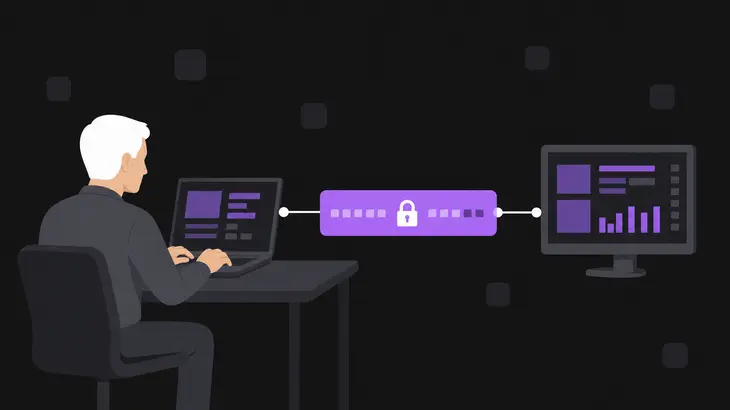
Only the middle hop is encrypted. The hop from vncviewer to ssh is plain RFB, but it stays on your workstation, because ssh -L binds the local port to loopback by default. The hop from sshd to Xvnc is plain RFB too, and it never leaves the server.
SSH doesn’t take over the VNC password check, and that check is thin. The VNC Authentication key is the password cut to eight characters, and a server that offers the None security type skips the password entirely. So the tunnel only buys you something once the listener can’t be reached any other way. That’s the localhost step.
Check what the server allows today
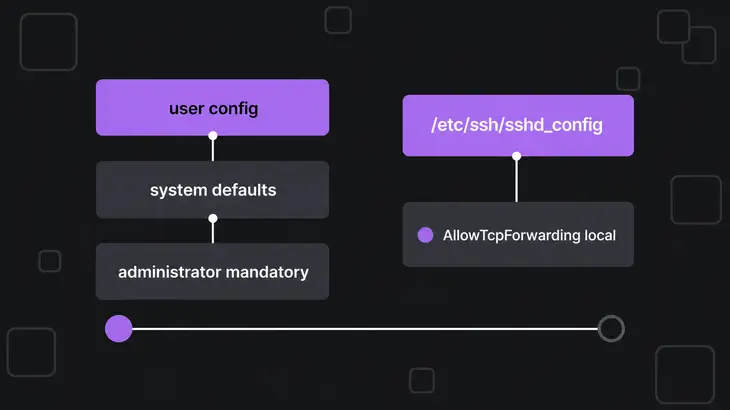
Look at both sides before you change anything. The main path here is upstream TigerVNC’s vncsession with the vncserver@:1 systemd unit, which is how Fedora ships it; the Debian and Ubuntu wrapper gets its own section at the end. Xvnc takes its options from three files, and the mandatory file overrides the other two:
| Place to check | File or command | What it tells you |
|---|---|---|
| System defaults | /etc/tigervnc/vncserver-config-defaults |
Options every user gets unless something overrides them |
| Per-user config | ~/.config/tigervnc/config (or $XDG_CONFIG_HOME/tigervnc/config) |
The session user’s own overrides |
| Mandatory config | /etc/tigervnc/vncserver-config-mandatory |
Beats both; the place for a rule users must not undo |
| Xvnc listener | sudo ss -tlnp |
The address and port Xvnc holds right now |
| sshd policy | sudo sshd -T |
The effective AllowTcpForwarding, PermitOpen and DisableForwarding values |
Run these on the server:
grep -H . /etc/tigervnc/vncserver-config-defaults /etc/tigervnc/vncserver-config-mandatory ~/.config/tigervnc/config 2>/dev/null
sudo ss -tlnp | grep 590
sudo sshd -T | grep -Ei 'allowtcpforwarding|permitopen|disableforwarding'
The ss line is the one to read first. Xvnc’s port is 5900 plus the display number unless -rfbport moves it, so :1 shows up as 5901. If the local address column reads 0.0.0.0:5901 or *:5901, anyone who can route to the box can connect without going near SSH.
For sshd, trust sshd -T over reading /etc/ssh/sshd_config by eye, because it prints the effective configuration, the values sshd actually runs with. allowtcpforwarding yes (the default) or local lets your forward through. no, remote or disableforwarding yes blocks it.
Bind Xvnc to loopback
Out of the box, Xvnc listens on every available interface. The localhost option cuts that down to connections from the same machine, and that’s all the tunnel needs, since sshd connects from the server’s own loopback.
In the config files it’s a bare word on its own line; on an Xvnc command line it’s -localhost. Put it in the mandatory file so a user’s own config can’t switch it back off, then restart the session, because Xvnc only reads its options at start. This is Fedora’s unit and file format; Debian and Ubuntu use tigervncserver@:1 and a Perl-syntax line, covered in their section:
echo localhost | sudo tee -a /etc/tigervnc/vncserver-config-mandatory
sudo systemctl restart vncserver@:1
sudo ss -tlnp | grep 5901
The restart kills the running desktop, so tell whoever’s on it first. Afterwards the local address column should show a loopback address such as 127.0.0.1:5901.
Now try the direct route from a second machine: vncviewer <server-host>::5901 should fail. On Fedora Workstation, whose firewall zone leaves TCP 1025 to 65535 open, that’s Connection refused. Where firewalld already rejects 5901, as the FedoraServer zone does, you get No route to host whatever Xvnc is doing, and the ss line is your only proof. If it still connects, the running Xvnc never picked up localhost, and the tunnel isn’t protecting anything yet. Make sure the line really is in /etc/tigervnc/vncserver-config-mandatory, then restart vncserver@:1 again.
Open the forward and connect
On your workstation, as yourself:
ssh -N -L 5901:localhost:5901 <user>@<server-host>Read -L 5901:localhost:5901 as: listen on 5901 here, and have the server connect to localhost:5901 on its side. The server resolves that localhost, so it’s the server’s own loopback, which is exactly where Xvnc now listens. -N skips the remote command because all you want from this connection is the port. Once you’ve logged in, the terminal just sits there with no prompt. That’s the tunnel up; leave it open, because closing it closes the tunnel.
In a second terminal, point the viewer at the local end:
vncviewer localhost::5901The double colon tells TigerVNC Viewer that 5901 is a TCP port, not a display number. You get the VNC password prompt, then the desktop.
If you’re on TigerVNC Viewer anyway, it can build the forward for you with -via. The address after the gateway is resolved on the gateway’s side, so localhost here means the server:
vncviewer -via <server-host> localhost:1Use -via for a quick one-off session. Use the explicit ssh -N -L with any other viewer, or when the forward should stay up between viewer sessions.
When you’re done, Ctrl+C the ssh terminal to drop the forward, and stop the session on the server:
sudo systemctl stop vncserver@:1Pin the SSH account to this one forward
If the account only exists for VNC, lock it to this forward with a Match block at the end of /etc/ssh/sshd_config on the server. AllowTcpForwarding and PermitOpen both work inside Match, and PermitOpen takes host:port entries:
Match User <user>
    AllowTcpForwarding local
    PermitOpen localhost:5901
Check the syntax with sudo sshd -t, then apply it with sudo systemctl reload sshd. From then on sshd refuses any forward from that account to anything other than localhost:5901.
Two gotchas with this block. PermitOpen compares the name as the client sent it, with no lookups, so a forward requested as 127.0.0.1:5901 gets refused even though it’s the same socket; keep localhost on both sides. And forwarding limits don’t hold against an account that still has a shell, because the user can always run their own forwarder on the server. If that matters, take the shell away too.
The same forward from PuTTY on Windows
PuTTY builds the same forward from a Windows workstation. Add the tunnel before you open the session:
- In Session, enter
<server-host>and leave the connection type at SSH. - In Connection > SSH > Tunnels, enter
5901as Source port andlocalhost:5901as Destination, keep Local selected, and click Add. The forward shows up in the list box. - Open the session, log in, and point the viewer at
localhost::5901.
Leave Local ports accept connections from other hosts unticked. Out of the box the forwarded port only takes connections from the Windows machine itself; tick it, and anyone who can reach that machine on 5901 gets your VNC password prompt. PuTTY doesn’t start Xvnc, so the session on the server has to be running already.
Debian and Ubuntu: the wrapper already defaults to loopback
Debian and Ubuntu run TigerVNC through the tigervncserver wrapper, and its -localhost default runs the other way: the wrapper only opens up to all addresses once you list a TLS or X509 security type and drop every None type. With the stock VncAuth, your session is loopback-only already. Pin it anyway, so a later security-type change can’t quietly open the port. For the service, the mandatory file is Perl here, so the line is $localhost = "yes";, and the unit is tigervncserver@:1:
echo '$localhost = "yes";' | sudo tee -a /etc/tigervnc/vncserver-config-mandatory
sudo systemctl restart tigervncserver@:1
sudo ss -tlnp | grep 5901
For a session you start by hand, give the option on the command line as the session user:
tigervncserver :1 -localhost yes
tigervncserver -list
tigervncserver -kill :1
-list shows your running displays and marks any left behind by a crash as (stale). The tunnel and viewer steps don’t change. The password tool is tigervncpasswd, and the SSH server unit is ssh, so the Match block takes sudo systemctl reload ssh. The log moves too: Debian 13 writes it to ~/.config/tigervnc/<host>:1.log, and Ubuntu 24.04 keeps it in ~/.vnc/.
What the tunnel still leaves open
The tunnel cuts down who can reach the desktop. It doesn’t get that number to zero:
- Your workstation. While the forward is up, anyone who can use port 5901 on your workstation gets the VNC password prompt. The port is on loopback, so that means other local users, not your LAN.
- The server. Any local user or process can connect to
localhost:5901, and only the VNC password stops them. Set a real one withvncpasswd, run as the session user. - A direct route. If
ssstill shows a wildcard address, other hosts reach Xvnc without SSH. Fix that before anything else.
Keep 5901 closed in the server’s firewall. The only inbound port this setup needs is SSH.
When the viewer doesn’t connect
The message tells you which side of the tunnel broke:
bind [127.0.0.1]:5901: Address already in use, thenCould not request local forwarding.Something on your workstation already holds 5901, often an earlier tunnel you forgot about, so ssh can’t bind the local port. Pick another local port:ssh -N -L 5911:localhost:5901 <user>@<server-host>, thenvncviewer localhost::5911.open failed: administratively prohibitedin the ssh terminal as the viewer connects. sshd refused the forward:AllowTcpForwardingisnoorremote, orPermitOpendoesn’t listlocalhost:5901. Check withsudo sshd -T | grep -Ei 'allowtcpforwarding|permitopen'and fix theMatchblock.open failed: connect failedin the ssh terminal. The forward is allowed, but nothing listens on the server’slocalhost:5901: the session isn’t running, or it’s on another port. Runsudo systemctl status vncserver@:1andsudo ss -tlnp | grep 590on the server.- The viewer connects, then the desktop is black or the session drops. The tunnel is fine and the session isn’t. As the session user, read the per-display log at
~/.local/state/tigervnc/<host>:1.log(or under$XDG_STATE_HOME/tigervnc/).
For anything else on the SSH side, add -v to the ssh command and watch the forwarding requests go by.
Give the forward a name so you stop retyping it. In ~/.ssh/config on your workstation, a Host block with Hostname, User and LocalForward 5901 localhost:5901 sets up the same forward as -L, and ssh -N <alias> brings the tunnel up from then on.
FAQs
Can I run the tunnel the other way, from the VNC machine out?
Yes. ssh -R forwards a port on the SSH server back to a destination on the client side. Reach for it when the VNC machine can make outbound SSH connections but can’t accept inbound ones. Leave GatewayPorts at its default of no so the remote-forwarded port stays on loopback.
Can I tunnel through a jump host?
Yes. -J connects to the jump host first and forwards the SSH connection on to the server, and the -L forward rides inside it: ssh -N -J <user>@<jump-host> -L 5901:localhost:5901 <user>@<server-host>. The viewer still connects to localhost::5901.
Does RealVNC Server need an SSH tunnel?
Not for encryption. Its Encryption parameter defaults to AlwaysOn, so every session is encrypted; the Parameter Reference lists the cipher. If you still want tunnel-only access, set localhost=TRUE (an Enterprise parameter) in /root/.vnc/config.d/vncserver-x11, which permits direct connections only from a viewer on the same machine, and forward 5900 instead of 5901. It doesn’t touch cloud connections, so if the server also takes those, they stay outside the tunnel.
What if Xvnc isn’t on 5900 plus the display number?
Then someone set -rfbport. Use that port on the server side of -L instead of 5901, and check it with sudo ss -tlnp on the server.