A grey VNC screen usually means the viewer reached the server and is showing you an X display with no desktop on it. The server is up. The session that should have started a window manager and a desktop never ran one, or ran one that quit straight away. Find out what the server tried to run, prove the display works with a bare xterm, then hand it a real desktop.
What sits between the viewer and the desktop
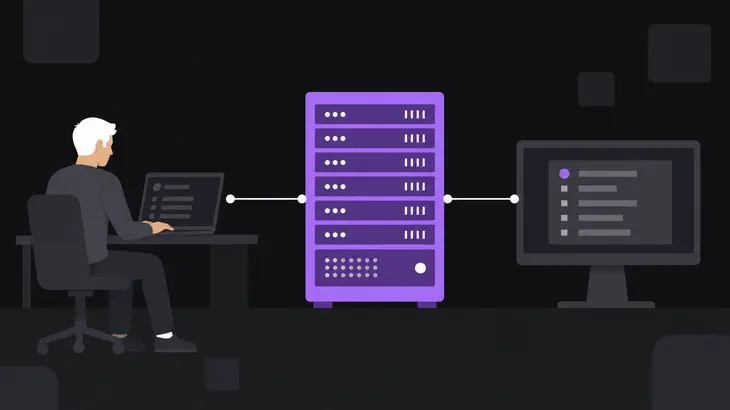
Follow the connection inward. Your viewer talks to the VNC server on TCP port 5900 plus the display number, so 5901 for display :1. The server runs an X display, and X programs reach it through a socket under /tmp/.X11-unix/. The desktop you expect is just more X programs, a window manager, a panel and the rest, and something has to launch them: the session script.
The commands here are for the packaged TigerVNC on Ubuntu 24.04, which ships tigervnc-standalone-server 1.13.1, and Debian 12, which ships tigervnc 1.12.0, on display :1. There, tigervncserver runs ~/.vnc/Xtigervnc-session, or ~/.vnc/xstartup if that's present; with neither, it falls back to /etc/X11/Xtigervnc-session, which starts the session /usr/bin/x-session-manager points to.
So with the server and display up, grey means the session produced no desktop, and the colour is a clue. A display nothing has touched is black, the X server's default root window. Grey usually comes from the xsetroot -solid grey line that classic xstartup scripts run before the window manager, so the script got that far and the desktop after it didn't start. If the box has no desktop package installed, the session has nothing to start, and no other fix helps until you install one.
Match what you see to the fix
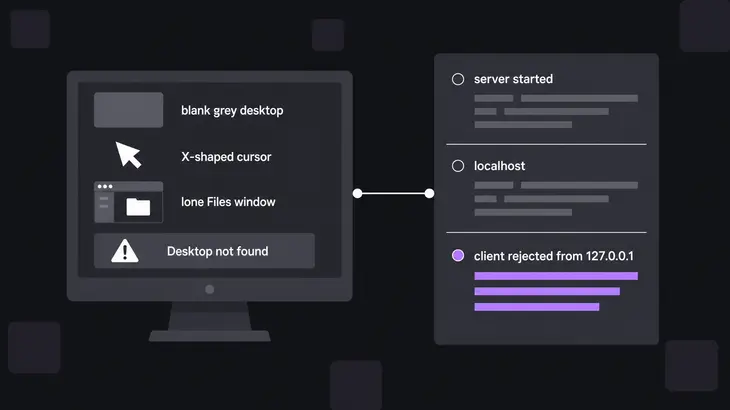
| What you see | Cause | Check | Fix |
|---|---|---|---|
| Grey, and an xterm-only session shows a terminal | The session has no desktop | tigervncserver :1 -xstartup /usr/bin/xterm |
Install one and start it with tigervncserver :1 -- xfce |
cleanly exited too early (< 3 seconds)! when you start the server |
The startup script quits | The same xterm session, then start the desktop from it | Fix what the desktop’s own error names |
(stale) next to the display |
A crashed server left its pidfile and X11 lock behind | tigervncserver -list |
tigervncserver -list -cleanstale |
Still no desktop after -- xfce |
A per-user Xtigervnc-session or xstartup in ~/.vnc/ still wins |
ls ~/.vnc/ |
Move it aside and restart the display |
| Grey or blank GNOME under RealVNC Server | Virtual Mode’s built-in X server | RealVNC Server runs in Virtual Mode | Install the dummy X driver and run sudo vncinitconfig -enable-system-xorg |
Confirm the server is up and nothing is drawing
Start with the sockets on the VNC port range:
ss -tan | grep ':590'With -a you see both kinds of TCP socket: a LISTEN line on 5901 for display :1, and an ESTAB line from your viewer while it's connected.
Then check who's talking to the X server. Run this as the session user:
ss -xp src '/tmp/.X11-unix/*'-p names the process on each socket. On a working desktop the window manager and the panel are in that list. If no window manager shows up, no desktop is running, and that's your grey screen.
Before you restart anything, see which servers you already have:
tigervncserver -list(stale) marks a server that died and left its pidfile and X11 lock behind. Adding -cleanstale to -list clears those. Either way, you now know whether a restart replaces a live session or a dead one.
Read what the session tried to run
The session log collects the VNC server's output and whatever the session script's programs printed, so a failing desktop leaves its error here:
tail -n 50 ~/.vnc/*:1.logLook for a command the script couldn't find, or a desktop that started and exited a moment later. If the startup script quit right away, tigervncserver tells you when you start it, and suggests the xterm test that comes next:
Session startup via '/home/<user>/.vnc/xstartup' cleanly exited too early (< 3 seconds)!Prove the display works with a bare xterm
Take the script out of the picture: restart display :1 with xterm as the whole session. A minimal server may not have it, so install xterm first:
sudo apt install xterm
tigervncserver -kill :1
tigervncserver :1 -xstartup /usr/bin/xterm
-xstartup runs that one program instead of the session script. If an xterm appears in the viewer, the server and display are fine, and the problem is your startup script or the desktop it launches. Type the desktop's start command into that xterm, startxfce4 for Xfce, and its errors print right in front of you.
If the viewer is still grey with only xterm as the session, the script isn't the cause. Rerun the two ss checks and read the log for that display before you touch the desktop.
Give the session a real desktop
Install a desktop, move the per-user script out of the way, and name the session when you start the server:
sudo apt install xfce4
mv ~/.vnc/xstartup ~/.vnc/xstartup.bak
tigervncserver -kill :1
tigervncserver :1 -- xfce
tigervncserver -list
The name after -- has to match a file in /usr/share/xsessions, and the xfce4-session package puts xfce.desktop there. ls /usr/share/xsessions shows the names your machine has.
Don't skip the mv. A per-user Xtigervnc-session or xstartup wins over the system default, and only the system default is handed the session name, so a leftover script silently overrides your -- xfce. When -list shows :1 without (stale), reconnect and the Xfce panel comes up.
Make Xfce the default so you don't pass -- xfce on every start: put $session="xfce"; in ~/.vnc/tigervnc.conf, which the wrapper and the systemd unit both read. Leave the old xstartup where you moved it. If it comes back, it wins again.
Debian 13 and RHEL 9: what changes
Debian 13
The package ships 1.15 and moves the per-user files from ~/.vnc/ to ~/.config/tigervnc/. Read the log with tail -n 50 ~/.config/tigervnc/*:1.log, and move ~/.config/tigervnc/xstartup aside instead of the ~/.vnc one. A default $session="xfce"; line goes in ~/.config/tigervnc/config.pl there. The rest of the fix is the same.
RHEL 9
No wrapper here: RHEL 9 runs the upstream vncserver@:<display> service. Set the session for every user in /etc/tigervnc/vncserver-config-defaults, so the server starts GNOME at remote login:
session=gnomeThe value has to match a session file in /usr/share/xsessions. Leave it out and TigerVNC takes the first one it finds, which may not be one that works. Check the names, then restart the service:
ls /usr/share/xsessions
sudo systemctl restart vncserver@:1
RealVNC Server in Virtual Mode
RealVNC Server's Virtual Mode runs its own built-in X server, based on an old Xorg. GNOME can fail to load on it, and you get a grey or blank screen. With RealVNC Server 6.2.0 or later on Ubuntu or a Red Hat-family system, switch it to the system's Xorg: install the dummy X driver, then enable SystemXorg.
sudo apt install xserver-xorg-video-dummy
sudo vncinitconfig -enable-system-xorg
That's the Ubuntu package. RHEL, CentOS and Rocky Linux call it xorg-x11-drv-dummy, installed with sudo yum install xorg-x11-drv-dummy.
FAQs
My mouse and keyboard work but the screen never updates. Is that the same grey screen?
No. Here the session exists and takes your input, but screen updates have stopped. Reconnect the viewer first. If it keeps happening on a desktop shared through TigerVNC's Xorg module, libvnc.so, turn off the desktop's compositing: that's the reported fix there.
Starting the server prints Can't exec '/home/<user>/.vnc/xstartup': Permission denied. What's wrong?
Your xstartup has lost its execute bit. The wrapper picks the file up because it exists, then runs it as a program, so the session dies before anything draws and the start reports exited with status 1. Run chmod u+x ~/.vnc/xstartup, then tigervncserver -kill :1 and tigervncserver :1.
Why do the lines after exec startxfce4 in my xstartup never run?
exec replaces the shell with the desktop, so the script stops at that line for as long as the desktop runs. Put your export and setup lines above it and keep exec startxfce4 last. Don't put & on that line instead: the script then ends at once and the server reports it cleanly exited too early.