The right x11vnc alternative depends on two things: whether the host logs into X11 or Wayland, and whether you want the desktop that's already on screen or a desktop of its own. On X11, x0tigervncserver shares the screen the way x11vnc did. tigervncserver starts a separate desktop of its own, whatever the login session is. On Wayland, wayvnc covers Sway and other wlroots compositors, and GNOME Remote Desktop covers GNOME. xrdp gives you an RDP login instead of a VNC one.
The session type decides more than anything else. x11vnc and x0tigervncserver need an X11 session, and wayvnc doesn't run on GNOME or KDE. The RDP routes also change the client side: every workstation that connects needs an RDP client in place of the VNC viewer.
Find out which display the replacement has to serve
x11vnc attaches to a display that's already running, so you share whatever desktop a user is logged into at the host, and by default nothing starts a display for you if none exists. That display has to be an X server running on the same machine, so on a Wayland login x11vnc can't share the Wayland desktop. It's also unmaintained and looking for a new maintainer, so a move was coming anyway.
Before you pick, open a terminal inside the desktop session and print the session type your login registered with systemd. You get x11 or wayland.
echo $XDG_SESSION_TYPEThat answer, plus whether you want the screen or a fresh desktop, picks the server:
- X11, and you want the desktop on screen: x0tigervncserver, the closest match to x11vnc.
- You want a desktop of its own, with or without a local login: tigervncserver.
- Wayland on Sway or another wlroots compositor: wayvnc.
- Wayland on GNOME: GNOME Remote Desktop, over RDP.
- You want an RDP login to the machine: xrdp.
The two TigerVNC servers and wayvnc take the VNC viewer you already use with x11vnc. GNOME Remote Desktop and xrdp need an RDP client on every workstation that connects.
Share the X11 desktop on screen with x0tigervncserver
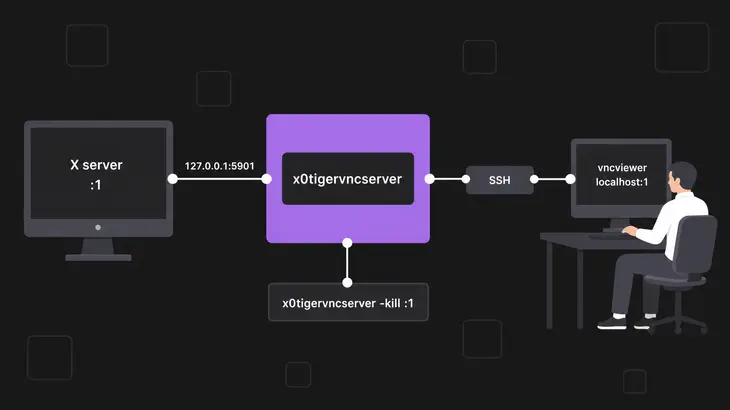
x0tigervncserver does x11vnc's job: it shares an existing X server instead of creating a virtual display. Install it on the host. On Debian 13 and Ubuntu 24.04 the package pulls in tigervncpasswd too.
sudo apt install tigervnc-scraping-serverDo the rest as the user who's logged into the desktop, from a terminal inside that session. Set a VNC password first, or the wrapper stops and asks for one. With no display argument, x0tigervncserver shares whatever $DISPLAY points at.
echo $DISPLAY
tigervncpasswd
x0tigervncserver
With DISPLAY at :1 you get New X0tigervnc server '<host>:1 (<user>)' on port 5901 for display :1. The port is 5900 plus the display number, so a desktop on :0 lands on 5900. Left at its defaults, the wrapper uses VncAuth and binds to loopback only, and ss shows it on 127.0.0.1:5901 and [::1]:5901:
ss -ltn | grep 5901Nothing outside the host can reach that, which is what you want, so you come in over SSH. This run uses display :1; on another display, use 5900 plus its number as the tunnel port and its number in localhost:1 and -kill :1. On your workstation, open the tunnel and leave it running:
ssh -N -L 5901:127.0.0.1:5901 <user>@<server-host>From a second terminal, point the viewer at your end of the tunnel:
vncviewer localhost:1x11vnc quit as soon as its client disconnected. X0tigervnc keeps listening after you close the viewer, so stop it yourself when you're done. On the host, -list shows what's running and -kill stops it with Killing X0tigervnc process ID <pid>... success!.
x0tigervncserver -list
x0tigervncserver -kill :1
If other people also log into this host, check the package for CVE-2026-34352 first: in x0vncserver before 1.16.2, other users on the machine can watch or drive the shared screen. Debian 13's 1.15.0+dfsg-2.1~deb13u1 has the fix. Ubuntu 24.04's 1.13.1 hasn't been evaluated yet.
Start a separate desktop with tigervncserver
tigervncserver doesn't need anyone logged in, because it creates the X11 display you name. What it does need is a desktop to run inside that display. Without one, the Ubuntu 24.04 server is already gone from tigervncserver -list a moment after it starts. Install the server and a desktop; Xfce is used here.
sudo apt install tigervnc-standalone-server xfce4The display number you pick is also the port: 5900 plus the display number, so :2 listens on 5902. Pick a number no X server on the host is using. The -- xfce at the end names the session from /usr/share/xsessions, which matters once more than one desktop is installed. Run it as the user who'll own the desktop, after tigervncpasswd if that user has no VNC password yet.
tigervncserver :2 -- xfceYou get New Xtigervnc server '<host>:2 (<user>)' on port 5902 for display :2. With no -localhost or -SecurityTypes option, it binds to loopback and asks for the VNC password (VncAuth), the same as x0tigervncserver. Connect through the same kind of tunnel, this time on 5902:
ssh -N -L 5902:127.0.0.1:5902 <user>@<server-host>vncviewer localhost:2That VNC password is weak protection on its own: the scheme truncates the key to eight characters, which is one more reason to keep the listener on loopback. Adding -localhost no opens 5902 on every address and changes the default list to VncAuth,TLSVnc. Because VncAuth is still in that list, a viewer can pick the unencrypted type, so a direct connection only belongs on a network you trust, with a firewall rule for 5902. When you're done:
tigervncserver -kill :2Share a Sway or other wlroots desktop with wayvnc
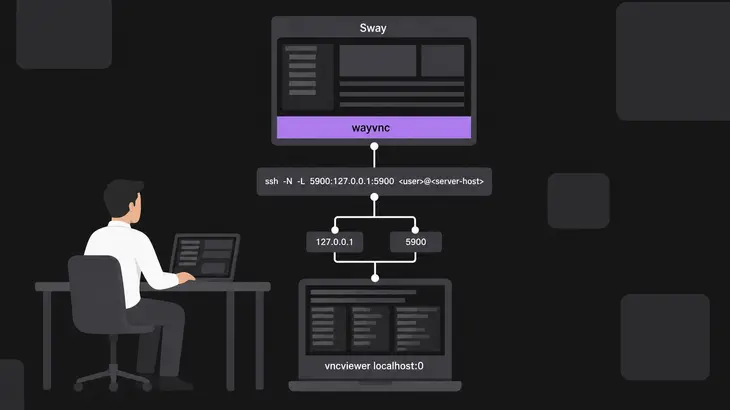
wayvnc is the Wayland counterpart for wlroots-based compositors; GNOME, KDE and Weston aren't supported. On Sway and its relatives you swap the server and keep the viewer, because wayvnc speaks RFB like x11vnc did.
sudo apt install wayvncStart it as the logged-in user from a terminal inside the compositor session, and leave it running there. From anywhere else it stops with WAYLAND_DISPLAY is not set in the environment. On a compositor without the screencopy protocol it exits with Screencopy protocol not supported by compositor.
wayvncIt binds to 127.0.0.1 port 5900. It also asks for no password unless you set enable_auth in its config, so anyone on the host can connect. Keep it on loopback, come in through the tunnel, and don't run it this way on a machine other people log into. Use the tunnel from the x0tigervncserver section, on 5900:
ssh -N -L 5900:127.0.0.1:5900 <user>@<server-host>vncviewer localhost:0Ctrl+C in the wayvnc terminal stops it.
Share a GNOME Wayland session with GNOME Remote Desktop
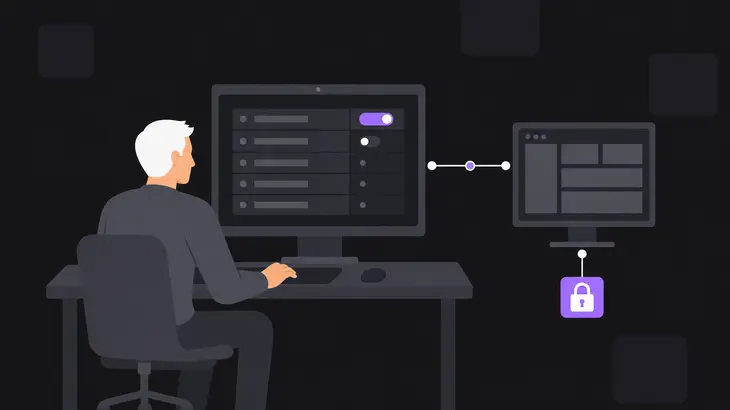
wayvnc can't serve GNOME, but GNOME ships its own server. Its remote assistance mode gives access to the session that's already active, which is what you used x11vnc for. Turn it on at the host in Settings, under System, then Remote Desktop, by enabling Desktop Sharing and Remote Control. Desktop Sharing alone gives a view-only share, because GNOME Remote Desktop starts with view-only set to true. The packaged grdctl offers only RDP commands, so the workstation connects with an RDP client, not a VNC viewer. If someone locks the screen at the host, your remote connection closes with it.
Give users an RDP login with xrdp
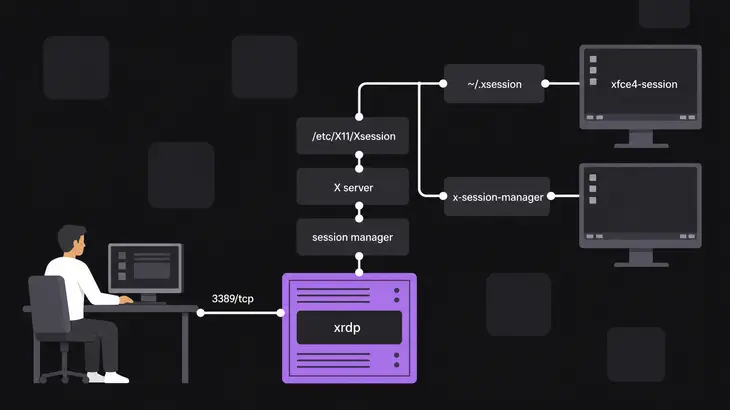
xrdp skips the shared screen entirely. Each RDP login gets a session manager that authenticates the user and starts an X server for it, so you land in a desktop of your own, not the one on the monitor. That desktop comes from /etc/X11/Xsession, which runs the user's ~/.xsession if there is one and x-session-manager otherwise, and on a GNOME host that is GNOME even after you install Xfce. There's no -- xfce here, so to get Xfce instead (sudo apt install xfce4 if you skipped it), write it into ~/.xsession as the user who will log in:
echo xfce4-session > ~/.xsessionThen install xrdp on the host:
sudo apt install xrdpIt listens on 3389/tcp, so that's the port to allow in the host's firewall. xrdp negotiates TLS by default, and on Debian 13 that works as installed. Ubuntu 24.04 runs xrdp as the xrdp user, which can't read the private key, so /var/log/xrdp.log shows Cannot read private key file /etc/xrdp/key.pem: Permission denied and the connection drops to standard RDP security. Add the user to ssl-cert and restart:
sudo adduser xrdp ssl-cert
sudo systemctl restart xrdp
The next login writes TLS connection established to /var/log/xrdp.log. Log in as a user who isn't logged in at the monitor: on a systemd host the same user can't hold a graphical session at the console and an xrdp session at once, so log out at the console first or use another account. A VNC viewer can't talk to xrdp at all, since RDP isn't RFB, so every workstation needs an RDP client.
Check what your distribution ships
The release a project marks as latest often isn't the one apt gives you. TigerVNC 1.16.2 is the upstream fix for the x0vncserver issue above, for example, and Debian 13 backported that fix into 1.15.0 instead of shipping it.
| Implementation | License | Latest release | Debian 13 package | Ubuntu 24.04 package |
|---|---|---|---|---|
| x11vnc | GPL-2.0 | 0.9.17 | 0.9.17 | 0.9.16 |
| TigerVNC | GPL-2.0 | 1.16.2 | 1.15.0 | 1.13.1 |
| wayvnc | ISC | 0.10.2 | 0.9.1 | 0.7.2 |
| xrdp | Apache-2.0 | 0.10.6.1 | 0.10.1 | 0.9.24 |
Both distributions' wayvnc packages predate 0.10.0, so they capture one output. GNOME Remote Desktop is 46.3 on Ubuntu 24.04 and 48.1 on Debian 13. The Candidate line from apt is the version you'd get on your own host:
apt policy x11vnc tigervnc-scraping-server tigervnc-standalone-server wayvnc xrdpIf you used x11vnc to look at the console of an X11 machine, install x0tigervncserver and keep your viewer and your SSH habit; it's the smallest change. If the host has moved to GNOME on Wayland, neither wayvnc nor x0tigervncserver can share that session on Debian 13 or Ubuntu 24.04, so the move is GNOME Remote Desktop and an RDP client on each workstation.
FAQs
Is there a TigerVNC server for Wayland?
Yes, but not in these distributions yet. TigerVNC 1.16.0 added w0vncserver for sharing Wayland desktops. Debian 13 ships TigerVNC 1.15.0 and Ubuntu 24.04 ships 1.13.1, so neither package has it.
Can I reach the machine before anyone has logged in?
Not with the screen-sharing servers: x0tigervncserver, wayvnc and GNOME's Desktop Sharing share a session that's already running. xrdp and tigervncserver start a session of their own, so they work on a machine nobody is logged into; you start tigervncserver over SSH. GNOME also has a remote login option for that case, over RDP: it sits next to Desktop Sharing in the Remote Desktop settings and needs an administrator to unlock it.
Discuss this in the community
Questions about this, or a setup it does not cover? Ask in Open Source VNC.