Use VNC when you need the screen that's already running, such as a user's desktop you're helping with or a console with a job on it. VNC is also the pick on two kinds of host. Windows Home can't host RDP, so you install a VNC server there. A Mac and a Raspberry Pi have VNC built in: Screen Sharing speaks it, and Raspberry Pi OS ships a VNC server ready to switch on. Use RDP when you want a desktop of your own on Windows Pro, Enterprise or Server, or a separate login on a Linux box through xrdp.
It comes down to whose session you land in. A VNC server shares its framebuffer, so you and the person at the keyboard look at the same pixels. An RDP server signs you in to a session, and on a Windows desktop edition that's the one interactive session the machine runs while you're in it.
VNC hands you the desktop that's already there

Your VNC viewer talks RFB to the server, and RFB works at the framebuffer level: the server sends you the rectangles of screen that changed, and your keystrokes and mouse moves go back and act on that same screen. With a server that shares the console, whatever the person at the machine sees, you see. Several viewers can share it as well: one that connects as shared leaves the others connected. Drop off and reconnect, and you pick up where you left off, because the server keeps running. Display N listens on TCP 5900 + N, so a desktop on :1 answers on 5901.
Every desktop OS has a server that shares the live screen:
- Linux:
x0tigervncserverfromtigervnc-scraping-serverattaches to the X server you're already logged in to instead of starting a new one. It needs an Xorg login, not Wayland. x11vnc does the same job. - Windows: TightVNC's server installs as a service, so it answers even when nobody is logged in and can send Ctrl+Alt+Del.
- Mac: Screen Sharing is VNC-compatible and has a "VNC viewers may control screen with password" option in its settings.
- Raspberry Pi OS: it ships wayvnc, and you switch it on in
raspi-configunder Interface Options, then VNC. RDP works too, but only aftersudo apt installxrdp.
VNC can start a desktop of its own too. TigerVNC's Xtigervnc is an X server with a virtual screen, which is how a headless Linux box gets a VNC desktop, and on a box like that xrdp does the same job over RDP.
RDP signs you in to a session of your own
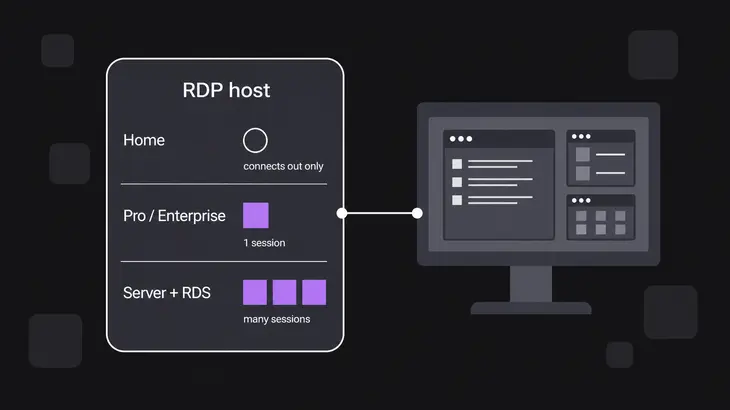
An RDP server doesn't mirror the screen; it logs you in. Windows runs it as the Remote Desktop service on TCP 3389, and the edition decides how far it goes:
- Home can't host RDP. It only connects out to other machines.
- Pro, Enterprise and Education host it, one interactive session at a time. Running sessions side by side is a Windows Server capability, plus Enterprise multi-session inside Azure Virtual Desktop. You and the person at the console can't both work on a Pro machine: one of you has it.
- Server with Remote Desktop Services runs many sessions at once, as full desktops or single RemoteApp programs, and every user or device that connects needs an RDS CAL once the 120-day grace period ends.
To watch someone else's session instead, mstsc /v:<server-host> /shadow:<session-id> /control joins a session by its ID, and by default the user is asked to allow it; /noConsentPrompt is the switch that skips the question. That's as close as RDP gets to the VNC-style shared view.
xrdp brings the same model to Linux. Its session manager authenticates you and starts an X server just for your login, so you land in a fresh desktop on a display of its own, never on the console, and a later connection takes you back to that same session. The catch on systemd distributions: the same account can't be signed in at the console and over xrdp at once. Use a different account for xrdp, or log out at the console first.
GNOME on Ubuntu 24.04 blurs the line. Its built-in Remote Desktop speaks RDP only, and grdctl has no VNC commands left. It gives you both models, though: Desktop Sharing shares the screen you're logged in to, which is the VNC-style job, and Remote Login connects to a machine nobody is using. Turn on both and Remote Login takes 3389, so Desktop Sharing moves to another port such as 3390. Ubuntu 22.04's older build still carries a VNC backend (grdctl vnc enable).
Pick by machine and job
| Your machine and job | Pick | What decides it |
|---|---|---|
| A user’s screen you have to see or drive with them | VNC | The server shares the live framebuffer, and shared viewers stay connected |
| Windows Home | VNC | Home can’t host RDP |
| Windows Pro or Enterprise, working as yourself | RDP | Built in; one interactive session at a time |
| Windows Server, several people at once | RDP | Remote Desktop Services, with an RDS CAL per user or device |
| Linux box, a desktop of your own | RDP through xrdp | Each login gets its own X server |
| Linux box, the desktop on its monitor | VNC through x0tigervncserver, or GNOME Desktop Sharing (RDP) on 24.04 |
Both share the running session; x0tigervncserver needs an Xorg login |
| Mac | VNC | Built-in Screen Sharing is VNC-compatible |
| Raspberry Pi OS | VNC | wayvnc ships with it; RDP needs xrdp installed first |
| Video or animation over a thin link | RDP | It switches to video codecs on its own |
On a thin link or an untrusted network
Both protocols send only what changed on screen, and both adapt to the link as they go. RDP watches bandwidth and round-trip time continuously and changes encoding to match, with video codecs for moving content. The TigerVNC 1.13.1 viewer on Ubuntu 24.04 re-estimates throughput after every screen update, but it stays on Tight encoding and only turns two knobs: lower JPEG quality at 16 Mbit/s or less, and low colour below 256 kbit/s. For video or animation over a thin link, take RDP.
Plain VNC is the weak side on an open network. RFB itself does nothing against someone watching or altering the stream, and its password check is a DES challenge with the password cut to eight characters. What you get beyond that depends on the server. TightVNC encrypts the password exchange and nothing else. Ubuntu's x0tigervncserver offers plain VncAuth and stays on localhost until you add a TLS security type, which is your cue to come in over SSH.
RDP is encrypted on the wire, with TLS among its security protocols, and Network Level Authentication makes the user authenticate before a session is created. Leave NLA on. xrdp is the one to check: it encrypts with TLS by default, but on stock Ubuntu 24.04 its service user can't read the key, and adding that user to the ssl-cert group fixes it.
Getting started on a Linux box
The commands are for Ubuntu 24.04. Pick the block for your job.
Share the screen on the monitor with VNC
x0tigervncserver shares an X display, so the console session has to run on Xorg. Ubuntu 24.04's /etc/gdm3/custom.conf ships with #WaylandEnable=false commented out under [daemon], and GDM logs you in to Wayland until you uncomment it. As an admin, install the server and its password tool, switch GDM to Xorg and reboot. The reboot ends the running desktop, so save your work first:
sudo apt install tigervnc-scraping-server tigervnc-tools
sudo sed -i 's/^#WaylandEnable=false/WaylandEnable=false/' /etc/gdm3/custom.conf
sudo reboot
Log back in as the user whose screen you'll share, open a terminal on that desktop and check what you're on:
echo $XDG_SESSION_TYPE
echo $DISPLAY
The first line should read x11. The second is your session's display number, and the port is 5900 plus that number. The worked values from here on assume it printed :1, so port 5901; put your own number in if it's different. Still as the console user, in the same terminal (no sudo needed):
tigervncpasswd
x0tigervncserver
ss -tln | grep 5901
tigervncpasswd writes ~/.vnc/passwd, which the server reads by default, and asks whether you want a view-only password too. With no display argument, x0tigervncserver shares the display in $DISPLAY and answers New X0tigervnc server '<host>:1 (<user>)' on port 5901 for display :1., and ss shows it on 127.0.0.1:5901 and [::1]:5901. That's loopback only, so ignore the Use xtigervncviewer ... hint it prints: you're coming in through a tunnel. On your workstation, forward the port and leave that terminal open:
ssh -L 5901:localhost:5901 <user>@<server-host>Open another terminal on the workstation and connect the viewer to the local end. If something on your workstation already listens on 5901, forward <local-port>:localhost:5901 instead and point the viewer at localhost::<local-port>:
xtigervncviewer localhost:1Enter the VNC password and you're on the user's live screen, with them watching every click. When you're done, x0tigervncserver -kill :1 on the host answers Killing X0tigervnc process ID <pid>... success!.
Get a desktop of your own with xrdp
xrdp runs /etc/X11/Xsession, which starts whatever session manager is installed, so a server with no desktop needs one first. Xfce is the light choice. Then fix the one thing Ubuntu's package leaves broken: the xrdp service user can't read the TLS key, so xrdp logs Cannot read private key file /etc/xrdp/key.pem: Permission denied and quietly falls back to Standard RDP Security, which a man-in-the-middle can break. The key has to be readable by the daemon, and on Ubuntu that means adding the xrdp user to the ssl-cert group that owns it:
sudo apt install xfce4 xrdp
sudo adduser xrdp ssl-cert
sudo systemctl restart xrdp
sudo ss -tlnp | grep 3389
ss shows xrdp on *:3389, every interface. Ubuntu ships ufw disabled; if sudo ufw status reports it active, open the port with sudo ufw allow 3389/tcp. Connect from Windows with mstsc /v:<server-host>, or from Linux with xfreerdp or Remmina, and sign in with your Linux account. After the first login, sudo grep 'connection established' /var/log/xrdp.log should end in a TLS connection established line; Non-TLS connection established means the key still isn't readable.
GNOME Remote Desktop also wants 3389, so if Desktop Sharing or Remote Login is on, turn it off or move xrdp: change the port=3389 line under [Globals] in /etc/xrdp/xrdp.ini, restart xrdp, and connect with mstsc /v:<server-host>:<port>.
Getting started on a Windows box
Turn on RDP on Pro, Enterprise or Server
Open Settings > System > Remote Desktop, turn on Enable Remote Desktop and confirm. Administrators can connect straight away; add anyone else under Remote Desktop users. On Server Core, run SConfig, choose 7, then E, then 1 to accept only clients that use NLA. Check which port the listener uses from an elevated PowerShell:
Get-ItemProperty -Path 'HKLM:SYSTEMCurrentControlSetControlTerminal ServerWinStationsRDP-Tcp' -Name 'PortNumber'It reports PortNumber : 3389 unless someone moved it. From the machine you connect from, test the path, then open the session:
Test-NetConnection <server-host> -CommonTCPPort RDP
mstsc /v:<server-host>
TcpTestSucceeded : True means the TCP connection to 3389 got through. From a Mac, iPhone or Android device, Windows App connects to a remote PC the same way.
Put a VNC server on Windows Home
On Home, or when you have to share the screen a user is sitting at, install a VNC server. TightVNC runs on Windows 10 and 11 and installs silently with the password set, from an elevated prompt. The password sits in plain text on that command line; to keep it off, drop the two PASSWORD properties and set it from the TightVNC Service tray icon after the install:
msiexec /i <tightvnc-msi> /quiet /norestart ADDLOCAL=Server SET_USEVNCAUTHENTICATION=1 VALUE_OF_USEVNCAUTHENTICATION=1 SET_PASSWORD=1 VALUE_OF_PASSWORD=<password>By default the package registers the server as a service and adds a firewall exception, so port 5900 is open to the LAN as soon as the install finishes. The password is limited to 8 characters and the session after it is unencrypted, so keep the server on a network you trust, or reach that network through a VPN. An SSH tunnel won't work out of the box: it arrives as a loopback connection, and TightVNC refuses those by default (the ALLOWLOOPBACK setting defaults to 0). Check it from your workstation with Test-NetConnection <server-host> -Port 5900. Skip TigerVNC's Windows server: it's unmaintained and may not work with Fast User Switching or Remote Desktop in use.
On a Linux box that needs both jobs, run both: xrdp on 3389 for your own desktop and x0tigervncserver on 5900 plus the console's display number for the user's screen. Sign in to xrdp with a different account from the one at the console, or the two logins collide.
FAQs
Can I reach VNC or RDP from outside the network?
Not by forwarding 3389. On Windows, RD Gateway carries RDP inside HTTPS on TCP 443, so you reach the host without opening 3389 to the outside. For xrdp, its developers advise a VPN, because RDP servers draw brute-force and credential-stuffing attempts. For VNC, keep the server on localhost and come in through an SSH tunnel, so only port 22 faces the network.
Is there one client that opens both?
Yes, on Linux. Remmina supports RDP and VNC, and GNOME Connections takes vnc:// and rdp:// addresses, such as vnc://<server-host>:5901 or rdp://<server-host>. On Windows and macOS you usually end up with two apps: Windows App or mstsc for RDP, and a VNC viewer such as TigerVNC's.
Does either one cost money?
On the RDP side, the host comes with Windows Pro, Enterprise and Server, and the cost shows up on Windows Server running Remote Desktop Services, where every user or device needs an RDS CAL. The servers are free software: TigerVNC is GPL, x11vnc is GPL v2, TightVNC is GPL v2 with a commercial licence on offer, and xrdp is Apache 2.0.
Discuss this in the community
Questions about this, or a setup it does not cover? Ask in Developer and Integration Topics.
Developer and Integration Topics group