wayvnc is the VNC server for Wayland sessions on wlroots compositors such as Sway and Wayfire, on Linux and FreeBSD. There's no desktop for it to start: it attaches to the session you're already running, with or without a monitor, and hands that screen to your VNC viewer. GNOME, KDE and Weston aren't supported, so check your compositor before you install anything.
Debian 13, Ubuntu 26.04 and Fedora 43 all ship 0.9.1, and the commands below are for that version on Debian 13. Upstream is at v0.10.2, which adds multi-monitor capture and a legacy DES password option for clients such as macOS Screen Sharing.
How it differs from the X11 VNC servers you know
x11vnc is built for real X11 displays, and a Wayland session isn't one. wayvnc gets the picture and injects your clicks by asking the compositor for them, so whether it works depends on the compositor you log in to, not on the distribution. The viewer still talks plain RFB to it and agrees a security type in the handshake like with any VNC server; only wayvnc talks to the compositor.
What changes for you in practice:
- There's no virtual display to start. You share the live session, and wayvnc listens on a port, 5900 by default, rather than on a display you create.
- It listens on
127.0.0.1only until you give it an address, so the normal way in is an SSH tunnel. - With no config file it runs with no login at all. Authentication is something you switch on.
- Its login is encrypted by default: RSA-AES, plus TLS once you add a certificate.
relax_encryption=trueadds Apple Diffie-Hellman, which encrypts the login but not the session, and 0.10 can add the legacy DES type. For RSA-AES you need RealVNC Viewer or TigerVNC Viewer 1.13 or later; older TigerVNC gets in over TLS once the certificate is set. With a certificate set, wayvnc lists TLS before RSA-AES and TigerVNC takes the server's first match, so every TigerVNC Viewer then uses TLS and shows a certificate prompt instead of the fingerprint dialog below. - You steer the running server with
wayvncctlover a control socket: list clients, switch outputs, shut it down.
Check that your compositor can feed it
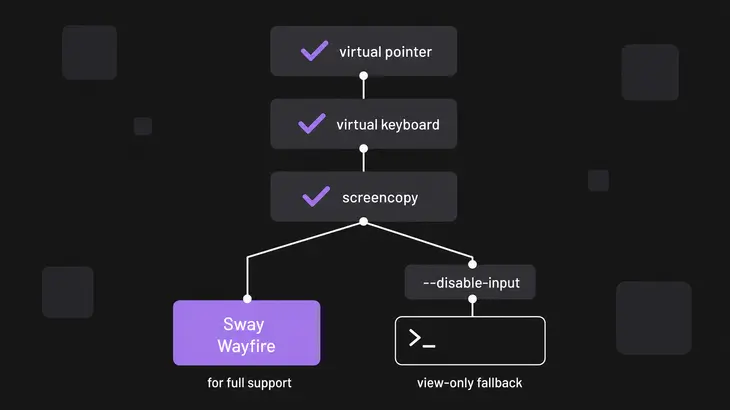
At startup wayvnc checks for three protocols in order: the virtual pointer, the virtual keyboard, then screencopy. The first one missing stops it with its own line, such as Virtual Pointer protocol not supported by compositor. Sway and Wayfire create all three. On a compositor with neither screencopy nor the newer ext-image-copy-capture protocol, it prints this, then Failed to initialise wayland, and exits:
Screencopy protocol not supported by compositor. Exiting. Refer to FAQ section in man page.If only the input protocols are missing, start it without remote input:
wayvnc --disable-inputIt skips the two input checks and starts. Viewers see the screen but can't type or click, so you get a view-only session.
On GNOME there's no way through with wayvnc. GNOME has its own remote desktop sharing, switched on in Settings > System > Remote Desktop, and you connect to it with an RDP client such as Remmina or xfreerdp.
Install it, give it a login and start it
Debian 13 has wayvnc 0.9.1. The package brings wayvnc and wayvncctl and no service unit, so you start the server yourself, inside your session:
sudo apt install wayvncCreate the RSA-AES key once. wayvnc reads it at every start, so the key a viewer checks stays the same across restarts:
mkdir -p ~/.config/wayvnc
ssh-keygen -m pem -f ~/.config/wayvnc/rsa_key.pem -t rsa -N ""
Now the config. Replace <vnc-user> and <vnc-password> before you paste it, and don't skip this step: a missing ~/.config/wayvnc/config isn't an error, wayvnc just starts with no login. The file holds the password in plain text, and umask 077 means only you can read the new file:
(umask 077; cat > ~/.config/wayvnc/config <<'EOF'
use_relative_paths=true
enable_auth=true
username=<vnc-user>
password=<vnc-password>
rsa_private_key_file=rsa_key.pem
EOF
)
use_relative_paths=true lets the key path be relative to the config's folder. On 0.9.1, enable_auth=true refuses to start without both username= and password=, unless you hand the login to PAM with enable_pam=true. It doesn't need a certificate: a certificate and key only add the optional TLS type, and wayvnc wants both of those or neither.
Start the server from a terminal on the Sway or Wayfire desktop, so it picks up WAYLAND_DISPLAY:
wayvnc -L infoThe command keeps the terminal and prints Listening for connections on 127.0.0.1:5900. Check it from another terminal on the server:
ss -tln | grep 5900
wayvncctl version
ss lists 127.0.0.1:5900 in LISTEN state. wayvncctl reaches the server over its control socket and reports wayvnc's version along with neatvnc's and aml's.
Connect through an SSH tunnel, then stop it
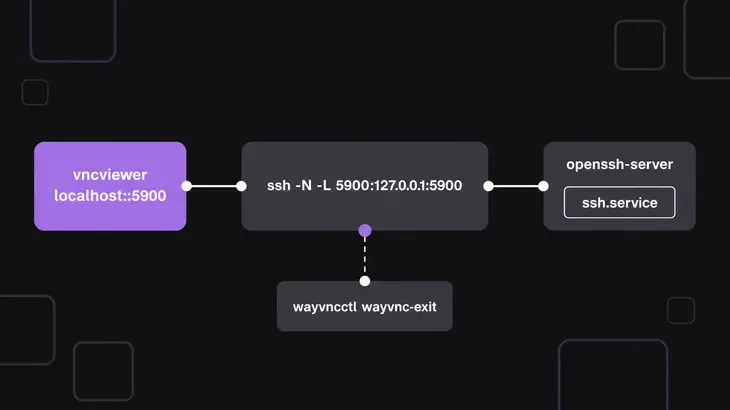
The tunnel needs an SSH server on the wayvnc host, and a Debian 13 desktop install doesn't select one. On the server:
sudo apt install openssh-serverThe package enables and starts ssh.service as it installs, so the server answers on port 22 straight away.
On your client, install TigerVNC Viewer and carry port 5900 over SSH. -N runs no remote command, so the tunnel holds that terminal:
sudo apt install tigervnc-viewer
ssh -N -L 5900:127.0.0.1:5900 <user>@<server-host>
Then, in another client terminal:
vncviewer localhost::5900With two colons TigerVNC reads 5900 as a TCP port. Its first dialog is titled Server key fingerprint: RSA-AES is trust on first use, so check the key against the one you saw before. The login from the config comes next. On the server, wayvncctl client-list now includes your viewer.
For RSA-AES, TigerVNC Viewer has to be 1.13 or newer. RealVNC Viewer connects through the tunnel too, against wayvnc 0.7.0 or later.
To stop the server, press Ctrl+C in its terminal, or from another shell under your account:
wayvncctl wayvnc-exitEvery viewer gets disconnected and wayvnc exits. Your Sway or Wayfire session keeps running.
Bind it to the LAN instead
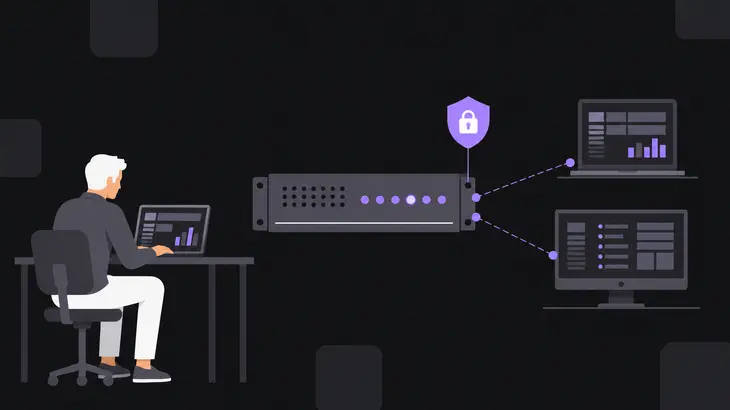
If you'd rather not tunnel, bind every interface. Add this line to the config and restart wayvnc:
address=0.0.0.0ss -tln | grep 5900 now shows 0.0.0.0:5900, and anyone who can reach the host on that port gets a login prompt. Keep enable_auth=true: an all-interfaces bind with no authentication has no place on a public network or the internet. Without the login, wayvnc offers only the None security type, which lets anyone who connects straight onto the desktop. If the host runs a firewall, allow TCP 5900 from your LAN only. Don't forward the port on your router; reach the box from outside through the tunnel.
Tune what it captures: frame rate, outputs and port
| Setting | Default | How to change it | Version |
|---|---|---|---|
| Frame-rate cap | 30 FPS | --max-fps=<fps> |
0.9.1 and later |
| Captured output | The first output | -o <output>; wayvncctl output-list shows which one is captured |
0.9.1 and later |
| All outputs in one framebuffer | Off | --desktop |
v0.10.0 and later |
| Port | 5900 | port= in the config |
0.9.1 and later |
| Config file | ~/.config/wayvnc/config, or under $XDG_CONFIG_HOME when that’s set |
-C <config-path> |
0.9.1 and later |
On 0.9.1 you pick one monitor and cap the rate. Put a name from wayvncctl output-list in place of <output>, and the most frames per second you want sent in place of <fps>:
wayvnc --max-fps=<fps> -o <output>--desktop, which composites every output into one picture, only exists from v0.10.0. 0.9.1 doesn't know the option.
If something else already listens on 5900, move wayvnc with a port= line in the config. The one below is the default, so put your own number in, and use it in the tunnel and the viewer address too:
port=5900Which version you get, and what 0.10 adds
| Where | wayvnc version |
|---|---|
| Upstream release | v0.10.2, September 25, 2026 |
| Arch Linux | 0.10.2 |
| Ubuntu 26.10 | 0.10.1 |
| Debian 13, Ubuntu 26.04, Fedora 43 | 0.9.1 |
| Ubuntu 24.04 | 0.7.2 |
Ubuntu's versions are on Launchpad, and Arch is on the current release. wayvncctl version tells you what a running server is.
v0.10.0, released April 28, 2026, is the one that changes what you can do: --desktop for all outputs, several listening addresses at once, a custom desktop name, and DES authentication for old clients. v0.10.2 is a bug-fix release for resource cleanup issues that should prevent some crashes. 0.10 also drops the username requirement: a password alone is enough with enable_auth=true. wayvnc is ISC-licensed, and the master branch's meson.build already reads 0.11-dev.
DES is there for legacy clients such as macOS Screen Sharing. It's the legacy VNC password: no encryption of the session, and only the first eight characters of the password count. It takes all four of these lines, and it doesn't work with enable_pam:
enable_auth=true
password=<vnc-password>
relax_encryption=true
allow_broken_crypto=true
Use it on a network you trust or inside the SSH tunnel. On 0.9.1, allow_broken_crypto is an unknown key: wayvnc stops with Failed to load config. Error on line and the line number.
On FreeBSD, or from source
FreeBSD has it in packages. Install as root, then start it as the session user with the path to your config in place of <config-path>:
pkg install wayvnc
wayvnc -C <config-path>
A source build is meson and ninja, but it also needs neatvnc and aml, either installed as libraries or, the easy way, linked into its subprojects folder. Take a package if your system has one.
Stay on the packaged 0.9.1 unless you need every monitor in one view or the legacy DES login for clients such as macOS Screen Sharing. Both arrived in 0.10, which Arch and Ubuntu 26.10 already ship. The tunnel, the RSA-AES login and wayvncctl work the same on both.
FAQs
Does wayvnc work on Raspberry Pi OS?
Yes. Raspberry Pi OS ships wayvnc as its VNC server. Turn it on with the VNC switch on the Interfaces tab of Control Centre, or under Interface Options in sudo raspi-config, instead of installing and starting it by hand.
Can wayvnc serve a headless box?
Yes. For Sway, set WLR_BACKENDS=headless and WLR_LIBINPUT_NO_DEVICES=1 before you start it, then run wayvnc with WAYLAND_DISPLAY set to the socket Sway created: wayland-1 on current Sway, wayland-0 on older releases.
Discuss this in the community
Questions about this, or a setup it does not cover? Ask in Open Source VNC.