Scaling in a VNC viewer changes the picture on your screen and nothing else. The desktop on the other end only changes size when the viewer asks for a new one and the server grants it, and the server is where this goes wrong. A TigerVNC virtual session grants the request by default. x11vnc refuses every one and follows the X display instead.
Whatever size your desktop is now, the server chose it at startup. Xtigervnc builds a 1024×768 desktop when nothing passes it a -geometry, and on Debian and Ubuntu the wrapper always passes one. If you can change that number, do that rather than scale anything.
Three things set how big a session looks, and only one of them touches the machine
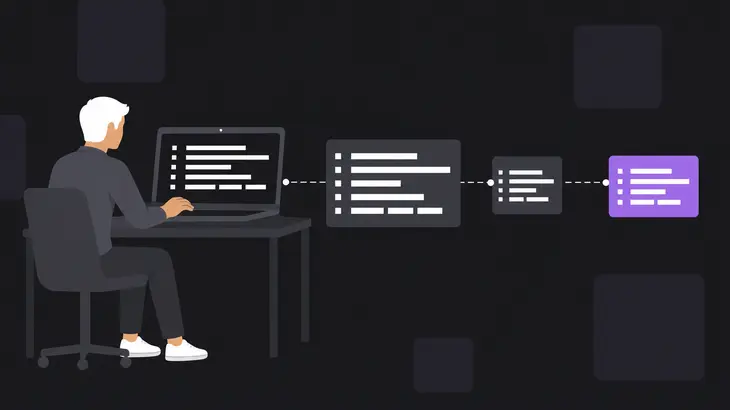
Your viewer draws the picture locally, so it can stretch or shrink what you see without the server ever knowing. TightVNC's Windows and Java viewers fit a large desktop onto a smaller screen this way, or zoom into it.
The server scales too, but one level up: it can shrink the framebuffer before it goes out, so every viewer connected to it gets the smaller image, not just yours.
The third is the desktop size itself, the width and height of that framebuffer. Change it and windows reflow, panels re-lay out, and every viewer picks up the new size. On a virtual session that is almost always what you actually want, because the other two only resample pixels that already exist.
Find out what size your desktop is, and what set it
Xtigervnc takes -geometry widthxheight and falls back to 1024×768. You will almost never meet that default, because the Debian and Ubuntu tigervncserver wrapper writes a geometry onto the command line every time it starts one, and its own default is 1920×1200. Start a session with tigervncserver :1 and no options and you get 1920×1200.
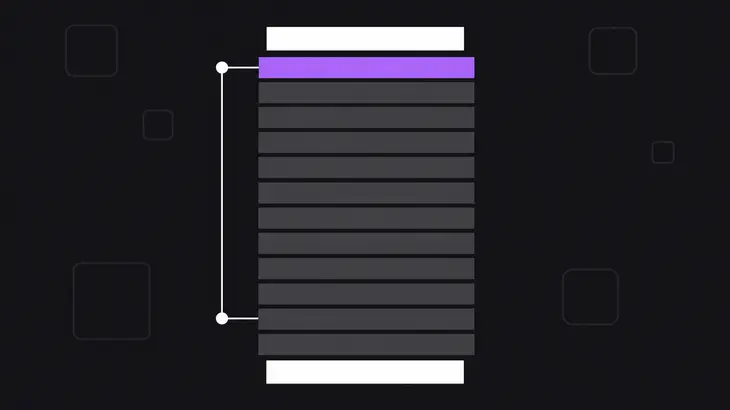
Inside the session, the desktop shows up as one RandR output named VNC-0 with a fixed list of 13 modes: 1920×1200, 1920×1080, 1600×1200, 1680×1050, 1400×1050, 1360×768, 1280×1024, 1280×960, 1280×800, 1280×720, 1024×768, 800×600 and 640×480. All 13 are built at 60 Hz, so refresh rate is not a knob here and xrandr --rate has nothing to pick between.
Look at the state from the server host:
xrandr --display :1You get the one VNC-0 output and those 13 lines, every one of them 60.00 Hz. A * sits on the mode in use and a + on the preferred one. On a session that nobody has touched, both land on the -geometry size. They split apart when someone switches modes with xrandr, which moves the * and leaves the + where it was. A resize driven from a viewer moves both, so a * and a + on different lines tells you the change came from the server host.
Which viewer scales the picture, and which one can resize the desktop
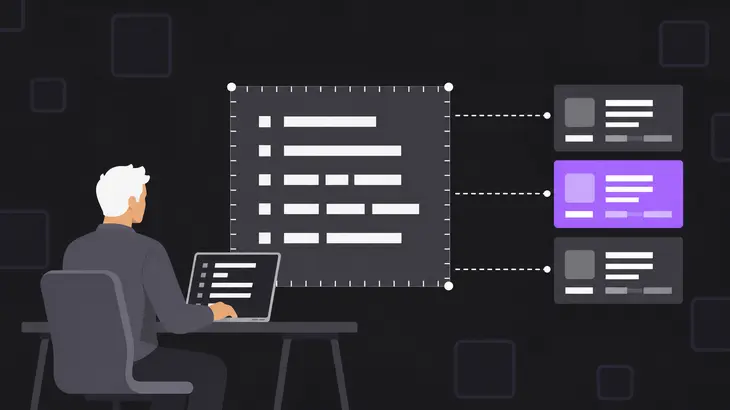
| Viewer | Scales the picture locally | Resizes the live desktop | How it ships |
|---|---|---|---|
| TigerVNC Viewer 1.15 | No. You get scrollbars, and the pointer scrolls the view at the edges | Yes, whenever the server supports SetDesktopSize | RemoteResize is on |
| RealVNC Viewer 7.x | Yes, with Scaling |
Only against RealVNC Server in Virtual Mode | Scaling is FitAutoAspect, DynamicResolution is FALSE |
| noVNC | Yes, with scaleViewport |
Yes, with resizeSession |
both off |
Do not go looking for a zoom control in TigerVNC Viewer. There has not been one in any release from 1.8 to 1.15. Drag its window smaller and you get scrollbars; push the pointer into an edge and the view scrolls. That is the design: it resizes the desktop instead, and RemoteResize has been on by default the whole time. It fires only when the server advertises SetDesktopSize support, and it waits half a second after you stop dragging so one drag does not send a request per pixel.
When you want a specific size rather than whatever your window happens to be, ask for it at connect time with -DesktopSize <width>x<height>. Against a server that does not support the message you simply stay at the size you had.
RealVNC Viewer ships the other way round. Scaling is already FitAutoAspect, so the desktop follows your window as a picture out of the box; set it to None and you get the desktop unscaled with scroll bars. Changing the real resolution is the half that is off: DynamicResolution is FALSE and has been available since 7.6.0.
noVNC starts with both off, so a page that sets neither hands you the desktop at whatever size the server reports and scroll bars when it overflows. Set scaleViewport to true on the RFB object and the canvas is scaled to its container. Set resizeSession to true and the browser asks the server for a new desktop size every time that container changes.
Which servers let a viewer change the desktop size
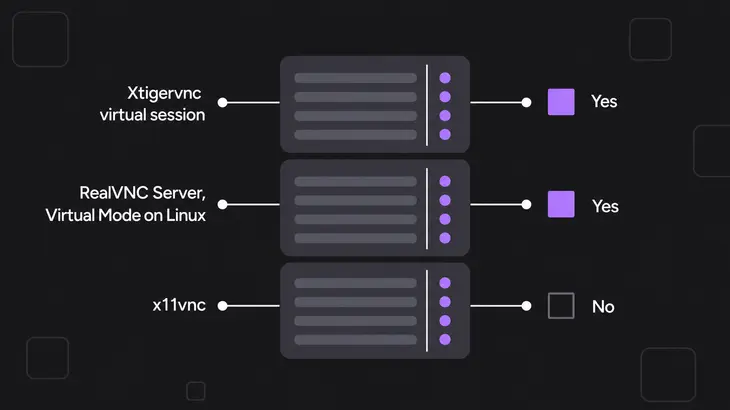
| Server | Accepts a viewer resize | What decides it |
|---|---|---|
| Xtigervnc virtual session | Yes | -AcceptSetDesktopSize, on by default |
| RealVNC Server, Virtual Mode on Linux | Yes | AllowDynamicResolution is TRUE, and the viewer half is the one that is off |
| x11vnc | No | It registers no resize handler, so every request comes back prohibited, status 1 |
Read the RealVNC pair twice, because the halves ship opposite ways and people flip the wrong one. AllowDynamicResolution on the server is already TRUE on Linux. The one you turn on is DynamicResolution in the viewer. Both apply to Virtual Mode only.
x11vnc is the one that eats an afternoon. Resize your viewer window against it and the log shows Client requested resolution change to (1280x800), then nothing moves, because the request comes back prohibited. x11vnc is sharing a real X display and it takes its size from there: by default it watches for XRANDR events and rebuilds its framebuffer when the display's own resolution changes. So resize the X server, not the VNC session.
Resize a session that is already running
Pick one of the 13 modes and switch to it from the server host. The desktop resizes underneath the running session and every connected viewer follows:
xrandr --display :1 --output VNC-0 --mode 1280x800Ask for a size outside the 13 and it fails, because --mode can only pick a mode the output already has. Your viewer can add one. Connect at a size that is not on the list and Xtigervnc creates it, puts it at the top of the mode list and marks it preferred:
vncviewer -DesktopSize 1600x900 <server-host>:1Run xrandr --display :1 again and 1600×900 is in the list with the + on it. That round trip doubles as your proof that -AcceptSetDesktopSize is on, since a server with it turned off would have left you where you were.
To keep the size across restarts on Debian 13, put it in the wrapper's own config file at ~/.config/tigervnc/config.pl. That file is Perl, so it needs the sigil and the semicolon:
$geometry = "1600x900";Restart the session, because -geometry is only read at startup:
tigervncserver -kill :1
tigervncserver :1
Run xrandr --display :1 once more and the * and the + should both be on the 1600×900 line. If they are back on 1920×1200, the wrapper never read your file: on Ubuntu 24.04 that file is ~/.vnc/tigervnc.conf, not the ~/.config path.
When the desktop cannot be resized, scale what the server sends
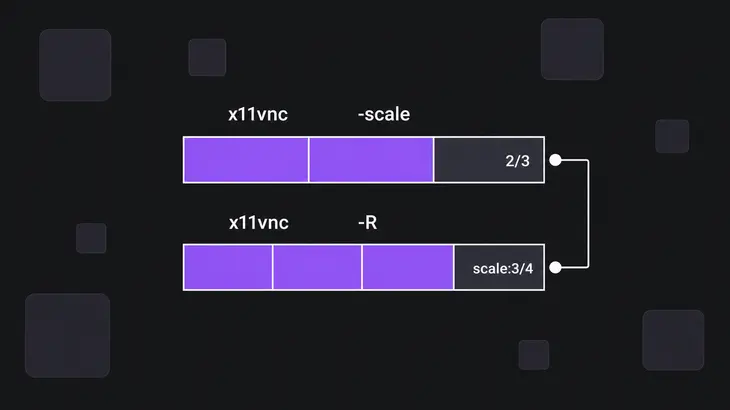
That is the x11vnc case, and a shared physical display generally. Scaling the framebuffer is the lever you have left. x11vnc applies a fraction before anything goes out, so 2/3 shrinks each dimension to two thirds for everyone connected:
x11vnc -display :<display> -scale 2/3That holds the terminal. From a second terminal you can change the fraction on the running server without restarting it:
x11vnc -display :<display> -R scale:3/4Remote control reaches the running server through an X property, which is why it needs -display pointed at the same display, and it exits as soon as the command is sent.
What comes back when a resize is refused
Viewer-initiated resize is not in the base protocol, which is why support for it varies so much. RFC 6143 has a DesktopSize pseudo-encoding, but it only runs one way: a viewer requesting it is declaring that it can cope with the framebuffer changing size, and the server is the one that changes it. There is no way to ask.
Asking came later, as two bolted-on pieces: the ExtendedDesktopSize pseudo-encoding (-308), which the server sends to advertise support and to report results, and the SetDesktopSize client message (251), which carries the width, height and screen layout you want. Both appear in RFC 6143's registries only as historic assignments belonging to someone else. A server that supports ExtendedDesktopSize has to accept SetDesktopSize messages, but it is free to deny every one.
It tells you which, in a status code on the reply:
0the size changed1resize is administratively prohibited, which is the one x11vnc returns2out of resources3invalid screen layout4request forwarded, so the answer may arrive later
Code 4 comes from a hypervisor that can only pass your request through to the guest and has no way to know whether the guest will act on it. Give a booting guest a few seconds before you decide it failed.
One question decides everything else here: can this desktop be resized at all? Check -AcceptSetDesktopSize on a virtual session, or just drag a TigerVNC viewer window and watch whether the desktop follows.
If it can, set the geometry you actually want in the server's config and stop renegotiating it per connection. If it cannot, you are scaling pixels, so pick a fraction you can live with or go change the resolution of the X display itself and let the server follow it.
FAQs
Why does the desktop go back to its old size when I reconnect?
A size you asked for from the viewer only lives in the X server that is running right now. -DesktopSize and RemoteResize both add the mode to the VNC-0 output of the current session, and the next session is built from -geometry again. Put the size in ~/.config/tigervnc/config.pl on Debian 13, or pass -geometry on the command line, if you want it every time.
Can text stay sharp once the desktop is scaled?
Not reliably. Scale the framebuffer on the server with the x11vnc -scale option and the image may not be sharp, and response may be slower as well. When legibility matters more than fitting the whole desktop on screen, keep the fraction close to 1, or change the desktop size instead of scaling it.
Discuss this in the community
Questions about this, or a setup it does not cover? Ask in Using VNC Technology.