A slow VNC session has two causes that feel identical at the keyboard and answer to completely different fixes. One is bytes on the wire, and the frame-rate cap, the desktop size, the color depth and the JPEG quality level all cut it. The other is round trips per update, and no quality level touches it.
Which one you have decides whether VNC suits the work at all. A session that tolerates lossy frames tunes down to almost any link. Work that needs every pixel exact while you are still moving things around needs a link that can carry lossless frames, and nothing in the protocol finds that bandwidth for you.
How RFB client-driven updates set the pace of a VNC session
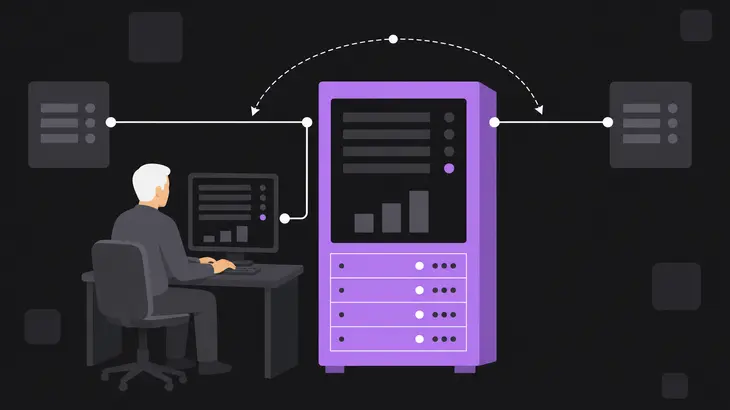
The server keeps the desktop in a framebuffer and sends nothing until the viewer asks for it. Update delivery is demand-driven: the viewer sends a request, the server answers with the pixels that changed since the last answer, and the rate you feel is how often that pair completes. A quiet desktop produces small answers and a busy one produces large ones, which is why the same link carries a terminal window happily and a video badly.
That pairing is also where the round trips come from. Without the continuous-updates extension a viewer keeps a single update in flight, sending its next request as the previous answer begins arriving, so every refresh costs at least one trip to the server and back. Divide one second by the round-trip time and you have the ceiling: 5 ms puts it at 200 refreshes a second, far above anything you would notice, while 120 ms puts it near eight before the server has encoded a single pixel. That is how a session crawls on a link with bandwidth to spare.
Both ends can take the request out of the loop. Continuous updates switch the server from answering requests to pushing frames as they happen, and a TigerVNC viewer turns it on during the first frame when the server offers it. Start the viewer from a terminal rather than a desktop launcher so you can see which mode you landed in, using display :1, which listens on 5901:
vncviewer <host>:1A session that got it prints Enabling continuous updates as the desktop appears. Whether it does is a property of the server you reached rather than of the link. Xvnc will not even offer the extension to a client that has not asked for fences, while a server built on LibVNCServer, x11vnc among them, never advertises it, because the extension is not in that library's protocol at all. Against a server like that the round trip stays in the loop, and neither end has a flag that changes it. No amount of tuning reaches it, because the fix is a server that offers the extension, which makes it an upgrade rather than a setting. Move the session onto a server that speaks it, or accept the ceiling and spend the effort on sending less through it. Debian and Ubuntu install the viewer as xtigervncviewer and point vncviewer at it through the alternatives system, so either name works there.
The pointer is the one thing that cannot wait for a round trip, and the protocol already takes it out: a viewer that asks for the cursor pseudo-encoding receives each cursor shape as it changes and draws the pointer locally between times. That is why the mouse keeps gliding on a link where windows redraw in visible steps. Going the other way, the viewer rate-limits pointer events to one every 17 ms through -PointerEventInterval, so the input direction is almost never what you are fighting.
VNC performance limitations to check first: encoding support, pixel volume, update rate and input
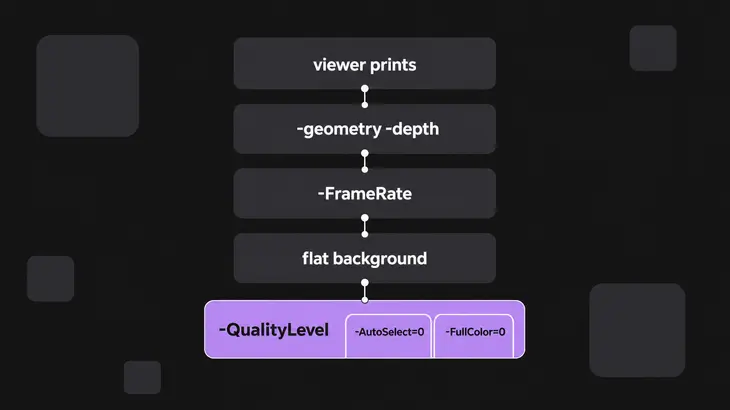
Work it in an order that keeps one change from hiding another:
- Find out which half you are on, from what the viewer prints.
- Cut the pixels:
-geometryand-depthon the server. - Cap the rate:
-FrameRateon the server. - Cut what changes: a flat background, and a virtual desktop in preference to a scrape of the physical one.
- Trade image quality last.
-QualityLeveldoes nothing until you add-AutoSelect=0to the viewer, and the reduced color level needs-FullColor=0beside it or full color simply stays on.
Step five is the only one carrying viewer flags, and those two are not interchangeable. Viewer and server negotiate the pixel format and the encoding when a session starts, and on TigerVNC the viewer makes that call for you. Automatic selection runs by default, measures throughput, and chooses the encoding and the pixel format itself, overruling -QualityLevel and -PreferredEncoding as it goes, and making the full-color-or-reduced call for you at 256 kbit/s. It never reaches below quality level 6 either, so every level under that is yours to set or nobody's. The four server-side steps above it are untouched by any of this.
Step one you read off the terminal. The viewer's default log target is *:stderr:30, so each decision it makes lands there:
LC_ALL=C vncviewer <host>:1 2>&1 | grep -E 'continuous updates|Throughput|pixel format'Keep LC_ALL=C on it. The throughput and pixel-format lines go through gettext, so a localised desktop prints translations the pattern will not match.
A good run is quieter than you expect. The continuous-updates line turns up once, on the first frame, and then nothing: the viewer's estimate starts at 20 Mbit/s and the quality it picks there is the one it already defaults to, so it has no change to report. A Throughput line appearing at all is the bad news, not the good.
The thresholds behind those lines are worth knowing. The viewer asks for quality level 8 above 16 Mbit/s and level 6 below, and it drops to a palette once measured throughput falls under 256 kbit/s, printing full color is now disabled on the way. Seeing that on a link you believe is fast means the measurement knows something your ping does not.
For numbers that are there whatever the link does, press F8 inside the session and open the connection info: desktop size, pixel format, encoding requested, encoding last used and a line speed estimate. Quit the viewer and it also prints what each encoding cost you, as rectangles, pixels, bytes and a compression ratio per encoding.
Frame-rate caps and JPEG quality levels that trade responsiveness for fidelity in Xvnc and TurboVNC
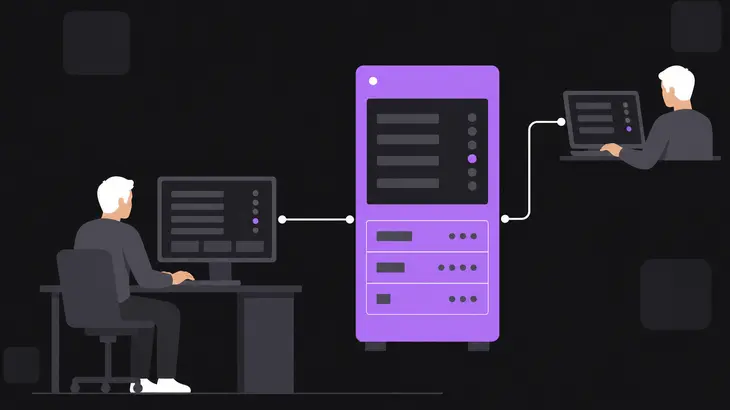
-FrameRate caps how many updates each client gets per second, and Xvnc defaults to 60. It throws nothing away: changes arriving faster than the cap are aggregated into one update, so lowering the cap trades smoothness for fewer and larger sends. Redundant repaints are already handled above it, by -CompareFB, which defaults to auto. Resource limits can hold the real rate below the cap, so treat the value as a ceiling rather than a setting. Add it to the command line you already start sessions with:
Xvnc :1 -geometry 1280x800 -depth 24 -FrameRate 20 -PasswordFile <passwd-file>Expect the size to have moved by the time you look. A TigerVNC viewer resizes the remote desktop to match its own window by default and Xvnc accepts that request by default, so your -geometry lasts until the first viewer connects and then becomes whatever that window is. A desktop bigger than the monitor gets trimmed too, because the viewer shrinks its own window to fit and then hands that size on: it logs Reducing window size to fit on current monitor when it does. Connect with -RemoteResize=0 when the server's size is the one that matters.
Keep -PasswordFile on that line. Xvnc defaults to the TLSVnc,VncAuth security types and the password file has no default at all, so a session started without one has nothing for a viewer to authenticate against.
On the viewer side the JPEG quality level hides a bigger range than its 0 to 9 scale suggests. Each level sets a real JPEG quality and a chrominance subsampling factor at the same time. The level-by-level mapping is what you are choosing between. These are what a TigerVNC server makes of the level a viewer asks for, and a TurboVNC server does the same when a TigerVNC or TightVNC viewer is the one asking. A TightVNC server maps the same numbers differently:
| Quality level | Actual JPEG quality | Chrominance subsampling | Average compression ratio |
|---|---|---|---|
| 0 | 15 | 4x | 100x |
| 2 | 41 | 4x | 70x |
| 4 | 62 | 2x | 50x |
| 6 | 79 | 1x | 30x |
| 8 (the default) | 92 | 1x | 20x |
| 9 | 100 | 1x | 10x |
Those ratios come from compressing frames of a 3D benchmark suite, so read them as relative distances rather than as a promise about your desktop. Level 2 against level 6 is the move worth knowing: it lifts the ratio from about 30x to about 70x, and throws away the chrominance to get there.
vncviewer -AutoSelect=0 -QualityLevel 2 <host>:1With automatic selection off, no changing to quality line appears at all, and that silence is how you know your number stuck.
TurboVNC comes at the same trade from the other end, with named encoding methods instead of single flags and JPEG quality on the standard 1 to 100 scale with subsampling as a separate control. A TigerVNC 1.2 or later server understands those same extensions, so pointing a TurboVNC viewer at an existing Xvnc gets you the finer scale without changing servers. Pick the method by link speed: its perceptually lossless method is not recommended below 50 Mbit/s, its medium-quality method is sized for 10 Megabit Ethernet, and its low-quality method is the one for a genuinely thin link.
The cap changes how often the screen refreshes. The quality level changes how each refresh looks. Change one at a time and rerun the same scroll down the same window. Motion gets smoother or choppier as the rate moves; artifacts around text and edges come and go as the quality moves. Change both and you will not know which one you felt.
Shrink the desktop and cut screen changes with Xvnc geometry and x11vnc solid backgrounds
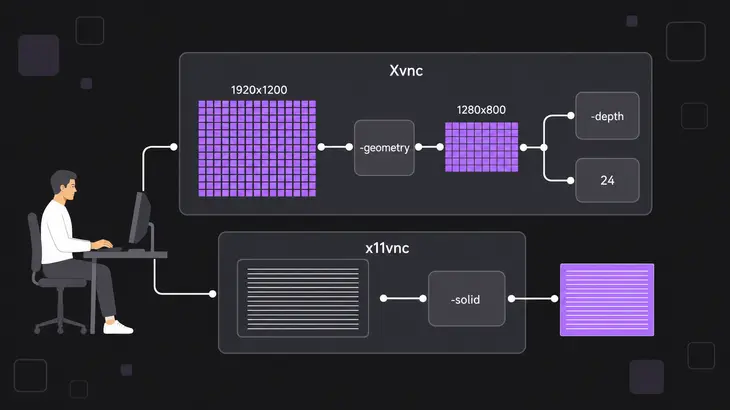
Cut pixels before anything else, because the count multiplies into every single update. -geometry sets the desktop Xvnc creates and defaults to 1024×768, though the tigervncserver wrapper Debian and Ubuntu ship starts at 1920×1200 instead, so check which of the two begins your sessions before concluding there is nothing to cut. A session at 1920×1080 carries just over twice the pixels of one at 1280×800. -RemoteResize=0 on the viewer is what keeps that number where you put it. -depth sets the bits per pixel of that desktop: 24 by default, with 16 and 32 the only other values that work, and anything else risks a server that will not start at all.
Depth on the server and color on the wire are two different things, though. The viewer asks for the pixel format it wants, and TigerVNC's viewer reaches for a reduced palette on its own only below that 256 kbit/s mark. The reduced color level gives 8 colors at 0, 64 at 1 and 256 at 2.
vncviewer -AutoSelect=0 -FullColor=0 -LowColorLevel 0 <host>:1-FullColor=0 is the part people leave off, and without it the level changes nothing at all. The Using pixel format line is the check. Move up to 2 for 256 colors if 8 is further than the work can stand.
What the server is attached to matters more than any of those settings, so if the session does not have to be the one on the physical monitor, serve a virtual desktop. Xvnc paints a desktop that nothing else draws on, and what it sends is what changed. x11vnc reads a real X display instead, hunting for changes by polling scanlines and treating the X DAMAGE extension as a hint rather than an answer. DAMAGE reports a whole terminal or browser window as damaged when a few pixels moved, so x11vnc distrusts it and falls back to polling. What a scraper costs you therefore sits on the server rather than on the wire: it reads the video framebuffer to find changes, moving or iconifying a large window stalls for half a second to a second while it reads the changed regions in, and on a fast LAN that read is the bottleneck more often than the bandwidth is.
When it does have to be the physical display, check what kind of session it is before anything else. x11vnc needs a real X11 display, and Debian 13 and Ubuntu 24.04 log into GNOME on Wayland, where $DISPLAY still answers but points at an Xwayland root holding none of your native clients. Pick the Xorg session at the login screen instead. Debian 13 lists it as GNOME on Xorg, and Ubuntu 24.04 ships the equivalent entry as ubuntu-xorg. Miss that and you will scrape an empty desktop that looks for all the world like a working one. Then start x11vnc from inside the session so it inherits $DISPLAY, rather than guessing a number the login screen may be holding:
echo $DISPLAY
x11vnc -usepw -forever -bg
echo prints the display the session is really on, and x11vnc prints PORT=5900 once it is listening. Subtract 5900 from that and you have the display number your viewer wants.
-bg hands the terminal back; leave it off and x11vnc sits in the foreground with nowhere for the next command to run. -forever is not optional either. x11vnc exits after the first viewer disconnects unless you ask for it, and -usepw picks up an existing password file under ~/.vnc/ or prompts you to create one.
-solid flattens the desktop wallpaper while viewers are connected, and it reaches less far than it looks. Flattening is worth having, because every re-exposure of the background is resent over the network, and a flat color compresses far better than a photograph. x11vnc gets there by running gconftool-2 for GNOME, dcop for KDE and xfconf-query for XFCE. The first two belong to desktop generations that current GNOME and KDE sessions no longer ship, and the KDE path was already broken at KDE4. On XFCE or a plain root-window desktop the flag does what it claims, and xsetroot -solid <color> does the same job by hand. On a current GNOME or KDE session neither route lands, so flatten the background in the desktop's own settings before you connect. Stop the running server before you start another one: x11vnc probes upward from 5900 for a free port, so a second instance takes 5901, prints that in its own PORT= line, and leaves your viewer talking to the first, unchanged session.
pkill x11vnc
x11vnc -usepw -forever -solid
The wallpaper goes flat when the first viewer connects rather than when the server starts, so a desktop that still shows its photograph at the console has not failed yet.
Where tuning stops: lossless Tight encoding costs bandwidth that quality settings cannot recover
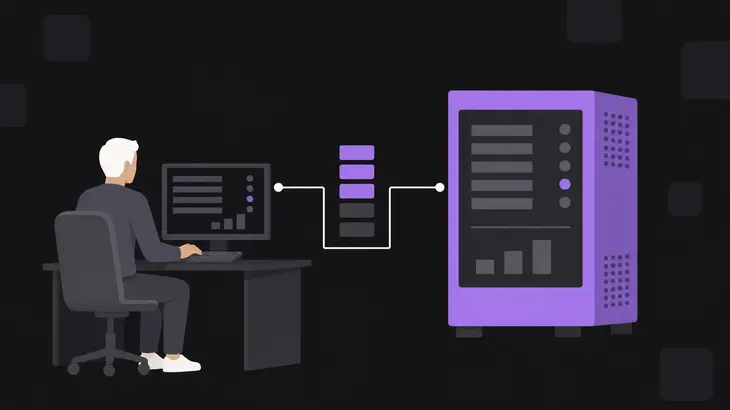
Turning JPEG off moves the session into a different bandwidth class, and three implementations price it the same way. -NoJpeg takes lossy compression out of Tight encoding on a TigerVNC viewer, and it is the one image-quality setting that bites with automatic selection left running. TurboVNC rates its own lossless method as suitable only for gigabit and faster networks. On the TightVNC viewer the same switch makes the Tight encoder less efficient in the ordinary case. No quality level recovers any of that, because the cost comes from the encoder rather than from a dial in front of it.
vncviewer -NoJpeg <host>:1Nothing in the terminal marks that change. You see it on the screen, where photographs stop smearing, and on the link, where TurboVNC's gigabit figure for its own lossless method is the order of magnitude to plan for.
Check whether you need it for the whole session first. Tight reaches for JPEG only on the areas that look suitable for lossy compression, so text and flat interface chrome survive a low quality level intact and it is photographs, renders and video that go grainy. Often the exact pixels only matter at the moment you stop to read the result. TurboVNC's lossless refresh is built for that: run a low-quality method while you pan and zoom, then press CTRL-ALT-SHIFT-L for one mathematically lossless frame. Start the TurboVNC server with -alr <seconds> and it sends that frame itself once no update has gone to that viewer for that long. Eligibility is limited by default to regions drawn through the X image calls, plus copied regions whose source was lossy, and that limit is what stops a blinking cursor from resetting the timer forever. An application that redraws the same image continuously defeats it anyway, unless interframe comparison is on.
That is where the fit question lands. Work that tolerates lossy frames and a capped rate tunes down to almost any link. Work that needs exact pixels while it moves needs a link priced to carry them, and no quality slider is going to find that bandwidth.
Read the viewer's own output before you touch anything on the server. Enabling continuous updates on the first frame and no Throughput line after it means the viewer settled on a link it was happy with, so the screen is the greedy half: cut pixels with -geometry and -depth, then cap the rate with -FrameRate. A Throughput line is the viewer telling you its measurement crossed one of those thresholds, which puts you on the bytes half after all, so those same three flags are still the answer. No continuous-updates line at all is the other case, and that one belongs to the server rather than to the network, where no setting reaches it.
Then make one change and feel it. Drop -FrameRate by a step on the server, scroll a long page, and watch whether the screen keeps up with your hands. Leave the quality level alone until that result is in, because work that survives a low quality level travels almost anywhere, and work that does not needs a link priced for lossless frames before anyone promises it a session.
FAQs
Why does a file copy to the same server run at full speed while the VNC session crawls?
Throughput and round trips are different measurements, and a bulk copy only exercises the first. It streams, keeps the pipe full, and reports a number the link really can sustain. A VNC session without continuous updates keeps one update in flight, asking for the next only as the previous one starts arriving, so its ceiling comes from how long that trip takes rather than from how much the link can carry. On a path with 120 ms of round-trip time, one second divided by that trip is about eight, so a copy that saturates the link and a desktop at eight refreshes a second are both normal. Press F8 and read the line speed estimate against the transfer rate: plenty of kbit/s there while the screen stutters means the bytes were never the problem.
Does a higher compression level help or hurt on a slow link?
It buys bandwidth and spends CPU on the machine doing the encoding, which makes it a separate axis from JPEG quality. The TightVNC viewer's compression level runs 0 to 9 and applies to the tight and zlib encodings: level 1 uses the least CPU time for the weakest ratio, level 9 reaches the best ratio and is slow on the server side. Move up the scale as the link gets slower and keep the low levels for a fast LAN. Level 0 is not worth using, so start from 1. Those numbers are the viewer's request, though, and measurements on both the TightVNC and TigerVNC servers found levels above 5 raise CPU usage exponentially without meaningfully cutting network usage, so treat 5 as the practical ceiling rather than 9. On a TigerVNC viewer the parameter also stays inert unless CustomCompressLevel is set alongside it.
Discuss this in the community
Questions about this, or a setup it does not cover? Ask in Developer and Integration Topics.
Developer and Integration Topics group