Yes, VNC works on a slow link, as long as the job needs the remote graphical display and you can live with a softer picture and slower redraws. It sends only the parts of the screen that changed, and only when the viewer asks, so a slow link gets fewer updates rather than a dead session. Your job is to make each update smaller and cap how often the server sends one.
On most desktops that means Tight encoding with a lower JPEG quality, a smaller remote desktop and a frame-rate cap on the server. Lower JPEG quality uses less bandwidth and CPU time but gives grainier images, so tune it against the text you actually have to read.
Where the bytes go
Your viewer drives the traffic. RFB updates are demand-driven by the client: the server sends one only when the viewer asks, and on a slow link the in-between screen states just get skipped. A static terminal costs almost nothing. A scrolling browser costs a lot.
Every update carries the changed rectangles, packed in the encoding and pixel format your viewer asked for in SetEncodings and SetPixelFormat. So you tune in two places. On the viewer, encoding, JPEG quality, compression level and color depth decide how big each update is. On the server, desktop size and the update-rate cap decide how many pixels change and how often they go out.
First, make sure the job fits a slow link at all. You need the remote display, not just a shell; you can work with a lag between typing and redraw; and the text and controls you need stay readable at reduced quality. If any of those fails, VNC tuning won’t save it.
When RDP is the better pick
If the target is a Windows machine and you don’t need the screen a local user is looking at, try RDP first. It runs continuous network detection and adjusts image quality, frame rate and codecs as the link changes; an active Word session in its default graphics mode measures 100 to 150 Kbps at 1920×1080. TigerVNC’s viewer adapts too, but coarsely: below 16 Mbit/s it drops JPEG quality to 6, and below 256 kbit/s it switches to a 64-color palette.
Pick VNC when you need the existing display, want to share it with the person sitting at it, or the remote machine isn’t Windows. RFB works at the framebuffer level, so the same viewer reaches X11, Windows and macOS servers.
| Requirement | Pick | Why |
|---|---|---|
| Windows desktop, no need for the local user’s screen | RDP | Adapts codecs and frame rate to the measured link on its own. |
| The screen the local user sees, or a shared session | VNC | Shares the existing framebuffer; tune it with the settings below. |
| Mixed Linux, macOS and Windows targets | VNC | One protocol and one viewer across window systems. |
Tight with JPEG for most desktops
Use Tight with JPEG for a normal desktop. TigerVNC’s automatic mode always picks Tight, and TurboVNC rates its Tight + Low-Quality JPEG preset as optimal on low-bandwidth connections. Tight only sends JPEG for rectangles with many unique colors and uses indexed color for the rest, so text and flat UI stay lossless.
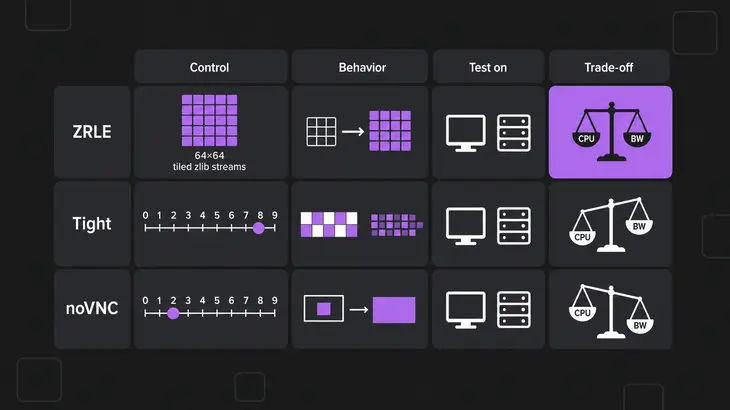
If you need every pixel exact, ZRLE is the lossless choice in the RFB spec. It runs tiled run-length encoding with zlib over 64×64-pixel tiles, with one zlib stream per connection. Lossless encodings hold up on low-color screens such as CAD drawings, but on photos and gradients they cost far more than JPEG.
Higher compression levels trade server CPU for bytes. On a slow server, a high level can hold each update back longer than the link does.
| Control | What it does | Use it when | Cost |
|---|---|---|---|
TigerVNC -QualityLevel |
JPEG quality 0 to 9, default 8. | Photos, gradients or video on the screen. | Artifacts on fine detail. |
TigerVNC -CompressLevel |
Lossless compression 0 to 9, default 2. | Text-heavy screens over a very slow link. | More server CPU per update. |
TightVNC -compresslevel |
Level 1 uses minimum CPU, level 9 compresses best. | High levels on very slow links, low levels on a LAN. | Level 9 is slow on the server. |
noVNC compressionLevel |
0 to 9, default 2. | Browser access through noVNC. | High levels slow the server down. |
Turn down quality, desktop size and color
Lower JPEG quality cuts the bytes per update, and the artifacts land on exactly the detail you may need to read. TurboVNC’s Tight + Low-Quality JPEG preset runs JPEG quality 30, 4X chrominance subsampling and compression level 7, and 2X or 4X subsampling blurs lines and other sharp features. Judge any setting on the real window you have to read, not on an empty desktop.
Desktop size is the next lever. A 1280×720 session has fewer than half the pixels of the 1920×1200 desktop Debian’s tigervncserver creates by default, so every full redraw is smaller. Scaling in the viewer doesn’t help: noVNC’s scaleViewport scales the image locally while the server still sends every pixel, and only resizeSession asks the server for a new size.
Color depth is the last resort, for text work at a few hundred kbit/s. TigerVNC’s palette modes (8, 64 or 256 colors) are 8 bits per pixel, and the server only uses JPEG at 16 bits per pixel or more, so once you switch, -QualityLevel stops mattering.
A tuned TigerVNC session, start to stop
The run uses Debian 13 or Ubuntu 24.04 with a desktop already installed on the server, display :1 (port 5901), and the viewer on your workstation. Install the packages:
sudo apt install tigervnc-standalone-server   # on the server
sudo apt install tigervnc-viewer              # on the workstation
Start the server as the session user:
tigervncserver :1 -geometry 1280x720 -FrameRate 15The wrapper passes unrecognized options to Xtigervnc, so -FrameRate reaches the server. There -FrameRate caps updates per second for each client (default 60) and folds faster changes into a single update. With only VncAuth configured, tigervncserver listens on localhost only, so you come in over SSH. Check that it’s up:
tigervncserver -list
ss -tln | grep 5901
You should see display :1 in the list and a listener on a loopback address, port 5901.
From the workstation, connect through SSH with automatic selection off and the values pinned:
vncviewer -via <user>@<server-host> -AutoSelect=0 -PreferredEncoding Tight -QualityLevel 3 -CustomCompressLevel -CompressLevel 6 localhost:1With -via, localhost means the gateway itself, so localhost:1 is display :1 on <server-host>. To see what the link really carries, press F8, open Connection info… and read Requested encoding and Line speed estimate.
Leave -AutoSelect on (the default) when the link swings between fast and slow. The viewer then logs each change of mode, lines like Throughput 180 kbit/s - full color is now disabled or Throughput <n> kbit/s - changing to quality 6. Pin the values with -AutoSelect=0 once you know the link, because with automatic selection on, -QualityLevel may be adjusted behind your back. For text work on a link that stays under a few hundred kbit/s, add -FullColor=0 -LowColorLevel 2 for 256 colors.
Lower -FrameRate until pointer movement or typing gets hard to follow, then step back up. Stop the session when you’re done:
tigervncserver -kill :1The same knobs in other viewers
The levers are the same; only the flags change.
- TightVNC viewer: lowercase flags.
-qualitysets JPEG quality 0 to 9,-compresslevelthe zlib level, and-bgr233forces an 8-bit color format.-viaworks the same way:
xtightvncviewer -via <user>@<server-host> -encodings "tight copyrect" -quality 3 -compresslevel 6 localhost:1- TurboVNC Viewer: pick Tight + Low-Quality JPEG in the Options dialog, then press CTRL-ALT-SHIFT-L for a lossless refresh when you need to read fine detail. On the server,
vncserver -alrfollowed by a timeout in seconds sends that lossless copy automatically once the screen has been quiet that long. - RealVNC Viewer: its
Qualityparameter defaults toAUTO, which follows the network speed.LOWholds the low setting whatever the link does, andCUSTOMhands the choice toPreferredEncodingandColorLevel. On Linux and macOS it can live in~/.vnc/config.d/vncvieweras the lineQuality=LOW. - noVNC: set the levels in the URL fragment, which is never sent to the web server. The defaults are 6 for quality and 2 for compression.
https://<novnc-host>/vnc.html#quality=3&compression=6Running it through SSH
SSH carries the VNC traffic but doesn’t shrink it unless you turn on ssh -C. That compresses forwarded TCP data, which helps on slow connections and slows things down on fast networks. Tight output is already zlib or JPEG compressed, so compare the line speed estimate with and without -C before you keep it.
The -via rule from the run matters most with a jump host. The host after the options is resolved on the gateway, so when the gateway is a jump host rather than the VNC server, the server has to accept connections from that host, which means -localhost no and a firewall rule. SSH straight to the VNC server when you can and keep the localhost-only default.
To share the desktop someone is already logged into (an X11 session, on display :0 here; x11vnc -finddpy on the server names the one it’s really on), start x11vnc over the same SSH connection and point the viewer at the forwarded port:
ssh -C -t -L 5900:localhost:5900 <user>@<server-host> 'x11vnc -localhost -usepw -display :0 -auth guess'vncviewer -AutoSelect=0 -PreferredEncoding Tight -QualityLevel 3 localhost:0x11vnc prints PORT=5900 once it’s listening and exits when the viewer disconnects, unless you add -forever. -auth guess finds the X authority file of the logged-in session, and -usepw uses ~/.vnc/passwd or, on the first run, prompts you to create it, which is what the -t is for. Without a password, any account on the server can reach the loopback port and view and control the desktop.
When it still crawls
-QualityLevelchanges nothing. Automatic selection is on and picks its own quality, or the viewer is in a palette mode where the server sends no JPEG. Connect with-AutoSelect=0and without-FullColor=0.- Colors turn blotchy mid-session and the viewer logs
full color is now disabled. The line speed estimate fell under 256 kbit/s and automatic selection switched to 64 colors. Add-AutoSelect=0to keep full color, or keep the palette for text work. -viareaches the wrong machine or the connection is refused. The host name was resolved on the gateway. Uselocalhost:1when the gateway is the VNC server itself.- x11vnc with
-ncacheshows a strip of old window contents when you scroll down. You’re seeing its client-side pixel cache, kept below the framebuffer, and it multiplies memory use on both ends. Drop-ncache, or use the SSVNC viewer, which hides that region. - Typing lags even at low quality. The screen changes faster than the link can carry. Lower
-FrameRate, shrink-geometry, or close the animated window.
Let automatic selection show you what the link carries, then pin the quality one level above the point where the text you need stops being readable.
FAQs
How do I see what the server actually sent?
Read the session log after you disconnect. When a viewer’s connection closes, Xtigervnc writes encoder statistics for it at the default log level: a Framebuffer updates: count, then rects, pixels and bytes for each encoder it used, and a Total: line with the overall compression ratio. The log is ~/.config/tigervnc/<host>:1.log on Debian 13 and ~/.vnc/<host>:1.log on Ubuntu 24.04. Do the same piece of work once per setting and compare the byte totals.
Why does the pointer trail behind my mouse on a slow link?
The cursor is being drawn into the framebuffer on the server and shipped with the screen updates. A viewer that requests the Cursor pseudo-encoding draws the pointer locally, so moving the mouse no longer waits on the link, and the server doesn’t resend the cursor image every time it moves. On x11vnc, leave -nocursorshape off the command line. With it, or with a viewer that lacks cursor shape updates, x11vnc writes the cursor into the framebuffer on every move, and the remote cursor lags behind yours.
Discuss this in the community
Questions about this, or a setup it does not cover? Ask in Developer and Integration Topics.
Developer and Integration Topics group