Your iPad is the viewer, and the computer you want to drive runs the VNC server. For a Mac's built-in Screen Sharing or a Linux or Windows VNC server, install Screens 5 or Jump Desktop, point it at the host and sign in. Pick RealVNC Viewer when your computers already run RealVNC Connect.
On the local network, that's the whole job for a Mac. From anywhere else, come in through the viewer's SSH tunnel or a VPN, and keep the VNC port off your router's port forwards.
The iPad is the viewer, not the server
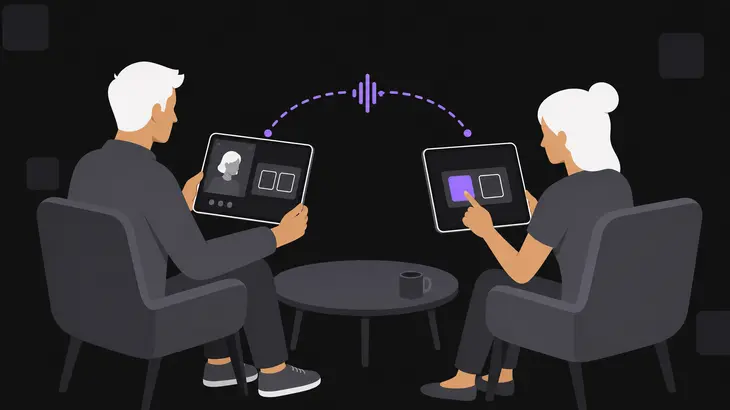
The viewer app on the iPad sends your taps and keystrokes; the server on the computer sends back the screen. On a Mac the server is Screen Sharing, which is compatible with VNC and only needs switching on. On Linux or Windows you install one, such as TigerVNC on Linux.
Going the other way is where people get stuck. RealVNC Server for iOS shares an iPhone or iPad screen view-only, and someone at the device has to accept each session. Screens won't connect to an iPhone or iPad at all. To actually drive another iPad or iPhone, use remote control in a FaceTime call: it works in a one-to-one call, both sides need iPadOS 18 or iOS 18 or later, you must be in the other person's contacts, and it isn't available in the European Union.
Pick the viewer by what the computer runs
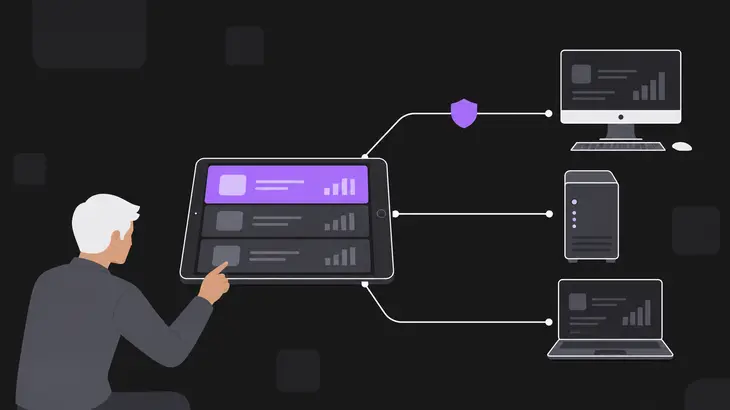
The host decides the viewer. Each of these apps documents a different set of servers, signs in to a Mac differently and has its own way of encrypting the session.
| Viewer | Hosts it’s documented with | Signing in to a Mac | Encrypted path |
|---|---|---|---|
| Screens 5 | Macs with Screen Sharing or Remote Management, plus Windows, Linux and Raspberry Pi VNC servers | Mac User: your Mac login | SSH (Use Secure Connections), Tailscale, or Screens Connect with Use Secure Connection on |
| Jump Desktop | Tested with macOS, TightVNC, RealVNC, UltraVNC and Linux; also speaks RDP and its own Fluid protocol | Mac Credentials (your Mac login) or the VNC password | SSH tunnel with password or key, or SSL/TLS |
| RealVNC Viewer | Computers running RealVNC Connect, found through RealVNC’s cloud | RealVNC Server’s own sign-in, by default an account on that computer | End-to-end encrypted sessions |
| Mocha VNC | Tested with RealVNC, TightVNC, UltraVNC and Apple Screen Sharing | macOS sign-on | VeNCrypt to wayvnc (version 5.9 and later) |
For a Mac, Screens is the shortest path: it logs in with your Mac account, so the Mac needs nothing beyond Screen Sharing. Jump Desktop is the pick when you also reach Windows machines over RDP or want several sessions open in iPad windows. RealVNC Viewer pays off when the machines already run RealVNC Connect: you sign in to your RealVNC account and the computers appear in the list. Connecting to one by address instead of through the cloud needs a subscription that includes direct connectivity.
Mocha VNC Lite limits each session to 5 minutes, which is fine for a quick look and not for work; the wayvnc support arrived in Mocha VNC 5.9.
Connect to a Mac's Screen Sharing
On the Mac, open Apple menu > System Settings > General > Sharing and turn on Screen Sharing. If Remote Management is on, turn it off first: the two can't run together. Click the ⓘ button next to Screen Sharing and make sure your user is covered by Allow access for. That's the whole Mac side for Screens. Screen Sharing listens on TCP 5900, the port to give any viewer that asks.
In Screens, a Mac on the same network shows up under Nearby; tap it. Anywhere else, add a custom connection with the Mac's IP address or hostname, or paste a URL into Quick Connect:
vnc://<mac-user>@<mac-host>With a user name in the URL, Screens logs in as Mac User; leave it out and Screens assumes a VNC password instead. In Jump Desktop, add a VNC entry with the Mac's address. A Mac Credentials prompt wants the account you log in to the Mac with, not your Jump account; a VNC password prompt wants the password set with VNC viewers may control screen with password. If you're not sure of the short account name, run this in Terminal on the Mac and use what it prints:
whoamiYou know it worked when the Mac's desktop appears on the iPad. A viewer that only takes a VNC password needs VNC viewers may control screen with password turned on in the Screen Sharing settings. Give that box a password of its own, never one a local user logs in with: non-Apple VNC software expects the VNC password to be stored in an unsecured form.
Touch, keyboard and mouse on the iPad
Right-click and scroll are where a touchscreen fights you. All three main viewers map them to two fingers, but drag and the keyboard differ:
| Action | Screens 5 | Jump Desktop (Standard) | RealVNC Viewer (Mouse interaction mode) |
|---|---|---|---|
| Click | Tap | Tap | Tap (clicks at the cursor) |
| Right-click | Two-finger tap | Touch and hold, or two-finger tap | Two-finger tap |
| Scroll | Two-finger swipe | Two-finger swipe up or down | Two fingers, drag slowly |
| Middle-click | Three-finger tap | Tap twice, then hold until a ripple appears | Three-finger tap |
| Drag | Touch and hold until a blue indicator appears, then drag | Tap, then touch again and drag | Tap twice, hold the second tap, drag |
| Move the pointer without clicking | Trackpad Mode | Trackpad profile | Drag one finger |
Screens switches between Touch Mode and Trackpad Mode under Settings > Controls > Virtual Cursor Mode. Jump Desktop changes gesture profile from the Settings button in the session toolbar. RealVNC Viewer offsets the cursor from your finger in Mouse interaction mode so you can see what you're pointing at.
For modifier shortcuts in Screens and RealVNC Viewer, double-tap the key on the key bar to hold it down. Screens underlines a locked key, and a single tap there presses it only until the next key or click. A hardware keyboard is the bigger upgrade. With one attached, Screens sends keystrokes to a Mac, so the Mac's keyboard layout decides which character lands; wrong symbols mean the Mac's input source doesn't match your keyboard. Screens also takes a mouse or trackpad, and scrolling with one needs a Magic Mouse 2, Magic Trackpad 2 or Magic Keyboard.
On iPad, Jump Desktop can keep several computers open, each in its own window on the iPad or an external monitor: touch and hold a computer, then tap Connect in new window. Input goes to the active window, and a hidden one stays connected with its screen paused. On iPhone, Jump Desktop connects to one computer at a time.
Reach the Mac from outside without forwarding the VNC port
A port forward for the Screen Sharing port puts Screen Sharing in front of the whole internet, and a non-Apple viewer may not encrypt the keystrokes it sends. Use one of these instead.
SSH tunnel from the viewer. Turn on Remote Login next to Screen Sharing on the Mac and forward TCP 22 on your router to the Mac, so SSH is the only port that's reachable from outside. Remote login can make the Mac less secure, so once SSH faces the internet, sign in with a key rather than a password. In Screens, edit the connection and switch on Use Secure Connections in its Security section, then tap the key icon to pick an SSH key; Screens keeps keys in the Keychain. The URL form is:
ssh://<mac-user>@<mac-host>In Jump Desktop, open the VNC entry, tap the SSH row and add an SSH server with the Mac's public address; Jump takes a password or a public key there. The VNC host field stays the address the SSH server uses to reach the Mac, because Jump forwards the port from the SSH server to it.
VPN. Install Tailscale on the Mac and the iPad, and Screens dials the Mac's Tailscale address like any other address. Most of the time Tailscale needs no open firewall ports: it gets through NAT on its own, and when it can't connect the two devices directly it falls back to its relays, which work but are slower.
Screens Connect. Screens for Mac on macOS 14.6 or later has it built in: Screens > Settings > Screens Connect > Make this Mac available remotely. Know what it does to your router: its Port Mapping setting opens a port automatically or uses one you forwarded by hand. Turn on its Use Secure Connection option so that traffic runs over SSH, which again needs Remote Login. That's a Mac-side Screens Connect setting, separate from the per-connection Use Secure Connections switch on the iPad.
For a Mac you look after yourself, use the SSH tunnel: the Screen Sharing port never leaves the LAN and only SSH faces outward. Behind carrier-grade NAT, use Tailscale. Set up either one while you're on the LAN, then test it from another network before you need it.
When it won't connect or won't stay connected
- The Mac isn't in Screens' Nearby list. Screens has no Local Network permission on the iPad. Open Settings > Privacy & Security > Local Network and switch Screens on. The Mac itself needs no such setting.
- Screens reports "Host Is Down". The iPad can't reach the address: it's off the network, on a different network than the Mac, or Local Network is still off.
- The Mac rejects your user name and password. You typed your Screens or Jump account instead of the Mac login; use the
whoaminame. If the login is right, check whether Apple Remote Desktop is open on the Mac, because it blocks incoming Screen Sharing. The Mac's log can showscreensharingd Do not allow access since Remote Desktop is open. Quit Remote Desktop and connect again. In zsh, calllogby its full path, because the shell's builtinloganswerstoo many arguments:
/usr/bin/log show --predicate 'process == "screensharingd"' --last 10m- "The remote computer does not support the selected authentication method." The viewer offers a sign-in the server doesn't accept. Pick Mac User for a Mac and VNC Password for Linux or Windows in the saved connection.
- The session drops when you switch apps. iPadOS suspends a backgrounded app unless it uses one of a few declared background modes. RealVNC Viewer can't hold a background connection for longer than 30 seconds, so reconnect when you come back. Jump Desktop keeps background sessions for Settings > Connection & Background > Background Running Time, 10 minutes by default and up to No Limit.
Linux and Windows hosts: what changes
Everything above holds except the server and the sign-in. You run a VNC server yourself, and Screens logs in with that server's VNC password. Its "No Authentication" option belongs only behind SSH, Tailscale or a trusted LAN.
The Linux gotcha is the listen address. On Ubuntu 24.04, a TigerVNC session on display :1 listens on port 5901 and, by default, only on localhost, so a direct connection from the iPad is refused. Check it on the Linux host:
ss -ltn 'sport = :5901'Lines for 127.0.0.1:5901 and [::1]:5901 mean loopback only, so the iPad has to come in over SSH. Ubuntu 24.04 Desktop installs the SSH client but not the server, so add it on the Linux host:
sudo apt install openssh-serverThen check that something listens on port 22:
ss -ltn 'sport = :22'A LISTEN line for port 22 means it's ready. Ubuntu starts sshd through systemd socket activation, only when the first connection arrives, so systemctl status ssh can read inactive while port 22 is open.
In the viewer, pair it like this: the SSH server is the Linux host on port 22 with your Linux login, the VNC host is localhost, and the VNC port is 5901. The SSH server makes the onward connection to that host and port itself, so localhost is the Linux host, where TigerVNC listens. The host's LAN address in that field is refused, because nothing listens there. In Jump Desktop, localhost goes in the VNC entry's Host field and the Linux host goes in the SSH server on the SSH row. In Screens, the saved connection's Connection section takes localhost and port 5901, and its Security section takes the Linux host and its SSH port, which Screens uses to build the tunnel first.
For a Mac, install Screens and log in with your Mac account; reach for Jump Desktop when RDP or several iPad windows matter, and keep RealVNC Viewer for machines that already run RealVNC Connect. The step that matters most is the SSH tunnel or Tailscale path, so build it before you leave the building rather than when the Mac is already out of reach.
FAQs
Does sound come through to the iPad?
Not in Screens, which doesn't transmit sound and puts that down to the VNC protocol. Jump Desktop streams audio over its own Fluid protocol and over RDP, so a Windows host reached by RDP or any host running Fluid plays sound.
Can I copy and paste between the iPad and the computer?
Yes, within limits. Screens shares the clipboard by default; to a Mac it carries rich text, images and URLs, and to Windows, Linux and Raspberry Pi plain text only. RealVNC Viewer asks before every paste until you set Paste from Other Apps to Allow for it in the iPad's Settings app, and after a reconnect it sends the clipboard only once it changes, unless you add SendInitialClipboard=1 under Settings > Diagnostics > Expert.
Discuss this in the community
Questions about this, or a setup it does not cover? Ask in Using VNC Technology.