To VNC into a Mac, turn on Screen Sharing in System Settings > General > Sharing. That's Apple's own VNC-compatible server, listening on TCP port 5900, so there's nothing to install on the Mac.
From another Mac, connect with the Screen Sharing app. From Windows or Linux, use TigerVNC 1.14.1 or later, which can sign in with your macOS account. Once the Mac is outside your LAN, go through an SSH tunnel to Remote Login instead of opening 5900 to the internet.
What the Mac and your machine need first
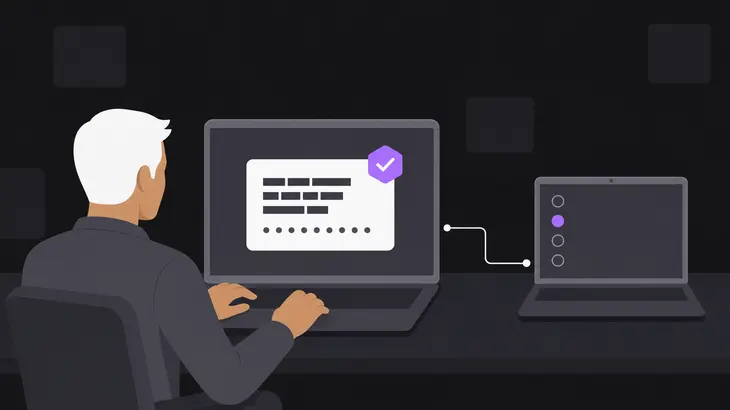
Here's what runs where. Screen Sharing is the VNC server, built into macOS, and it takes callers on TCP port 5900. It accepts two kinds of login. A macOS account on the allowed list is what another Mac uses, and TigerVNC 1.14.1 or later can use it too, through Apple's own login. A separate VNC password, the one optional setting in step 4, is for older or other third-party viewers.
Before you start, have these ready:
- An administrator account on the Mac, because you change Sharing settings.
- Remote Management turned off. The Mac won't run it alongside Screen Sharing, and you get one or the other.
- The Mac's name on the network. Its local hostname sits at the bottom of the Sharing pane: the computer name with spaces turned into hyphens and
.localon the end. Once Screen Sharing is on, its Info sheet also shows the address asvnc://<mac-host>. - Both machines awake and on the same network for a LAN connection. When a Mac won't share, a sleeping Mac or a different network are among the things to rule out.
The menu paths here are for macOS Sequoia 15 and later. Sonoma, Ventura and Monterey differ in a few places, covered in the last section.
Turn on Screen Sharing and check the listener
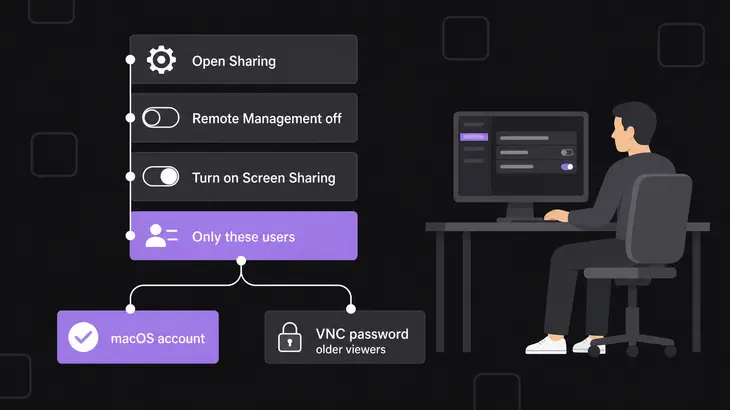
- Open
Apple menu > System Settings > General > Sharing. If Remote Management is on, turn it off. - Click the Info button next to Screen Sharing, then turn Screen Sharing on.
- Check the
Allow access formenu. ChooseOnly these usersand add every account that should get in, standard accounts included, rather thanAll users, which lets in every account on the Mac apart from sharing-only and guest users. - Turn on
VNC viewers may control screen with passwordonly if an older or other third-party viewer will connect, and set a password you use nowhere else. VNC authentication keys its DES check with the password cut to eight characters. Leave it off when only Macs and TigerVNC 1.14.1 or later connect.
Now confirm the Mac is listening. macOS netstat writes the port after a dot and needs no sudo:
netstat -an -p tcp | grep '.5900 'You're looking for a LISTEN line on *.5900, for example tcp4 0 0 *.5900 *.* LISTEN. No output means Screen Sharing is still off. The * matters: launchd opens the port with no bind address, so the Mac answers on every IPv4 and IPv6 address it has, Wi-Fi, Ethernet and VPN alike.
The macOS Firewall doesn't need a rule for this: turning on a sharing service opens its port for you. The setting that does shut it out is Block all incoming connections, which blocks sharing services too. Check it on the Mac:
/usr/libexec/ApplicationFirewall/socketfilterfw --getblockallFirewall has block all state set to disabled. means that setting isn't in your way.
Connect from another Mac
Use the Screen Sharing app in /Applications/Utilities. It ships with macOS and signs in with the Mac account, so there's nothing to install. Click the new-connection button in its toolbar and type the hostname or IP address, or hand it the address from Terminal:
open vnc://<mac-host>Screen Sharing asks for a user name and password. Give it an account from the allowed list, and the Mac's desktop opens in a window that takes your keyboard and mouse. The app keeps the address under All Connections, so next time it's one click, and that entry's Info button shows the server address, user name and port it dials.
Connect from a Windows or Linux viewer
Use TigerVNC 1.14.1 or later. Its default security types include Apple's Diffie-Hellman login, which sends your macOS user name and password encrypted, and TigerVNC takes the first type in the Mac's list that it supports. So it can ask for your user name instead of a VNC password; answer with an account from the allowed list. Avoid 1.14.0 itself: it shipped without the VNC password in its defaults, which 1.14.1 put back.
From Windows, install it with winget and run it from PowerShell by its full path, since the installer doesn't put vncviewer.exe on the PATH. The winget package is 1.16.2:
winget install TigerVNC.TigerVNC
& "C:Program FilesTigerVNC
ncviewer.exe" <mac-host>From Debian or Ubuntu, the tigervnc-viewer package gives you vncviewer. Debian 13 packages 1.15.0:
sudo apt install tigervnc-viewer
vncviewer <mac-host>
A bare host is display 0, which is port 5900, so you don't add a port. Ubuntu 24.04 packages TigerVNC 1.13.1, which predates the Apple login, so on that release you need the VNC password from step 4.
Keep every third-party viewer connection on the LAN or inside the tunnel below, the macOS-account login included: that login encrypts your user name and password, not the session. Third-party viewers might not encrypt keystrokes, so anyone on the path can read what you type, and a viewer that controls the screen has nearly unrestricted access to the Mac. RealVNC Viewer connects to third-party VNC servers only from version 8.4.0, signed in on a paid plan, and those connections run unencrypted.
When the viewer doesn't connect
Test the port from the machine you're connecting from before you touch any viewer setting. From a Mac or Linux:
nc -vz <mac-host> 5900From a Mac, success reads Connection to <mac-host> port 5900 [tcp/rfb] succeeded!. Windows has no nc, so use PowerShell's Test-NetConnection, where success shows TcpTestSucceeded : True:
Test-NetConnection <mac-host> -Port 5900Then match the symptom. The first two pairs read nc output; on Windows, TcpTestSucceeded : False covers both, so work through both.
Connection refused: nothing listens on 5900, so Screen Sharing is off. Turn it on and rerun thenetstatcheck on the Mac.- The test fails without a refusal: the Mac is asleep, you're on a different network, or the firewall is blocking it. Wake it, check that
Apple menu > System Settings > Networkshows a green indicator, and run thesocketfilterfw --getblockallcheck. - The port answers but the Mac rejects your login: the account isn't on the
Only these userslist. Add it in the Screen Sharing Info sheet. - The port answers but an older viewer can't log in:
VNC viewers may control screen with passwordis off and the viewer has no Apple login to fall back on. Turn the option on and set the password. - A saved Mac connection dials the wrong place: open Window > Connections > All Connections and check the entry's Info. The port should be 5900, the default.
Reach the Mac from outside your network through SSH
Don't forward 5900 on your router; carry the session inside SSH. You turn on Remote Login, and only SSH has to be reachable from outside, through your VPN or a router rule for TCP 22.
-
On the Mac, open
Apple menu > System Settings > General > Sharing, click the Info button next to Remote Login, turn it on, and setAllow access fortoOnly these users. The sheet shows the exactsshcommand for this Mac. Remote Login opens a shell to those accounts, which is why the list matters. -
From your machine, check the login works with
ssh <user>@<mac-host>, thenexit. -
Open the tunnel.
-Nruns no remote command, so the terminal sits there with no prompt for as long as the tunnel is up:ssh -N -L 5901:localhost:5900 <user>@<mac-host> -
From a second terminal, check that the forwarded port answers. On a Mac it prints
Connection to localhost port 5901 [tcp/*] succeeded!; on Windows, runTest-NetConnection localhost -Port 5901and look forTcpTestSucceeded : True:nc -vz localhost 5901 -
Point your viewer at local port 5901. On a Mac:
open vnc://localhost:5901With TigerVNC on Linux, the double colon means a port, not a display:
vncviewer localhost::5901With TigerVNC on Windows, by its full path:
& "C:Program FilesTigerVNC ncviewer.exe" localhost::5901
The local forward resolves localhost:5900 on the Mac's side, so it lands on Screen Sharing itself. Your end binds to loopback, so nobody else on your network can use your tunnel. The local port is 5901 because a Mac you connect from may already hold 5900 on every address for its own Screen Sharing. The tunnel protects the path, not the listener: the Mac still takes VNC callers on 5900 from its own LAN.
If port 22 is reachable from the internet, switch the Mac's sshd to keys only. Put your key on the Mac first. From a Mac or Linux:
ssh-keygen -t ed25519
ssh-copy-id <user>@<mac-host>
Windows' OpenSSH has no ssh-copy-id, so append the key from PowerShell:
ssh-keygen -t ed25519
Get-Content $env:USERPROFILE.sshid_ed25519.pub | ssh <user>@<mac-host> "mkdir -p ~/.ssh && cat >> ~/.ssh/authorized_keys"
Now ssh <user>@<mac-host> should log in without the Mac password, asking only for the key's passphrase if you set one. Then turn password logins off on the Mac. Stock macOS leaves PasswordAuthentication and KbdInteractiveAuthentication at their default of yes, and its /etc/ssh/sshd_config includes /etc/ssh/sshd_config.d/ before anything else. sshd keeps the first value it reads, and that directory belongs to root, so write the file with sudo and test the config:
printf 'PasswordAuthentication no\nKbdInteractiveAuthentication no\n' | sudo tee /etc/ssh/sshd_config.d/200-keys-only.conf
sudo sshd -t
sshd -t prints nothing when the config is valid. macOS starts a fresh sshd for each connection, so the next login picks up the change without a restart. To prove passwords are refused now, ssh -o PubkeyAuthentication=no <user>@<mac-host> from your machine should now fail with a Permission denied line.
Turn it off when you're done
Closing the viewer ends your session, but the Mac keeps taking connections until you switch the service off.
- Close the viewer window. In Screen Sharing you can also choose Window > Connections > All Connections and click Disconnect on the session.
- If you opened a tunnel, press Ctrl+C in its terminal.
- On the Mac, open
Apple menu > System Settings > General > Sharingand turn Screen Sharing off. Rerun thenetstatcheck: no output means port 5900 is closed. - Turn Remote Login off in the same pane if you only switched it on for the tunnel. It's a separate service, and turning off Screen Sharing leaves it running.
What changes on Sonoma, Ventura and Monterey
- macOS Sonoma 14: the Screen Sharing switch sits in the Sharing list itself. Turn it on there, then click Info for the access list and the VNC password option. Remote Login follows the same order.
- macOS Ventura 13: same order as Sonoma, but the VNC password option sits behind Computer Settings. To connect from a Ventura Mac, use Finder's Go > Connect to Server with the
vnc://address. - macOS Monterey 12 and earlier: open Apple menu > System Preferences > Sharing, select the Screen Sharing checkbox, and set the VNC password under Computer Settings.
Once the tunnel works from outside, close every other way in: no 5900 rule on the router, Screen Sharing limited to Only these users, and sshd on keys only. From then on, reaching the Mac's desktop is one ssh -N -L and a viewer pointed at local port 5901.
FAQs
Can I turn on Screen Sharing from the command line?
Not for control. On macOS 12.1 and later, the Apple Remote Desktop kickstart tool can't enable Screen Sharing, and from 10.14 on, Remote Management switched on by kickstart only gives Screen Sharing view-only access. On a managed Mac, your MDM's Enable Remote Desktop command turns on Remote Management with Observe and Control instead.
Discuss this in the community
Questions about this, or a setup it does not cover? Ask in Using VNC Technology.