Partial support is the answer for VNC fast user switching on Windows, and the server's run mode decides it. RealVNC Server in Service Mode shows the Windows console session. The current TigerVNC winvnc warns that it may not work under Fast User Switching. TightVNC in service mode stays reachable with no user logged in.
The deciding condition is whether the server runs as a per-user application or as a Windows service, because a per-user application runs under the account that started it. TightVNC's application mode closes on logout. With Remote Desktop sessions active, the console that RealVNC Server shows in Service Mode displays a lock screen.
VNC fast user switching on Windows: which session your viewer is attached to
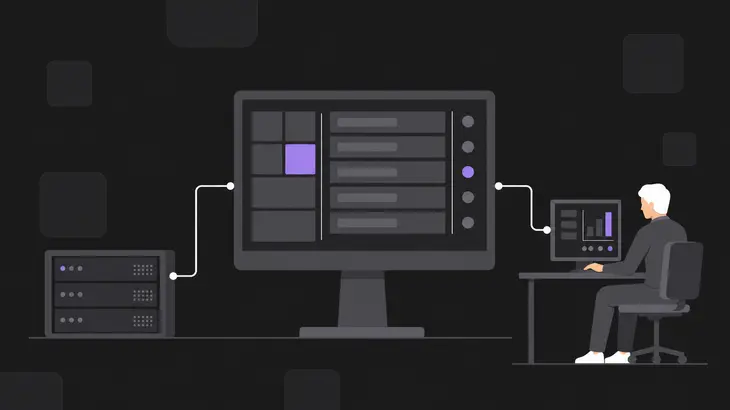
A viewer shows the one session its VNC server is attached to, so on a Windows host with two signed-in accounts the question is which session that server follows. Windows keeps one account on the console at a time, and the server's run mode decides whether the viewer follows the console or stays with the account that started the server.
Your viewer on your own machine connects to the VNC server on the Windows host. That server runs either as a per-user application that an account starts after signing in, or as a Windows service that runs in the background independent of any user session. Windows holds the console session, the one on the physical display, beside the session of any other account that stays signed in.
TightVNC, TigerVNC and RealVNC Server are the peer servers compared here, and the run mode is the part that changes between them. Fast User Switching moves a different account onto the console, so the run mode of the server on your host settles whether the viewer's connection follows that move.
RFB covers the framebuffer; Windows user switching sits outside the protocol
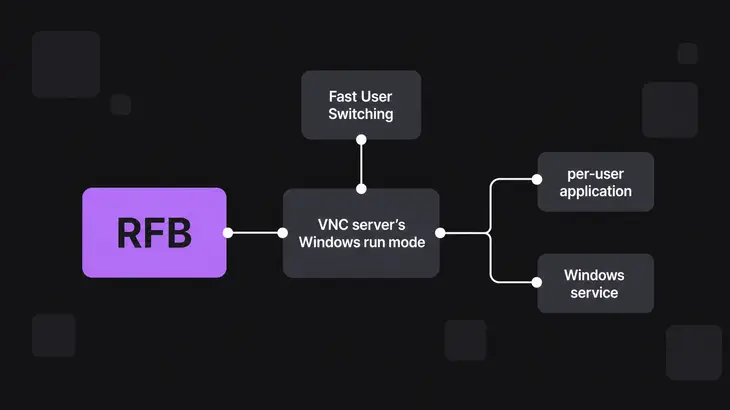
The Remote Framebuffer Protocol (RFB) is the protocol VNC uses, and it works at the framebuffer level, so it applies to X11, Windows and Macintosh. It defines no fast-user-switching workflow, which leaves switching accounts to the operating system, and on Windows that is Fast User Switching.
The implementation layer for VNC fast user switching is the VNC server's Windows run mode, either a per-user application or a Windows service. That mode sets what the viewer meets when a second account signs in, and each server decides for itself how it attaches to the sessions Fast User Switching leaves running, so the same viewer can get a different result from each server.
TightVNC, TigerVNC and RealVNC Server on Windows: session support by server mode
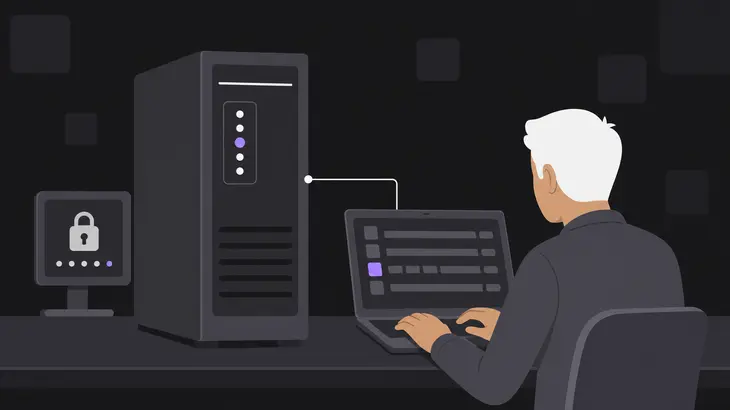
TightVNC application mode is the one combination that comes out as no for staying up with no user logged in. TightVNC Windows service mode comes out supported there, and RealVNC Server Service Mode and TigerVNC winvnc come out partial for concurrent Windows user sessions, whether those come from Fast User Switching or from Remote Desktop. The TightVNC split follows how the server runs: application mode serves the current user, and service mode runs system-wide.
| Server and Windows mode | Stays up with no user logged in | Concurrent Windows user sessions (Fast User Switching or Remote Desktop) |
|---|---|---|
| TightVNC application mode | No: closes on logout | |
| TightVNC Windows service mode | Supported: the machine is accessible with no user logged in | |
| RealVNC Server Service Mode | Partial: shows the Windows console session, which displays a lock screen when Remote Desktop sessions are active | |
| TigerVNC winvnc | Partial: the current winvnc warns that it may not work when Fast User Switching or Remote Desktop features are in use |
Each TightVNC mode starts from its own Start menu path, and the two paths below take you from the no cell to the supported one.
- Launch application mode from
Start->Programs->TightVNC->Launch TightVNC Server. It closes when the account that started it logs out, so use it when the viewer only needs the host as long as that account stays signed in. - Install service mode from
Start->Programs->TightVNC->Administration->Install VNC Serviceto leave the no cell. On your own host this is the route to use when the viewer has to reach the machine with nobody logged in, because service mode makes the machine accessible when no user is logged in.
Conditions behind the partial cells: Fast User Switching, active Remote Desktop sessions and per-user server ports
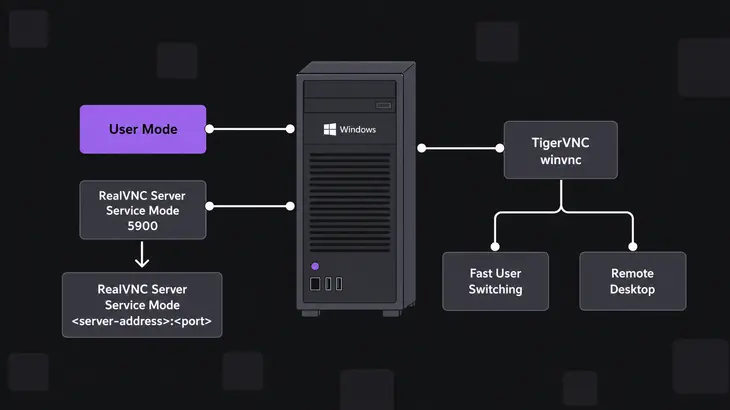
The RealVNC Server Service Mode result changes when you need a user's own Remote Desktop session, which requires a User Mode instance on its own port when Service Mode runs on the same computer. The TigerVNC winvnc result changes with whether Fast User Switching or Remote Desktop is in use on the host.
| Partial cell | Condition and setting that changes the answer |
|---|---|
| RealVNC Server Service Mode | The mode required to connect to a Windows user’s Remote Desktop session is User Mode, and starting vncserver.exe starts a User Mode instance for the user who runs it. When Service Mode and User Mode run on one Windows computer, User Mode’s default port 5900 must be changed, and each concurrent User Mode instance needs a unique port, given in the viewer address as <server-address>:<port>. |
| TigerVNC winvnc | Fast User Switching or Remote Desktop features in use on the host, on a Windows server that is unmaintained. |
Run this command as the user whose Remote Desktop session you want to control, which starts that user's User Mode instance:
start "" "C:Program FilesRealVNCVNC Server
ncguihelper.exe" "C:Program FilesRealVNCVNC Server
ncserver.exe"Linux counterpart: one TigerVNC display per user on RHEL 9 instead of a shared console
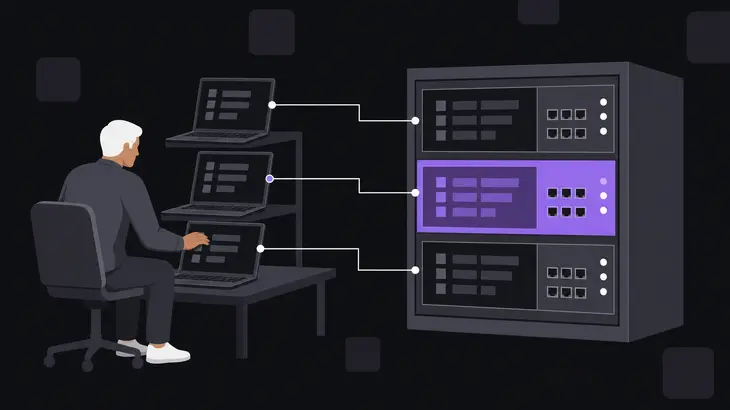
RHEL 9 supports simultaneous VNC sessions for different users, and each exported user maps to a unique display and TCP port. The user's TigerVNC server runs on that display's port, so the display number in the viewer address selects whose desktop you reach. A vncserver@ systemd unit starts the server for each mapped display, and /etc/tigervnc/vncserver.users holds the mapping from display to user.
-
Edit
/etc/tigervnc/vncserver.usersand add one line per user. Each line maps a display and port number to a server user, and the display number you choose here is the one thevncserver@unit and the viewer address use for that user. Choose a different display number for every user, since each exported user gets a unique display and TCP port::<display-number>=<user> -
Check
/etc/tigervnc/vncserver-config-defaults, which on RHEL 9 setssession=gnomeandalwayssharedfor the multi-user TigerVNC setup. The first starts GNOME when a remote user logs in, and the second lets multiple users connect to the VNC server at the same time. Together they give each remote login a GNOME desktop and leave the server open to several users at once:session=gnome alwaysshared -
Enable and start the unit for every mapped display, using the display number from the mapping, so run the command once per line in
vncserver.users. The--nowoption starts the unit immediately as well as enabling it, and the user's VNC server is then up on that display's TCP port:systemctl enable --now vncserver@:<display-number> -
Connect from any machine that can reach the server on that display's TCP port, using the
--sharedoption, the server address and the display number. The viewer reaches the desktop of the user mapped to that display, and a different display number reaches a different user's desktop:vncviewer --shared <server-address>:<display-number>
Check VNC fast user switching with qwinsta and loginctl on your own setup
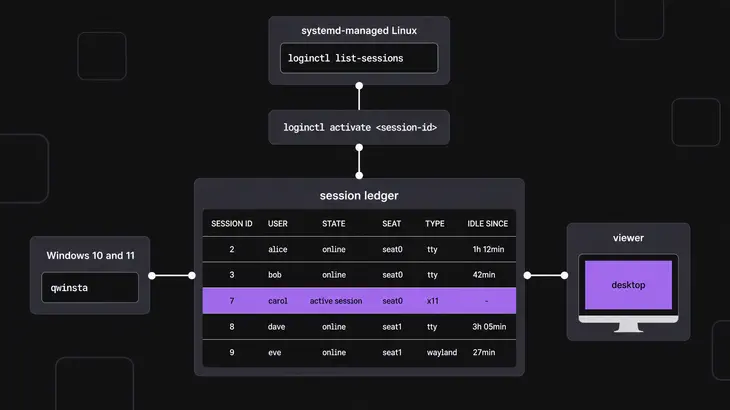
You confirm session behavior by listing the sessions the host holds, switching accounts and reconnecting the viewer to see which desktop it reaches. On Windows 10 and 11, qwinsta with no arguments displays all active sessions. On systemd-managed Linux, loginctl list-sessions lists the current sessions, and loginctl activate <session-id> brings one to the foreground when another session holds it on the same seat.
On Windows:
-
List every session the host runs before you switch, so you know which sessions exist when the viewer connects. The listing shows the active session and the other sessions the system runs, so a second signed-in account appears once it has a session:
qwinsta -
Switch to the second account as normal, repeat the session listing from step 1 in that account, then reconnect the viewer and note whether it reconnects and which desktop it shows. Do this once for each server mode you run, application mode and service mode for TightVNC.
On systemd-managed Linux:
-
List the current sessions to read their IDs:
loginctl list-sessions -
Bring a session on the same seat to the foreground, using an ID from the listing. The command works when another session is in the foreground on that seat:
loginctl activate <session-id> -
Repeat the session listing from step 1, then reconnect the viewer and note which desktop it shows.
Use a Windows service mode wherever the viewer has to outlast a logout, and start a User Mode instance for any account whose Remote Desktop session you need to control.
Run qwinsta with no arguments on your host, switch to the second account, run it again, and reconnect the viewer. The two listings show which sessions the host holds, and the reconnect shows which desktop the viewer lands on for the server mode you run. On Windows, VNC fast user switching is supported in TightVNC service mode with nobody logged in, and partial in RealVNC Server Service Mode and TigerVNC winvnc across concurrent user sessions.
FAQs
Does VNC fast user switching preserve running applications?
Yes, as long as your viewer reconnects to the same VNC server. An RFB client that reconnects to the same server gets back the user-interface state that server holds, so the applications in that session are still running. That state lives with the server process, so it ends when the server stops, and the server's run mode on your host decides when that happens.
Discuss this in the community
Questions about this, or a setup it does not cover? Ask in Using VNC Technology.