A Chromebook runs the viewer, never the server. The desktop you are after lives on another machine, and that machine runs the VNC server. On your side, ChromeOS gives you three ways to be the viewer: a viewer app inside the Chromebook's Linux environment, an Android viewer app, or a browser tab served by a gateway that already runs next to the server.
A session opens once your viewer can reach the port the server listens on, and that port is 5900 plus the display number of the session. A server bound to localhost takes connections from its own machine only, so a viewer anywhere else comes in through an SSH tunnel. On a managed Chromebook an administrator can switch off port forwarding into the Linux container, and no viewer route needs it.
How the Chromebook and the VNC server split the work
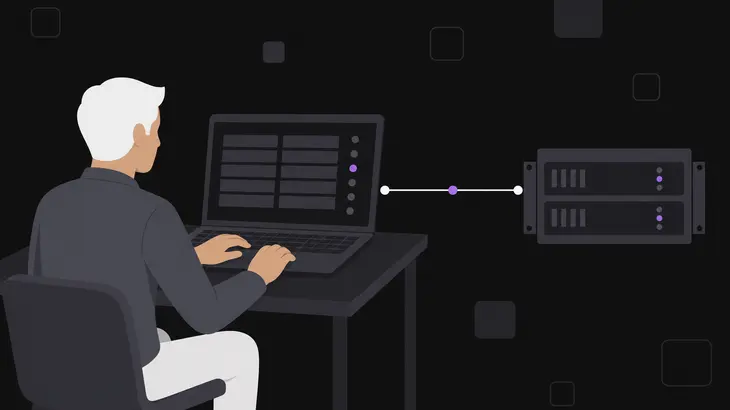
Your Chromebook draws the remote desktop on its screen and sends your keyboard and pointer input back to the machine you are controlling. That machine owns the screen you are looking at. Its server sends the updates, applies the input that comes back, and listens on TCP port 5900 plus its display number, so a session on display :1 answers on 5901.
The three routes are not three flavours of the same install. A browser tab cannot open a raw VNC connection: noVNC needs WebSockets support from the server, and a server without it needs a WebSockets-to-TCP proxy in front of it. That proxy, or an Apache Guacamole deployment doing the same job, runs next to the VNC server and not on ChromeOS. So the browser route is not something you install on a Chromebook. The gateway has to be up at the far end before a Chrome tab has anything to open.
The Linux and Android apps are the ordinary case. Each one runs on the Chromebook like any other app and dials the server's listener itself, with no gateway in between.
Which route to take, and what each one needs first
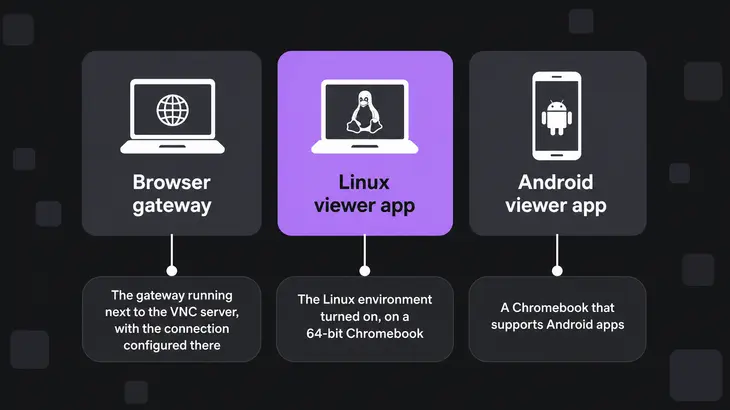
| Route | Where the viewer runs | Implementation | What has to exist first |
|---|---|---|---|
| Browser gateway | A Chrome tab | noVNC, Apache Guacamole | The gateway running next to the VNC server, with the connection configured there |
| Linux viewer app | The Chromebook’s Linux environment | RealVNC Viewer for Linux, TigerVNC Viewer | The Linux environment turned on, on a 64-bit Chromebook |
| Android viewer app | ChromeOS, as an Android app | RealVNC Viewer for Android | A Chromebook that supports Android apps |
RealVNC Connect has no dedicated ChromeOS app, so on a Chromebook you are choosing between its Linux app and its Android app. Install a Linux viewer when the Chromebook is yours: you get a real viewer window, a choice of viewer, and a terminal to open the SSH forward from. Reach for the Android app when you cannot set up the Linux environment, since it needs nothing else. RealVNC Viewer for Linux is 64-bit only, so a 32-bit Chromebook is on the Android route either way. The browser route is worth taking when someone already runs a gateway beside the server, because then your Chromebook needs nothing at all.
Turn on the Linux environment and install a viewer
Three steps come before the install command, and without the second one apt has no file to install.
-
Turn on the Linux development environment. Select the time at the bottom right, then Settings, About ChromeOS, Developers, and next to "Linux development environment" select Set up. Give it ten minutes or more; it finishes with a terminal window open on a Debian environment.
-
Put the package somewhere Linux can see it. Download the Linux x64 Viewer deb, then right-click the folder it landed in, in the Files app, and select Share with Linux. Shared folders turn up under
/mnt/chromeosinside the container, mirroring their ChromeOS path. A folder you never shared does not exist as far as the container is concerned. -
Change into that folder from the terminal, check the file is there, and install it. Swap in the subfolder you shared and the name
lsgives back:cd /mnt/chromeos/MyFiles ls VNC-Viewer-*-Linux-x64.deb sudo apt install ./VNC-Viewer-Latest-Linux-x64.debA file name back from
lsis the proof the share worked. Nothing back means the share did not cover the folder your download is in. The viewer then sits on the applications menu, andvncviewerstarts it from the terminal.
The Debian environment's own viewer skips the download entirely. One apt line installs it, and the binary lands as xtigervncviewer rather than vncviewer:
sudo apt install tigervnc-viewerConnect: the address, the display and the port
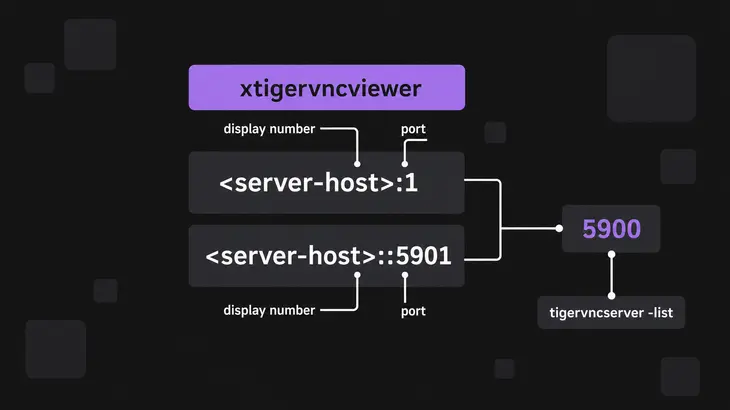
Either viewer wants the same two things: the remote machine's hostname or IP address, and the port its session listens on. In RealVNC Viewer you type both into the search bar, and RealVNC Server answers on 5900 unless someone has changed it. The TigerVNC viewer takes the address as an argument instead.
A single colon is a display number, a double colon a literal port, so <server-host>:1 and <server-host>::5901 both land on a session on display :1:
xtigervncviewer <server-host>:1When you do not know which display the session is on, check on the server. On Debian and Ubuntu the TigerVNC wrapper installs as tigervncserver, and it lists the sessions it started with their display numbers:
tigervncserver -listA direct connection only works while that port is actually reachable. That takes allowing it inbound to the server, and across the internet a firewall exception and a router forward as well. Do not open 5900 to the internet for the sake of a Chromebook. Leave the listener on the server's own host and tunnel in from the machine you are viewing on.
Bring a localhost-bound session in over SSH
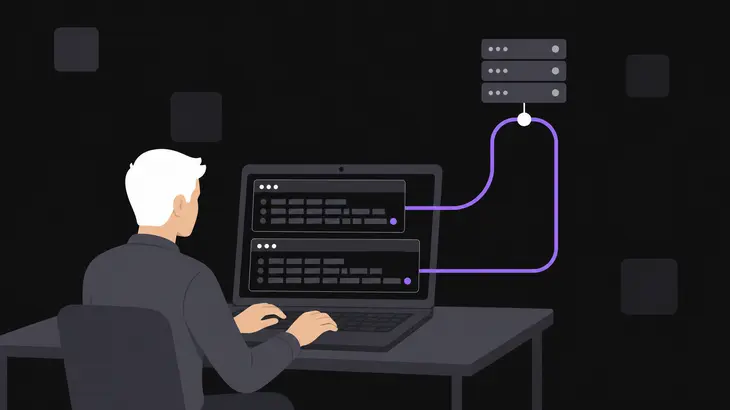
A localhost-bound server will not answer the Chromebook directly, so your viewer has to dial something on the Chromebook itself. ssh -L works by listening on the local side, and on this route the local side is the Chromebook's Linux container, so the viewer in that container dials its own loopback address and SSH carries it the rest of the way. Open the forward from the Linux terminal, after sudo apt install openssh-client if ssh is not there yet:
ssh -N -C -L 5901:localhost:5901 <user>@<server-host>-N keeps it to the forward: no remote command runs, and it holds the terminal. Leave that tab alone, open a second one, and point the viewer at the local end:
xtigervncviewer localhost::5901A viewer that fails the instant you connect means nothing is listening on 5901 locally, so the forward is not up. Ctrl-C in the first tab takes it down when you are finished. One command does both halves: -via opens the tunnel itself before connecting, and it shells out to /usr/bin/ssh, so the client still has to be installed.
xtigervncviewer -via <user>@<server-host> localhost:1Browser gateways: the host and the port live on the gateway
With noVNC the host and port sit on the proxy's command line, not in the tab. --vnc is where you point it at the running VNC server, and --listen is the address its own web server binds:
./utils/novnc_proxy --vnc localhost:5901 --listen localhost:6081Both on localhost keeps the proxy off the network. That is the bind to use when the web server has no business facing the internet, and it also means the browser has to be on that machine or arrive through a forward of its own. The script prints a URL. Open it, press Connect, and give the server's VNC password if it has one.
Apache Guacamole keeps its connections on the server too. Out of the box it reads them from GUACAMOLE_HOME/user-mapping.xml, where each <connection> carries a protocol and its parameters: hostname for the VNC server's hostname or IP address, port for the port its session listens on, and password if the server has one.
<connection name="desktop">
    <protocol>vnc</protocol>
    <param name="hostname">server.example.com</param>
    <param name="port">5901</param>
    <param name="password">VNCPASS</param>
</connection>
The example that ships with it points at localhost on 5901, which is a session on display :1 of the Guacamole host itself. In Chrome you sign in and pick the connection by name. A host and a port are never typed into the tab.
Managed Chromebooks: what the port forwarding policy actually stops
An administrator can turn off port forwarding into Crostini containers. Until someone sets that policy to false you can configure it yourself, under Settings, Advanced, Developers, Linux, Port forwarding, and what it does there is make a server you run inside Linux reachable from other devices.
None of the three routes need it. A viewer makes outbound connections, and the local end of ssh -L listens inside the same container the viewer runs in, so that traffic never crosses the container boundary at all. The direction you lose is the other one: you cannot publish a port from inside the Linux environment out to the rest of the network.
Share the folder before you run apt. Nothing on the Chromebook side hints at it, and it is the difference between a viewer in five minutes and an install command that cannot see its own file.
The rest of the work sits on the server: the display it serves decides the port, and keeping that port on the server's own loopback costs you nothing here, because the terminal that opens the tunnel sits right next to the viewer that uses it.
FAQs
How do I enable VNC on a supervised Chrome OS device?
Nothing has to be enabled, and there is nothing to ask an administrator for. Your viewer makes an outbound connection, and the Crostini forwarding policy does not touch that direction. If the Linux environment is not set up on the device, the Android app is the route left to you.
Is there a VNC viewer extension for Chrome?
Whatever you find in the store, a Chrome tab cannot open a raw VNC connection on its own. It can only show you a page served by a gateway that translates WebSockets to the server's TCP listener, and that gateway runs beside the server. RealVNC has no dedicated ChromeOS app either, so the viewer you install is the Linux app or the Android app.
Why can apt not find the deb I downloaded?
Because the Linux container has no view of ChromeOS storage until you grant it one. Right-click the folder your download landed in, choose Share with Linux, and the same path reappears under /mnt/chromeos inside the container. Run the install from there and apt has a file to work with.
Discuss this in the community
Questions about this, or a setup it does not cover? Ask in Using VNC Technology.