A VNC viewer that comes back with connection refused has already told you something useful. The packet reached the Ubuntu host and the host answered; nothing was listening on the address and port the viewer tried. A packet filter that drops traffic gives you a long hang and then a timeout instead, so a refusal rules the firewall out before you touch it.
On Ubuntu the usual answer is one you cannot see from the port number alone. A stock tigervncserver is running, the port is open, and the listener is bound to 127.0.0.1, so every connection from another machine is refused. Read which address the listener holds, not just which port.
What a refused connection has already ruled out
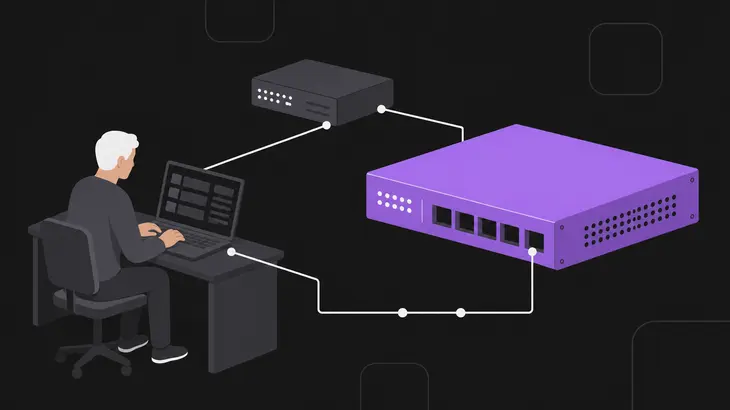
Refused and timed out are different answers from different places. A TCP SYN that reaches a port with nothing bound to it gets a reset straight back, and the viewer's connect call fails at once with ECONNREFUSED, which means no one listening on the remote address. A SYN that a filter drops gets nothing back at all, the call sits there, and you wait out a timeout.
Reproduce it from the client machine, where the failure actually happens, with the tool that scans for a listening daemon without sending it anything:
nc -vz -w 5 <server-address> 5901nc comes from netcat-openbsd, which every Ubuntu install carries. Three outcomes, and they split everything that follows:
Connection to <server-address> 5901 port [tcp/*] succeeded!means something accepted you, and the trouble is above the TCP layer.nc: connect to <server-address> port 5901 (tcp) failed: Connection refusedis your error, reproduced with the viewer out of the way. Go to the host.nc: connect to <server-address> port 5901 (tcp) timed out: Operation now in progress, arriving only after the full five seconds, means the packet was dropped rather than refused. That is a filter, a wrong address or the wrong host, and none of the rest applies.
Read the listener's address, not just its port
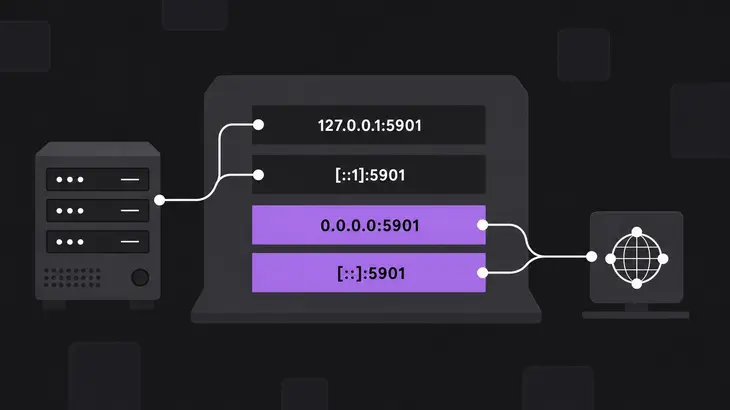
On the host, at the console or through an SSH login, list the TCP listeners:
ss -ltnpPlain ss leaves listening sockets out, so without -l a running server and a dead one look identical. -t holds it to TCP and drops the pile of unix sockets, -n stops it rewriting 5901 as a service name, and -p names the process once you run the whole thing under sudo.
A session's port is 5900 plus its display number, so :1 is 5901 and :2 is 5902. The column that decides your case is Local Address, next to it. A stock session looks like this:
State  Recv-Q Send-Q  Local Address:Port  Peer Address:Port
LISTEN 0      5           127.0.0.1:5901       0.0.0.0:*
LISTEN 0      5               [::1]:5901          [::]:*
That is a healthy, running VNC server that no other machine can reach. A server other machines can reach shows 0.0.0.0:5901 and [::]:5901 instead. Loopback is two addresses, IPv4 and IPv6, so you get a row for each either way.
The loopback bind behind most Ubuntu refusals
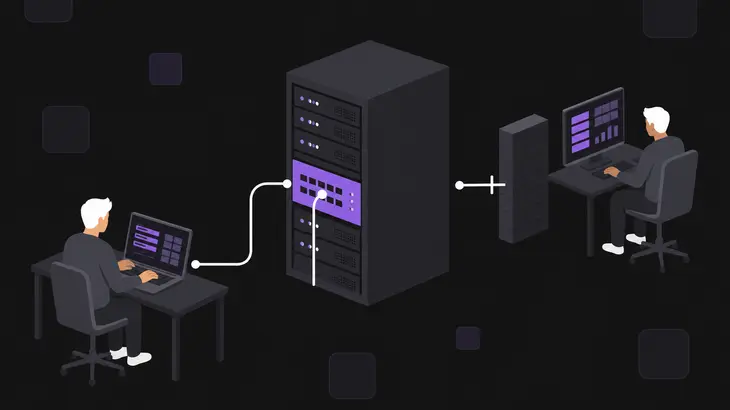
The default security type list on Ubuntu 24.04 is VncAuth on its own, and tigervncserver listens on localhost only while that list carries no TLS or X509 type. Nothing on a fresh install overrides it: /etc/tigervnc/vncserver-config-defaults ships with every setting commented out. So the server comes up, binds 127.0.0.1, and turns away everyone else, and no firewall rule will change that.
It tells you at startup, if you still have the scrollback:
New Xtigervnc server '<hostname>:1 (<user>)' on port 5901 for display :1.
Use xtigervncviewer -SecurityTypes VncAuth -passwd /home/<user>/.vnc/passwd :1 to connect to the VNC server.
A bare :1 in that second line means loopback. Once the server binds every address, the same line gains the host name in front and reads <hostname>:1.
Two ways out, and they are not equivalent. Across anything less trusted than a switch you own, leave the bind alone and take the SSH route below, because the VncAuth exchange is the only protection the protocol offers by itself. On a network you do trust, open the bind:
printf '$localhost = "no";\n' >> ~/.vnc/tigervnc.conf
tigervncserver -kill :1
tigervncserver :1
That file is perl syntax, one assignment per line, semicolon and all. Leave the semicolon off and the server refuses to start: you get Error parsing config file and no listener, which is the same refusal arriving from a different direction. The setting also widens the offered types from VncAuth to VncAuth,TLSVnc, so expect the startup line to change too. Where systemd owns the session rather than your shell, restart tigervncserver@:1.service in place of those last two lines. Either way, confirm the move:
ss -ltnp | grep 59010.0.0.0:5901 means you are done, and xtigervncviewer <server-address>:5901 from the client lands on the password prompt instead of an error.
Reach it over SSH instead

A local forward ends at the same server on the loopback address it is already bound to, so nothing on the host has to change. From the client:
ssh -L localhost:5901:localhost:5901 <user>@<server-address>A localhost bind address keeps the forwarded port to local use only, and the far end of the forward is the server's own loopback at 5901. That command holds the terminal, so leave it running and open a second one for the viewer:
xtigervncviewer localhost:5901A single-colon number of 100 or more is a TCP port, so localhost:5901 is the port and not display 5901. Under 100 it is a display number, which is why :1 works on the host itself and <server-address>::5901 is the explicit way to name a port.
To skip the spare terminal, let the viewer build the same tunnel. Name the server as the gateway, and localhost then means the server, not your desk:
xtigervncviewer -via <user>@<server-address> localhost:1When nothing is listening at all
An empty ss -ltnp on 5901 means the server never came up. On Ubuntu the unit is one per display:
systemctl status tigervncserver@:1.serviceThree answers are worth knowing by sight. Unit tigervncserver@:1.service could not be found. means the package is absent, or you are running a different implementation than you think:
sudo apt install tigervnc-standalone-serverNo user configured for display :1 means the unit fired and /etc/tigervnc/vncserver.users holds no line claiming that display. One :<display>=<username> per line, and the file ships with nothing but comments, so a fresh install cannot start a session until yours goes in:
echo ':1=<user>' | sudo tee -a /etc/tigervnc/vncserver.users
sudo systemctl enable --now tigervncserver@:1.service
Anything that comes back failed sends you to the per-display log, which holds the server and the session in one file. The name comes from hostname -f, so on a machine with a domain set it is longer than you expect:
tail -40 ~/.vnc/$(hostname -f):1.logFix what the log names, then stop and start the unit and look at the sockets again:
sudo systemctl restart tigervncserver@:1.service
ss -ltnp | grep 5901
When the listener is right and the viewer still fails
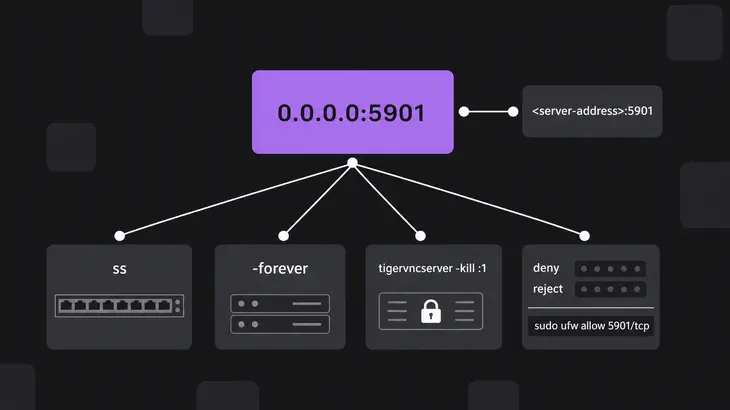
A row on 0.0.0.0:5901, a clean nc probe, and still no desktop. Work down these.
- The viewer is aimed at the wrong display. Each session takes its own port. Read the number off the
ssrow rather than assuming 5900, and give the viewer<server-address>:5901. - It worked once and has been refused ever since. x11vnc quits as soon as the first client disconnects unless you start it with
-forever. The listener is simply gone, which is why attempt two looks nothing like attempt one. - A stale session owns the display. Clear it with
tigervncserver -kill :1before starting another, because a second server on a taken display fails rather than taking over. - The session opens and then ends after a few seconds. That is not a refusal at all, and the port is innocent. The per-display log holds the reason.
The firewall comes last for a reason. Ubuntu ships ufw inactive with a default incoming policy of deny, and deny drops the packet rather than answering it, so ufw at its defaults hands you the timeout rather than the refusal. One exception is worth knowing: an explicit reject rule sends back the same reset a closed port would, which at the client end is indistinguishable from nothing listening. Read the rules before you blame them, and if you did turn ufw on and want the direct connection, get the SSH rule in first:
sudo ufw status
sudo ufw allow 5901/tcp
Run the nc probe from the client before anything else. One line decides where you spend the next ten minutes: a refusal puts you on the host reading ss -ltnp, and a timeout puts you on the network path, where none of the server checks would have told you anything.
Then read the Local Address column first, because that is where the common Ubuntu answer sits. A 127.0.0.1 there turns the question from which firewall rule to add into which way you want the session to travel. A LAN you control earns $localhost = "no"; and a restart. Anything else earns the SSH forward, and the forward works right now, without changing a single setting on the server.
FAQs
The Ubuntu host answers ping, so why is VNC connection refused?
Ping only proves the host is up and willing to answer ICMP. The refusal proved more than that already: your TCP packet reached the host and the host replied, which is why you got a fast answer instead of a hang. Reachability was never the problem. The listener is missing, bound to an address your client cannot use, or sitting on a different port, and ss -ltnp on the host settles which of the three it is.
Should I forward the VNC port on my router to connect from outside the network?
Forward the SSH port and tunnel over it instead. RFB by itself carries an optional password check and nothing more, so a 5901 exposed to the internet puts a desktop behind one weak secret. The same ssh -L forward reaches the session from anywhere you can log in, and it leaves the server on loopback where Ubuntu already put it.
Discuss this in the community
Questions about this, or a setup it does not cover? Ask in Using VNC Technology.