Start your OpenGL applications with vglrun inside a TurboVNC session and they render on the server's GPU. TurboVNC then compresses the desktop and streams it to your viewer. Leave VirtualGL out and the same applications draw with TurboVNC's built-in software OpenGL, which TurboVNC itself pitches at casual 3D.
Both halves run on the server, a Linux or FreeBSD box with an AMD or nVidia GPU. Your laptop needs nothing but a VNC viewer, and the TurboVNC Viewer runs on Windows, macOS and Linux. If the GPU machine has to run Windows, this pair is out. The run below uses display :1 (port 5901), an Xfce desktop and the GPU's EGL device egl0.
Who does what in the pair
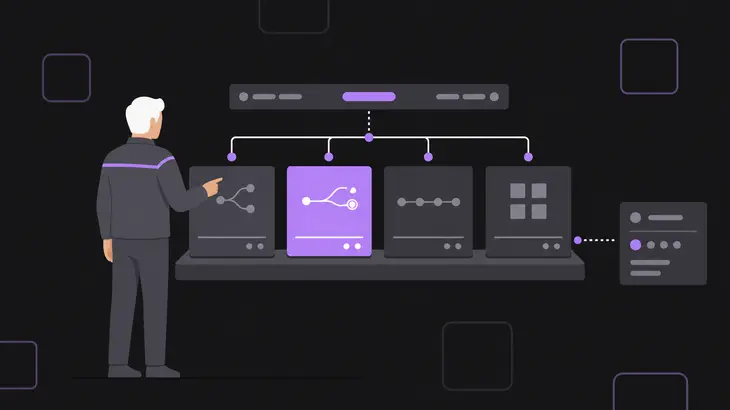
VirtualGL handles the 3D: it gets OpenGL rendering onto the GPU. TurboVNC handles everything else. It is the X server your desktop and applications draw into, and the VNC server that compresses that desktop for the viewer. Both come out of the same project family, and TurboVNC started life as the fast X proxy VirtualGL needed.
| Project | Its job | License | Server side | Client side | Current release |
|---|---|---|---|---|---|
| TurboVNC | X server plus VNC server; compresses the desktop | GPL-2.0-or-later | Linux and FreeBSD, x86-64 and AArch64 | TurboVNC Viewer for Linux, macOS and Windows (x86-64, Arm64) | 3.3.1, 2026-08-20 |
| VirtualGL | Moves OpenGL rendering onto the server GPU | wxWindows Library Licence 3.1 | Linux and other Unix, x86-64 and AArch64, AMD or nVidia GPU | Nothing to install | 3.1.5, 2026-08-14 |
The client column is the practical win. VirtualGL goes on the server only when you reach it through VNC, so Windows and Mac users install the TurboVNC Viewer and nothing else.
How a GPU-rendered frame reaches your viewer
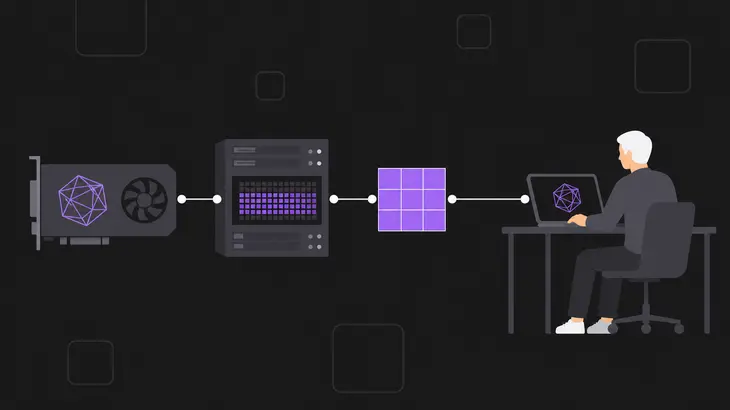
Plain remote X sends every OpenGL command and all of the 3D data to the X server on your desk, which only holds up when the data is small and the network is fast. VirtualGL's split rendering keeps the 3D data next to the GPU and sends finished frames instead:
vglrunpreloads the VirtualGL Faker into the application. Inside its environment you'll findLD_PRELOAD=libdlfaker.so:libvglfaker.so.- The Faker diverts the application's OpenGL rendering into an off-screen buffer on the server's GPU.
- When the application finishes a frame, VirtualGL reads it back and draws it into the application's window in the TurboVNC X server. Both run on the same host, so the frame goes through shared memory, uncompressed. That's VirtualGL's X11 Transport: TurboVNC's
vncserverscript exportsVGL_COMPRESS=0into the session before it runs the startup script, and VirtualGL would pick the same transport anyway, because the session'sDISPLAYstarts with a colon. - TurboVNC compresses what changed on the desktop and sends it to your viewer. Regions with many colours, which is what a rendered 3D frame is, go out as JPEG.
Step 4 is where TurboVNC earns its place. Its encoder leans on JPEG through libjpeg-turbo, a SIMD-accelerated codec, for those many-colour regions. On 3D and video workloads it compresses better than the tightest mode of TightVNC 1.3.x, the code it was forked from, while using typically 15 to 20% of the CPU time.
Prepare the GPU host
You need the GPU vendor's driver, both packages and a VirtualGL server configuration. On a fresh server, install VirtualGL before the nVidia proprietary driver. Install it afterwards and it can pull in Mesa, which rewrites the libGL symlinks the nVidia installer set up.
Both projects publish packages through their own APT repositories, TurboVNC's and VirtualGL's. Add the keys and source lists, then install the two packages:
wget -q -O- https://packagecloud.io/dcommander/turbovnc/gpgkey | gpg --dearmor | sudo tee /etc/apt/trusted.gpg.d/TurboVNC.gpg >/dev/null
wget -q -O- https://packagecloud.io/dcommander/virtualgl/gpgkey | gpg --dearmor | sudo tee /etc/apt/trusted.gpg.d/VirtualGL.gpg >/dev/null
sudo wget -q -O /etc/apt/sources.list.d/TurboVNC.list https://raw.githubusercontent.com/TurboVNC/repo/main/TurboVNC.list
sudo wget -q -O /etc/apt/sources.list.d/VirtualGL.list https://raw.githubusercontent.com/VirtualGL/repo/main/VirtualGL.list
sudo apt update
sudo apt install turbovnc virtualgl
TurboVNC lands in /opt/TurboVNC/bin. VirtualGL's tools land in /opt/VirtualGL/bin, and its package links vglrun and vglserver_config into /usr/bin.
The session also needs a desktop to start, and a headless server has none. Without one, xstartup.turbovnc logs that the window manager was not found and the session exits as soon as it starts. Install Xfce, a terminal for it, and the D-Bus launcher the startup script uses:
sudo apt install xfce4 xfce4-terminal dbus-x11/usr/share/xsessions/xfce.desktop should now exist; that's the file -wm xfce looks for.
Next, pick how VirtualGL reaches the GPU. The GLX back end goes through a 3D X server running on the GPU, so the box needs a display manager started at boot, and GDM 49 and later can't provide one. The EGL back end opens the GPU device directly with no X server on it. Use EGL on a headless server. Keep GLX for an application that needs something the EGL back end leaves out, such as accumulation buffers or indirect contexts.
Configure the EGL back end and add yourself to the group that gets the GPU devices:
sudo vglserver_config +egl
sudo usermod -aG vglusers <user>
+egl runs the configuration unattended and restricts the GPU device files to vglusers, which it creates on first run (... Creating vglusers group ...). On a box with a GPU it also prints ... Granting write permission to /dev/dri/card* for vglusers group .... If you run vglserver_config interactively instead, the EGL-only entry is option 3 in the 3.1.5 menu; the user guide still calls it option 2.
Group membership only counts from your next login. Log out, SSH back in, and run the sanity check:
/opt/VirtualGL/bin/eglinfo -e
/opt/VirtualGL/bin/eglinfo egl0
-e lists each EGL device ID with its DRI device path. eglinfo egl0 should print a list of EGL configs and finish without an error. Both need libGL.so.1, which arrives with libgl1 as a TurboVNC dependency; on a box with VirtualGL alone they stop with error while loading shared libraries: libGL.so.1, and sudo apt install libgl1 fixes it.
Start a session and put an application on the GPU
Start the session from that fresh login, so the processes in it carry the vglusers group, and reach it through the viewer's built-in SSH tunnel as with any TurboVNC session. On the host:
/opt/TurboVNC/bin/vncserver :1 -wm xfce -localhostThe first start in an account asks you to set a VNC password. On a Linux or macOS client:
/opt/TurboVNC/bin/vncviewer -tunnel <user>@<host>:1On Windows, start TurboVNC Viewer from the Start Menu and type <user>@<host> in the VNC server field. The Session Manager logs in over SSH, lists your sessions including :1, and connects to the one you pick through an SSH tunnel with a fresh one-time password.
Open a terminal in the remote desktop and compare the renderer with and without VirtualGL:
/opt/VirtualGL/bin/glxinfo -B | grep 'renderer string'
vglrun -d egl0 /opt/VirtualGL/bin/glxinfo -B | grep 'renderer string'
The first prints OpenGL renderer string: llvmpipe and an LLVM version: that's TurboVNC's software OpenGL. The second should name your GPU. If it also reads llvmpipe, egl0 is Mesa's software device, not your card. Find the GPU in the eglinfo -e list and give -d its device ID or its /dev/dri/card path. If the list has no GPU in it, fix the driver before anything else.
VirtualGL ships a quick load test. It prints OpenGL Renderer: with the renderer it got, then frames/sec lines while it runs:
vglrun -d egl0 /opt/VirtualGL/bin/glxspheres64Your own application starts the same way:
vglrun -d egl0 <application>Per-application vglrun is the path tested here on Xfce, and it's all Xfce or MATE needs. GNOME and KDE composite through OpenGL, and for them TurboVNC recommends GPU acceleration; with VirtualGL that means -vgl: start the session with it, or set $useVGL = 1; in ~/.vnc/turbovncserver.conf. vncserver answers with (Enabling VirtualGL) and launches the window manager under vglrun +wm, and every application started from the desktop inherits VirtualGL without typing vglrun.
On an EGL-only host that has two catches. First, vglrun +wm uses the GLX back end on display :0, so every OpenGL program in the session fails with [VGL] ERROR: Could not open display :0. until you point it at the EGL device in the same turbovncserver.conf:
$vglrun = "vglrun -d egl0 +wm";Second, the EGL back end doesn't support GLX_EXT_texture_from_pixmap, the extension an X compositing manager uses to bind window contents to textures. Nothing promises that GNOME or KDE will composite there. If yours doesn't, give it the GLX back end, which needs an X server running on the GPU, or stay with Xfce and per-application vglrun.
When you're done, kill the session from an SSH shell on the host. Closing the viewer only disconnects.
/opt/TurboVNC/bin/vncserver -kill :1Match the JPEG settings to your link
The TurboVNC Viewer starts at Tight with perceptually lossless JPEG: quality 95 and no chrominance subsampling. That wants 50 Mbit/s or more. On a link around 10 Mbit/s, use the medium preset: quality 80, 2X subsampling and compression level 6. On a thin broadband link, the low preset (quality 30, 4X, level 7) performs best, with very noticeable artefacts. Set them in the viewer's Options dialog or on the command line (vncviewer.bat on Windows):
/opt/TurboVNC/bin/vncviewer -tunnel -Quality 80 -Subsampling 2X -CompressLevel 6 <user>@<host>:1The session log on the host confirms it with Using JPEG quality 80. Don't reach for vglrun -q here. That quality option only applies to VirtualGL's own JPEG transport and does nothing while TurboVNC does the compressing.
Where TurboVNC and VirtualGL fit, and where they don't
The pair suits OpenGL applications on a GPU server that people reach from laptops or thin clients, over any network, while the data stays next to the GPU. VirtualGL also shares one GPU between several users, each in their own TurboVNC session.
Look elsewhere in these cases:
- The GPU machine runs Windows. Both server halves need Linux or another Unix.
- Vulkan applications. VirtualGL accelerates OpenGL. TurboVNC's DRI3 support (
-drinode autoon thevncserverline) accelerates Vulkan and OpenGL with Mesa-based drivers, though not with nVidia's proprietary driver, and its OpenGL performance is generally worse than VirtualGL's. You can run Vulkan through DRI3 and OpenGL through VirtualGL in the same session. - Seamless windows or quad-buffered stereo. TurboVNC gives you one desktop window and no quad-buffered stereo. VirtualGL's own VGL Transport, which sends frames to an X server on your client, has both. TurboVNC, for its part, generally needs about 20% more host CPU than the VGL Transport for the same frame rate. The VGL Transport, though, draws the rest of the application's GUI over remote X, which crawls on high-latency links.
- The GPU sits in a different box from the TurboVNC host. It still works, through
vglconnectfrom a terminal in the session andVGL_COMPRESS=rgb, and it needs a Gigabit or faster link between the two machines to perform well.
Get the renderer check right before you tune anything. Once vglrun -d egl0 /opt/VirtualGL/bin/glxinfo -B names your GPU, the GPU side is done and the stream is what's left to tune. While it still reads llvmpipe, VirtualGL isn't on the GPU yet, and no viewer setting will change that.
FAQs
Do I need VirtualGL on my laptop?
No. With TurboVNC in the path, VirtualGL lives on the server and your laptop only runs the viewer. The client side of VirtualGL, its VGL Transport client, is only for setups that send frames to an X server on the client, which needs X11 there (XQuartz on a Mac, WSL 2 or Cygwin/X on Windows).
How do I run 32-bit OpenGL applications on an x86-64 host?
Add the virtualgl32 package, which carries only the 32-bit server components. It depends on i386 libraries, so on Ubuntu enable that architecture first, or apt stops with Unable to correct problems, you have held broken packages.:
sudo dpkg --add-architecture i386
sudo apt update
sudo apt install virtualgl32
The 32-bit faker lands in /usr/lib32, with links from /usr/lib/i386-linux-gnu, and VirtualGL can then run 32-bit and 64-bit applications.
Does it work if the server's console runs a Wayland desktop?
Yes. The TurboVNC session is an X server of its own, and its startup script clears WAYLAND_DISPLAY and sets GDK_BACKEND=x11, so applications in it draw to TurboVNC. The EGL back end doesn't care what the console runs. For the GLX back end on a GDM host with Wayland, VirtualGL 3.1.4 and later use the login screen's Xwayland on display :1024 when there is no :0. GDM 49 and later drop X11 altogether, so there the EGL back end is the only option.
Discuss this in the community
Questions about this, or a setup it does not cover? Ask in Open Source VNC.