Ctrl+Alt+Shift+F is the TightVNC exit full screen key in TightVNC Viewer for Windows. In the 1.3.10 X viewer that Debian and Ubuntu package as xtightvncviewer, there is no such combination: F8 opens a popup menu, and its Full screen entry puts the viewer back in a normal window.
Nothing on the remote host decides this, so stop looking at what you are connected to and look at what you are connected with. On Linux that takes a second to check, because vncviewer is an alternatives link and it lands on TigerVNC whenever that package is installed too.
Full-screen mode belongs to the viewer, so work out which viewer you have

The viewer owns the full-screen state and processes its own hotkeys locally. Those key presses never reach the VNC server, which is why the remote desktop can be Windows, Linux or macOS without changing a thing. The program drawing the window in front of you is the one with the answer.
Three different programs answer to the name TightVNC:
- TightVNC for Windows. The current line is 4.0.2, released on 28 October 2026, with 2.8.90 still offered beside it. Installing 4 replaces an existing TightVNC 2 instead of sitting next to it.
- The 1.3.10 X viewer. The only Unix/Linux source still published, and it sits under Legacy. Debian 13 packages it as
xtightvncviewer1:1.3.10-9 and Ubuntu 24.04 as 1:1.3.10-8, both installing it as/usr/bin/xtightvncviewer. There is no 4.x for X. - Whatever
vncviewerresolves to. On Debian and Ubuntu that name is an alternatives link rather than a binary, and the two VNC packages do not tie for it.
update-alternatives --display vncviewer
readlink -f "$(command -v vncviewer)"
The TightVNC package registers at priority 70 and tigervnc-viewer claims the same name at 80. On a machine carrying both, plain vncviewer starts TigerVNC, and the option names further down are not the ones it reads.
TightVNC exit full screen keys, by viewer
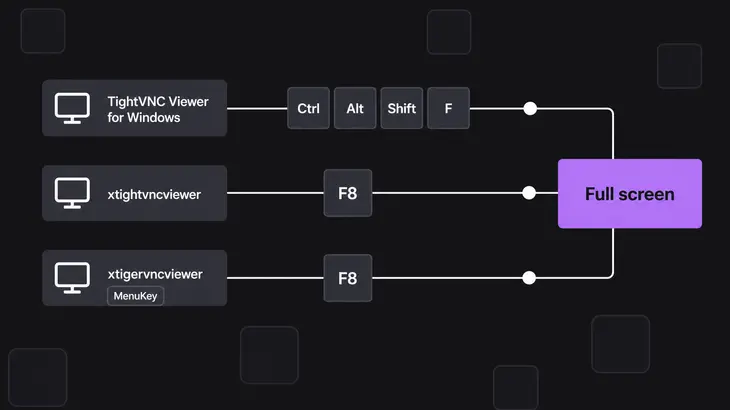
| Viewer | What leaves full screen | Where it comes from |
|---|---|---|
| TightVNC Viewer for Windows, 4.0.2 and the 2.8.x line | Ctrl+Alt+Shift+F |
a hotkey the viewer handles itself |
TightVNC X viewer 1.3.10, installed as xtightvncviewer |
F8, then Full screen |
the third entry in the F8 popup |
TigerVNC xtigervncviewer, which usually owns the vncviewer name |
F8, then the full-screen entry |
its own popup, key set by MenuKey |
Ctrl+Alt+Shift+F leaves full-screen mode in the Windows viewer, and that is the whole of the Windows answer. The X viewer has no equivalent combination and gets there through the F8 pop-up utility menu instead. TigerVNC's viewer also opens its menu on F8, so F8 lands you in a menu either way, even when you guessed the wrong program.
The F8 popup: Full screen is the third entry

Key bindings live in /etc/X11/app-defaults/Vncviewer, and one line there hangs the popup on F8:
<Key>F8: ShowPopup()What comes up is eight entries, in this order:
Dismiss popup
Quit viewer
Full screen
Clipboard: local -> remote
Clipboard: local <- remote
Request refresh
Send ctrl-alt-del
Send F8
Clicking Full screen fires toggle() HidePopup() ToggleFullScreen(), which dismisses the menu and flips the window state in one action.
Two of those entries matter when the remote side wants F8 for itself. Pressing F8 twice passes a single F8 through to the remote desktop, and the eighth entry, Send F8, does the same job with the mouse.
If somebody has rebound the key on your machine, read the file:
grep -n F8 /etc/X11/app-defaults/VncviewerYou get the ShowPopup() binding and the Send F8 label back. A No such file or directory instead means the package is not installed, so whatever is sitting full screen on your monitor belongs to something else.
Start the X viewer in a window and check the fullScreen default
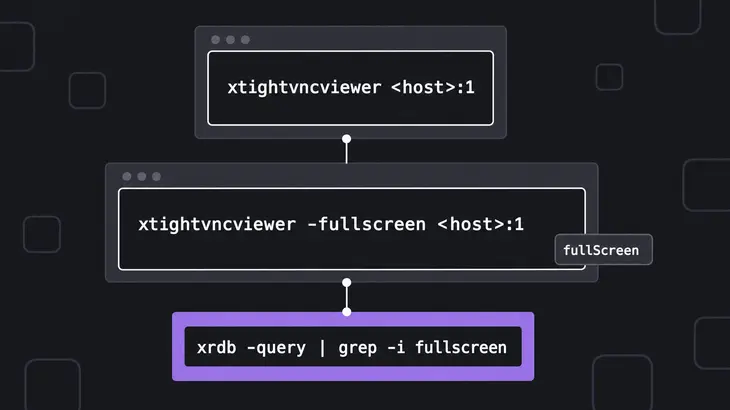
The X viewer only starts full screen when you pass -fullscreen, because the matching fullScreen resource defaults to false. So a viewer that opens full screen was told to.
Windowed, against display 1 on the remote host:
xtightvncviewer <host>:1The same target, started full screen:
xtightvncviewer -fullscreen <host>:1If neither line is what you typed and it still comes up full screen, something in your session has set the resource:
xrdb -query | grep -i fullscreenA line back tells you the resource is set and what it is set to. Nothing back puts you on the default, which leaves a shell alias or a wrapper script carrying -fullscreen.
When TightVNC exit full screen does nothing

- The title bar and scrollbars are still on screen, and the title-bar buttons ignore the mouse. Still open against 2.8.11.0 on the Windows viewer, filed in 2018, and it turns up when the remote screen and the local one run the same resolution.
Ctrl+Alt+Shift+Frestores normal windowed operation anyway, so press it even though the leftover chrome makes it look as though you already left. - You minimised it and it came back full screen. The Windows viewer changed that in 2.7.1: a minimised full-screen window is restored as a full-screen application rather than a windowed one. Minimising is a round trip, not an exit.
- Alt+Tab stopped getting you out. 2.7.10 added detection of a Windows key press, alone or in combination, and of the Alt+Tab combination while the viewer is in full-screen mode. From that release the combination belongs to the viewer rather than to your local desktop.
- You are in the X viewer pressing a Windows key. Ctrl+Alt+Shift+F is scoped to the Windows viewer. On
xtightvncviewerthe route is F8 and the Full screen entry; onxtigervncviewerit is F8 and the full-screen entry in its own menu.
Keyboard capture in full screen: the grabKeyboard setting
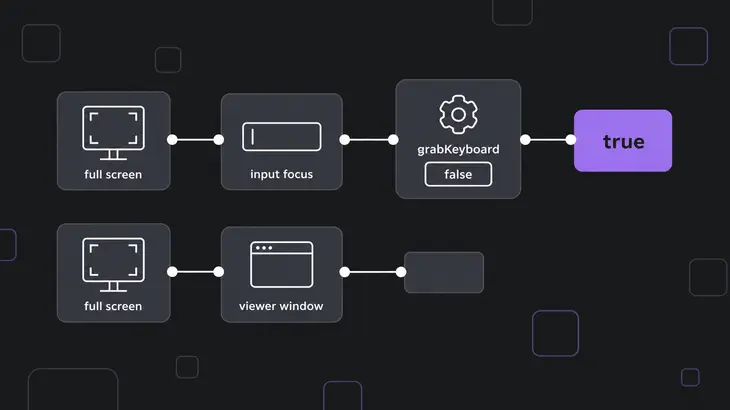
Running full screen can confuse X window managers, and it goes wrong in two ways: input focus gets handled incorrectly, or the viewer window disappears mysteriously. Only the first half has a setting behind it.
grabKeyboard grabs the keyboard in full-screen mode and defaults to false, so a viewer nobody has configured runs without it. There is no option for it on the command line, so it has to come from the X resource database.
grep -i -e grabKeyboard -e fullScreen /etc/X11/app-defaults/Vncviewer
xrdb -query | grep -i -e grabKeyboard -e fullScreen
Both quiet means you are on the stock defaults: no keyboard grab, and full screen only when the launch line asks for it. Keep losing keyboard focus in full screen and grabKeyboard set true is the lever aimed at exactly that symptom. If input behaves and the window itself is what misbehaves, the grab will not help you, because that is the other half of the warning.
Two programs, two answers. Ctrl+Alt+Shift+F in TightVNC Viewer for Windows, and F8 then Full screen in the 1.3.10 X viewer that Debian and Ubuntu ship as xtightvncviewer.
Work out which binary is drawing the window before you reach for either key. On a Linux box the vncviewer name goes to whichever package registered the highest priority, and tigervnc-viewer's 80 beats the TightVNC package's 70, so the key that works is often not the one you searched for.
FAQs
Can I change the key that opens the popup menu?
The TightVNC X viewer takes it from the <Key>F8: ShowPopup() line in /etc/X11/app-defaults/Vncviewer, so changing it means editing that file, for every user on the machine. TigerVNC's viewer has a MenuKey parameter for the same job, which takes F1 through F12, Pause, Scroll_Lock, Escape, Insert, Delete, Home, Page_Up or Page_Down, and defaults to F8.
My machine has both viewers installed, so which one does vncviewer start?
TigerVNC. Automatic mode follows priority, and tigervnc-viewer claims the name at 80 against the TightVNC package's 70. update-alternatives --display vncviewer prints both candidates with their numbers, and sudo update-alternatives --config vncviewer moves the link to the one you want. Calling xtightvncviewer by name skips the question.
Discuss this in the community
Questions about this, or a setup it does not cover? Ask in Using VNC Technology.