On current Raspberry Pi OS the server that shows your live Wayland desktop is wayvnc, it is already installed, and turning on VNC in raspi-config starts it. The viewer connects on port 5900 and the password is your Pi login. RealVNC Server is the component that cannot serve Wayland, which is the reason so much Pi advice opens by telling you to go back to X11.
The compositor decides what a VNC server can reach on Wayland, because the server is a client of the compositor and gets only the screen contents and input access the compositor hands out. That sounds like a coin toss, and on a generic Linux box it is. On a Pi it is settled: every compositor Raspberry Pi OS has shipped on Wayland is wlroots-based, so screen capture and injected input are both there.
Which server serves your Pi desktop
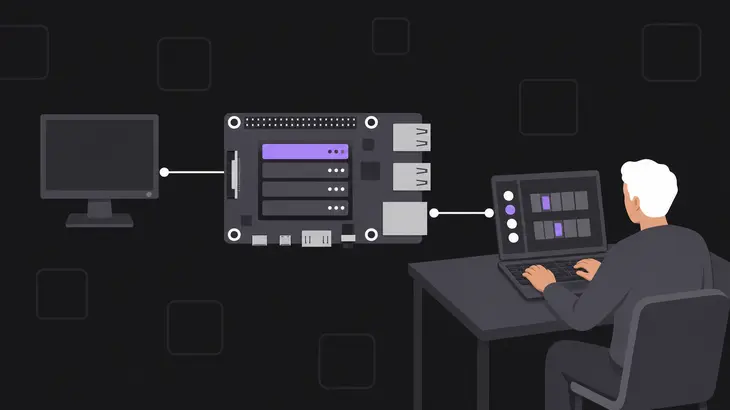
Four servers come up for this job on a Pi, and only one of them touches the running Wayland desktop.
| Server | Wayland session | X11 session | On the Pi image |
|---|---|---|---|
| wayvnc | serves the live desktop | not used | yes |
| RealVNC Server | not supported | serves the live desktop | yes |
| tigervncserver | starts a separate X desktop | starts a separate X desktop | no, apt install first |
| x11vnc | nothing to share, the desktop is not on an X server | shares the live desktop | no, apt install first |
Two commands tell you which column you are in. The first prints your release codename, and the second looks for the compositors raspi-config checks for when it decides which server to enable:
grep VERSION_CODENAME /etc/os-release
pgrep -l 'labwc|wayfire'
A name and a pid back from pgrep puts you on Wayland. Silence means the X11 session, where the window manager is Openbox.
How Raspberry Pi OS wires the built-in server to your desktop
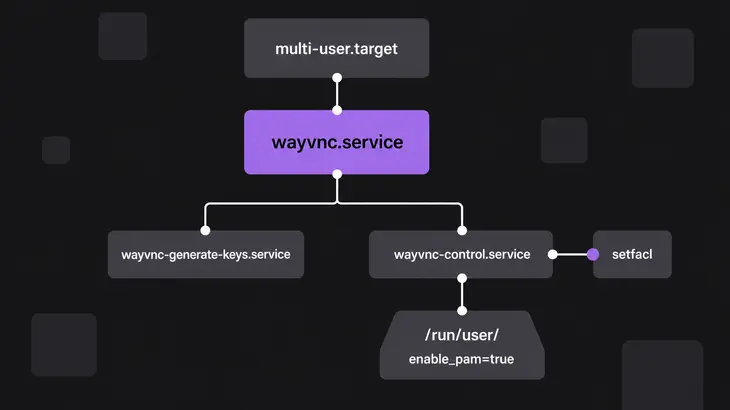
systemd starts wayvnc.service at boot under multi-user.target, long before anybody logs in, and runs it as a dedicated vnc account. It cannot attach to a desktop that does not exist yet, so it starts detached: the listener is up and taking connections while no desktop is behind it.
Two helper units close that gap. wayvnc-generate-keys.service runs first and creates an RSA key plus a self-signed certificate under /etc/wayvnc/ if they are not already there. Then wayvnc-control.service watches for a Wayland socket under /run/user/, grants the vnc account access to it with setfacl, and tells the running server to attach, retrying once a second until a session appears.
That architecture produces the failure that sends most people searching. The service is active, the port answers, and the screen is black or the connection drops, because nobody is logged in at the Pi's desktop. There is no virtual desktop to fall back on. Either log in on the Pi, or turn on desktop autologin.
The settings all of this runs on are already in place, which is worth seeing before you change anything:
systemctl status wayvnc wayvnc-control
cat /etc/wayvnc/config
The shipped config binds address=::, so the listener is on every interface from the start, and it sets enable_auth=true with enable_pam=true. Those last two matter more than they look. With PAM in play, the username and password settings are overridden, so there is no VNC password to set and no vncpasswd step. You authenticate as a Linux user, and /etc/pam.d/wayvnc stacks pam_unix with pam_allow_desktopuser, which narrows that to the account currently logged in on the desktop.
Turn it on and connect
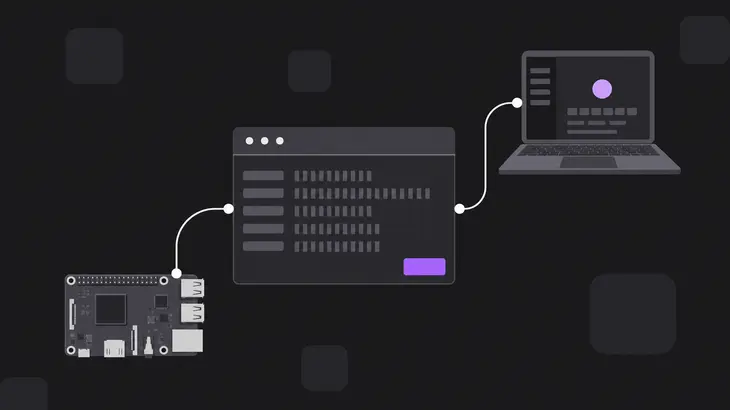
Enabling VNC is one menu entry:
sudo raspi-configThe blue configuration menu comes up. Take 3 Interface Options, then I3 VNC, then Yes. That entry reads your session type and acts on it: on Wayland it enables and starts wayvnc.service, and on X11 it installs realvnc-vnc-server if needed and starts vncserver-x11-serviced instead. One label, two different servers, which is why a Bullseye-era habit quietly produces a different result on a current image.
Check it came up before you reach for a viewer:
systemctl is-active wayvnc
ss -ltn | grep 5900
journalctl -u wayvnc -n 20
is-active prints active, and ss shows a listener on port 5900 bound to every address. The unit logs to the journal under the identifier wayvnc, so that last command is where a refused connection explains itself.
Now connect from your other machine. The port stays at the default 5900 because the shipped config never sets one, so there is no display arithmetic to do and nothing is listening on 5901:
vncviewer <pi-host>:5900Log in with the username and password of the Pi account that is sitting at the desktop. Expect a certificate warning on the first connection: the certificate is generated on the Pi at first start and signed by nobody, and it covers localhost, the hostname and the hostname with .local appended. Connecting by bare IP address is outside all three.
To stop serving without turning the feature off:
sudo systemctl stop wayvncWhat changed in each Raspberry Pi OS release
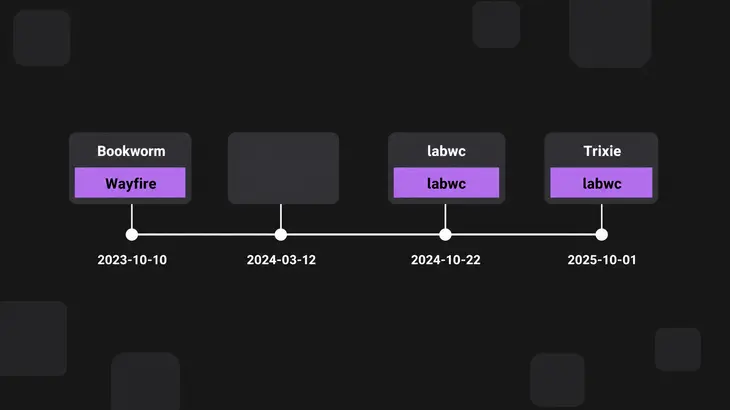
The default compositor moved twice, and most of the advice still in circulation was written for the first arrangement. The release notes carry the sequence:
| Date | What landed |
|---|---|
| 2023-10-10 | Bookworm. Wayfire on Pi 4 and Pi 5, Openbox on X11 on older models. wayvnc replaces RealVNC Server on Wayland. |
| 2024-03-12 | wayvnc moves under systemd. |
| 2024-10-22 | labwc becomes the default compositor on every model. |
| 2025-10-01 | Trixie. labwc only, and wayfire is gone. |
So a Pi 4 that was imaged in early 2024 and never reinstalled is probably on wayfire, and a Pi imaged since late 2024 is on labwc. Both are wlroots-based and both carry the screencopy protocol wayvnc needs, along with the virtual pointer and keyboard protocols that make remote input work, so the server behaves the same on either. The Screencopy protocol not supported by compositor error in the wayvnc FAQ is real, but reaching it on a Pi means having replaced the compositor with something outside the wlroots family.
The version that ships has moved too: Bookworm images carry wayvnc 0.9.x and Trixie carries 0.10.2. Anything from 0.8 up satisfies raspi-config, which refuses to enable an older one rather than starting something it cannot drive.
Switch to X11 when you want RealVNC Server

RealVNC Server has no Wayland support on the Pi, and no setting changes that. Its own setup procedure opens by moving the whole desktop back to X11.
Back in sudo raspi-config, take 6 Advanced Options, then A7 Wayland, then W1 X11, and reboot when prompted. Your desktop comes back on Openbox under Xorg. From there the VNC entry in raspi-config drives the other server, so confirm the one you now have:
systemctl status vncserver-x11-servicedactive (running) back from that means RealVNC Server has the session. It is already on the image, so this costs no download. What it does cost is the Wayland session, and with it everything newer in the Pi desktop that assumes one.
There is a way to keep both. If what you actually want is the RealVNC Viewer client rather than RealVNC Server, point it at the built-in server and stay on Wayland. RSA-AES arrived in wayvnc 0.7.0 and the viewer speaks it, and because the shipped config already names an RSA key file that the key-generation unit creates on first start, the two config lines that article asks you to add are in place before you look. Connect to port 5900 and authenticate as the desktop user, the same as any other viewer.
Run tigervncserver or x11vnc for a separate desktop
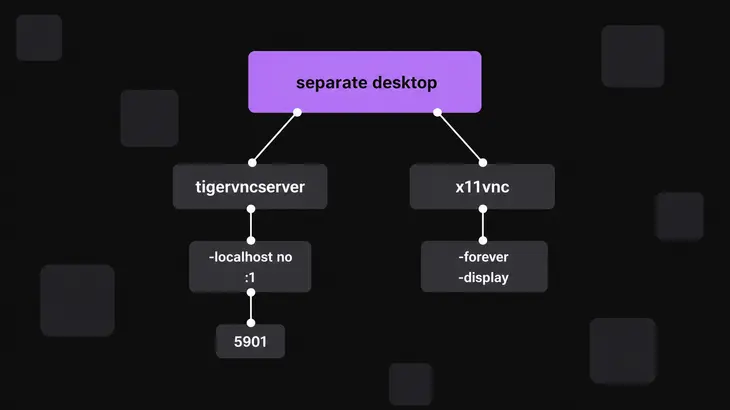
Neither of these is on the Pi image, and neither one shows your running Wayland desktop. What tigervncserver gives you is a second, independent X desktop with its own display number, which suits a build job or a long-running tool that should outlive your screen:
sudo apt install tigervnc-standalone-server
tigervncserver -localhost no :1
The first run asks for a password and stores it under ~/.config/tigervnc/, where the logs land too. The -localhost no is the part people lose an evening to: with the default security types the server listens on localhost only, so a direct connection from another machine is refused no matter how the firewall is set. Passing it also switches the security types to VncAuth,TLSVnc. Display :1 answers on 5901:
vncviewer <pi-host>:5901Leaving the default in place and tunnelling is the better habit on any network you do not control. Drop the -localhost no, then from your client:
ssh -L 5901:localhost:5901 <user>@<pi-host>That holds the terminal open, so from a second terminal:
vncviewer localhost:5901Shut the session down by number when you are done:
tigervncserver -kill :1x11vnc is the other shape: it shares a desktop that is already running rather than making a new one, which only helps once you are on the X11 session. It needs DISPLAY and XAUTHORITY pointed at that X server, so run it from a terminal inside the session you want to share and let it read them:
sudo apt install x11vnc
x11vnc -display "$DISPLAY" -forever -localhost
-forever is not optional in practice. The default is to exit as soon as the first viewer disconnects, which reads like a crash the first time it happens.
Stay on Wayland and use the server that is already installed. The one thing left to arrange is that somebody is logged in at the Pi's desktop, because that session is what the service attaches to.
Switch to X11 only for a concrete reason that RealVNC Server alone answers. Wanting the RealVNC Viewer on your laptop is not one of them, since it connects to the built-in server as it stands.
FAQs
Why does my viewer warn about the certificate, and can I get rid of the warning?
The certificate is made on the Pi the first time the server starts, with no authority behind it, so every viewer flags it once and then remembers it. Its names are baked in from the hostname at that moment: localhost, the hostname, and the hostname with .local. Rename the Pi later and the old names stay in the certificate. Delete tls_key.pem and tls_cert.pem from /etc/wayvnc/ and restart the service to have a fresh pair generated against the current hostname.
Only one of my two screens shows up. How do I switch which one?
Capture is limited to a single output, the first one by default. Switching it at runtime goes through the control socket, and on a Pi that socket is not in its default location, because the service passes a path of its own and owns it as the vnc account:
sudo wayvncctl --socket=/tmp/wayvnc/wayvncctl.sock output-list
sudo wayvncctl --socket=/tmp/wayvnc/wayvncctl.sock output-set <output-name>
Leave the socket argument off and the command looks in your own runtime directory and reports nothing running.
Does Raspberry Pi Connect use this same server?
Screen sharing in Connect is built on wayvnc and picks it up once the server is running, which is why that feature is limited to models on a Wayland session while its terminal access works everywhere. Connect reaches the Pi without a forwarded port, so it is the easier answer when the Pi sits behind somebody else's router.
Discuss this in the community
Questions about this, or a setup it does not cover? Ask in Using VNC Technology.