What has to land on the machine you want to reach decides this faster than anything else. Apache Guacamole puts nothing there and talks to whatever of VNC, RDP, SSH, telnet or a Kubernetes exec the host already answers. MeshCentral, RustDesk Server OSS and ShellHub each install their own agent or client, and then differ in what comes back through it: a managed fleet, a full desktop session, or a shell.
After that it is four checks. Can a client connect before you change anything, does it speak to the hosts you actually run, will your policy accept the licence, and is the project still shipping. Every one of them is readable off a setting, a repository file or a release page, so the shortlist is done before the first install.
What you actually host: gateways, relays and agents
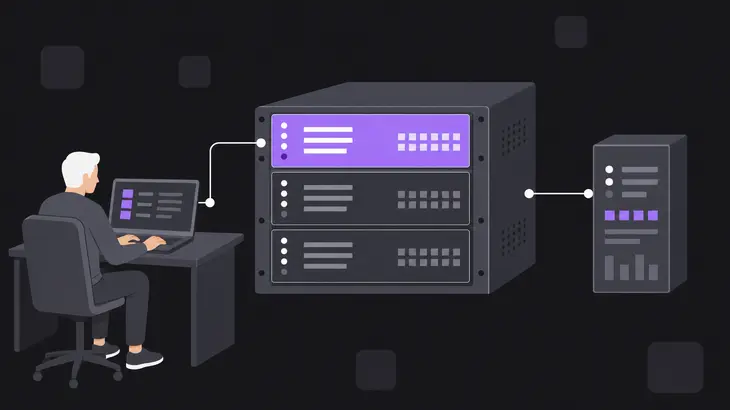
Every one of these tools exists to join two ends that cannot open a connection to each other directly, and the part you host is whatever sits between them. They do it in three different shapes, and the shape is what you are choosing.
Apache Guacamole puts a gateway in the middle. The viewer is a browser, so nothing goes on the connecting device, and the web application itself carries no remote desktop protocol at all. guacd behind it loads a plugin per protocol and dials the host. That moves the requirement onto the host, which has to be answering VNC, RDP, SSH, telnet or a Kubernetes exec before Guacamole is any use to you.
RustDesk Server OSS splits the job across two daemons. hbbs handles the RustDesk ID, rendezvous and signaling, and hbbr carries the relay traffic for peers that cannot reach each other directly. You run both, and every client has to be pointed at your hbbs before it will use them.
MeshCentral and ShellHub move the work onto the target. The MeshCentral agent registers with your server and hands you remote desktop, terminal control and file management in a browser. The ShellHub agent connects outbound and holds that connection open, and what comes back through it is SSH: a shell, plus file transfer, port forwarding and container access.
The four checks that cut the list
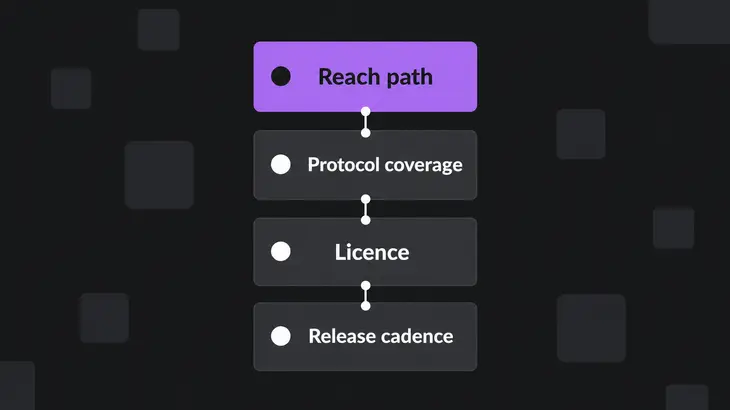
- Reach path: can a client connect on a default install, or does something have to change first.
- Protocol coverage: does it reach the hosts you actually run. Guacamole brokers VNC, RDP, SSH, telnet and Kubernetes exec. MeshCentral and RustDesk each carry their own protocol over their own agent or client. ShellHub carries SSH.
- Licence: read the repository LICENSE file, not the badge on a roundup.
- Release cadence: the latest release and its date, off the project's own release list.
Check one is where the surprises live, and each of the four answers it differently. MeshCentral starts in LAN-only mode, where agents find it by local network multicast, until you give it a known DNS name in meshcentral-data/config.json. RustDesk clients keep using whatever they were pointed at until the ID server and key are set in each one. A ShellHub agent at least dials you instead of listening, but it still has to be handed SHELLHUB_SERVER_ADDRESS, and the server needs an address those agents can reach. A guacd you build or install from a package binds to localhost unless bind_host is set, so the web application has to share its host until you change that, and the official container overrides exactly that default and leans on the Docker network instead.
Two of the four also exist as somebody else's service, which is worth knowing before you commit to running one. ShellHub draws the line most plainly: self-hosted means you install and maintain every component, back up the data and keep the certificates valid, and nothing leaves your PostgreSQL instance. RustDesk splits the same way, and that split costs you something concrete, because the web console, the API and access control sit in Server Pro rather than OSS. What you are weighing against MeshCentral, then, is OSS plus whatever fleet tooling you already run. Apache Guacamole and MeshCentral document one path only, and it runs on your host.
Latest release, release date and licence for each
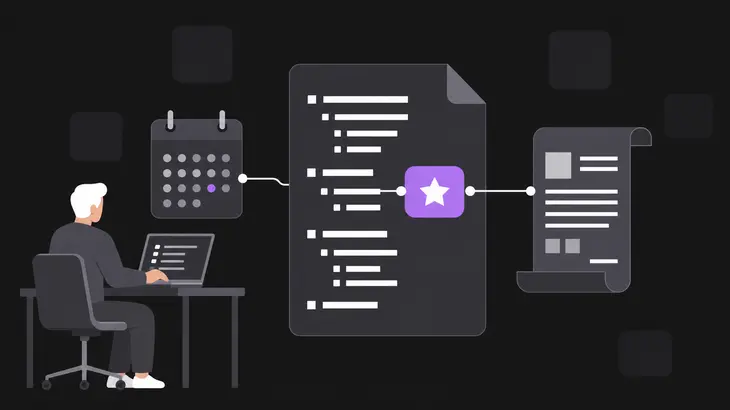
Apache Guacamole last shipped in June 2025, and the other three are far more recent.
| Option | Latest release | Released | Licence |
|---|---|---|---|
| Apache Guacamole | 1.6.0 | 2025-06-22 | Apache-2.0 |
| MeshCentral | 1.3.1 | 2026-10-23 | Apache-2.0 |
| RustDesk Server OSS | 1.1.16 | 2026-07-20 | AGPL-3.0 |
| ShellHub | v0.29.2 | 2026-11-03 | Apache-2.0 |
Re-read those off each project's own release list before you install, because a distribution package or a roundup will be behind. MeshCentral 1.3.1 carries PLEASE UPGRADE URGENTLY TO THIS VERSION, THIS IS A SECURITY UPDATE in its release notes, so on a MeshCentral host you already run it is an upgrade to do rather than a version to weigh up.
AGPL-3.0 on RustDesk Server is the only licence difference here, and it is narrower than its reputation. Section 13 turns on modification: modify the program and, if your version still supports remote network interaction, it has to prominently offer the people reaching it over that network an opportunity to receive the Corresponding Source of your version, free, from a network server. Run it unmodified and that obligation never fires. The other three ship the stock Apache-2.0 text, which carries nothing equivalent.
Where each one fits, and what lands on the target
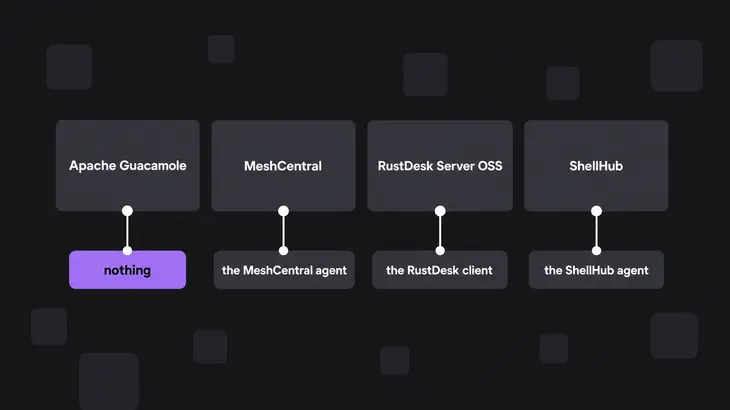
| Your job | The pick | What lands on the target | Machines it reaches |
|---|---|---|---|
| Browser access to hosts that already answer VNC, RDP, SSH, telnet or a Kubernetes exec | Apache Guacamole | nothing | any host already running one of those servers |
| One console for desktop, terminal and files across a mixed fleet | MeshCentral | the MeshCentral agent | Windows, Linux and BSD, macOS and Android, plus Intel AMT machines whose OS is down |
| Native desktop sessions across desktops and phones, on your own ID and relay | RustDesk Server OSS | the RustDesk client | Windows, macOS, Linux and Android; iOS controls but cannot be controlled |
| Shell on Linux and FreeBSD boxes, from an ordinary ssh client or a browser terminal | ShellHub | the ShellHub agent | Linux on amd64, armv6, armv7, arm64 and 386; FreeBSD through the ports tree |
If you are not allowed to install anything on the targets and they already answer one of those protocols, take Apache Guacamole, because the other three all need something of theirs on the box. If any target is Windows or macOS, drop ShellHub: its agent covers Linux and FreeBSD, and the browser terminal and the ssh client both land on the same shell on the same machines.
That leaves MeshCentral against RustDesk Server OSS, and the question there is whether you manage machines or sit at them. MeshCentral gives you one console over a fleet, and on Intel AMT hardware it reaches a machine whose operating system is not running, down to the BIOS and the power state. RustDesk Server OSS gives a person at one desk a full native session on another, with your ID and relay in the middle of it.
Stand your shortlist up on a test host
Each of these comes up in a few minutes, and each has one step that catches people out. Run the two you are deciding between, not all four.
Apache Guacamole is three containers, guacd, the web application and a database on one Docker network. There is no login page until all three are up, so treat this first step as proving the daemon and its bind address rather than as a working install.
docker network create guac-net
docker run --network=guac-net --name guacd -d guacamole/guacd:1.6.0
Give the container a second to come up, then read its log.
docker logs guacdUnder Guacamole proxy daemon (guacd) version 1.6.0 started comes the address and port it bound to, and it will be 0.0.0.0, not localhost, because the image starts the daemon with -b 0.0.0.0. What keeps guacd private on this host is the Docker network, so leave it on one. Publishing 4822 is documented with a warning for the same reason: guacd authenticates nothing, and whatever reaches it can use it to open connections onward. The hop from the web application to guacd also runs unencrypted until you turn SSL on at both ends. Set GUACD_SSL=true on the web application alone and you do not encrypt that hop, you break it, because guacd refuses SSL unless it was started with a certificate and key of its own.
From a distribution package the service starts it on 127.0.0.1 port 4822, and it is not a guacd.conf that decides that. Ubuntu's guacd package installs no /etc/guacamole/ at all. The unit reads /etc/default/guacd and passes what it finds there straight onto the command line, as -b $LISTEN_ADDRESS -l $LISTEN_PORT.
# /etc/default/guacd on Debian and Ubuntu
LISTEN_ADDRESS=127.0.0.1
LISTEN_PORT=4822
So change LISTEN_ADDRESS there and sudo systemctl restart guacd. A guacd.conf you write by hand loses, because command line options take precedence over that file. Put a firewall in front of 4822 if you move the web application off the host. Worth knowing before you go that way at all: Ubuntu 24.04 still packages guacd 1.3.0, three minor versions behind, so the container above is the current build.
MeshCentral wants Node.js and npm and nothing else. Keep sudo away from the install line.
sudo mkdir -p /opt/meshcentral
sudo chown "$USER" /opt/meshcentral
cd /opt/meshcentral
npm install meshcentral
node node_modules/meshcentral
The last line stays in the foreground, so leave it printing and work from a second terminal. On this first start, before any DNS name is in config.json, it warns that it could not get the port it asked for, then names the one it took.
WARNING: MeshCentral is running without permissions to use ports below 1025.
         Use setcap to grant access to lower ports, or read installation guide.

   sudo setcap 'cap_net_bind_service=+ep' `which node`

MeshCentral HTTPS server running on port <port>.
MeshCentral wants 443, a user-owned process cannot bind it, and it walks up from there until a port takes, so you land on 1024 or just above. Its own suggestion is the lighter of the two fixes. The capability is read when the process starts, so stop the server with Ctrl-C in the first terminal, run that setcap line, and start it again; this time it opens on 443. Note what that grants: the privilege lands on the node binary, so every Node program on the host can bind low ports afterwards.
The heavier route is running it as a service with node node_modules/meshcentral --install, which writes a unit carrying the same capability. Take no sudo to that command, because it calls sudo itself and a root-run install writes User=root into the unit. Stop the foreground copy before you run it, too: the unit resolves the same meshcentral-data directory, and --install enables and starts the service straight away, so you would otherwise have two servers live on one data directory.
Open https://<host>:<port> on whichever port it settled on and accept the self-signed certificate. On that first start the server pulls the agent installers from GitHub, around 120 MiB, into meshcentral-data/agentbuilds; a server with no internet access needs them copied in by hand or it has nothing to hand your machines. Create the account straight away: while the server has no users it offers account creation to whoever reaches the login page, and the first account created becomes the server administrator. Once that account exists the offer goes away, because newAccounts is false by default.
RustDesk Server OSS runs off the compose file the project publishes, and a small cloud instance or a Raspberry Pi carries it.
wget rustdesk.com/oss.yml -O compose.yml
sudo docker compose up -d
sudo docker compose ps
Both come back running with an empty PORTS column, which is correct here: the compose file puts them on the host network rather than publishing anything, so the listeners sit directly on the host's interfaces. Open them at the firewall. Ubuntu's ufw is disabled until you enable it, and ufw enable flushes the chains, which may drop existing connections such as your ssh session, so allow SSH before you enable rather than after.
sudo ufw allow OpenSSH
sudo ufw allow 21115:21117/tcp
sudo ufw allow 21116/udp
sudo ufw enable
OpenSSH is the profile for port 22, so substitute your own port if sshd is not there. That last line also prompts for confirmation when you run it over ssh, so answer it rather than walking away.
That range is narrower than the project's own, deliberately. It covers the NAT type test on 21115, registration and hole punching on 21116 and the relay on 21117, and leaves out the three you do not want open: 21114 is the Pro web console, and 21118 and 21119 serve the web client, which the OSS compose file above does not run. On WebSocket connections hbbs and hbbr take the client IP from the X-Real-IP and X-Forwarded-For headers and do not validate them, so anything that can reach those two ports directly can claim any address it likes. Then point a client at the pair. A self-hosted client needs an ID Server and Key, where the key is the public key hbbs generated on its first run and left in data/id_ed25519.pub, since the compose file above mounts ./data as the container's home. Under Menu [⋮] > Network, on the local side and the remote side both, put the hbbs host in ID Server and that public key in Key.
ID Server: <id-server-host>
Key: <public-key>
ShellHub wants Docker, Docker Compose and a host at an address your devices can reach.
git clone -b v0.29.2 https://github.com/shellhub-io/shellhub.git
cd shellhub
make keygen
touch .env.override
make start
Fill in .env.override before make start, not after: at minimum the domain and a real database password. Postgres only takes that password when it first initialises, so a start on the shipped default leaves you resetting the role by hand or wiping the volume. Never put them in .env, which the next upgrade overwrites. make start then brings the stack up detached, and the first browser visit creates the superadmin and its namespace. On Community that is the only namespace the server will ever create, so start it on the domain you mean to keep. From here use ./bin/docker-compose and never bare docker compose: the wrapper assembles the compose file list and the environment chain, and plain docker compose skips the PostgreSQL overlay and brings the server up with no database behind it. Back up what make keygen wrote, too, because regenerating the SSH host key makes every client that has connected before refuse to connect until someone clears its known-hosts entry.
Then register one device. The agent needs SHELLHUB_SERVER_ADDRESS as a full URL, scheme included the way the docs' own example writes it, and reads the device's private key from SHELLHUB_PRIVATE_KEY.
SHELLHUB_SERVER_ADDRESS=<server-address>
SHELLHUB_PRIVATE_KEY=<key-path>
It generates that key on first run if nothing is at the path, so do not create one yourself. Bake one into a machine image and every unit built from that image claims to be the same device.
Accept the device in the console, and the proof is an ordinary ssh client. The namespace and the device name are part of the hostname, so one listening server puts you on the right machine.
ssh <login>@<namespace>.<device>@<shellhub-domain>What you are allowed to put on the targets decides it, so start there and the list is usually down to one. Nothing permitted on the box and VNC, RDP, SSH, telnet or a Kubernetes exec already answering: Apache Guacamole. A mixed fleet to manage from one console, Windows and macOS included: MeshCentral. Native desktop sessions on your own ID and relay: RustDesk Server OSS. Linux and FreeBSD over SSH: ShellHub.
Run the licence past your policy before any of that, because AGPL-3.0 on RustDesk Server is the one filter a working install will not change. Then take the reach path seriously on the first try, because that is the step that eats the afternoon: a LAN-only server, a daemon on localhost, a client that was never given your ID server and an agent with no SHELLHUB_SERVER_ADDRESS all look like a working install right up until nothing connects.
FAQs
How can open source remote access operate behind NAT without exposing public ports?
Use an agent-based tool such as ShellHub, whose device agent keeps an outbound connection to the server, so no inbound port has to be opened on the managed device. A device behind NAT therefore needs no port forward on its router. The self-hosted server is the one side that needs a reachable address, so place it on a host your agents can connect to.
Can I start on a vendor's hosted service and move to my own server later?
With ShellHub, yes, and the move is one variable: the agent takes whichever SHELLHUB_SERVER_ADDRESS you hand it, so a device points at your domain instead of theirs after a restart, then needs accepting once on the new server. Devices and namespaces do not come across, and the features that need their infrastructure do not travel with you: multi-factor authentication, server-side session recording, web endpoints and firewall rules. RustDesk moves the same way, through the ID Server and Key fields on each client.
Can Apache Guacamole reach a host that only runs sshd, with no desktop on it?
Yes. Guacamole's SSH support is a terminal emulator plus an SSH client, emulated on the server side and drawn on the browser's display, so the host needs no X server and no desktop. Telnet and Kubernetes exec work the same way. Set up host verification before you use it across anything untrusted, though: by default Guacamole verifies no host identity at all before opening an SSH connection. Either drop an ssh_known_hosts file in GUACAMOLE_HOME, in ordinary OpenSSH format, or put a host-key parameter carrying that host's known-hosts entry on the connection itself.
Discuss this in the community
Questions about this, or a setup it does not cover? Ask in Developer and Integration Topics.
Developer and Integration Topics group