UltraVNC can be run securely, but not the way it installs. Out of the box the session is unencrypted, the login is an 8-character VNC password, and the server listens on ports 5900 and 5800 on every interface behind firewall rules the installer opens for it. Turn on the SecureVNC plug-in at both ends with a long passphrase or a client key and the LAN side is in good shape. From the internet, forward SSH and nothing else.
Check your version before anything else. Builds up to 1.8.2.2 carry ten CVEs the vendor lists as fixed in 1.8.2.3, five of them in the repeater, and 1.8.2.8 then fixed a heap overflow in the viewer's Tight JPEG decoding.
How the SecureVNC plug-in encrypts an UltraVNC session
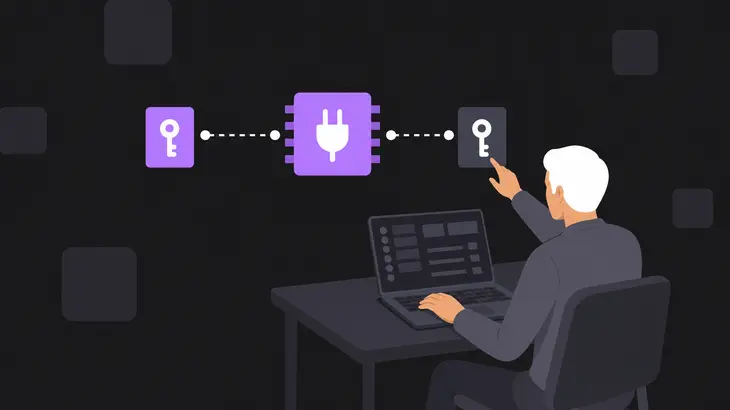
You get one way to encrypt the VNC connection itself: the SecureVNC DSM plug-in, a file that both winvnc.exe and vncviewer.exe load. With it switched on, the server offers the plug-in's handshake before any login, and once that handshake completes "all further communication is encrypted". MS-Logon runs after that point, so Windows credentials cross the wire inside the encrypted stream.
Leave the plug-in off and you're running plain RFB, which has no protection against observation or tampering beyond the password check. There's no TLS option on port 5900 to fall back on.
The plug-in file you load has to match the binary's architecture:
| Build | Plug-in file | Used by |
|---|---|---|
| 64-bit | SecureVNCPlugin64.dsm |
64-bit winvnc.exe and vncviewer.exe |
| 32-bit | SecureVNCPlugin.dsm |
32-bit winvnc.exe and vncviewer.exe |
This bites on reverse connections. The x64 installer gives you only SecureVNCPlugin64.dsm, but its "UltraVNC Viewer (Listen Mode Encrypt)" shortcut starts the viewer with -dsmplugin SecureVNCPlugin.dsm -listen 5500. Started from that shortcut, a 64-bit viewer stops with plugin has wrong arch (x86). Start your listening viewer with -dsmplugin SecureVNCPlugin64.dsm instead.
Out of the box the plug-in uses the 8-character VNC password as its password. You replace that with a long passphrase or with a client authentication key pair. Generating the key pair writes xxx_Server_ClientAuth.pubkey, which stays on the server, and xxx_Viewer_ClientAuth.pkey, which goes in the viewer's vncviewer.exe folder. From then on only a viewer holding that file can connect.
Which UltraVNC login to use: VNC password, MS-Logon II or MS-Logon III
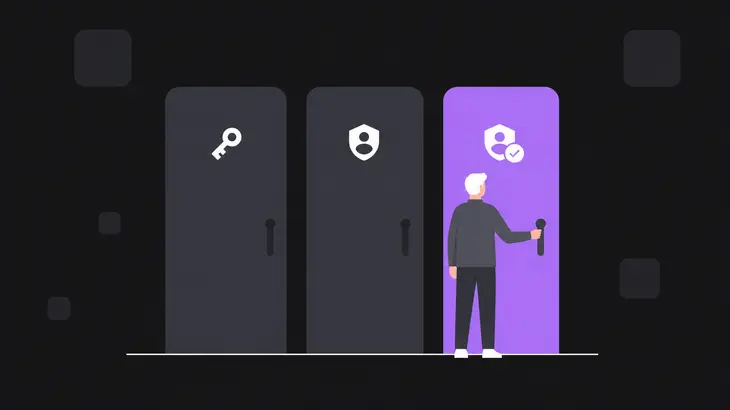
Whatever the plug-in does, the server still asks for a login, and you get three to choose from.
| Login | What it checks | Weak spot | [admin] setting |
|---|---|---|---|
| VNC password | One shared password | 8 characters | default |
| MS-Logon II | Windows account and group | Eavesdropper recovers the login, in every build that still negotiates it | MSLogonRequired=1; viewers older than 1.8.2.3 pick II |
| MS-Logon III | Windows account and group | Protects the login exchange only, not the session | MSLogonRequired=1; 1.8.2.3 and later viewers pick III |
The VNC password stops at 8 characters and ignores the rest, so a 12-character password is really its first eight.
MS-Logon lets you map logins to Windows accounts; with New MS-Logon each user or group gets View only or Interact rights. MS-Logon II's Diffie-Hellman exchange uses parameters that fit in 64 bits and a private value seeded from the clock, so anyone who records the handshake can recover the username and password (CVE-2026-7830). The fix didn't repair II; it added III and kept II for backward compatibility.
MS-Logon III arrived in 1.8.2.3 and replaces II's weak key exchange with X25519. It covers the login exchange and nothing after it, so it's no substitute for the plug-in or an SSH tunnel: without one of those the session itself still crosses the wire in the clear.
The catch is the fallback. A server with MS-Logon on offers both II and III, and III wins only when both ends support it, so an old viewer still lands on II. On 1.8.2.6 and later, RequireMSLogonIII=1 in the [admin] section makes the server reject an MS-Logon II login. The settings dialog has no checkbox for it, so it's an ini edit.
On a domain, run MS-Logon III with RequireMSLogonIII=1 inside the plug-in: logins follow Windows accounts, II can't come back, and the session is encrypted. Off a domain, keep the VNC password and put it behind the plug-in with a long passphrase or a key.
What a default UltraVNC install exposes, and how to check yours
These are the defaults compiled into the 1.8.3.0 server. Any key missing from your ultravnc.ini runs with the value here.
| What | [admin] key |
Default | What it means on your server |
|---|---|---|---|
| Encryption plug-in | UseDSMPlugin |
0 |
Session in the clear |
| Password required | AuthRequired |
1 |
No connections without a VNC password |
| Loopback only | LoopbackOnly |
0 |
Listens on every interface |
| Browser viewer | HTTPConnect |
1 |
Port 5800 open |
| TLS for the browser viewer | EnableTLS |
0 |
Off |
| MS-Logon | MSLogonRequired |
0 |
VNC password only |
| MS-Logon III only | RequireMSLogonIII |
0 |
MS-Logon II accepted |
A fresh install isn't passwordless, though. The installer runs setpasswd.exe -random hidden, and it writes a random 8-character password plus a random view-only one when none is set. You never see either, so set your own.
AuthRequired=1 is the one default working for you. With an empty password the server refuses every connection with "This server does not have a valid password enabled." For an incoming connection it offers the no-authentication type only when someone has set AuthRequired=0 and left the password empty, so that pair is the first thing to look for. The installer adds the rest of the exposure: inbound allow rules named UltraVNC Server TCP and UltraVNC Server UDP for winvnc.exe, with no remote-address scope on their command lines.
Run the checks from an elevated PowerShell on the server. Start with the build:
(Get-Item "C:Program Files\uvnc bvbaUltraVNCwinvnc.exe").VersionInfo.FileVersionThe current release prints 1.8.3.0. Anything below 1.8.2.8 gets upgraded before you tune settings.
Then see what's listening:
Get-NetTCPConnection -State Listen -OwningProcess (Get-Process winvnc).Id | Select-Object LocalAddress, LocalPortA default install shows 0.0.0.0 on 5900 and 5800, which is every IPv4 interface. Your server also answers UDP on the VNC port number:
Get-NetUDPEndpoint -OwningProcess (Get-Process winvnc).Id | Select-Object LocalAddress, LocalPortThat's a UDP echo responder on 0.0.0.0 port 5900. It binds every interface regardless of LoopbackOnly, and the UltraVNC Server UDP rule lets it in. Read the settings that decide the rest:
Select-String -Path "C:ProgramDataUltraVNC\ultravnc.ini" -Pattern '^(UseDSMPlugin|DSMPlugin|AuthRequired|MSLogonRequired|NewMSLogon|RequireMSLogonIII|LoopbackOnly|AllowLoopback|HTTPConnect)='Each hit prints as file, line number and key=value. A key that doesn't show up is on its default from the table. Last, the scope of the two firewall rules:
Get-NetFirewallRule -DisplayName "UltraVNC Server TCP","UltraVNC Server UDP" | Get-NetFirewallAddressFilterRemoteAddress : Any means any machine that can route to the server reaches those ports. On a LAN-only server, narrow both rules to your admin subnet, written as an address, a subnet or a range:
Set-NetFirewallRule -DisplayName "UltraVNC Server TCP","UltraVNC Server UDP" -RemoteAddress <admin-subnet>Which UltraVNC CVEs apply to your build
Hold the FileVersion from the first check against this table. Affected ranges are NVD's. The fix column is the build the vendor lists the fix under, or for the 2019 and 2022 rows the first build outside NVD's range.
| Record | Component | Affected (NVD) | Fix listed in |
|---|---|---|---|
| CVE-2026-7840 | Repeater web admin, overflow before login | through 1.8.2.2 | 1.8.2.3 |
| CVE-2026-7839 | Repeater web admin, default password | through 1.8.2.2 | 1.8.2.3 |
| CVE-2026-7829, CVE-2026-7828, CVE-2026-44042 | Repeater web admin, memory errors | through 1.8.2.2 | 1.8.2.3 |
| CVE-2026-7838, CVE-2026-7831 | Viewer, overflows from a malicious server | through 1.8.2.2 | 1.8.2.3 |
| CVE-2026-7830 | MS-Logon II key exchange | through 1.8.2.2 | 1.8.2.3 (MS-Logon III) |
| CVE-2026-44040 | VNC password challenge | through 1.8.2.2 | 1.8.2.3 |
| CVE-2026-44041 | Wide-string helper, out-of-bounds read | through 1.8.2.2 | 1.8.2.3 |
| No CVE listed | Viewer Tight JPEG decoding, heap overflow | not stated | 1.8.2.8 |
| CVE-2026-3787, CVE-2026-4962 | Service DLL search path, local attacker | 1.6.4.0 (CVE-2026-4962: 1.6.0.0 to 1.6.4.0) | 1.8.2.1 (CVE-2026-3787 only) |
| CVE-2022-24750 | DSM plug-in loading, local privilege escalation | before 1.3.8.1 | 1.3.8.1 |
| CVE-2019-8268 and 21 more | Viewer and server memory errors | before 1.2.2.3 | 1.2.2.3 |
The 2019 group is the 22 UltraVNC records from Kaspersky ICS CERT's VNC research: CVE-2018-15361, CVE-2019-8258 through CVE-2019-8277, and CVE-2019-8280. NVD describes each by source revision (CVE-2019-8268, for example, is a set of off-by-one errors in revision 1206's viewer, fixed in 1207) and lists all of them as affecting builds before 1.2.2.3, so any FileVersion below 1.2.2.3 is exposed to the whole set. NVD's other UltraVNC records cover 1.0.x-era builds, the pre-1300 repeater, local crashes in 1.2.x launcher and viewer dialogs, and third-party products that bundle UltraVNC.
The 1.8.2.5/1.8.2.6 release also hardened file-transfer paths, DLL loading and service command handling after a security audit, with no CVE attached. The 1.8.2.8 viewer fix and that hardening are why 1.8.2.8 is the floor and not 1.8.2.3.
Is UltraVNC safe to forward to the internet?
No. A forwarded 5900 hands anyone who scans for it the server's pre-login code and a password capped at 8 characters, and dynamic DNS only keeps the name pointing at your router. The plug-in with a long passphrase or a client key fixes the 8-character password, not the exposed pre-login code, so it doesn't change the answer.
The login is your last layer on the server side, because flaws in VNC servers often need password authentication before they can be exploited. The viewer gets no such cover. CVE-2026-7838 overflows a viewer up to 1.8.2.2 from the server's failure message, before any login, so point viewers only at servers you know.
If you run the repeater for reverse connections, it's the other thing that ends up exposed. Its web admin listens on TCP 80, and through 1.8.2.2 its first run saved the default admin password adminadmi2 (CVE-2026-7839) behind an overflow that needs no login at all (CVE-2026-7840). Upgrading doesn't change a saved password. The 1.8.3.0 repeater generates a random one only when settings2.txt is missing, and otherwise reads what's in the file. Change it in the web admin and keep port 80 off the internet.
What holds up is SSH as the only port you forward, with UltraVNC listening on loopback. A server that never faces the internet can stay on the LAN behind the plug-in with a key and the narrowed firewall rules.
Locking UltraVNC down: plug-in key, MS-Logon III and an SSH-only path
Turn on the plug-in with a key
- On the server, open
UltraVNC Server - Settingsfrom the Start menu, go to theSecuritytab, and in theEncryptiongroup tickUseand selectSecureVNCPlugin64.dsm. Version 1.8.2.4 needed a server restart at this point; from 1.8.2.5 the server no longer restarts when encryption is activated. - Click
CONFIGURE ENCRYPTION, set a passphrase, and generate the client authentication key. Copy the_Viewer_ClientAuth.pkeyfile to thevncviewer.exefolder on each admin PC. - On the viewer, open the
Securitytab, tickUse Encryption, selectSecureVNCPlugin64.dsmand connect. The status window showsAES-256...when the plug-in is carrying the session.
Rerun the Select-String check and it now shows UseDSMPlugin=1 and DSMPlugin=SecureVNCPlugin64.dsm. From the command line, the same connection on the LAN is:
& "C:Program Files\uvnc bvbaUltraVNC
ncviewer.exe" <server-host> -dsmplugin SecureVNCPlugin64.dsmClose MS-Logon II
If you use MS-Logon, add RequireMSLogonIII=1 to the [admin] section of C:ProgramDataUltraVNC\ultravnc.ini between Stop-Service uvnc_service and Start-Service uvnc_service. A viewer older than 1.8.2.3 then gets an upgrade message instead of a session, so upgrade the viewers first.
Keep 5900 on loopback and come in over SSH
This path puts OpenSSH Server on the UltraVNC host itself (Windows Server 2019 or Windows 10 1809 and later) and forwards only SSH. Stop the service before you edit, because the server reads ultravnc.ini when it starts:
Stop-Service uvnc_service
notepad C:ProgramDataUltraVNC\ultravnc.ini
Set these three lines in the [admin] section, changing the existing ones:
LoopbackOnly=1
AllowLoopback=1
HTTPConnect=0
AllowLoopback=1 is the one that bites. The tunnel delivers the viewer from 127.0.0.1, and the server drops a connection whose local and remote addresses match unless AllowLoopback is on. The source defaults it to 1, but the ini documentation still lists 0 as the default, so an ini built from it refuses the tunnel. Start the service and check the listener again:
Start-Service uvnc_service
Get-NetTCPConnection -State Listen -OwningProcess (Get-Process winvnc).Id | Select-Object LocalAddress, LocalPort
You should see 127.0.0.1 on 5900 and nothing on 5800. The UDP echo stays on 0.0.0.0, and the tunnel only carries TCP, so switch its rule off:
Set-NetFirewallRule -DisplayName "UltraVNC Server UDP" -Enabled FalseOn the SSH side, turn off password logins. Keys for an administrator account go in C:ProgramDatasshadministrators_authorized_keys, not in the user's own .ssh folder, and that file must grant access only to Administrators and SYSTEM. Then add PasswordAuthentication no to C:ProgramDatasshsshd_config above the Match Group administrators block that ends the stock Windows file. A line below that block applies only to administrators. Restart sshd so it reads the change:
Restart-Service sshdFrom the admin workstation, ssh -o PreferredAuthentications=password <user>@<server-host> should now fail without asking for a password. Open the tunnel, using local port 5901 for the worked run:
ssh -N -L 5901:127.0.0.1:5900 <user>@<server-host>Once you're logged in it prints nothing and holds the terminal while the tunnel is up. From a second terminal, point the viewer at the local end:
& "C:Program Files\uvnc bvbaUltraVNC
ncviewer.exe" localhost::5901 -dsmplugin SecureVNCPlugin64.dsmThe double colon matters: the viewer reads localhost::5901 as port 5901, while a single colon with a number under 100 is a display number. Drop -dsmplugin only if the server runs without the plug-in.
The version decides how much of this matters. Below 1.8.2.8, upgrade server, viewer and repeater together before touching a setting, because the viewer overflows and the repeater's pre-login hole are fixed in code, not in ultravnc.ini. On 1.8.2.8 or later, the plug-in with a client key covers the LAN, and loopback plus SSH covers everything else.
FAQs
How do I check an UltraVNC installer against its published hash?
The download page lists a SHA-256 for each file. For the x64 setup, run this in the download folder:
(Get-FileHash .\UltraVNC_1830_X64_Setup.exe).Hash -eq 'e9c22419ef3128a707b0d004a2c58e25459528c5c12d104dea56e5e662bd131e'It prints True on a match. Get-FileHash uses SHA-256 by default and prints the hash in upper case, and -eq ignores case, so the lower-case value from the page compares as is.
Does UltraVNC support TLS?
Not on the VNC port. The viewer speaks TLS through VeNCrypt when it connects to other VNC servers, a feature of the 1.4.4.0 development builds onward. On the server side, EnableTLS covers only the browser viewer's HTTPS listener, on port 6080 and off by default. Port 5900 is encrypted by the SecureVNC plug-in or not at all.
Can MS-Logon give someone view-only access?
Yes. With NewMSLogon=1 (the New MS-Logon, multiple domains box), rights come from an ACL instead of a group list, and each user or group gets View only or Interact (full control). To script it across machines, MSLogonACL.exe in the install folder exports and imports that ACL: MSLogonACL /e <file> to export, MSLogonACL /i /o <file> to import. In the file, allow 0x1 <domain>\<group> grants view only and 0x3 grants full control. Without NewMSLogon=1, the UltraVNC Server - MS-Logon Setup dialog takes three groups instead, and the rule is fixed: groups 1 and 2 get full access, group 3 is read only.
Discuss this in the community
Questions about this, or a setup it does not cover? Ask in Open Source VNC.