On a Linux box running TigerVNC, run vncpasswd as the user who owns the session. The next connection asks for the new password, and you don’t restart anything. RealVNC Server, TightVNC for Windows, a Mac and a Virtualizor VPS each keep the password somewhere else, and each has its own short procedure.
Know what the change buys you before you pick the new value. Classic VNC authentication is weak and encrypts nothing after the login, so a new password locks out whoever had the old one but does nothing about who can reach the port. That part is the listener’s job, and on TigerVNC you can pin it to localhost while you’re in the config.
What the password does and doesn’t cover
The password only matters if the server’s security type asks for one. With a *None type there’s no user authentication at all, and pairing that with $localhost = "no" hands the desktop to anyone who can reach the port. Plain VncAuth checks the password and leaves the session in clear, while the TLS and X509 types encrypt it as well. So when you change the password, look at the security-type list and the listen address too.
If your security type checks the VNC password, only the first eight characters count. VncAuth truncates the password to eight characters and keys DES with it, and on TigerVNC the TLSVnc and X509Vnc types run the same VNC password check inside TLS. That’s the protocol, not one tool, so it holds for TightVNC and the Mac’s VNC password as well. The *None types never ask for a password, and the *Plain types check a user name and system password instead. Put the strength in the first eight.
Find the password file your server actually reads

TigerVNC moved its files between releases, so find your row before you edit anything. TightVNC for Windows and a Mac keep the password in their settings instead.
| Package or platform | Password file | Notes |
|---|---|---|
Upstream TigerVNC vncpasswd |
$XDG_CONFIG_HOME/tigervnc/passwd or $HOME/.config/tigervnc/passwd |
Where vncpasswd writes when you don’t name a file |
| Debian 13 (TigerVNC 1.15.0) | ~/.config/tigervnc/passwd; settings in ~/.config/tigervnc/config.pl |
The wrapper’s default; -PasswordFile or -rfbauth overrides it |
| Ubuntu 24.04 (TigerVNC 1.13.1) | ~/.vnc/passwd; settings in ~/.vnc/tigervnc.conf |
The wrapper’s default; same overrides |
| RHEL 8.10 with current updates (TigerVNC 1.15) | ~/.config/tigervnc/passwd |
1.14 moved the config files to $HOME/.config/tigervnc and the logs to $HOME/.local/state/tigervnc |
| Debian and Ubuntu system layers | /etc/tigervnc/vncserver-config-defaults, /etc/tigervnc/vncserver-config-mandatory |
Defaults load first; the mandatory file wins over the user file and the command line |
The layer order is what trips people up. Debian’s wrapper reads system defaults, then your user file, then command-line options, then the mandatory file on top. If a line in config.pl seems ignored, the mandatory file sets the same option. And if a start script passes -PasswordFile or -rfbauth, the server reads that file, so that’s the one you rewrite.
Change it on Linux with vncpasswd
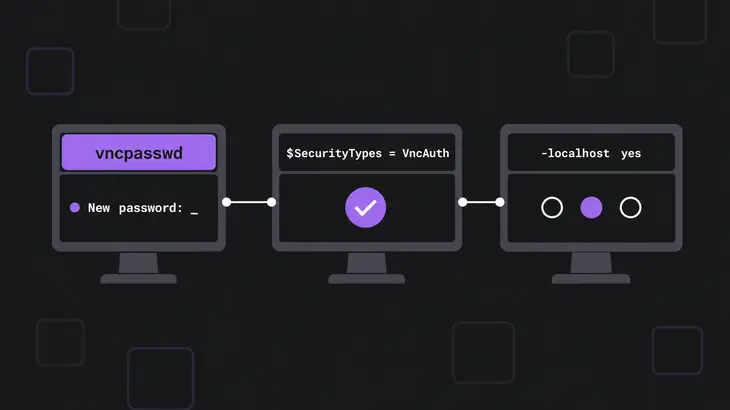
Run vncpasswd as the account that owns the VNC session, not as root. Debian and Ubuntu ship the binary as tigervncpasswd in tigervnc-tools and register it as vncpasswd, so either name works. The worked run is a Debian 13 session on display :1, port 5901.
- Set the new password and check the file. You type it at
Password:and again atVerify:. It needs at least six characters, and the 1.15.0 tool refuses more than eight withPassword should not be greater than 8 characters. Then it asksWould you like to enter a view-only password (y/n)?; saynunless someone needs watch-only access. The file comes out readable and writable only by you, sols -lshows-rw-------.vncpasswd ls -l ~/.config/tigervnc/passwd - Leave the session running. Xvnc opens the password file each time a connection comes in, so
:1takes the new password on the next connect. - While you’re in there, pin the security type and the listener. Add these two lines to
~/.config/tigervnc/config.pl. The file is Perl, so each line ends in a semicolon.$SecurityTypes = "VncAuth"; $localhost = "yes"; - Restart the session so the wrapper reads the file, then check where it listens. With VncAuth alone the wrapper already listens on localhost only, but it switches to all addresses once a TLS or X509 type joins the list and no
*Nonetype is on it. Writing$localhostdown keeps it closed when someone adds one later.vncserver -kill :1 vncserver :1 ss -tln | grep 5901ss -tlnshould show127.0.0.1:5901, not0.0.0.0:5901. If systemd runs the session throughtigervncserver@.service, restart that unit instead of using-kill. Viewers on other hosts now get a refused connection and have to come in through an SSH tunnel.
What changes on Ubuntu 24.04: it ships TigerVNC 1.13.1, which keeps everything in ~/.vnc/. The password goes to ~/.vnc/passwd, so that’s the file to ls -l, and the two lines from step 3 go in ~/.vnc/tigervnc.conf. Its vncpasswd doesn’t stop you at eight characters: it takes a longer password and ignores everything past the eighth character. RHEL with TigerVNC 1.14 or later uses the same ~/.config/tigervnc/passwd as Debian 13.
To set the password from a script or config management, use filter mode. It reads the plain password on stdin and prints the obfuscated value on stdout, and it silently accepts short or even empty passwords, so check the length yourself. The shell creates the file here, not vncpasswd, so set the mode as well:
printf '%s\n' "$NEW_VNC_PW" | vncpasswd -f > ~/.config/tigervnc/passwd
chmod 600 ~/.config/tigervnc/passwd
Change it on RealVNC Server
RealVNC Server has a separate VNC password only when its Authentication is set to VNC Password rather than system login credentials. On the desktop, that’s the server icon, then Options, then Security, then the Authentication dropdown. On a Linux machine running in Service Mode, do it from a shell:
sudo vncpasswd -service
echo 'Authentication=VncAuth' | sudo tee -a /root/.vnc/config.d/vncserver-x11
sudo vnclicense -reload
The first two lines set the Service Mode password and point Authentication at it. Run with sudo, vnclicense -reload re-applies the configuration files to every running server without a restart. Connect again and the viewer shows the username grayed out and asks for the password only.
Change it on TightVNC for Windows
Both passwords sit on the Server tab of the configuration window. The catch is that application mode and service mode keep separate settings and passwords, so change them on the server that’s actually running. The service’s tray icon reads TightVNC Service.
- Click the TightVNC Service tray icon, or open the same window from a command prompt. For application mode, use
-controlappin place of-controlservice. Changes apply as soon as you approve them."C:\Program Files\TightVNC\tvnserver.exe" -controlservice - On the Server tab, check Require VNC authentication.
- Enter the Primary password for full control and the View-only password, then confirm.
- On the Administration tab, check “Protect control operations with an administrative password” and set one, so other users on the machine can’t change these settings.
Service stopped? tvnserver.exe -configservice opens the offline configuration as administrator, and the server picks the settings up when it starts or on tvnserver.exe -controlservice -reload. The labels here are from the TightVNC 2.6 guide, so match them against the dialog of your 2.8.x build.
Change it on a Mac
The VNC password belongs to whichever sharing service is on, Screen Sharing or Remote Management, and you can’t have both on at once. Screen Sharing settings are fine for a one-off change. For Remote Management from Terminal, use kickstart.
- Open Apple menu > System Settings > General > Sharing, then click the info button beside Screen Sharing.
- Turn on “VNC viewers may control screen with password”, set the password, then restrict “Allow access for” to selected users.
- With Remote Management on, the same option sits under Computer Settings. The kickstart utility sets it from Terminal with administrator rights:
-vnclegacy yesturns on legacy VNC password mode, and-setvncpwwith-vncpwstores the password.kickstart -helplists both.sudo /System/Library/CoreServices/RemoteManagement/ARDAgent.app/Contents/Resources/kickstart -configure -clientopts -setvnclegacy -vnclegacy yes -setvncpw -vncpw '<new-password>' - Then clean up your shell history.
kickstarttakes the password as plain text on the command line, so it lands in history and shows in the process list while the command runs.
If the Screen Sharing options are unavailable, Remote Management is on. Turn it off in the same Sharing pane, or set the password through Remote Management as in step 3.
Change it on a Virtualizor VPS
Here the new password needs a stop and start from the panel before it takes effect. That interrupts whatever runs on the VPS, so do it in a maintenance window.
- Open the VPS Management page and click VNC Password. No VNC icon means the host hasn’t enabled VNC in the admin panel, and OpenVZ containers have no VNC at all.
- Enter the new password, retype it, and click Change VNC Password.
- Stop the VPS from the panel, start it again, and connect through VNC with the new password once it’s back up.
Check that the new password took
Make two fresh connections: one with the new password, which should open the desktop, and one with the old password, which should be refused.
- For the Linux server on
:1that listens on localhost only, open the forward from the machine that runs the viewer. The far end of-Lislocalhost:5901because the server listens nowhere else. The tunnel also encrypts the session, which VncAuth alone doesn’t.ssh -N -L 5901:localhost:5901 <user>@<server-host> - In a second terminal, aim
vncviewerat the local side of the forward.localhost:1is display 1, local port 5901, which matches the forward. The viewer asks for the password, and the new one opens the desktop.vncviewer localhost:1 - For a TightVNC, Mac or Virtualizor server that viewers reach directly, connect to the host with the new password; the remote desktop opens.
- Disconnect, then try the old password on a fresh connection. The viewer should refuse it.
When a check fails, match the symptom:
- TigerVNC still takes the old password and refuses the new one. The server reads a different file.
pgrep -af 'Xvnc|Xtigervnc'prints its full command line; look for a-PasswordFileor-rfbauthpath and runvncpasswd <that-file>as the session user. - A
config.plchange does nothing after the restart. The mandatory file sets the same option. Rungrep -E 'localhost|SecurityTypes' /etc/tigervnc/vncserver-config-mandatoryand change the value there with sudo. - A typo after the eighth character still logs in. VncAuth only uses eight characters, so the server never sees the rest. You’ll only get there with a password set through 1.13.1 or
vncpasswd -f, since the 1.15.0 prompt refuses long ones. - Remote viewers get “connection refused” after step 4 on Linux. The server listens on
127.0.0.1only now. Connect through the tunnel above. - TightVNC ignores the new password. You changed the application-mode server while the service is running, or the other way round. Open
tvnserver.exe -controlserviceand set the passwords there. - The Virtualizor console reports authentication failed. The password changed, but the VPS hasn’t been stopped and started from the panel yet.
Who can still get in after the change
Once the old password bounces and the new one gets in, what’s left is the network. On TigerVNC one password file serves VncAuth, TLSVnc, X509Vnc and the RA2 types, so the new password gates all of them. It gates them for anyone who can route to the port, though, and each server limits that reach its own way:
- TigerVNC: the
$localhost = "yes"line from step 3, with SSH as the only way in. - TightVNC for Windows: give the view-only password to anyone who only needs to watch, and keep the primary one to yourself.
- Mac: the “Allow access for” list in the Screen Sharing options.
- Virtualizor: the console runs through the panel, behind its VNC Password setting.
If the listener was open to the network while the old password was in use, put it behind SSH before you hand the new one to anyone.
FAQs
I forgot the VNC password. Do I need the old one to set a new one?
Not on TigerVNC. vncpasswd prompts only for the new value, so run it as the session user and it overwrites the file. Copies of that file deserve the same care: the stored value is reversible by anyone who can read it, so a passwd file sitting in a backup or a dotfiles repo leaks the password itself.
Should my Mac VNC password match my Mac account password?
No. The VNC password is set separately from the other passwords on the system, and it shouldn’t be the password of any local user or of a Remote Desktop administrator. Pick a value that’s used nowhere else on the Mac.
Discuss this in the community
Questions about this, or a setup it does not cover? Ask in Security and Remote Access.
Security and Remote Access group