RFB has no audio. The protocol's four server-to-client messages are FramebufferUpdate, SetColorMapEntries, Bell and ServerCutText, and not one of them carries a sample. Anything advertising VNC with sound is therefore doing one of two things: speaking a private extension bolted on beside RFB, or running a second transport that the VNC connection never touches.
Two pairs carry audio inside the session on released code. QEMU's built-in VNC server sends it to any viewer that asks for the QEMU audio pseudo-encoding, and RealVNC Connect sends it from the Server computer to the Viewer computer, in that direction only. Nothing else in normal use carries any, including the TigerVNC and the wayvnc that come out of your package manager. Both of those have working audio code on their main branch and neither has put it in a release, which is where most of the confusion on this topic comes from.
When your pair carries nothing, you send the sound over its own connection to the machine with the speakers. On Linux you do that with a PulseAudio-protocol link, and the step that catches people is that your desktop probably answers pactl through PipeWire rather than PulseAudio, which reads a different config file and accepts a shorter set of module arguments than every recipe written for PulseAudio. One command tells you which one you are on.
What RFB carries, and what it leaves to whoever implements it
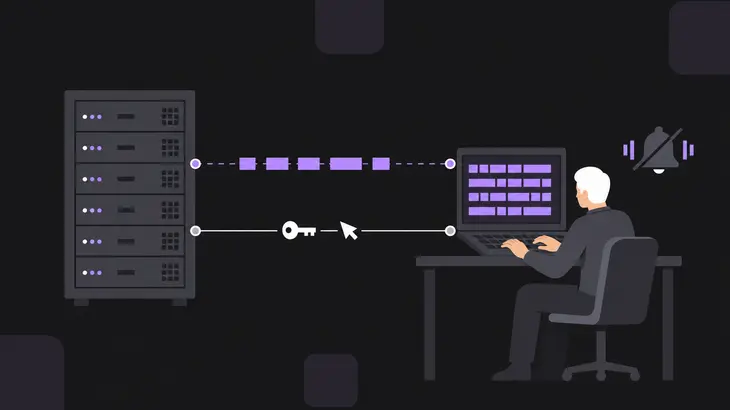
A VNC session buys you a framebuffer and an input stream, and nothing else. The server pushes rectangles of screen, your viewer pushes keys and pointer events, and the server-to-client messages are the complete set of what the server is allowed to send:
FramebufferUpdateSetColorMapEntriesBellServerCutText
Bell is the only audible one and it carries no sample. It makes an audible signal on the client if the client provides one, so a beep from the remote machine reaches you while the track playing on it never does.
Anything past that list has to ride as an extension, and the extension rule decides your session for you. Your viewer declares what it supports as a pseudo-encoding, and a server that does not support it ignores the pseudo-encoding. No error, no log line, no fallback. You get picture and input, your audio request lands on the floor, and the client has to assume no support until some extension-specific confirmation arrives. Watch for that shape as you read the matrix: a silent session and a working one look identical from your side of the screen, which is why the question is always about the pair and never about one end of it.
Does your pair carry sound: the matrix
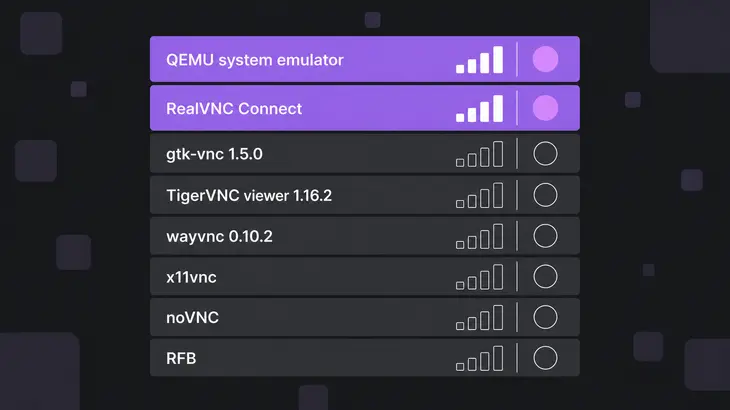
Find your implementation, then read the version beside it: each row was checked in the release named, not in whatever sits on the project's main branch today.
| Implementation and version | Audio in the VNC session | Direction | Read in |
|---|---|---|---|
QEMU system emulator, -vnc localhost:1,audiodev=snd0 |
yes, when the viewer asks for it | guest to viewer | the audiodev sub-option |
| RealVNC Connect, audio enabled at both ends | yes, on four conditions | server to viewer only | the High-Speed-Streaming requirement |
| gtk-vnc 1.5.0, the client library under virt-manager and GNOME Boxes | decoder present, sink attached by the application | server to viewer | the sink class it ships |
| TigerVNC viewer 1.16.2 and every earlier release | none | none | the connection code at the release tag |
| wayvnc 0.10.2, the server Raspberry Pi OS ships | none | none | the released source tree |
| x11vnc, and anything else built on LibVNCServer | none | none | the protocol header |
| UltraVNC 1.x | none | none | its own protocol header |
| noVNC in a browser | none | none | the encodings it advertises |
| RFB on its own, RFC 6143 | none | none | the four server messages |
Nothing in that table sends your microphone the other way. RealVNC answers that one outright, and no other implementation here defines a message for it either, so audio over VNC means remote speakers to local ears and nothing more.
The two rows people quote that are in no release
Searching for VNC audio turns up TigerVNC's writeQEMUAudioEnable and wayvnc's PipeWire capture. Both are real code on their projects' main branches. Neither is in anything you can install.
TigerVNC's viewer builds the request in common/rfb/CConnection.cxx: it sets server.supportsQEMUAudio, pushes pseudoEncodingQEMUAudio into the encoding list it sends, then writes a sample format followed by an enable. Open the same file at the 1.16.2 tag and none of those symbols is there. 1.16.2 is the newest release, from March 2026, and the 1.16.0 highlights run to a keyboard shortcut system and a new Wayland server with no mention of sound. Every packaged TigerVNC viewer, on every distribution, therefore requests nothing.
wayvnc is the same shape with a sharper consequence, because Raspberry Pi OS includes wayvnc as its VNC server. The main branch grows an audio.c, wires PipeWire capture into an on_audio_config callback, and raises its library floor to neatvnc 1.1. neatvnc's newest release is 1.0.3, from October 2026, and its server loop handles no audio encoding at all. Until both ship, your Pi has no sound path inside the VNC session, and nothing in the viewer will tell you so.
QEMU: the one pair you can run today
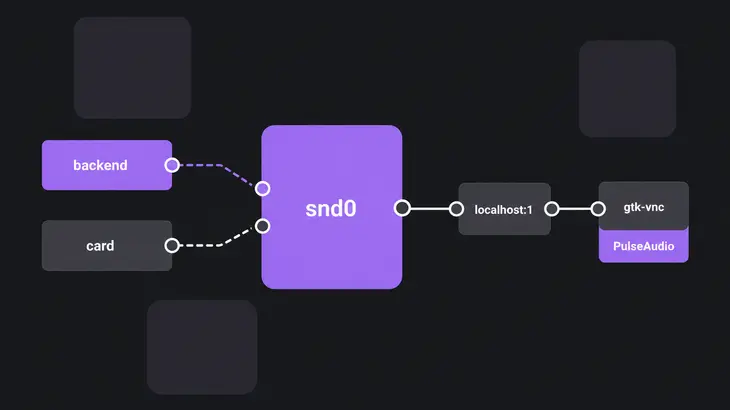
QEMU's VNC server sends audio only to a viewer that asks for it, so wire your host backend and the guest sound card up first. Take both lists from the binary rather than from a reference, which saves guessing what your build was compiled with:
qemu-system-x86_64 -audio driver=help
qemu-system-x86_64 -audio model=help
The first prints the host backends your build has, such as pipewire, pa, alsa or sdl. The second prints the guest sound cards. Put the backend, the card and the VNC listener on one line, all three pointing at the same audiodev id:
qemu-system-x86_64
  -audiodev <driver>,id=snd0
  -device <model>,audiodev=snd0
  -vnc localhost:1,audiodev=snd0
:1 puts the server on 5901, by the 5900 plus display convention the display option uses, and the audiodev on the end is what makes the server send audio when a client requests transmission. Leave the localhost on the front: with the host omitted, the listener accepts connections from any host. Confirm it before you connect, and expect a LISTEN line on loopback, 127.0.0.1:5901 or [::1]:5901 depending on how the name resolved:
ss -ltn | grep 5901Then the viewer half, which is where this usually falls over. A packaged TigerVNC or a browser running noVNC shows the guest perfectly and asks for no audio, so your session is silent and working at the same time. The one released client stack that decodes the stream is gtk-vnc, which advertises the audio pseudo-encoding from its widget and ships a PulseAudio sink to play into. The catch is that the application has to attach that sink through vnc_connection_set_audio, and the VNC display in virt-viewer never calls it. A virt-manager console stays quiet for that reason, not because QEMU stopped sending. If you land on the standalone VNC front end while reading around this, note that it attaches to a QEMU started with -display dbus and serves the guest's audio over the VNC connection the same way. It changes where the server process runs, not whether your viewer asks.
When the pair carries nothing: a sound link beside the session
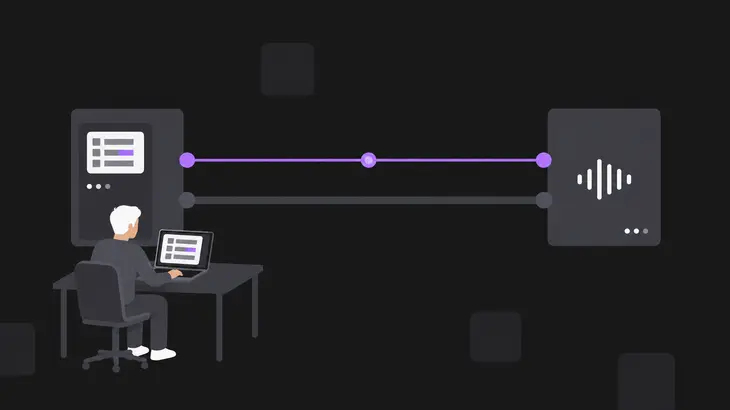
The route that works regardless of which VNC you run is a PulseAudio-protocol connection from the machine running the applications to the machine with the speakers. The VNC session is untouched. The sound takes its own TCP connection, in the opposite direction to the picture.
Start on the machine with the speakers and find out which sound server you actually have, because the config file and the accepted arguments differ:
pactl info | grep 'Server Name'A Server Name: PulseAudio (on PipeWire 1.4.2) line means PipeWire is answering through its PulseAudio compatibility layer, which is the normal case on a current desktop. A plain pulseaudio line means PulseAudio itself.
The PipeWire path
Load the TCP module from a drop-in under /etc/pipewire/pipewire-pulse.conf.d/, where a pulse.cmd entry loads a module on startup as if you had loaded it with pactl. PipeWire's version of that module takes only port, listen and auth-anonymous, so keep the socket on loopback and reach it through SSH instead of trying to filter by address:
# /etc/pipewire/pipewire-pulse.conf.d/20-network.conf
pulse.cmd = [
    { cmd = "load-module" args = "module-native-protocol-tcp listen=127.0.0.1 auth-anonymous=true" }
]
auth-anonymous switches off the cookie check, which is safe here only because listen has already kept the socket off the network. Restart the user service and confirm the module is in:
systemctl --user restart pipewire-pulse
pactl list short modules | grep native-protocol-tcp
One module-native-protocol-tcp line back from the module list is your whole result. Nothing else changes visibly, and the listener answers on 4713, which is the port that module defaults to.
What changes on a host still running PulseAudio
Same module, different file, and one extra argument. PulseAudio reads its startup script from /etc/pulse/default.pa system-wide or ~/.config/pulse/default.pa per user, and there the address filter does exist, taking a semicolon-separated list:
load-module module-native-protocol-tcp auth-ip-acl=<client-ip-list>Copying that auth-ip-acl line onto a PipeWire host is the single most common way this ends up open: the argument is not in PipeWire's module and the ACL quietly does nothing.
Pointing the applications at it
Open the tunnel from the machine with the speakers. It runs in the foreground and holds the terminal, so give it one of its own:
ssh -N -R 4713:localhost:4713 <user>@<vnc-server-host>Then, inside the VNC session on the server, start the application with the server address in its environment. The variable takes an optional type specifier and port, and it applies to processes started after it, not to anything already running:
PULSE_SERVER=tcp:localhost:4713 <command>The link carries raw PCM, roughly 1.4 Mb/s for CD quality, and packet jitter over a wireless link makes low-latency transmission infeasible in practice. Budget for that before putting either end on Wi-Fi.
RealVNC Connect: four gates and a mute switch
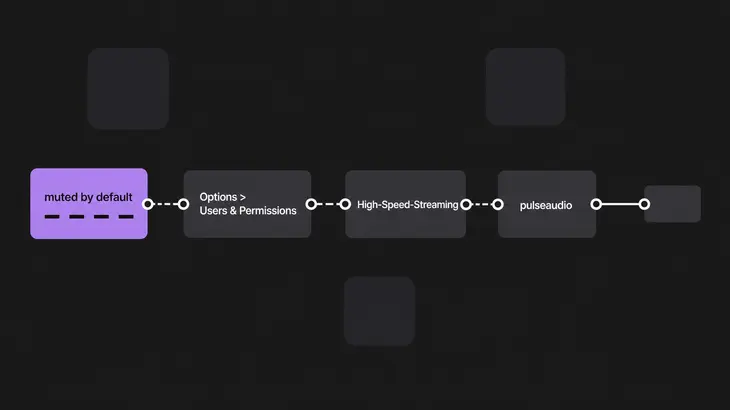
RealVNC's audio runs server to viewer, so what plays on the Server computer comes out of the Viewer computer's speakers. Four things gate it, and the first is silent:
- The Viewer is muted by default. Click the Audio icon on your Viewer toolbar before you go looking for a server-side fault.
- Both ends have to allow it. On the Server, Options > Users & Permissions holds the global permission and a per-user one.
- The connection has to be running High-Speed-Streaming, which is RFB protocol version 6. Below that, no setting on either end produces sound.
- A Linux Server needs the
pulseaudiopackage present, which it normally is on recent Ubuntu, RHEL and CentOS.
Two more limits are worth knowing before you plan your estate around it: audio is absent from On-Demand Assist sessions and from the mobile Viewer, and a direct connection through a router may need UDP forwarded alongside TCP. macOS Servers joined the list in Server 7.13.0, which added playback on macOS 13 and later for Viewers on Windows, macOS and Linux.
The answers that are really about RDP
A good share of what a search returns for remote desktop sound belongs to a different protocol. RDP carries audio on its own virtual channel, server to client, as a specified part of the protocol rather than an extension either end can quietly skip. On Linux, xrdp exposes it through the rdpsnd channel switch in xrdp.ini, and the piece that feeds it ships as a packaged module in Debian 13 and Ubuntu 24.04 alike. If sound is your requirement and the protocol is yours to pick, that is a shorter road than any row in the matrix.
Decide the pair, not the product. If the remote machine is a VM you control, QEMU in front of a gtk-vnc client is the only combination carrying sound inside the session on released code, and -vnc localhost:1,audiodev=snd0 is the whole server side of it. If it is a RealVNC estate, the audio is already there and the first thing to check is the Viewer's mute, not the server.
For everything else, including every packaged TigerVNC and the wayvnc on a Raspberry Pi, the session carries nothing and the sound needs its own link. Run pactl info | grep 'Server Name' on the machine with the speakers before you write any config, because that one line decides whether you are writing a PipeWire drop-in or a PulseAudio startup directive, and the two do not accept the same arguments.
FAQs
Why does my audio VNC session have no sound?
Most likely because the session never carried any. A standard RFB connection has no audio message at all, and a server that does not implement an extension ignores the request without logging it, so a viewer that asks for audio and a viewer that does not look identical from your side of the screen. Work out which half is missing before touching settings: confirm the server was started with an audio backend attached to the VNC listener, then confirm the viewer advertises the audio pseudo-encoding. A packaged TigerVNC or a browser running noVNC does not.
Can I send my microphone from the viewer to the remote machine?
No implementation covered here does it. RealVNC answers that one outright, calling the use of a Viewer device's microphone on the remote computer not currently possible. The QEMU audio extension is defined as a server-to-client stream, and RFB itself carries no sample data in either direction. Two-way audio needs a transport that runs beside the remote desktop session rather than inside it.
Does a Raspberry Pi play sound over VNC?
Not through its own VNC server. Raspberry Pi OS ships wayvnc, and wayvnc 0.10.2 contains no audio code and links against a neatvnc release that handles no audio encoding. The PipeWire capture on wayvnc's main branch needs a neatvnc 1.1 that has not shipped. A Pi reached over VNC needs its sound sent separately, the same as any other Linux host whose pair carries nothing.
Discuss this in the community
Questions about this, or a setup it does not cover? Ask in Developer and Integration Topics.
Developer and Integration Topics group