x11vnc doesn't start a desktop. It mirrors the X session that's already on the monitor, so the viewer drives the real screen, keyboard and mouse and whoever sits at the machine watches every click. On the host that comes down to four moves: make sure the session is Xorg, run x11vnc against the session's display, usually :0, with that session's Xauthority file, give it a password, and reach it through an SSH tunnel. Once the foreground run works, the same options go into a systemd unit so x11vnc is up at the login screen and after a reboot.
Two secrets get mixed up here. The Xauthority cookie is what x11vnc itself needs to open :0, and without it x11vnc exits immediately. The VNC password is what the viewer types when it connects to the port x11vnc opens, TCP 5900 (the viewer calls that :0, and 5901 :1). Get the cookie right first, then add the password.
One thing to weigh before you build on it: x11vnc is unmaintained and looking for a new maintainer. It still does the job, but on a host you'll keep for years, TigerVNC's x0vncserver shares the same kind of desktop from a maintained project.
Make sure the desktop runs on Xorg, not Wayland
Ubuntu 24.04's GDM can log you into a Wayland session, and x11vnc only attaches to real X11 displays. Start it from a terminal inside a Wayland session and it prints Wayland display server detected. and exits. So check first. In a terminal on the desktop, the session type comes back as x11 or wayland:
echo $XDG_SESSION_TYPEFrom an SSH shell, find the desktop session's ID and ask for its Type property:
loginctl list-sessions
loginctl show-session <session-id> -p Type
If you get wayland, switch GDM over. /etc/gdm3/custom.conf ships with #WaylandEnable=false commented out in its [daemon] section, and uncommenting it forces the login screen onto Xorg. Restarting GDM kills the desktop session that's running, unsaved work included, so save first:
sudo sed -i 's/^#WaylandEnable=false/WaylandEnable=false/' /etc/gdm3/custom.conf
sudo systemctl restart gdm3
Log back in and run the echo check again. You want x11.
Install x11vnc on the host
x11vnc goes on the machine with the monitor, next to the X server it shares. The machine you connect from only needs a VNC viewer. On Ubuntu it's one package:
sudo apt-get install x11vncRun it once in the foreground
Do the first run as the user logged into the desktop, from a terminal on that desktop. Check which display the session is on before you assume :0. GDM starts Xorg on the first free display number, so a session can land on :1. -finddpy prints a line like DISPLAY=:0.0 and exits, and that's the number to put after -display from here on. Then attach:
x11vnc -finddpy
x11vnc -display :0
There's no password yet, so x11vnc opens with a WARNING banner around YOU ARE RUNNING X11VNC WITHOUT A PASSWORD!!. Take it literally: while this test runs, anyone who can reach port 5900 on the host gets your desktop. Keep it short, and set the password in the next step before you leave anything running.
A good start ends with a The VNC desktop is: line naming your host and :0, then PORT=5900, and x11vnc sits waiting for a viewer. Without -forever it exits as soon as that viewer disconnects, which is what you want from a test. If something else already holds 5900, another VNC server for instance, x11vnc moves on and prints PORT=5901, and the viewer then needs :1.
When x11vnc stops instead with *** XOpenDisplay failed (:0) and a line saying it was unable to open the X DISPLAY, it couldn't get into the session. That's what you get from an SSH shell or as root when the session's cookie isn't where x11vnc looks. Let x11vnc find it: -findauth prints XAUTHORITY=/path/to/file for the display, and that path goes to -auth:
x11vnc -findauth :0
x11vnc -auth <xauthority-file> -display :0
As root, -auth guess runs the same search in one step and falls back to the display manager's cookie when nobody has logged in yet. That fallback is what lets the systemd unit further down come up at the login screen.
Give it a password

x11vnc won't ask for a VNC password unless you tell it to. Run -storepasswd with no argument and it prompts Enter VNC password: and Verify password:, asks before it writes ~/.vnc/passwd, and answers with Password written to: and the path. Then point -rfbauth at that file:
x11vnc -storepasswd
x11vnc -rfbauth ~/.vnc/passwd -display :0
The WARNING banner is gone now, and the viewer gets a password prompt before it sees anything. The file is obscured with a fixed key, not encrypted, so treat it like the password itself and keep it readable by the account that runs x11vnc and nobody else.
The systemd unit runs as root and shouldn't depend on anyone's home directory, so give it its own file. Pass the path as the one argument to -storepasswd, then lock it down:
sudo x11vnc -storepasswd /etc/x11vnc.passwd
sudo chmod 600 /etc/x11vnc.passwd
Connect through an SSH tunnel, or directly on a LAN
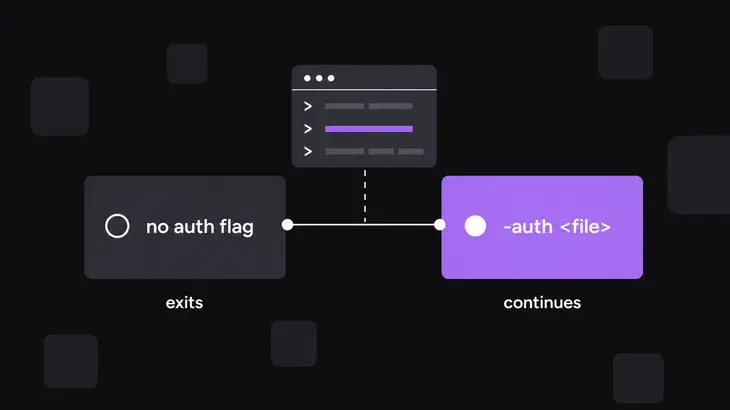
Use the tunnel unless the viewer sits on a LAN you trust. The password only decides who gets in, and x11vnc leaves encrypting the traffic to you. With -localhost it listens on loopback only, so nothing on the network sees port 5900 and SSH carries the session. For on-demand access to a desktop you're logged into, one command from your workstation opens the tunnel and starts x11vnc at the far end:
ssh -t -L 5900:localhost:5900 <user>@<server-host> 'x11vnc -localhost -rfbauth ~/.vnc/passwd -display :0 -auth guess'The -auth guess is what makes this work from SSH. GDM writes the session's cookie to /run/user/<uid>/gdm/Xauthority and sets XAUTHORITY only inside the desktop session, so an SSH shell doesn't know where it is.
In a second terminal on the workstation, point the viewer at your end of the tunnel. Local port 5900 is display :0 to the viewer, because the viewer's display number is the port minus 5900:
vncviewer localhost:0You get the password prompt, then the desktop exactly as it looks on the monitor. If your workstation runs its own VNC server on 5900, forward 5901:localhost:5900 instead and connect to localhost:1, or skip the arithmetic with the host::port form.
For a direct connection on the LAN, drop -localhost from the x11vnc command and let your client subnet, and only that, in on 5900 with a source-scoped ufw rule. On the server:
sudo ufw allow proto tcp from <client-subnet> to any port 5900Then run sudo ufw status before you trust that rule. Ubuntu installs ufw disabled, and a rule added to a disabled firewall filters nothing until you run sudo ufw enable. Working over SSH? Add sudo ufw allow 22/tcp before you enable it, so the firewall doesn't lock you out of your own session.
From the workstation:
vncviewer <server-host>:0Either way, check what x11vnc bound to with ss. 127.0.0.1:5900 means -localhost took effect; 0.0.0.0:5900 or *:5900 means every interface:
sudo ss -ltnp | grep 5900Keep it running with systemd
The one-liner is right for the odd session on a desktop you're already logged into. When x11vnc has to be there at the login screen, after a reboot and after every disconnect, give it a unit. It runs as root, so -auth guess picks up the greeter's cookie before anyone logs in. -forever keeps it listening after a viewer leaves, and Restart=on-failure brings it back when the process dies, for example when the X server restarts. Save this as /etc/systemd/system/x11vnc.service:
[Unit]
Description=x11vnc on display :0
After=display-manager.service

[Service]
ExecStart=/usr/bin/x11vnc -forever -localhost -display :0 -auth guess -rfbauth /etc/x11vnc.passwd
Restart=on-failure

[Install]
WantedBy=graphical.target
display-manager.service in After= lines it up behind GDM's unit, and WantedBy=graphical.target starts it along with the graphical login. If you took the direct LAN route, drop -localhost from ExecStart. Then load, enable and start it, and check:
sudo systemctl daemon-reload
sudo systemctl enable --now x11vnc.service
systemctl status x11vnc.service
journalctl -u x11vnc.service -b
sudo ss -ltnp | grep 5900
status should read active (running), the unit's journal should end with PORT=5900, and ss should show x11vnc on the loopback address. Before anyone has logged in, the viewer lands on the login screen. Connect through a plain tunnel, where -N forwards the port without running anything on the far end. Then reboot once and connect again before you count on it:
ssh -N -L 5900:localhost:5900 <user>@<server-host>
vncviewer localhost:0
When the viewer doesn't show your desktop
What you're after is the viewer showing the same desktop as the monitor, not a fresh one. When the unit is the thing misbehaving, don't debug it through systemd: stop it, run the ExecStart line by hand as root and read what comes back. Then match what you see:
*** XOpenDisplay failed (:0)right after start. x11vnc can't open the display: the cookie is missing or wrong, or the session is Wayland. Runecho $XDG_SESSION_TYPEon the desktop, thenx11vnc -findauth :0and pass the path with-auth.Wayland display server detected.The session is Wayland. Switch GDM to Xorg as in the first step and log in again.PORT=5901instead of 5900. Another program holds 5900.sudo ss -ltnp | grep 5900names it; stop it or connect to:1.systemctl statusshowsfailed. TheExecStartline, the password-file path or the display was wrong at start.journalctl -u x11vnc.service -bshows x11vnc's last lines; fix the unit, thensudo systemctl daemon-reloadandsudo systemctl restart x11vnc.service.- The viewer can't connect at all. The listener is on loopback (
-localhost) or the firewall is closed. Check the bound address withsudo ss -ltnp | grep 5900, then use the tunnel, or drop-localhostand add the ufw rule. - The viewer shows the login screen or another session, not the desktop you're logged into. x11vnc opened a different display. Run
x11vnc -finddpyas the desktop user and put that display in-display, in the unit too. - No password prompt. x11vnc started without
-rfbauth, and the WARNING banner in its output gives it away. Add-rfbauthwith the stored file and restart.
Stop it and close the port
A foreground run without -forever exits when its viewer disconnects, and Ctrl+C stops it at any time, in its own terminal or in the SSH terminal of the tunnel one-liner. For the unit, stop ends it until the next boot and disable --now takes it out of startup as well. Once the listener is gone, the ss check prints nothing:
sudo systemctl stop x11vnc.service
sudo systemctl disable --now x11vnc.service
sudo ss -ltnp | grep 5900
If you opened the firewall for a direct connection, delete the rule too:
sudo ufw delete allow proto tcp from <client-subnet> to any port 5900What changes on Debian 13
Debian 13 ships x11vnc 0.9.17-1 against Ubuntu 24.04's 0.9.16-10, with the same options, so the install, x11vnc, systemd and ss steps carry over as written. The GDM step doesn't. Debian builds GDM to read /etc/gdm3/daemon.conf instead of custom.conf, so point the sed at that file. The #WaylandEnable=false line under [daemon] is the same, and systemctl restart gdm3 still works because Debian links gdm3.service to gdm.service.
A second admin who wants to watch alongside you needs -shared, because x11vnc won't share the screen between viewers by default. Add -shared to ExecStart, then run sudo systemctl daemon-reload and sudo systemctl restart x11vnc.service.
FAQs
Can x11vnc read its options from a file?
Yes. If $HOME/.x11vncrc exists, x11vnc reads each line as one command-line option, with or without the leading dash. Put forever and localhost on their own lines and you stop typing them; -norc skips the file for one run.
Can x11vnc find the user's display by itself?
Yes. Start it with -find in place of -display :0. It's short for -display WAIT:cmd=FINDDISPLAY: x11vnc waits until a viewer connects, then looks up the user's display and Xauthority, so the command never has to name :0.