Use VNC when you need to drive one particular desktop, a VPN when you need to reach services on a remote network, and both when that desktop sits on a network you can only get into through the VPN. VNC brings one machine's screen to you and sends your keyboard and mouse back. A VPN brings you packets and no screen at all.
When you need both, the setup that holds up is simple: the VPN gets you onto the network, and the VNC server listens only on its tunnel address, so its port never faces the internet.
What each one puts on your machine
Connect with a VNC viewer and you get a window with another computer's desktop in it. RFB, the protocol under VNC, works at the framebuffer level: the server sends you screen updates, your viewer sends key and pointer events back, and the server applies them on the far end. That's why it doesn't care which windowing system or application runs there. The server process stays up when you disconnect, so you can drop off and come back to the desktop as you left it. Viewers connect on TCP 5900, or 5900+N for display N, so display :1 is port 5901. What you don't get is anything else on that machine's network.
Bring up a VPN and nothing new appears on your screen. Your machine gets an address on the tunnel and routes to whatever the configuration allows, and from then on your own tools talk to those hosts directly. OpenVPN does it with a tun device for IP (layer 3) or a tap device for Ethernet (layer 2), and both ends have to use the same kind. WireGuard peers authenticate each other by public key, and each peer's AllowedIPs works as the routing table for what you send and the access list for what you accept. If the job lives in a remote desktop, you still run VNC over the tunnel.
The differences that decide it
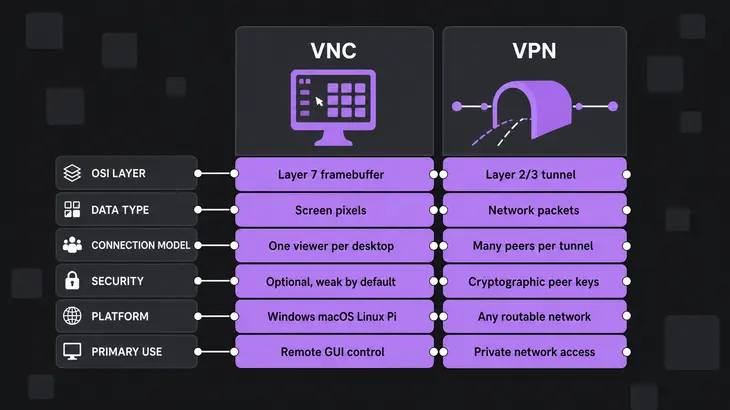
| Technology | Layer | What crosses | Session | Transport security | Ports | Use it to |
|---|---|---|---|---|---|---|
| VNC | Application protocol (RFB), working at the framebuffer level | One computer’s display and input | A viewer connects to a server; the desktop survives a disconnect | Negotiated per connection. Plain RFB offers None or a DES password challenge and nothing stronger; TigerVNC adds TLS, X.509 and RA2 types |
TCP 5900+N | Operate one computer’s desktop |
| VPN | Layer 3 (tun) or layer 2 (tap) in OpenVPN; WireGuard carries IP packets over UDP |
Traffic to the addresses the configuration routes and allows | A tunnel between configured peers, or a client and a server | Built into the tunnel: OpenVPN uses SSL/TLS with client and server certificates, or a static key; WireGuard uses public-key peer authentication | OpenVPN defaults to 1194; WireGuard uses the ListenPort you set (examples use UDP 51820) |
Reach internal services from your own machine |
Jobs that need VNC
Pick VNC when the work happens in the remote computer's graphical interface and you have to see it and drive it, even if you cross another network to get there.
A quick test: if it's a file or service your own machine could open once it had a route, you need connectivity. If an application has to be operated on that computer, you need its screen.
- An application that only lives on the remote machine: you run it there, on that machine's own desktop, instead of on yours.
- A user's screen while they watch: you see what they see and drive it. If someone already has a viewer open, connect with
xtigervncviewer -Shared <server-host>:1so their connection stays up instead of getting dropped. - A long job you want to check on later: the server keeps the desktop when you disconnect, and your next connection picks up where you left off.
Jobs that need a VPN
Use a VPN when the job is reaching services on that network from your own machine: an internal web app, a database port, an SSH host. Nobody's screen is involved. What you can reach comes down to the routes and access rules in the VPN config, so that's where you scope it.
- One host or one subnet (split tunnel): list only those addresses in the WireGuard peer's
AllowedIPs.wg-quickturns them into routes, and nothing else goes through the tunnel. - All of your traffic: in OpenVPN,
redirect-gateway def1makes the VPN your default route with0.0.0.0/1and128.0.0.0/1, and your original default route is back when the tunnel comes down. - Limit what a peer can send you: WireGuard drops any packet from a peer whose source address isn't in that peer's
AllowedIPs, because the list doubles as an access list on receive.
The VPN doesn't secure the VNC session
The VPN encrypts packets between the tunnel ends, and that's all it does for VNC. Viewer and server still negotiate their own security type, and plain RFB has no protection beyond a cryptographically weak password check, which is why people run it over SSH or IPsec or pick an encrypting type. Two defaults bite here.
The first is the listener. The tigervncserver wrapper starts on localhost only, but once you turn that off, Xtigervnc listens on all available interfaces, so a VNC server on a host that's also on the VPN answers on the host's LAN or public address too. Bind it to the tunnel address with -interface, as in the run below, and check with ss that it isn't listening anywhere else.
The second is the viewer. xtigervncviewer tries every security type it supports by default, None included if the server offers it, so pin -SecurityTypes to the ones you accept. TLSVnc wraps the VNC password in anonymous TLS: the session is encrypted, but nothing proves which server you reached. When you want that proof, use the X509 types, where the certificate proves the server's identity and keeps the session private.
Running VNC over a VPN
This is the setup for when you need both. The VPN carries traffic to the remote computer, VNC gives you its screen, and the VNC server listens only on the tunnel address. The run below uses a Debian or Ubuntu server with a desktop environment already installed, WireGuard on wg0 at both ends, and display :1 on port 5901.
On the client, keep the tunnel to the one host you need. In /etc/wireguard/wg0.conf:
[Interface]
PrivateKey = <client-private-key>
Address = <client-vpn-ip>/24

[Peer]
PublicKey = <server-public-key>
Endpoint = <server-host>:51820
AllowedIPs = <server-vpn-ip>/32
Generate each side's keys with wg genkey and wg pubkey. The server's own wg0.conf sets ListenPort = 51820 and has a [Peer] with the client's public key and AllowedIPs = <client-vpn-ip>/32, so it only accepts tunnel traffic from that one address.
On the server, bring wg0 up first, then install TigerVNC, set the VNC password as the session user, and start display :1 on the tunnel address only:
sudo wg-quick up wg0
sudo apt install tigervnc-standalone-server tigervnc-tools
tigervncpasswd
tigervncserver :1 -localhost no -SecurityTypes TLSVnc -interface <server-vpn-ip>
ss -tln | grep 5901
tigervncpasswd asks for the password twice, then offers a view-only password you can turn down. Use six to eight characters: Debian 13's TigerVNC 1.15 refuses anything longer with Password should not be greater than 8 characters, while Ubuntu 24.04's 1.13.1 takes a longer one and keeps only the first eight. The start prints New Xtigervnc server ... on port 5901 for display :1., followed by a Use xtigervncviewer ... hint. Don't paste that hint: it names the machine by its hostname -f name, not by the tunnel address you just bound. ss should show <server-vpn-ip>:5901, not 0.0.0.0:5901, and the session log gets a line Listening for VNC connections on <server-vpn-ip> interface(s), port 5901.
Start order matters. Binding an address the machine doesn't have fails, so if wg0 isn't up yet, Xtigervnc can't take the tunnel address and exits, and the wrapper tells you it did not start up along with the path of the log to read. -localhost no is there because the tigervncserver wrapper listens on localhost only by default and switches the default security types to VncAuth,TLSVnc when you turn that off. With VncAuth on that list a viewer can skip TLS, so -SecurityTypes TLSVnc leaves TLS as the only way in. The wrapper hands -interface straight to Xtigervnc, which then listens on that address only.
Still on the server, open the WireGuard port, allow VNC on the tunnel interface only, and turn the firewall on. ufw ships disabled on Ubuntu, and rules added to an inactive ufw filter nothing (install it with apt if the host doesn't have it). Allow SSH before ufw enable: incoming traffic is dropped by default once it's on, and the SSH session you're typing in goes with it.
sudo ufw allow 22/tcp
sudo ufw allow 51820/udp
sudo ufw allow in on wg0 to any port 5901 proto tcp
sudo ufw enable
sudo ufw status verbose
Over SSH, ufw enable asks Command may disrupt existing ssh connections. Proceed with operation (y|n)?; with the 22/tcp rule in place, answer y. ufw status verbose should start with Status: active and list the rules you just added. That interface-scoped ufw rule is your second lock: even if the VNC server listened more widely, 5901 only opens on wg0.
On the client, bring the tunnel up, check the handshake and connect:
sudo wg-quick up wg0
sudo wg show wg0
xtigervncviewer -SecurityTypes TLSVnc <server-vpn-ip>:1
wg show lists a latest handshake for the peer once the two ends have exchanged packets. No handshake means the tunnel isn't working yet, so fix that before you look at VNC. The single colon in <server-vpn-ip>:1 is a display number, not a port, so the viewer goes to 5901 and then asks for the password you set with tigervncpasswd.
When you're done, stop the display on the server and drop the tunnel on the client:
tigervncserver -kill :1
sudo wg-quick down wg0
-kill answers Killing Xtigervnc process ID <pid>... success!.
Skip the VPN for a single box over SSH
If the desktop is on one machine you already reach over SSH, skip the VPN. Leave the server on its default localhost-only listener and let the viewer build the tunnel. With -via, you name the host as the gateway sees it, so localhost:1 means display :1 on the server itself:
tigervncserver :1
xtigervncviewer -via <user>@<server-host> localhost:1
If the machine runs RealVNC Server, there's another way around the VPN. In Service Mode RealVNC Server takes cloud connections as well as direct ones, brokered by RealVNC's service, so RealVNC Viewer reaches it with no VPN and no VNC port open on the host. The trade-off is that the path then depends on that service and your RealVNC account.
For a single box you can already SSH into, start with -via, and bring in the WireGuard setup when a second host or a service that isn't a desktop turns up on that network.
FAQs
If VNC is already encrypted, do I still need the VPN?
For a server whose port would otherwise face the internet, yes. X509 keeps the session private, but anyone who can reach 5901 can still try passwords. Xtigervnc slows them down with a blacklist: after 5 unauthenticated attempts from one host, that host is shut out for 10 seconds at first. Behind WireGuard nobody without a key reaches the listener, and the WireGuard port itself doesn't answer a client it can't authenticate.
Which gives a vendor less reach, a VPN or VNC?
Neither on its own. Over VNC the vendor works as the account logged into that desktop, so they can reach whatever that account and machine can. Over a VPN, the AllowedIPs in the vendor's config is theirs to widen, and your limits sit on the VPN host. Its AllowedIPs for the vendor's peer only fixes the source address they may use, and their packets go no further than that host while IP forwarding stays at its Linux default of off. Combine the two: forwarding off, the wg0-scoped ufw rule from the run above, and a VNC session under an account that holds only what the job needs.