Use SSH when the job fits in a terminal and VNC when it needs a whole desktop. SSH gives you an encrypted login and the output of your commands. VNC sends you the remote screen and takes your keyboard and mouse back. In between sits SSH X11 forwarding, which puts one remote program's window on your own display.
You often don't have to pick. On any network you don't control, run VNC through SSH: the desktop comes from VNC and the encryption from SSH.
What each one actually sends
VNC speaks the Remote Framebuffer protocol (RFB), and every connection opens with the same handshake. The server sends the highest protocol version it supports, a 12-byte string such as RFB 003.008, and the viewer answers with the version to use. Then the server lists its security types, the viewer picks one, and the password check runs if that type has one. That's RFB 3.7 and 3.8; a 3.3 server picks the type itself. From there the viewer asks for framebuffer updates, and the server sends back the rectangles of the screen that changed, while your keyboard and mouse events travel the other way. The server keeps running between connections, so when you reconnect, the desktop is where you left it. Display :N listens on TCP 5900+N, which puts :2 on 5902.
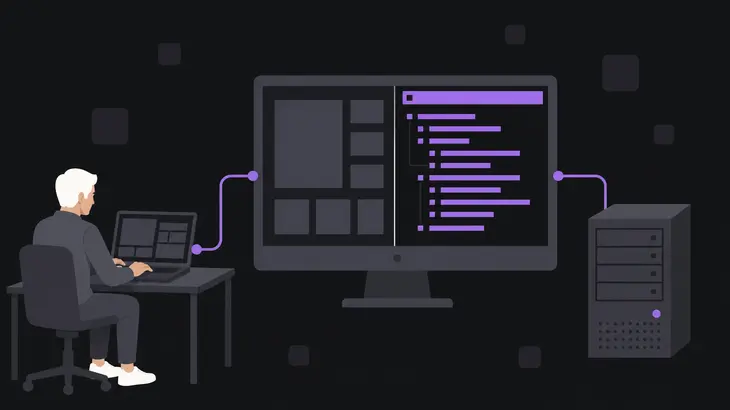
SSH logs you in to a shell over an encrypted channel, and that same channel can carry X11 connections and arbitrary TCP ports too.
Security is what usually settles it. Plain RFB does nothing against someone watching or altering the stream, and its password check is weak and not meant for untrusted networks. Encryption on a VNC link has to come from the implementation's own security type or from a tunnel, and implementations differ. TigerVNC's Xvnc offers TLSVnc,VncAuth by default, so a viewer without TLS support still falls back to plain VncAuth. RealVNC Server encrypts every session by default; its Parameter Reference lists the cipher.
The differences that decide it
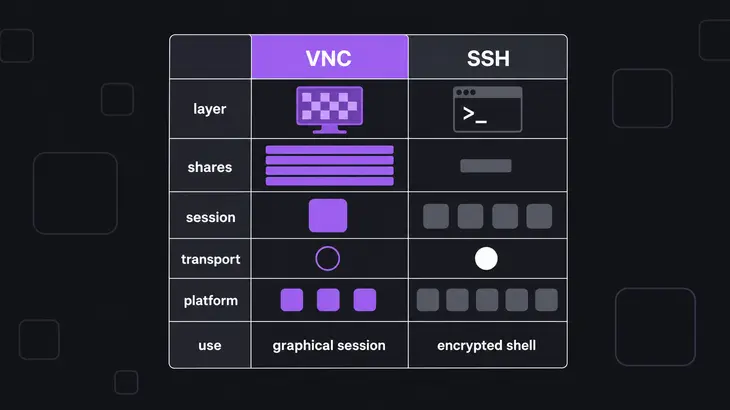
| VNC | SSH | |
|---|---|---|
| Layer | RFB, a framebuffer protocol | Encrypted remote login with X11 and TCP forwarding |
| What is shared | Screen updates out, keyboard and mouse in | Shell input and output, plus any forwarded traffic |
| Default port | 5900 + display number | 22 |
| Session model | Desktop keeps running after the viewer disconnects | Shell and forwarded windows live inside the SSH connection |
| Transport security | Only with an encrypting security type or a tunnel | Always encrypted |
| Platform support | Any windowing system, since RFB works at framebuffer level | Unix-like systems, plus Windows 10 1809+ and Windows Server 2019+ as a feature on demand |
| Typical use | Full desktop, several GUI tools, a session you come back to | Shell administration, sftp file transfer, tunnels |
When a shell is enough
If the work is commands and their output, stay in SSH. Log in and work at the prompt, or hand the command straight to ssh, which runs it on the remote host instead of starting a login shell:
ssh <user>@<server-host> 'systemctl status <service>'The status prints in your local terminal and the connection closes. Standing up a graphical session to read that would only give you a desktop to maintain and another port to protect.
SSH is the right tool when the task's controls and results exist as commands, when there's no desktop on the box you need to touch, and when files can travel over the same connection with sftp.
If one job on a headless box does need a GUI program, such as a graphical installer, X11 forwarding (below) covers it without installing a VNC desktop.
When you need the desktop: one VNC session per user
Go to VNC when the job needs windows: several GUI tools open together, a desktop you come back to, or two admins who each need their own workspace on one host. The commands here are for RHEL 9, where each VNC user gets their own display and port. Red Hat's table keeps :0 and 5900 for the user at the console, but that's a reservation, not a session: a viewer pointed at :0 gets nothing until that user installs gnome-remote-desktop and turns on Screen Sharing, which is VNC on RHEL 9. The first VNC user starts at :2 on 5902. A line in /etc/tigervnc/vncserver.users maps a display to an account, and the vncserver@ unit starts that user's session.
This run gives <user> display :2 and keeps it on localhost, so the only way in is through SSH:
sudo dnf install tigervnc-server
echo ':2=<user>' | sudo tee -a /etc/tigervnc/vncserver.users
printf 'session=gnome\nlocalhost\n' | sudo tee -a /etc/tigervnc/vncserver-config-defaults
session=gnome starts GNOME for the remote user, so GNOME has to be on the host. The localhost line keeps remote viewers out unless they come through a tunnel. It's in the defaults file, though, and a user's own ~/.config/tigervnc/config (~/.vnc/config before TigerVNC 1.14) can switch it off again. If users mustn't be able to, put it in /etc/tigervnc/vncserver-config-mandatory, which overrides both.
Next, as <user>, set the password the viewer will ask for, then start the unit and look at what it listens on:
vncpasswd
sudo systemctl enable --now vncserver@:2
ss -tln | grep 5902
In the ss -tln output you want a loopback address such as 127.0.0.1:5902. A wildcard like 0.0.0.0:5902 means the localhost line didn't take, and the desktop is open to the network. Stop the session with sudo systemctl stop vncserver@:2.
On a LAN you trust, you can connect directly instead. Leave out the localhost line, put securitytypes=tlsvnc in the defaults file, and open the firewall. List TLS alone: with vncauth still on the list, a viewer can pick the bare DES check and skip TLS. TLSVnc encrypts the link but doesn't prove which server you reached; X509Vnc with a certificate does. The vnc-server firewalld service opens ports 5900 to 5903:
sudo firewall-cmd --permanent --add-service=vnc-server
sudo firewall-cmd --reload
vncviewer <server-host>:2
Anywhere else, take the SSH route below.
One GUI program over SSH: X11 forwarding
X11 forwarding gets you one program, not a desktop. The program runs on the server, and ssh points its DISPLAY at a proxy X server on the server machine that sends the traffic back through the SSH channel to your local display. That's the right fit for a GUI installer or a single admin tool. For several windows, or a session that survives a dropped connection, use VNC.
On RHEL 9, sshd's shipped configuration turns X11 forwarding on, but openssh-server does not pull in xorg-x11-xauth, so a minimal server may need it installed. If forwarding has been turned off, set X11Forwarding yes in /etc/ssh/sshd_config, then restart sshd:
sudo dnf install xorg-x11-xauth
sudoedit /etc/ssh/sshd_config
sudo systemctl restart sshd.service
Your workstation needs a running X server: a RHEL desktop has one, macOS needs XQuartz, and Windows needs one such as Xming. Then connect and start the program:
ssh -X <user>@<server-host>
echo $DISPLAY
<application>
echo $DISPLAY shows the proxy display on the server's loopback. Numbering starts at X11DisplayOffset, which defaults to 10, so on a default sshd the first forwarded login gets localhost:10.0. If it prints nothing, the server has X11Forwarding no or no xauth; fix both as above and reconnect.
To skip the shell, run ssh -X -C <user>@<server-host> <application>. -C compression helps on slow links and only slows things down on fast networks.
The difference between -X and -Y depends on the client build. Upstream, -X runs the program under X11 SECURITY extension restrictions and -Y lifts them. Debian and Ubuntu set ForwardX11Trusted yes, because too many programs crash under the restrictions, so on those clients -X already behaves like -Y.
Either way, forward only to hosts you trust. Anyone who can get around file permissions on your X authority data on the server can reach your local display, keystrokes included.
Run VNC through SSH
The VNC server listens only on localhost, and SSH carries the viewer to it. Wrapping RFB in SSH gives the stream the protection it doesn't have on its own, and the viewer never touches a VNC port on the network.
With :2 running on localhost from the run above, open the tunnel from your workstation and point the viewer at its local end. ssh -N holds its terminal, so run the viewer line in a second one:
ssh -N -L 5902:localhost:5902 <user>@<server-host>
vncviewer localhost:2
-L listens on local port 5902 and forwards each connection through the SSH channel to localhost:5902 as the server sees it, and -N runs no remote command, so that terminal only holds the tunnel. localhost:2 is display 2, which is port 5902, so viewer and tunnel line up.
TigerVNC Viewer can build the tunnel itself. With -via it runs the SSH forward for you, and localhost then means the gateway, not your workstation:
vncviewer -via <user>@<server-host> localhost:2Use -via for day-to-day work from TigerVNC Viewer. Use the explicit ssh -L with any other viewer, or when the tunnel should stay up between viewer sessions.
When the route fails, it's usually one of these:
- SSH login works, the viewer can't connect, and the ssh terminal shows
open failed: administratively prohibited. sshd hasAllowTcpForwardingset tonoorremote(the default isyes). Set it toyesorlocaland restart sshd. - VNC runs on a different host from sshd.
localhostin-Lresolves on the SSH server. Put the VNC host in the spec (-L 5902:<vnc-host>:5902), and keep in mind that the hop from the SSH server to that host isn't encrypted. - Viewer and tunnel disagree on the port. A single-colon value is a display number, so
localhost:2is port 5902. For any other local port, give the port with a double colon:vncviewer localhost::<local-port>.
What changes on Debian and Ubuntu
The RHEL commands carry over with these differences:
- Unit and binaries:
tigervnc-standalone-serverinstalls thetigervncserver@.serviceunit and reads the same/etc/tigervnc/vncserver.users, so start the session withsudo systemctl enable --now tigervncserver@:2. The password tool istigervncpasswdfromtigervnc-tools, and the viewer isxtigervncviewerfromtigervnc-viewer. - Config syntax: the wrapper reads
/etc/tigervnc/vncserver-config-defaultsas Perl, not as theoption=valuelines above, so skip thatprintfand put$session = "gnome";in the file instead. - Listening default: the wrapper listens on localhost only unless you've listed a TLS or X509 type and left out every None type. The tunnel route needs no
localhostline there, and a direct connection needs-localhost no. - X11 forwarding: the Debian
openssh-serverpackage shipsX11Forwarding yesin/etc/ssh/sshd_config, so skip that edit and install thexauthpackage if it's missing.
When in doubt, start in SSH. Most admin work is commands and output, and one stray GUI tool rides along fine with ssh -X.
Switch to VNC when you find yourself forwarding a third window, or wanting the session back exactly as it was after the link drops.
FAQs
Can I move files over the same SSH connection?
Yes. sftp runs the Secure File Transfer Protocol over SSH, so sftp <user>@<server-host> moves files over the same kind of connection you administer with.
Can other machines reach a forwarded X11 display?
Not by default. X11UseLocalhost defaults to yes, so sshd binds the proxy display to the loopback address and other hosts can't connect to it. Setting it to no binds the wildcard address, which some older X11 clients need.
Can two viewers share one user's VNC session?
Yes. On RHEL 9 every client on a user's port opens that user's session, and the alwaysshared option in /etc/tigervnc/vncserver-config-defaults lets them stay connected at the same time.