A VNC server gives a viewer a desktop over the network. It holds the screen, sends it out as pixel updates over the Remote Framebuffer protocol (RFB) on TCP 5900 plus the display number, and takes your keyboard and mouse input back. Display :1 is port 5901.
When you connect, two things decide what you get. One is which desktop sits behind the port: the physical screen, or a virtual one started just for VNC. The other is which addresses the port answers on. Get those right and the rest is password and transport.
What sits behind the port
On the server, one long-running process holds the framebuffer, the desktop's pixels, and serves every viewer that connects and drops off. Your viewer only draws what arrives and sends input back. In between is the listener, a TCP socket whose address and port tell you where to connect, not which desktop you'll see. So when you connect fine and land on the wrong screen, look at the session, not the network.
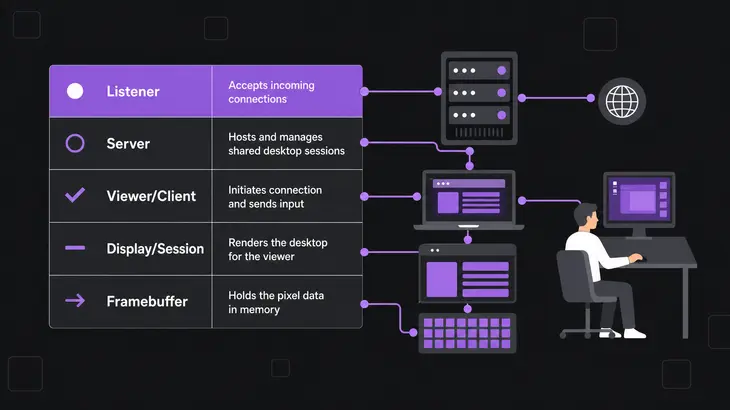
The port follows the display. Xvnc's -rfbport defaults to 5900 plus the display number, and the TigerVNC viewer takes either form, so these two reach the same server:
vncviewer <server-host>:1
vncviewer <server-host>::5901
One colon means a display number and two colons mean a TCP port. When you tunnel, the local port and the viewer argument have to agree on the same value.
Share the screen someone is using, or start a fresh desktop
Which server you want depends on whose desktop you need.
| Server | Desktop it serves | Use it when |
|---|---|---|
| x11vnc | An existing X11 display, usually :0, the one on the physical screen (-display) |
You need to see or drive the session someone is sitting at; x11vnc is unmaintained upstream, and TigerVNC’s x0vncserver does the same job |
| wayvnc | A running wlroots-based Wayland session; GNOME, KDE and Weston are not supported | The same job on a wlroots desktop. Raspberry Pi OS ships it as its VNC server |
| TigerVNC Xvnc | A virtual X screen that exists only for VNC, one per display number mapped to a user | Each user needs their own remote desktop, typically on a headless server |
| RealVNC Server | The console in Service Mode, or a private desktop in Virtual Mode on Linux | You want one commercial product for both jobs, plus cloud connections; Virtual Mode needs an Enterprise subscription |
Don't expect Xvnc to show what's on the monitor. A viewer that reaches display :1 gets a fresh desktop for the user mapped to it.
To share an X11 console instead, one line from your workstation starts x11vnc on the server and tunnels it:
ssh -t -L 5900:localhost:5900 <user>@<server-host> 'x11vnc -localhost -display :0'x11vnc stays in the foreground and holds that terminal until it exits. Once it prints PORT=5900, connect from a second terminal:
vncviewer localhost:0By default it refuses a second viewer and exits when you disconnect; -shared and -forever change that. -localhost keeps other hosts out but not other users on the same box, so add -rfbauth <passwd-file> and create the file with x11vnc -storepasswd <password> <passwd-file>.
What happens when a viewer connects
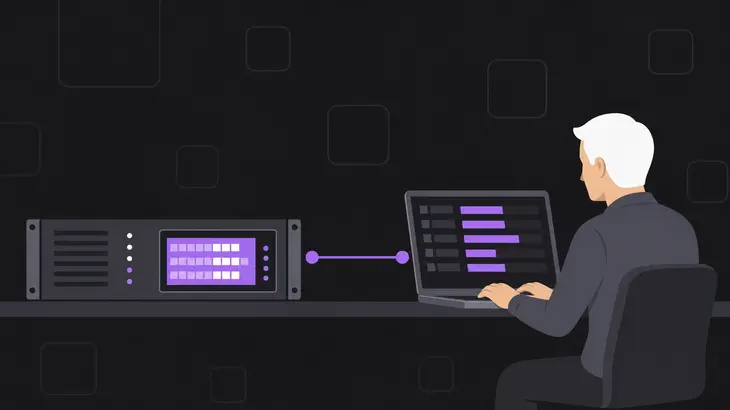
Every connection runs the same RFB handshake, and a TCP connect alone doesn't get you a desktop. You have one after the third step:
- Version: the server sends the highest protocol version it speaks as a 12-byte string,
RFB 003.008for 3.8, which is what TigerVNC sends, and your viewer answers with the one it picks. - Security: the server lists the security types it offers and the viewer picks one. The password check or TLS setup happens here.
- Init: the viewer sends ClientInit and the server answers with ServerInit: framebuffer width and height, pixel format and the desktop name.
- Updates and input: from here on the server sends framebuffer updates as rectangles of pixels, and your viewer sends key and pointer events back.
Step 1 is your probe when a viewer just hangs. Connect to the port on the server and the version string comes back first:
nc localhost 5901
RFB 003.008
A version string means the TCP connection got through and something on that port speaks RFB, which can also be an SSH tunnel's local end. If nothing listens, the connection is refused at once, but Debian and Ubuntu's netcat reports it only with -v and otherwise exits without a word, so run nc -v when nothing comes back. A connection that stays open with no banner, or answers with other bytes, means another process has the port.
Who can reach the port, and who gets in
The listen address decides who reaches the port. The security type from step 2 decides who gets in and whether the traffic is protected. Defaults differ per server, and ss -tln on the box shows what yours really listens on:
| Server | Default listener |
|---|---|
| TigerVNC Xvnc (upstream, Fedora) | All interfaces; -localhost, or a localhost line in the config, limits it to the same machine |
TigerVNC tigervncserver wrapper (Debian, Ubuntu) |
Localhost only with its default VncAuth; it opens up when you offer a TLS or X509 type with no *None type, or pass -localhost no, which offers VncAuth,TLSVnc and so still lets a viewer pick plain VncAuth |
| wayvnc | Localhost only; an address of 0.0.0.0 opens every interface |
| RealVNC Server | All addresses on RfbPort 5900; the localhost parameter limits direct connections to the same machine |
Plain VNC authentication only uses the first eight characters of your password for its DES challenge. TigerVNC 1.15's vncpasswd, the one Fedora and Debian 13 ship, refuses a longer one, and Ubuntu 24.04's 1.13.1 takes it and drops the rest. On top of that, the base protocol gives no protection against anyone watching the stream. A TLS type encrypts the transport. wayvnc's legacy DES mode, kept for clients such as macOS Screen Sharing, encrypts nothing. Upstream Xvnc offers TLSVnc,VncAuth by default, which still lets a viewer pick plain VncAuth, and it has no default password file, so an Xvnc you start by hand needs -PasswordFile.
What works on any network: the server listens on localhost only, and your viewer reaches it over SSH. Open the port directly only on a network you trust, and list only TLS types when you do, because a viewer can pick any type the server offers.
Run a TigerVNC session on Fedora
This run gives <user> a virtual desktop on display :1, port 5901. It's written for Fedora, which packages TigerVNC 1.15 with the upstream service. The settings live in three files. /etc/tigervnc/vncserver.users maps displays to users, /etc/tigervnc/vncserver-config-defaults holds Xvnc options for everyone, and ~/.config/tigervnc/config overrides them per user. vncserver-config-mandatory loads last and beats both.
Install the server and see which desktops you have. The session= value is a file name from /usr/share/xsessions without .desktop. If the directory is empty, there's no X11 desktop for Xvnc to start, so install one first.
sudo dnf install tigervnc-server
ls /usr/share/xsessions
Map the display, set the options, then set the password as <user>. Without one, the service refuses to start.
echo ':1=<user>' | sudo tee -a /etc/tigervnc/vncserver.users
printf 'session=<desktop>\nlocalhost\n' | sudo tee -a /etc/tigervnc/vncserver-config-defaults
vncpasswd
Start the service and check the listener:
sudo systemctl enable --now vncserver@:1
systemctl status vncserver@:1
sudo ss -tlnp | grep 5901
systemctl status should show the unit active. With localhost set, ss shows Xvnc on 127.0.0.1:5901 rather than 0.0.0.0:5901, and the session log at ~/.local/state/tigervnc/<host>:1.log has the line Listening for VNC connections on local interfaces, port 5901.
From your workstation, install the viewer and open the tunnel:
sudo dnf install tigervnc
ssh -N -L 5901:localhost:5901 <user>@<server-host>
The ssh line sits there silently while the tunnel is up. Connect from a second terminal:
vncviewer localhost:1Stop the tunnel with Ctrl+C when you're done. To stop the session on the server:
sudo systemctl stop vncserver@:1For a direct connection on a trusted network, replace the localhost line in vncserver-config-defaults with securitytypes=tlsvnc, so viewers can't fall back to plain VncAuth, then restart and open the port in firewalld:
sudo systemctl restart vncserver@:1
sudo firewall-cmd --permanent --add-port=5901/tcp
sudo firewall-cmd --reload
vncviewer <server-host>:1
When it doesn't work
- The service fails for someone logged in on the console. TigerVNC can't start a server for a user who already has a graphical session. Log that user out, then run
sudo systemctl restart vncserver@:1. - The service won't start on a new account. The user has no VNC password yet. Run
vncpasswdas<user>, then restart the service. - You land on a different desktop than the one you set.
session=doesn't match a file in/usr/share/xsessions, so the service logsCould not load configured desktop sessionand starts the first desktop it finds. Fix the value fromls /usr/share/xsessionsand restart. - Another host can't connect, but the tunnel works. The listener is on loopback because of the
localhostline. Use the tunnel, or make the direct-connection change.
Debian 13 and Ubuntu 24.04
The same run changes in four places:
- Packages:
tigervnc-standalone-serverandtigervnc-toolson the server,tigervnc-vieweron the workstation. - Unit and password tool:
tigervncserver@:1instead ofvncserver@:1, andtigervncpasswdinstead ofvncpasswd. - Listener: the wrapper is localhost-only by default, so the tunnel works without the
localhostline, and a direct connection needs-localhost no. - Per-user files: Ubuntu 24.04 ships 1.13.1, which keeps the password and logs in
~/.vnc/. Debian 13's 1.15.0 uses~/.config/tigervnc/.
Raspberry Pi OS
On the Wayland desktop, the server here is wayvnc. Enable it with sudo raspi-config under Interface Options > VNC; its config lives in /etc/wayvnc/. Then sudo ss -tlnp | grep wayvnc shows wayvnc's listening socket, and its address tells you whether it answers on localhost or on every interface.
Decide whether anyone off the box really needs a direct connection. If nobody does, leave the localhost line in and skip the firewall rule.
FAQs
Can someone watch a session without controlling it?
Yes. TigerVNC's vncpasswd can store a second, view-only password that shows the session without control. On your side, vncviewer -ViewOnly sends no keyboard or mouse events, whatever password you used.
Does an old ~/.vnc folder get in the way on Fedora?
It can. If the account used TigerVNC before, the legacy ~/.vnc folder that vncpasswd created needs the correct SELinux context for the service. Delete the folder and set the password again with vncpasswd, or keep it and relabel it with restorecon -RFv /home/<user>/.vnc.
Can two viewers share one session?
Yes. Start the TigerVNC viewer with -Shared and the existing connections stay open, or put an alwaysshared line in the Xvnc config to treat every connection as shared.