Start from the session you need to reach. If you want a desktop of its own on a headless box, run TigerVNC's virtual X server, or TurboVNC when you need software OpenGL or VirtualGL for 3D work. If you need the screen someone is already using, use the desktop's own sharing: KRFB shares the current Plasma session, GNOME screen sharing speaks VNC on RHEL 9, and x0vncserver covers a plain X11 console.
Two to leave out of new setups. TightVNC's free 1.3 server for Unix is outdated and no longer supported, and x11vnc still works on X11 but is unmaintained and looking for a new maintainer.
A desktop of its own, or the one on the monitor
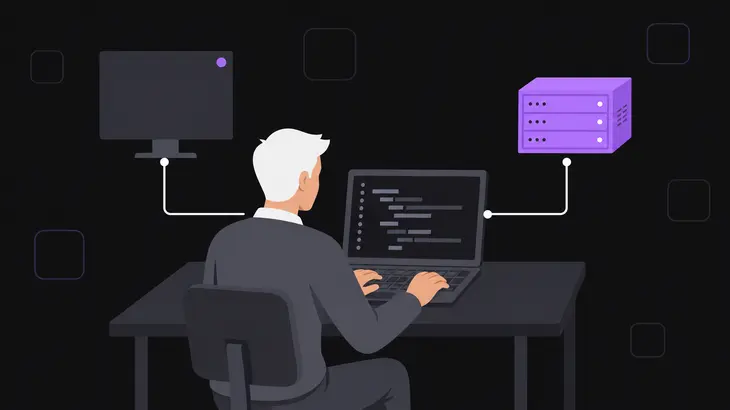
Every Linux VNC server does one of two jobs, and they don't overlap. A virtual-session server such as Xvnc runs its own X server in memory: it creates display :1, listens on 5900 plus the display number (so 5901), and starts whatever desktop you point it at. Nobody at the console sees it. A sharing server attaches to the session already on the monitor, usually display :0 on port 5900, and whoever is at the desk watches every move you make.
If you're sharing, find out next whether that console runs X11 or Wayland. In a terminal on the desktop itself:
echo $XDG_SESSION_TYPEYou'll get the desktop's session type: x11 or wayland. x0vncserver and x11vnc share an existing X server, so wayland rules them out and leaves you with the desktop's own sharing. TigerVNC 1.16 added w0vncserver for Wayland desktops, but Debian 13 still ships 1.15.0, so don't plan around it yet.
If you're starting a separate session, the desktop has to be installed on the host. TigerVNC's session= setting must match a file under /usr/share/xsessions. Leave it out and TigerVNC takes the first session it finds, which may not work. TurboVNC's -wm option reads the same directory.
The options side by side
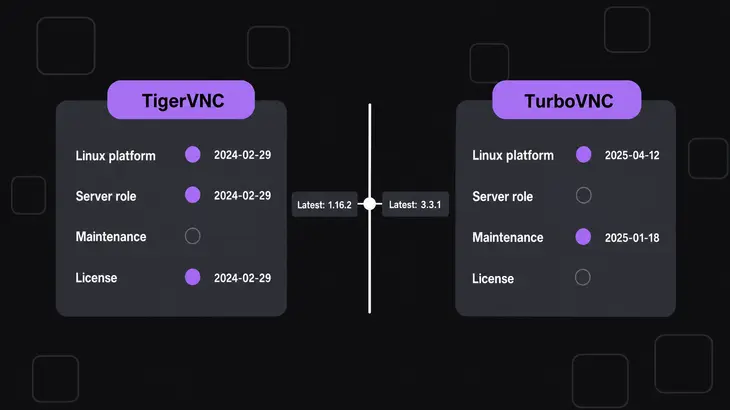
| Option | Use it for | Session | Package | Maintenance signal |
|---|---|---|---|---|
| TigerVNC (Xvnc) | Headless servers, one desktop per user | Virtual X session, :1 on 5901 |
tigervnc-standalone-server (Debian, Ubuntu), tigervnc-server (RHEL) |
1.16.2, March 2026 |
| TigerVNC x0vncserver | Sharing an X11 console | Existing X display, :0 on 5900 |
tigervnc-scraping-server (Debian, Ubuntu) |
Same project; x0vncserver screen-exposure fix in 1.16.2 |
| TurboVNC | Separate sessions, 3D and OpenGL work | Virtual X session | Its own DEB and RPM packages, installed under /opt/TurboVNC |
3.3.1, August 2026 |
| RealVNC Server | One commercial product for console sharing and per-user desktops | Service Mode remotes the console, Virtual Mode a private desktop | Vendor package | Commercial; Virtual Mode needs an Enterprise subscription |
| x11vnc | X11 console when you need its extra options | Existing X display | x11vnc |
Unmaintained, seeking a maintainer |
| KRFB | A Plasma desktop someone is using | Current session | krfb |
25.04.2 in Debian 13, current KDE handbook |
| GNOME Remote Desktop | A GNOME desktop on RHEL 9 | Current session, one viewer | gnome-remote-desktop |
VNC backend compiled in on Fedora and RHEL 9, left out on Debian 13 and Ubuntu 24.04 |
| TightVNC 1.3 | Nothing new | Virtual X session | Vendor download | Outdated and unsupported |
Which one fits your job
Headless server, one desktop per user: TigerVNC. Each user gets a display in /etc/tigervnc/vncserver.users and one systemd unit per display, and for an ad hoc session the tigervncserver wrapper on Debian and Ubuntu starts one as you. Use the unit for desktops that must come back after a reboot, and the wrapper for a quick session. The unit has one catch: TigerVNC's service won't start a server for a user who's already logged into a graphical session, so map an account that isn't sitting on the console.
Helping someone on a Plasma desktop: KRFB. Tick Enable Desktop Sharing and the window shows the address, port and a generated password to hand to the other side, while the Security page switches the viewer between view-only and control. By default the person at the desk accepts each connection; for a box nobody sits at, turn on unattended access and give it a password.
A GNOME desktop on RHEL 9: turn on Settings > Sharing > Screen Sharing, set a password, and open the vnc-server firewall service. That share is VNC, one viewer gets in at a time, and it lands on the logged-in user's session. Fedora builds the same VNC backend, but its current GNOME Settings panel shares over RDP on port 3389, so VNC there is set up with grdctl's vnc commands. Debian 13 and Ubuntu 24.04 build GNOME's sharing as RDP only: the VNC backend is off by default and those builds leave it off, so grdctl offers only RDP commands. For VNC there, run TigerVNC as a separate session, or log the console into an X11 session and use x0vncserver.
A plain X11 console: x0vncserver from tigervnc-scraping-server. It comes from the same maintained project as the TigerVNC server and takes the same -localhost and security options. Reach for x11vnc only when you need one of its extras, such as -auth guess to find the X authority file of a display you didn't start.
3D work or an HPC login node: TurboVNC. Its viewer's Session Manager logs in over SSH, starts or lists your sessions, and connects through an SSH tunnel with a one-time password.
One commercial product for both jobs: RealVNC Server. Service Mode shows the viewer exactly what the console shows, login screen included. Virtual Mode starts a private desktop with vncserver-virtual, you end it with vncserver-virtual -kill :1, and that mode is Enterprise-only.
Check what you're actually running
Release notes describe the project; the package on your host is what you run. Check it first, with the Debian and Ubuntu binary names:
tigervncserver -version
x0tigervncserver -version
That matters most for x0vncserver. TigerVNC 1.16.2 (March 2026) is the second try at fixing a bug that let other users watch and manipulate the shared screen, and Debian fixed the same bug, CVE-2026-34352, in its 1.15.0 packages for Debian 13. Update before you run x0vncserver on a multi-user box.
Get a TigerVNC session running
Here's the whole run with TigerVNC on Debian 13 or Ubuntu 24.04: display :1 on port 5901, reached through SSH. On a fresh server, install a desktop along with it, or the session comes up empty:
sudo apt install tigervnc-standalone-server tigervnc-tools xfce4As the user who'll own the session (not root), set the VNC password, start the desktop and list it:
tigervncpasswd
tigervncserver :1 -localhost yes -- xfce
tigervncserver -list
The password tool asks for Password: and Verify:, turns down anything under six characters with Password must be at least 6 characters - try again, then asks about a view-only password. -- xfce picks the session from /usr/share/xsessions/xfce.desktop. The start prints New Xtigervnc server '<host>:1 (<user>)' on port 5901 for display :1., and -list shows a TigerVNC server sessions: table with display 1 on port 5901. Confirm the listener sits on loopback:
ss -tln | grep 5901You want a listening socket on 127.0.0.1:5901. If you see 0.0.0.0:5901, it's open to the network. From your workstation, open the tunnel, then connect from a second terminal:
ssh -L 5901:localhost:5901 <user>@<server-host>
vncviewer localhost:1
localhost:1 means display 1, which the viewer turns into port 5901, the local end of the tunnel. You get the password prompt, then the Xfce desktop. Stop the session on the server when you're done:
tigervncserver -kill :1It answers Killing Xtigervnc process ID <pid>... success!. The commands are the same on both releases, but the paths aren't: Ubuntu 24.04 ships 1.13.1 and keeps the password and per-user config in ~/.vnc/, while Debian 13's 1.15.0 uses ~/.config/tigervnc/. Password length differs too: Debian 13's tool refuses anything over eight characters with Password should not be greater than 8 characters, while 1.13.1 on Ubuntu takes a longer one and keeps only the first eight, because classic VNC authentication uses them as a DES key.
Direct connection without SSH. The wrapper opens up beyond localhost only when a TLS or X509 type is in the list and no *None type is. -localhost no switches the default types to VncAuth,TLSVnc, so it opens the listener. That list doesn't force encryption: the viewer picks one type from the server's list, and one that takes VncAuth gets an unencrypted session. To require TLS, add -SecurityTypes TLSVnc, which still opens the listener. Open the port to your admin network only:
tigervncserver :1 -localhost no -- xfce
sudo ufw allow proto tcp from <subnet> to any port 5901
vncviewer <server-host>:1
The rule lets only <subnet> reach 5901 once UFW is running, and on a stock install it isn't: Ubuntu ships it disabled, and Debian 13 leaves it out of a default install, so run sudo apt install ufw there first. Allow SSH before you run sudo ufw enable, because enabling it can drop live connections, SSH included.
RHEL 9 differences. The package is tigervnc-server, each session is a systemd unit, and firewalld opens the ports. Run vncpasswd as <user> and the rest with sudo:
sudo dnf install tigervnc-server
echo ':1=<user>' | sudo tee -a /etc/tigervnc/vncserver.users
echo 'session=gnome' | sudo tee -a /etc/tigervnc/vncserver-config-defaults
vncpasswd
sudo systemctl enable --now vncserver@:1
systemctl status vncserver@:1
sudo firewall-cmd --permanent --add-service=vnc-server
sudo firewall-cmd --reload
Look for active (running) in the status output. Any free display works as long as the mapping, the unit and the port agree. The vnc-server firewall service opens 5900 to 5903, so display :4 and up need their ports opened by hand. Stop the session with sudo systemctl stop vncserver@:1.
x0vncserver on an X11 console. Run it from a terminal on the console desktop, as that desktop's user. It reads the same password file as the wrapper and listens on 5900 plus the shared display number, so 5900 for :0:
sudo apt install tigervnc-scraping-server
x0tigervncserver :0 -localhost yes
From the workstation, open the tunnel, then connect to display 0 from a second terminal:
ssh -L 5900:localhost:5900 <user>@<server-host>
vncviewer localhost:0
Stop it on the host when you're done:
x0tigervncserver -kill :0KRFB. Install krfb, tick Enable Desktop Sharing, and connect to the port shown in the Address field with vncviewer <server-host>::<port>. The double colon takes a TCP port instead of a display number.
TurboVNC. Start the session restricted to localhost and note the display number it prints. You tunnel 5900 plus that number, so :1 means 5901. On the host:
/opt/TurboVNC/bin/vncserver -localhost
/opt/TurboVNC/bin/vncserver -list
On the workstation, open the tunnel, then start the viewer from a second terminal:
ssh -L 5901:localhost:5901 <user>@<server-host>
/opt/TurboVNC/bin/vncviewer localhost::5901
Back on the host, end the session with /opt/TurboVNC/bin/vncserver -kill :1.
Symptoms and fixes
- Grey or black desktop in a TigerVNC session: no desktop installed, or
session=doesn't match a file in/usr/share/xsessions. Install one withsudo apt install xfce4and name it with-- xfceon the wrapper, orsession=in the RHEL config file. - Viewer times out from another host but works through SSH: the wrapper is on loopback, and
ss -tln | grep 5901shows127.0.0.1:5901. Restart with-localhost noand add theufwrule. - RHEL unit won't start for a user who is logged in on the console: TigerVNC refuses a user with a graphical session. Map a different user, or share the console with GNOME screen sharing.
- x0vncserver or x11vnc won't attach to the console:
echo $XDG_SESSION_TYPEprintswayland. Use KRFB on Plasma or GNOME screen sharing on RHEL 9, or log the console into an X11 session. - A viewer refuses GNOME's VNC encryption: as the desktop user, run
gsettings set org.gnome.desktop.remote-desktop.vnc encryption "['none']"and tunnel the connection through SSH. - x11vnc exits when the first viewer disconnects: that's its default. Add
-forever, and-sharedfor more than one viewer.
Whichever server you pick, keep its listener on localhost and come in through an SSH tunnel, and open a port only to a subnet you trust.
FAQs
Why is the VNC session gone after a reboot?
A session you start with tigervncserver :1 runs until the machine goes down, and nothing starts it again. For a desktop that comes back at boot on Debian or Ubuntu, map the display to its user and enable the packaged tigervncserver@ unit:
echo ':1=<user>' | sudo tee -a /etc/tigervnc/vncserver.users
sudo systemctl enable --now tigervncserver@:1
On RHEL, check the firewall too: a firewall-cmd rule added without --permanent is lost at the next reload, so the session is back but port 5901 is closed again.
Is view-only access available in KRFB?
Yes. The Security page in KRFB's settings restricts a connecting user to viewing the desktop instead of controlling it.