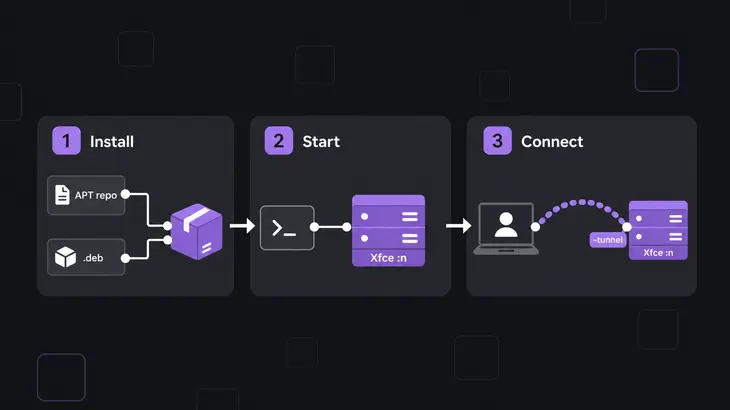
Setting up TurboVNC on Ubuntu 22.04 comes down to three steps: install xfce4 and turbovnc on the host, start a session from an SSH shell with /opt/TurboVNC/bin/vncserver :1 -wm xfce -localhost, and connect from the client with /opt/TurboVNC/bin/vncviewer -tunnel <user>@<host>:1. The session listens on 127.0.0.1:5901 and nowhere else, so SSH is the way in and the host firewall never has to open a VNC port.
The run below sticks to display :1, which is TCP 5901. Put in your own host and user, and if :1 is already taken on your host, use :2 and 5902 all the way through.
How the pieces fit together
On the host, /opt/TurboVNC/bin/vncserver starts Xvnc, which gives you a virtual X display with no monitor behind it, and puts its VNC listener on 5900 plus the display number: 5901 for :1. Once Xvnc is up, the wrapper runs xstartup.turbovnc, which launches whatever -wm names through its session desktop file, /usr/share/xsessions/xfce.desktop for Xfce. That script holds the session up. When it exits, say because you logged out of Xfce, the wrapper kills the session with it.
On the client, the TurboVNC Viewer brings its own SSH client. Give it -tunnel and it logs in to the host and forwards a free local port to localhost:5901, which is how a session started with -localhost still works from across the network.
You can drive this two ways. The Session Manager (vncviewer <user>@<host> with no display number) starts or lists your sessions over SSH, tunnels the connection and logs you in with a fresh one-time password. Use it for day-to-day desktop work. Start sessions by hand, as in the worked run, when you want the options in front of you on the command line or you're scripting the start.
Pick Xfce when the host has no GPU acceleration set up. GNOME and KDE composite through OpenGL, which TurboVNC can only render in software without VirtualGL or DRI3, so it recommends MATE or Xfce for a host like that. VirtualGL only comes into it for a compositing desktop such as GNOME on a host where VirtualGL is already installed. Then you add -vgl to the vncserver line, or set $useVGL=1; in /etc/turbovncserver.conf or ~/.vnc/turbovncserver.conf.
Prepare the host: SSH access and a desktop
You need an account you can SSH into with sudo, and a desktop for the session to run. Skip the desktop and the session has nothing to launch, so it dies the moment it starts. On Ubuntu 22.04 the tested Xfce build is 4.16, packaged as xfce4:
sudo apt install xfce4
ls /usr/share/xsessions/
Check that the listing includes xfce.desktop, the file -wm xfce points at. xfce4 gives you the bare desktop; if your users want the usual Xubuntu applications as well, sudo apt install xubuntu-desktop pulls in the full set.
Install TurboVNC from the project's APT repository
Go with the project's APT repository, so apt upgrade keeps TurboVNC current along with everything else. Add the signing key and the source list, then update and install:
wget -q -O- https://packagecloud.io/dcommander/turbovnc/gpgkey | gpg --dearmor | sudo tee /etc/apt/trusted.gpg.d/TurboVNC.gpg >/dev/null
sudo wget -q -O /etc/apt/sources.list.d/TurboVNC.list https://raw.githubusercontent.com/TurboVNC/repo/main/TurboVNC.list
sudo apt update
apt-cache madison turbovnc
sudo apt install turbovnc
apt-cache madison should list a 3.3.1 build, the current release as of October 2026. If the host can't reach packagecloud, install the release .deb with dpkg -i and let apt install -f pull in the dependencies:
wget https://github.com/TurboVNC/turbovnc/releases/download/3.3.1/turbovnc_3.3.1_amd64.deb
sudo dpkg -i turbovnc_3.3.1_amd64.deb
sudo apt install -f
Either way, the programs land in /opt/TurboVNC/bin, which is how TurboVNC sits next to another VNC package without stepping on it. It's also the trap. Type a bare vncserver on a host that has TigerVNC too and you can start the wrong server, so call the binaries by full path.
Install the same package on a Linux client and you get /opt/TurboVNC/bin/vncviewer. On Mac and Windows, take the .dmg or .exe from the release.
Start the session and connect through SSH
SSH to the host and start the session from that shell. Keep :1 as the first argument. The wrapper only looks for the display number at the front of the line, so if you put it behind an Xvnc option such as -localhost, it isn't read as the display: the wrapper picks the next free one itself and hands your :1 to Xvnc as a stray argument.
ssh <user>@<host>
/opt/TurboVNC/bin/vncserver :1 -wm xfce -localhost
The first run in an account greets you with You will require a password to access your desktops., then asks for Password: and Verify:. Give it 6 to 8 characters. Anything shorter gets Password too short and the start aborts, and anything longer is cut to 8 with a warning, so the extra characters never count. Answer n to the view-only question for now. Then come the lines that matter:
Desktop 'TurboVNC: <hostname>:1 (<user>)' started on display <hostname>:1
Log file is /home/<user>/.vnc/<hostname>:1.log
Check the listener before you move to the client. With -localhost, Xvnc accepts IPv4 loopback connections only, so ss should show 127.0.0.1:5901 and nothing on 0.0.0.0:5901:
ss -tln | grep 5901To stop typing -wm xfce, put $wm="xfce"; in ~/.vnc/turbovncserver.conf. That per-user file wins over the system-wide one.
On the client, connect through the viewer's tunnel:
/opt/TurboVNC/bin/vncviewer -tunnel <user>@<host>:1You get the SSH login first, then the VNC password prompt, then a window with the Xfce desktop. Any VNC viewer can ride the same tunnel if you build it yourself, with the ssh in one terminal and the viewer in a second; that's all -tunnel does for you. The double colon in localhost::5901 means a TCP port, not a display:
ssh -L 5901:localhost:5901 <user>@<host>
/opt/TurboVNC/bin/vncviewer localhost::5901
For the Session Manager, skip the host-side start and run /opt/TurboVNC/bin/vncviewer <user>@<host>. The host needs TurboVNC Server 3.0 or later under /opt/TurboVNC. Watch the desktop it picks. With no -wm, the session takes the first of gnome, ubuntu, mate and xfce that has a desktop file, so on a host that also has GNOME you land in GNOME unless you've set $wm="xfce"; as above.
Check the session, and fix a start that failed
On the host, vncserver -list shows the sessions running under your account:
/opt/TurboVNC/bin/vncserver -listYour session shows up as :1 under X DISPLAY #, with its process ID next to it. In the viewer, open a terminal from the Xfce menu; if it takes your typing, you're done. When something fails, read the log the start named:
tail -n 30 ~/.vnc/$(uname -n):1.log-listis empty right after a start, and the log hasThe session desktop file for the 'xfce' window manager was not found at: /usr/share/xsessions/xfce.desktop. Xfce isn't installed, so the startup script fails and takes the session with it. Runsudo apt install xfce4and start again.Password too shorton the first run, and no session. The password was under 6 characters. Start again and give it 6 to 8.Wrong type, ownership, or permissions onfollowed by your~/.vnc/passwdpath. The wrapper refuses a password file you don't own, or one that group or others can read. Runchmod 600 ~/.vnc/passwd, check the file belongs to you, and start again.A VNC server is already running as :1. Display:1is in use. Run-list; if it's your session, connect to it or kill it, otherwise start on:2and connect to<host>:2.WARNING: <hostname>:1 is taken because of /tmp/.X1-lockwithRemove this file if there is no X server <hostname>:1. A session crashed and left its lock files. If-listandss -tln | grep 5901show nothing, runsudo rm -f /tmp/.X1-lock /tmp/.X11-unix/X1and start again.vncviewer <host>:1without-tunnelfails to connect. The session runs with-localhostand only takes loopback connections. Connect with-tunnel <user>@<host>:1, or open a direct path as below.
Make loopback-only the rule, or open a direct path
-localhost covers only the session you start with it. To make loopback-only the rule for every new session on the host, Session Manager sessions included, turn on no-remote-connections. It ships commented out in /etc/turbovncserver-security.conf, and the grep prints the line back once it's live:
sudo sed -i 's/^#no-remote-connections/no-remote-connections/' /etc/turbovncserver-security.conf
grep '^no-remote-connections' /etc/turbovncserver-security.conf
Keep it that way if you can. Loopback listeners behind SSH tunnels keep a TurboVNC session off the network entirely. If a client really can't use SSH, leave no-remote-connections commented out, kill the loopback session with /opt/TurboVNC/bin/vncserver -kill :1, start it again without -localhost, open 5901 in ufw to the client network only, and connect to the display directly:
/opt/TurboVNC/bin/vncserver :1 -wm xfce
sudo ufw allow proto tcp from <client-subnet> to any port 5901
/opt/TurboVNC/bin/vncviewer <host>:1
ss -tln | grep 5901 now shows 0.0.0.0:5901. Then look at sudo ufw status. Ubuntu leaves ufw off after install, and while it's off your subnet rule restricts nothing. sudo ufw enable turns it on; if you're connected over SSH, run sudo ufw allow 22/tcp before that.
Without a tunnel the TurboVNC Viewer uses Anonymous TLS, which encrypts the traffic but presents no certificate, so the viewer can't tell whether it reached the right host. TLS is only the first type on the session's default list, though, and plain VNC is still on it, so a viewer without VeNCrypt support connects unencrypted. Add -securitytypes TLSVnc to the vncserver line to turn those viewers away. Keep direct connections to networks you trust.
Stop the session
Closing the viewer only disconnects. The session keeps running, along with whatever you started in it, and you can reconnect later. To end it, log out of Xfce inside the session, or kill it from an SSH shell on the host:
/opt/TurboVNC/bin/vncserver -kill :1
/opt/TurboVNC/bin/vncserver -list
-kill answers with Killing Xvnc process ID and the PID, and the second -list no longer shows :1. The package does install a tvncserver service, but it's preset to disabled and only starts the displays listed in /etc/sysconfig/tvncservers, so no session comes back after a reboot; you start the next one the same way.
Someone who only needs to watch gets a password of their own: run /opt/TurboVNC/bin/vncpasswd again, set the full-control password, answer y to the view-only question and hand them the second password. Xvnc ignores mouse and keyboard input from a viewer that logs in with it.
FAQs
How do I change the size of the remote desktop?
Usually you don't have to. The viewer's DesktopSize parameter defaults to Auto, which resizes the remote desktop to fit the viewer window, so dragging the window or going fullscreen resizes Xfce with it. For a fixed size, start the session with -geometry, which otherwise defaults to 1240×900, and set DesktopSize to Server so the viewer keeps that size:
/opt/TurboVNC/bin/vncserver :1 -wm xfce -localhost -geometry 1920x1080
/opt/TurboVNC/bin/vncviewer -DesktopSize Server -tunnel <user>@<host>:1
Are there official TurboVNC RPM packages?
Yes. The project builds RPM and .deb packages for Linux distributions with GLIBC 2.17 or later. On RHEL 8 or later and Fedora, drop TurboVNC.repo into /etc/yum.repos.d and run sudo dnf install turbovnc; the session commands match the Ubuntu ones.