Not on a network you don't trust. At login the viewer sends back a DES-encrypted challenge, never the password itself, and after that TightVNC sends the rest of the traffic unencrypted, so anyone on the path can watch your desktop and anyone who can reach port 5900 can go to work on the password. On a LAN you trust it's a workable tool. Anywhere else, keep it on loopback and come in over SSH.
Before you change anything, find out what your server is doing now: which version is installed, what's listening on 5900 and 5800, and whether the network you're worried about can reach it. Each of those is one PowerShell command.
What the VNC password protects, and what it doesn't
Only the login. When you connect, the server sends a random 16-byte challenge and your viewer encrypts it with DES, using your password cut to eight characters as the key. Once that passes, the session runs in clear, and RFB gives you no protection against anyone watching or tampering with the stream.
Two things follow for your passwords. A 20-character passphrase is really an eight-character password, because nothing past the eighth character counts. And the view-only password you set next to the primary one isn't a safe thing to hand out: that viewer can't take control, but it still gets your whole desktop, unencrypted.
Check the version first
The worst published TightVNC bugs are fixed in newer releases, so start there. On the server:
Get-ItemProperty 'HKLM:\Software\Microsoft\Windows\CurrentVersion\Uninstall\*' | Where-Object DisplayName -like 'TightVNC*' | Select-Object DisplayName, DisplayVersionYou get a row per TightVNC install with its DisplayName and DisplayVersion, and the version is the MSI's product version. Older than 2.8.88? Upgrade before you tune anything else. These are the records that set the floor:
| Record | What it fixes | Published |
|---|---|---|
| CVE-2023-27830 | Before 2.8.75, an attacker can swap in crafted files during a file transfer and escalate privileges on the host (CVSS 9.0). | April 12, 2023 |
| CVE-2024-42049 | Before 2.8.84, attackers can connect to the server’s control pipe over the network (CVSS 9.1). | July 28, 2024 |
| 2.8.87 | A bug that could let an authenticated user cause a denial of service. Low risk, but upgrade anyway. | March 30, 2026 |
| 2.8.88 | Potential crashes, hangs and unsafe memory access in Server and Viewer. | June 19, 2026 |
2.8.88 also tightens the link between the server and its control app. The internal channels get unpredictable names, and screen-hook DLLs load only from the TightVNC or Windows system directory. 2.8.84 was the release that stopped passing passwords through the control pipe.
What a default install leaves open
TightVNC installs as a service with two listeners. Viewers connect on 5900, and a small web server on 5800 hands the Java Viewer to any browser that asks. Each service option has an MSI property of the same name, and these are the defaults:
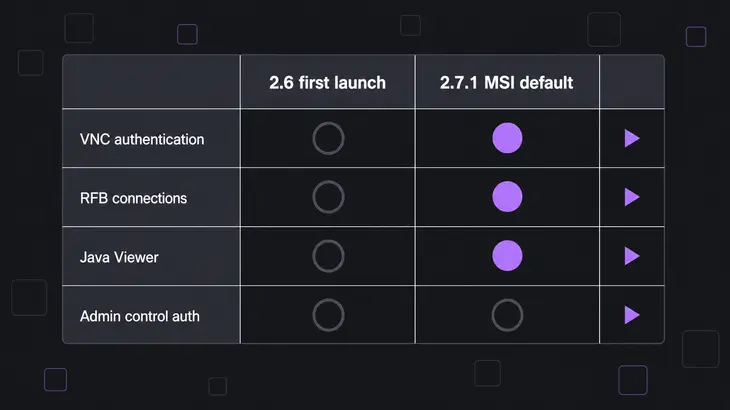
| Setting (MSI property) | Default in the 2.7.1 MSI docs | What it means |
|---|---|---|
ACCEPTRFBCONNECTIONS |
1 | Viewers can connect on RFBPORT 5900. |
ACCEPTHTTPCONNECTIONS |
1 | The Java Viewer is served on HTTPPORT 5800. |
USEVNCAUTHENTICATION |
1 | Viewers must give the VNC password. |
USECONTROLAUTHENTICATION |
0 | The control interface has no administrative password. |
LOOPBACKONLY |
0 | Connections from any address are accepted. |
ALLOWLOOPBACK |
0 | Connections from the machine itself are refused. |
Read the last three rows together. With LOOPBACKONLY at 0, anyone who can route to the box can try a password. ALLOWLOOPBACK at 0 refuses the machine itself, and USECONTROLAUTHENTICATION at 0 leaves control operations without an administrative password. If you installed it by hand, the first launch is stricter: the server won't take connections until you set passwords or deliberately cancel VNC authentication, and it warns you that cancelling is unsafe.
Those defaults come from the 2.6 and 2.7 docs, so look at what your own server is doing. In an elevated PowerShell on the server, list the listening sockets:
Get-NetTCPConnection -State Listen -LocalPort 5900,5800 -ErrorAction SilentlyContinue | Select-Object LocalAddress, LocalPort, OwningProcessA row for 5800 means the Java Viewer web server is up. A LocalAddress of 0.0.0.0 or :: means the socket is bound on every interface, so whether outsiders get in comes down to your firewall and TightVNC's access rules. No rows at all means nothing listens on either port: the service is stopped, or someone moved it with RFBPORT.
Who can reach port 5900
Run a TCP test from a machine on the network you're worried about:
Test-NetConnection <server-host> -Port 5900TcpTestSucceeded : True means that network reaches TightVNC directly. From there, anyone on the path can watch a session or start guessing the password. False means the connection doesn't get through from there, and that's the answer you're after from the internet side.
For a server that has to stay reachable on a trusted LAN, narrow who gets in. Firewall rules do it, and so do TightVNC's own IP-range rules. Each rule is IP1-IP2:{0|1|2}, where 0 allows, 1 denies and 2 asks the local user, with commas between rules. Nobody at the console to answer? An unanswered prompt rejects the connection by default. None of this encrypts anything, so traffic that crosses a network you don't control goes through SSH.
Lock it to loopback and come in over SSH
The setup that holds up: TightVNC accepts loopback connections only, sshd on the same machine is the one way in, and your viewer rides the SSH tunnel. In this run, local port 5901 on your workstation forwards to 5900 on the server.
Start with OpenSSH Server on the TightVNC host. It needs Windows 10 1809 or Server 2019 or later, and Server 2025 already has it, so there you only start the service. Installing it creates the OpenSSH-Server-In-TCP firewall rule for port 22, so you don't open anything by hand.
Add-WindowsCapability -Online -Name OpenSSH.Server~~~~0.0.1.0
Start-Service sshd
Set-Service -Name sshd -StartupType 'Automatic'
Then reinstall TightVNC with loopback-only access, the Java Viewer off, and both the VNC password and the admin password set. Every option is a pair of properties: SET_X=1 switches the change on, and VALUE_OF_X is ignored unless its SET_ partner is 1.
msiexec /i <tightvnc-setup-64bit.msi> /quiet /norestart SET_LOOPBACKONLY=1 VALUE_OF_LOOPBACKONLY=1 SET_ALLOWLOOPBACK=1 VALUE_OF_ALLOWLOOPBACK=1 SET_ACCEPTHTTPCONNECTIONS=1 VALUE_OF_ACCEPTHTTPCONNECTIONS=0 SET_USEVNCAUTHENTICATION=1 VALUE_OF_USEVNCAUTHENTICATION=1 SET_PASSWORD=1 VALUE_OF_PASSWORD=<vnc-password> SET_USECONTROLAUTHENTICATION=1 VALUE_OF_USECONTROLAUTHENTICATION=1 SET_CONTROLPASSWORD=1 VALUE_OF_CONTROLPASSWORD=<admin-password>These properties only configure the service-mode server. If someone runs TightVNC in application mode, this command doesn't touch its settings.
The one that bites is ALLOWLOOPBACK. It defaults to 0, and your tunnel arrives from sshd on the same machine, so LOOPBACKONLY=1 on its own locks out everyone, you included. Set both, then check them in the server's configuration window under Access Control, Loopback connections.
Now open the tunnel from your workstation and leave it running. With -N ssh runs no remote command and just forwards, so a silent terminal is what working looks like.
ssh -N -L 5901:localhost:5900 <user>@<server-host>Point TightVNC Viewer at localhost::5901. The double colon means a TCP port, which is the unambiguous way to name the tunnel's local end. You should get the VNC password prompt through the tunnel, while a viewer aimed straight at <server-host> no longer gets in. Tunnel up and the viewer still refused? ALLOWLOOPBACK is still 0.
Running TightVNC on Linux
The Linux side of TightVNC is the old Unix server, and old is the word: 1.3.10 dates from March 2009, and Debian 13 still ships it as tightvncserver 1:1.3.10-9. The wrapper lands as tightvncserver and the X server as Xtightvnc, with vncserver and Xvnc pointing at them as alternatives.
This Xvnc has many known security problems, and the fix is the one you used on Windows: loopback only, SSH for remote access. Debian has patched the 2019 overflow bugs such as CVE-2019-15678 in its package, but no patch makes the protocol encrypt your session.
Start display :1 on loopback only and check the socket with ss:
sudo apt install tightvncserver
tightvncserver :1 -localhost
ss -tln | grep 5901
The first run asks you for a password, because there's no ~/.vnc/passwd yet. Type more than eight characters and vncpasswd keeps the first eight and prints Warning: password truncated to the length of 8.; under six it stops with Password too short and the server doesn't start. The wrapper then prints New '...' desktop is <host>:1.
-localhost tells Xtightvnc to accept loopback connections only, and :1 sits on port 5901, 5900 plus the display number. Expect ss to print 127.0.0.1:5901. The session log at ~/.vnc/<host>:1.log has the matching Listening for VNC connections on TCP port 5901 line. If ss shows 0.0.0.0:5901 instead, the flag never reached Xtightvnc.
From your workstation, let the viewer build the tunnel itself:
xtightvncviewer -via <user>@<server-host> localhost:1With -via, localhost means the gateway you SSH into, not your own machine, so localhost:1 is display :1 on the server. When you're done, tightvncserver -kill :1 stops the session and prints the ID of the Xtightvnc process it killed.
The one decision left is who needs this box from outside a network you trust. Give each of those people an SSH login on the host, not a route to port 5900.
FAQs
Does TightVNC lock the screen when the viewer disconnects?
Not by default. DISCONNECTACTION is 0, do nothing, in the 2.7.1 MSI table, so when the last viewer drops, the console keeps whatever state you left it in, and a desktop you were working on stays unlocked for whoever sits down at it. Set it to 1 to lock the desktop or 2 to log the user off, at install time with SET_DISCONNECTACTION=1 VALUE_OF_DISCONNECTACTION=1 or in the configuration window under Administration, When Last Client Disconnects.
When should I use vncpasswd -t?
When your home directory sits on a network share such as NFS. vncpasswd -t writes the password to /tmp/$USER-vnc/passwd instead of ~/.vnc/passwd and checks that the directory is mode 700; Debian installs the tool as tightvncpasswd, with vncpasswd as the alternative name.