VNC is two programs and one TCP connection. The server runs on the machine you want to control and owns its screen. The viewer runs where you sit, asks for screen rectangles over the RFB protocol and draws the pixels that come back, while your keystrokes and mouse moves travel the other way on the same connection. The screen the server sends is either a virtual display it creates or one that's already running.
The other half of the picture is where the server listens. Bound to every address, it takes viewers straight on the display's TCP port. Bound to localhost, it only takes connections from its own machine, and a remote viewer comes in through an SSH tunnel.
One port per display, one connection per viewer
The server listens on TCP port 5900 plus its display number, so display :1 answers on 5901 and :2 on 5902. Everything goes over that one connection: the screen one way, your keyboard and mouse the other.
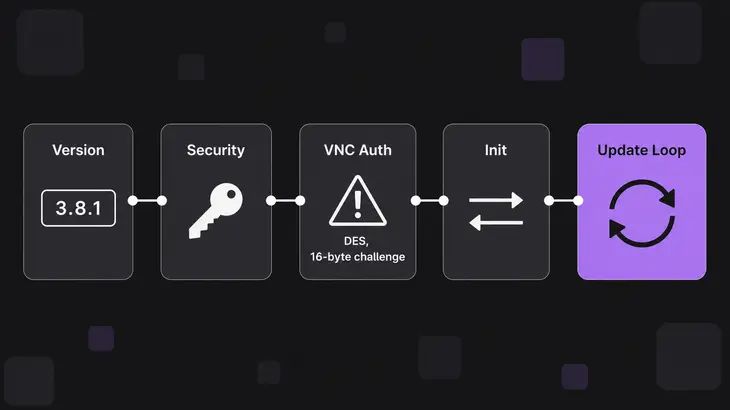
Each connection goes through three stages. First the two ends settle the protocol version and the security type, then they set up the screen, and from then on it's a loop. In the baseline protocol the server sends framebuffer updates only when the viewer asks for them, so your viewer sets the pace of what you see. TigerVNC's viewer switches on the continuous updates extension when the server offers it, as Xvnc does, and from then on the server sends changes without waiting to be asked. Your input goes back to the server as you type and click.
Where the server's screen comes from
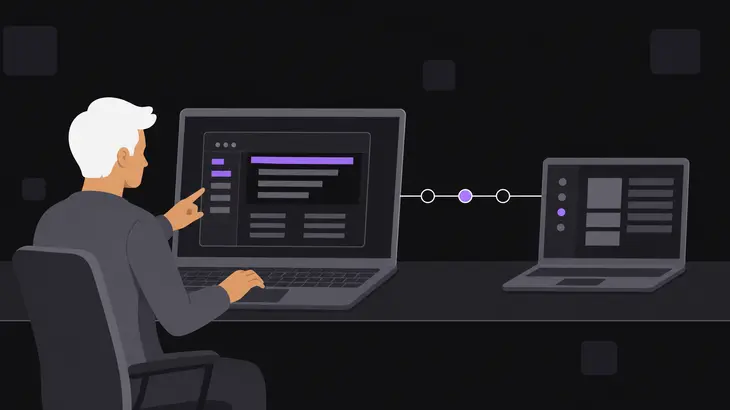
With TigerVNC you have two choices: give the viewer a fresh X display of its own, or share the one already on the monitor.
Xvnc is the fresh one. To applications it's an X server and to remote users it's a VNC server, and its VNC display number is the X display number, so <server-host>:1 means the same display on both sides.
Xvnc :1 -PasswordFile ~/.config/tigervnc/passwdStart it by hand like this and you get an empty X display with nothing running on it. The systemd service starts it through vncsession instead, which also sets up the user session and launches the desktop. That's the path you want on a real host.
x0vncserver shares the X display that's already running, usually the one on the physical screen. It uses XDamage to learn which pixels changed when the X server supports it, and falls back to polling the screen. It needs an X server on that display, so a Wayland login gives it nothing to share.
x0vncserver -display :0 -PasswordFile ~/.config/tigervnc/passwdUse Xvnc for headless hosts and per-user sessions, and x0vncserver when you need to work in the session that's already on screen. Other implementations make the same split: RealVNC Server's Service Mode remotes the console and its Virtual Mode creates a private desktop, and x11vnc shares an X display that's already running.
What the viewer and the server say to each other
Version and security type
The server opens. It sends its highest supported version as a 12-byte string such as RFB 003.008\n, and the viewer replies with the version both will use. That string is the first thing on the wire whenever anything connects to the port, so it's also the quickest sign the server is alive.
Next the server lists the security types it supports and the viewer picks one. On 3.8 the server then always sends a security result before initialization. A 3.7 server skips it for None, and a 3.3 server picks the type itself instead of offering a list. You control that choice on the server, because a viewer chooses from whatever list it's offered. Once the two agree on an extended type, the traffic that follows can run over an encrypted or otherwise altered channel.
The baseline type, VNC Authentication, proves the viewer knows a password. The server sends a 16-byte challenge and the viewer encrypts it with DES, using the password as the key, truncated to eight characters or padded with nulls. The scheme is cryptographically weak, so keep it off untrusted networks. TigerVNC's TLSVnc and X509Vnc run the same check inside TLS, and the password rule doesn't change.
Then comes initialization, which is two messages: the viewer sends ClientInit and the server answers with ServerInit.
Update requests, rectangles and input
From here the viewer drives. It can send SetPixelFormat to pick a pixel format and SetEncodings to list the encodings it accepts; without them, pixels use the server's format from ServerInit. Each FramebufferUpdateRequest names a screen rectangle, and since the viewer keeps its own copy of the framebuffer, the server normally replies with just the changes.
Your input rides the same connection. KeyEvent carries a key and PointerEvent a mouse action, both sent whenever you act, in between update requests, and the changed pixels come back in the next update. A busy update stream and your keystrokes share the one TCP path.
The protocol defines six encodings, Raw, CopyRect, RRE, Hextile, TRLE and ZRLE, and the server treats the order the viewer gave in SetEncodings as a hint. Raw is pixel data in left-to-right scan-line order. CopyRect tells the viewer to copy pixels it already holds from elsewhere in its framebuffer, so when you drag or scroll a window, the server can send one CopyRect for the moved area instead of resending it all as Raw. The rest trade CPU for bytes. ZRLE compresses 64×64 tiles with zlib, and TigerVNC's viewer asks for Tight, an extension encoding with JPEG, whenever automatic selection is on, and Xvnc encodes in the viewer's first choice, so Tight is what you see negotiated between TigerVNC ends. That's what keeps a slow link usable.
Start a display, connect to it and stop it
The steps use the upstream names that Fedora and RHEL ship: package tigervnc-server and unit vncserver@.service. Display :1, port 5901, goes to <user>, and the few pieces that are named differently on Debian and Ubuntu are listed right after the steps.
Bring up a display
-
Install the server and the viewer, and check there's a desktop session to run. The service looks in
/usr/share/xsessions, and with nothing there it dies withCould not find a desktop session to run.sudo dnf install tigervnc-server tigervnc ls /usr/share/xsessions -
As
<user>, not root, set the VNC password. It goes to~/.config/tigervnc/passwd, and without it the service refuses to start withVNC authentication enabled, but no password file created.The same file servesVncAuth,TLSVncandX509Vnc, and VncAuth uses only its first eight characters. Fedora 42 and 43, and RHEL 9.7 and later, ship TigerVNC 1.15, whosevncpasswdrefuses a longer one withPassword should not be greater than 8 characters.vncpasswd -
As
<user>, pick the desktop. Thesessionvalue is the name of a.desktopfile from that listing, without the extension.echo 'session=<session>' >> ~/.config/tigervnc/config -
Map the display to the user in
vncserver.users. It takes one line per display, so one host can serve several users.echo ':1=<user>' | sudo tee -a /etc/tigervnc/vncserver.users -
Start the display and enable it at boot. If
<user>is already logged into a graphical session on this host, the start fails, so log that session out first.sudo systemctl enable --now vncserver@:1 -
Check it. You want
active (running)from the unit and a LISTEN line on port 5901 fromss:0.0.0.0:5901when it listens on every address,127.0.0.1:5901whenlocalhostis set. If the unit isn't running, its session log at~/.local/state/tigervnc/<host>:1.logshows why.systemctl status vncserver@:1 ss -tln | grep 5901 -
Stop the display by stopping its unit. Other displays keep running.
sudo systemctl stop vncserver@:1
What changes on Debian and Ubuntu
The steps are the same, with these differences:
- Packages:
sudo apt install tigervnc-standalone-server tigervnc-tools tigervnc-viewer. Thevncpasswdandvncviewercommands work as written, because the packages register them as alternatives fortigervncpasswdandxtigervncviewer. - Unit: the service is
tigervncserver@.service, so start it withsudo systemctl enable --now tigervncserver@:1and stop it withsudo systemctl stop tigervncserver@:1. The/etc/tigervnc/vncserver.usersfile is the same. - Listener: the Debian wrapper listens on localhost only unless you pass
-localhost no, or the security types include a TLS or X509 type and no*Nonetype. Its default type isVncAuth, so a fresh display takes viewers only through the SSH tunnel, and thesscheck shows127.0.0.1:5901. With-localhost nothe default becomesVncAuth,TLSVnc, so a viewer can still pick plain VncAuth. - Paths: Debian 13 keeps the password and config in
~/.config/tigervnc/and writes the log there too, as<host>:1.log. Ubuntu 24.04 ships TigerVNC 1.13.1, which keeps the password, config and logs in~/.vnc/instead. - Password length: Debian 13's 1.15 refuses more than eight characters, as in step 2. Ubuntu 24.04's 1.13.1 takes a longer password and keeps only the first eight.
- Geometry: with no
geometryline, the Debian wrapper creates a 1920×1200 desktop, not Xvnc's 1024×768.
Connect straight to the display
A direct connection needs the display's port open. With firewalld, the vnc-server service covers TCP 5900 to 5903, which is displays :0 to :3:
sudo firewall-cmd --permanent --add-service=vnc-server
sudo firewall-cmd --reload
With the Debian wrapper's defaults, a display won't take a direct connection at all, because it only listens on localhost (see the differences above). Use the tunnel in the next section there, or change the listener first.
Connect with the server address and the display number. <server-host>:1 means display 1, and <server-host>::5901 names the TCP port instead. Add -Shared when someone is already working on that display, or the server closes their connection when yours comes in. Once the server answers, the viewer asks you for the VNC password.
vncviewer -Shared <server-host>:1A reverse connection flips the roles: the viewer listens on port 5500 and the server opens the connection with vncconfig -connect. Run the first line on the viewer host and the second on the server, inside the session.
vncviewer -listen
vncconfig -display :1 -connect <viewer-host>
Come in through SSH when the display is bound to localhost
A localhost display only takes connections from its own machine, so you come in through an SSH tunnel that ends on the server's loopback. You can build the tunnel yourself or let the viewer do it. With the TigerVNC viewer, use -via day to day, and build the tunnel by hand when your viewer has no such option.
-
On the viewer host, forward local port 5901 to port 5901 on the server and leave that session open. The
localhostin the forward resolves on the server.ssh -L 5901:localhost:5901 <user>@<server-host> -
In a second terminal on the viewer host, point the viewer at the local end of the tunnel.
localhost:1is port 5901 on your own machine.vncviewer localhost:1 -
Or let the viewer build the encrypted tunnel in one step; here
localhostmeans the server. The viewer runsssh -f -L ... sleep 20for you before it connects, so any SSH login prompt shows up in this terminal before the VNC password prompt.vncviewer -via <server-host> localhost:1
Screen size, color depth and update rate
geometry sets the width and height of the virtual screen Xvnc creates, and depth sets its color depth. On both Xvnc and x0vncserver, the frame-rate limit caps how many updates each client gets per second. For a service-started display, put the settings in ~/.config/tigervnc/config, one per line, and restart the unit; the service hands each line to Xvnc as an option.
geometry=<width>x<height>
depth=<depth>
framerate=<fps>| Setting | Server program | Default | Effect |
|---|---|---|---|
| Geometry | Xvnc |
1024x768 |
Sets the width and height of the virtual desktop. |
| Depth | Xvnc |
24 |
Sets the color depth of the virtual desktop; 16 and 32 are the other values. |
| Frame rate | Xvnc, x0vncserver |
60 frames per second | Limits each client’s outbound update rate. |
x0vncserver -display :0 -PasswordFile ~/.config/tigervnc/passwd -FrameRate <fps>Changes that arrive faster than the frame-rate limit allows get merged into one update. Lower <fps> and you send fewer updates, but the viewer can wait up to one frame interval for a change, which you'll notice as latency on a fast-changing screen. Raise it and that wait shrinks, with more updates per second on the link.
Decide who can connect and how they authenticate
Two things decide who gets in. The address the listener is bound to decides which hosts can reach the port at all, and the security types the server offers decide how a viewer authenticates once it's there. Upstream Xvnc listens on all interfaces and offers TLSVnc,VncAuth by default. Three config lines change that:
localhostis the service template's way to keep remote viewers out unless they come through a tunnel. Set it when viewers should only arrive over SSH.nolisten=tcpstops X clients from connecting to the VNC server's X display over TCP. It's about X traffic, not VNC viewers, so it doesn't replacelocalhost.securitytypes=tlsvncofferstlsvncand nothing else. The viewer can only pick from that list, so it can't fall back to unencryptedvncauth.
Put the lines in ~/.config/tigervnc/config for one user, or in /etc/tigervnc/vncserver-config-mandatory to force them on every display. Restart the unit and run the ss check again: it now shows 127.0.0.1:5901.
localhost
nolisten=tcp
securitytypes=tlsvnc
The Debian wrapper needs the localhost line even more once you set securitytypes=tlsvnc, because a TLS type with no *None type is exactly the case where it starts listening on every address. Off a trusted LAN, keep localhost, leave the vnc-server firewall service closed, and connect with -via.
When the display won't start or the viewer can't reach it
- The unit fails with
Could not find a desktop session to runin the session log. There's no.desktopfile in/usr/share/xsessions. Install a desktop environment, then setsession=to one of the names that directory lists. - The desktop is the wrong one. A
session=value that doesn't match a file logsCould not load configured desktop sessionand falls back to the first session it finds. TheUsing desktop sessionline in the same log names the one it picked. VNC authentication enabled, but no password file created.Runvncpasswdas<user>(step 2), then start the unit again.A VNC server is already running as :1. Something already holds display 1: a live X server behind/tmp/.X1-lock, or another process on port 5901 or 6001. Stop it, or map<user>to a free display invncserver.users.- The log isn't where you expect. The session log keeps the previous run as
<host>:1.log.old, and if~/.vncexists while~/.local/state/tigervncdoesn't, vncsession keeps writing to~/.vnc. When the script exits with an error,journalctl -u vncserver@:1showsvncserver exited with status=and the code. - The viewer's error ends in
Connection refused. Nothing listens on that address and port: the unit is down, the display number doesn't match the port, or the listener is bound to localhost. Run thesscheck from step 6 on the server. If it shows127.0.0.1:5901, come in through the tunnel. - The viewer gives up with a timeout. Something on the path drops the packets: a network firewall, a cloud security group, or a firewalld zone whose target is
DROP. firewalld's default target rejects instead, so a port it hasn't opened fails at once rather than timing out. Open the port on whatever is dropping it.
Make vncviewer -via <server-host> localhost:1 your everyday command: it builds the tunnel, connects and asks for the password in one go.
FAQs
Does x0vncserver need a TCP port when systemd starts it?
Not one of its own. When a systemd socket activates x0vncserver, its -rfbport default is -1, so it opens no TCP listener itself. Started directly, it listens on TCP port 5900. Add -localhost to keep it to same-machine connections and come in over an SSH tunnel:
x0vncserver -display :0 -localhost -PasswordFile ~/.config/tigervnc/passwdHow does Xvnc know which parts of the screen changed?
It doesn't have to look. Xvnc is the X server, so it wraps the X drawing operations and records the region each one touches as changed. When a window moves, it records a copy instead, which goes out as a CopyRect to a viewer that accepts that encoding; a viewer that doesn't gets the moved area as ordinary changed pixels. That's the edge it has over x0vncserver, which sits outside the X server it shares.