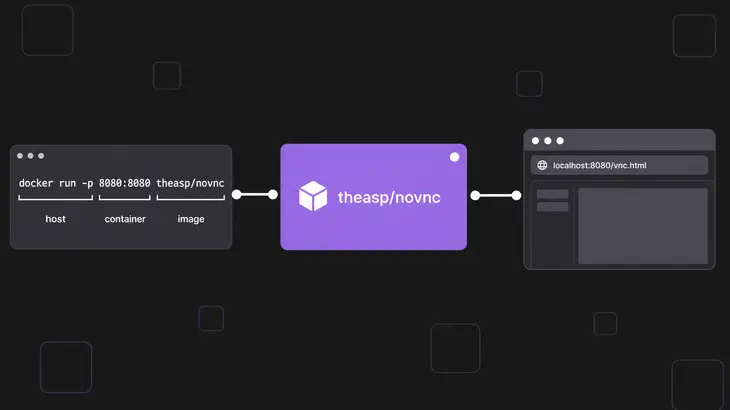
One command gets you a Linux desktop in a browser tab. Run docker run --rm -it -p 8080:8080 theasp/novnc on the Docker host, then open http://<server>:8080/vnc.html, where <server> is that host. The theasp/novnc image carries the whole chain, a virtual display, a VNC server and the noVNC client, so nothing gets installed on the host or on your machine.
Before you paste that line on a server, know what it opens: port 8080 on every interface, no VNC password, and a root shell on the other end. That's fine on your own laptop. Anywhere else, use the loopback version further down.
What runs inside the container
browser --HTTP and WebSocket, :8080--> websockify --TCP localhost:5900--> x11vnc --X11--> Xvfb :0supervisord starts every piece and restarts anything that dies. Xvfb draws :0 in memory and x11vnc serves it as VNC. Fluxbox manages the windows, and an xterm opens so you have something to look at.
noVNC only talks WebSocket, so websockify sits at the front: its one command line relays the browser's WebSocket to localhost:5900, and --web has the same port serve the vnc.html page. Only 8080 leaves the container.
The Dockerfile installs all of it from bullseye, including noVNC 1.0.0, which is well behind current upstream, so expect its menus to look different from recent screenshots. You need Docker Engine with your user able to run docker, a free port 8080 on an x86-64 host (the latest tag is built for amd64 only), and a browser that can reach the host, or an SSH client if you tunnel.
Start it with docker run
-
On the Docker host, start the container in the foreground. These values give a 1280×800 desktop:
docker run --rm -it -p 8080:8080 -e DISPLAY_WIDTH=1280 -e DISPLAY_HEIGHT=800 theasp/novncThe terminal stays attached and shows supervisord's log. When everything is up you get one
success:line per program, such asINFO success: x11vnc entered RUNNING state, process has stayed up for > than 1 seconds (startsecs). -
In a second terminal, check the published port:
docker ps --filter ancestor=theasp/novncThe PORTS column includes
0.0.0.0:8080->8080/tcp: host port 8080 on all interfaces, mapped to the container's 8080. -
Open
http://<server>:8080/vnc.htmland click Connect. You won't get a password prompt, because x11vnc doesn't ask for one. noVNC reportsConnected (unencrypted) toand the Fluxbox desktop comes up with an xterm on it. Add?autoconnect=trueto the URL to skip the Connect button.
In -p 8080:8080 the first number is the host port and the second the container port, so -p 9090:8080 moves the page to http://<server>:9090/vnc.html while websockify keeps listening on 8080 inside. --rm deletes the container when it exits, and the two -e values override DISPLAY_WIDTH and DISPLAY_HEIGHT, which default to 1024 and 768. Nothing is mounted, so anything you save on that desktop is gone when the container stops.
Keep it off the open network
That -p 8080:8080 hands the desktop to anyone who can reach port 8080 on the host. The image starts x11vnc with -forever -shared, so it keeps serving after you disconnect and lets several viewers in at once. None of the options that set a VNC password, such as -rfbauth, -passwdfile or -usepw, is on that line, so it asks nobody for anything. The Dockerfile sets no USER, so that xterm is a root shell in the container, and a bare -p is published on every network interface.
Don't count on the host firewall to catch it. Docker routes published ports through the nat table, so the packets never reach ufw's rules, and on a firewalld host Docker adds its own docker zone with target ACCEPT. The publish address is what limits access. Keep the open demo for a network you trust end to end, and on a remote host publish on loopback and tunnel over SSH:
-
On the Docker host, bind the published port to 127.0.0.1:
docker run --rm -it -p 127.0.0.1:8080:8080 theasp/novncdocker psnow shows127.0.0.1:8080->8080/tcp. The Compose file below publishes the same way, with127.0.0.1:in front of the port underports. -
On your workstation, forward local port 8080 to the host's loopback.
-Nholds the tunnel open without running a remote command:ssh -N -L 8080:localhost:8080 <user>@<server-host> -
Open
http://localhost:8080/vnc.htmlon the workstation and click Connect.
The Compose version, for showing another container's app
Showing a GUI app that runs in another container is what the image was built for, and Compose is the easy way to wire it. Xvfb starts with -listen tcp -ac, which means it takes X11 clients over the network with host-based access control off. A second service on the same Compose network draws on that display by setting DISPLAY to the desktop's service name, because every service is reachable by its service name. The flip side of those two flags: any container on that network gets full X11 access to the display, so don't attach anything you don't trust.
-
Create
compose.yaml. Replace<your-x11-app-image>with the GUI app's image, or drop theappservice and theRUN_XTERMline to get the plain demo:services: desktop: image: theasp/novnc environment: - DISPLAY_WIDTH=1280 - DISPLAY_HEIGHT=800 - RUN_XTERM=no ports: - "127.0.0.1:8080:8080" app: image: <your-x11-app-image> environment: - DISPLAY=desktop:0.0 depends_on: - desktop -
Run
docker compose configto see the file as Compose will run it. It's worth the two seconds on any file you didn't write yourself, because Compose applies whatever a file asks for, privileged flags and host mounts included. -
Start both services in the background and check them:
docker compose up --detach docker compose ps--detachgives you the prompt back, anddocker compose pslists each service withUpin STATUS and127.0.0.1:8080->8080/tcpon thedesktoprow.
Reach it the same way as the loopback demo: open the SSH tunnel and browse to http://localhost:8080/vnc.html. Only on a network you trust end to end, drop the 127.0.0.1: and use http://<server>:8080/vnc.html directly. depends_on only makes Compose start desktop first; it doesn't wait for the display to be ready. If the app exits on its first start because Xvfb wasn't listening yet, docker compose restart app brings it back, the same fix the image's own Compose example gives.
When it doesn't work
docker runfails because port 8080 is taken. If another container holds it, Docker printsBind for 0.0.0.0:8080 failed: port is already allocated. Publish a different host port,-p 9090:8080, and open:9090.- The browser can't load
vnc.html. The container isn't running or the port isn't published.docker ps --filter ancestor=theasp/novncordocker compose psshows both; an empty PORTS column means the run had no-p. - The page loads, but noVNC shows
Failed to connect to server. websockify can't reach x11vnc, or x11vnc can't reach Xvfb. Every program runs withautorestart=true, so in the container log (the demo's terminal, ordocker compose logs --follow desktop) a crashing one shows up asexited: x11vnc (...; not expected)followed byspawned: 'x11vnc', again and again. That log is supervisord's own. The programs' messages go to AUTO log files under/tmpinside the container, so read the culprit's withdocker exec <container> sh -c 'tail -n 20 /tmp/x11vnc-*.log', ordocker compose exec desktopon the Compose route. - Connected, but the desktop is empty.
RUN_XTERM=nowith no app attached leaves only Fluxbox. Start theappservice, or remove theRUN_XTERMline and recreate the service. - Anything else in the browser. Load
http://<server>:8080/vnc.html?logging=debug, reproduce the problem with the JavaScript console open (Ctrl+Shift+J in Chrome, F12 in Firefox), and read the debug log.
Stopping it and cleaning up
Ctrl+C in the demo's terminal stops the container, and because of --rm Docker removes it too; docker ps --filter ancestor=theasp/novnc then prints only its header line. On the Compose route, docker compose down in the directory with compose.yaml removes the service containers and the network. Neither route mounted a volume, so nothing is left behind. Add --volumes only once you've added named volumes you want gone as well. If you tunnelled, Ctrl+C in the ssh terminal closes the forward.
If the desktop is there to show one GUI app, keep the Compose file and make it yours: swap in the real image for <your-x11-app-image>, set DISPLAY_WIDTH and DISPLAY_HEIGHT to your screen, and leave the 127.0.0.1: on the port.
FAQs
How do you stop theasp/novnc opening an xterm?
Set RUN_XTERM to false, no, n or 0. For those four values the entrypoint deletes /app/conf.d/xterm.conf and then execs supervisord, which starts only the program files left in conf.d. The match is case-sensitive, so NO or off leaves the xterm running.
Is Fluxbox enabled by default in theasp/novnc?
Yes. RUN_FLUXBOX defaults to yes, and -e RUN_FLUXBOX=no drops the window manager the same way, before supervisord starts.
Can you use a desktop VNC viewer instead of the browser?
Yes. x11vnc listens on 5900, its default port, but only 8080 is published. Publish 5900 next to it, on loopback:
docker run --rm -it -p 127.0.0.1:8080:8080 -p 127.0.0.1:5900:5900 theasp/novncOn the Docker host, point the viewer at localhost:0, which is display 0 on port 5900. From your workstation, forward the port first with ssh -N -L 5900:localhost:5900 <user>@<server-host> and connect the viewer to localhost:0 there. It's the same session the browser gets, with no password, so keep the 127.0.0.1:.
Does the desktop play sound?
No. The image installs no sound server, and the core VNC protocol carries no audio stream; its only sound is a Bell message. An app that needs audio has to send it some other way.